How to repair an STL file that won't print
If the slicer reports errors or the print comes out with missing parts, the STL file is probably faulty. How to repair it in Bambu Studio, PrusaSlicer and Blender, and what to do when automatic repair isn't enough.
Procedure verified on against the official sources.
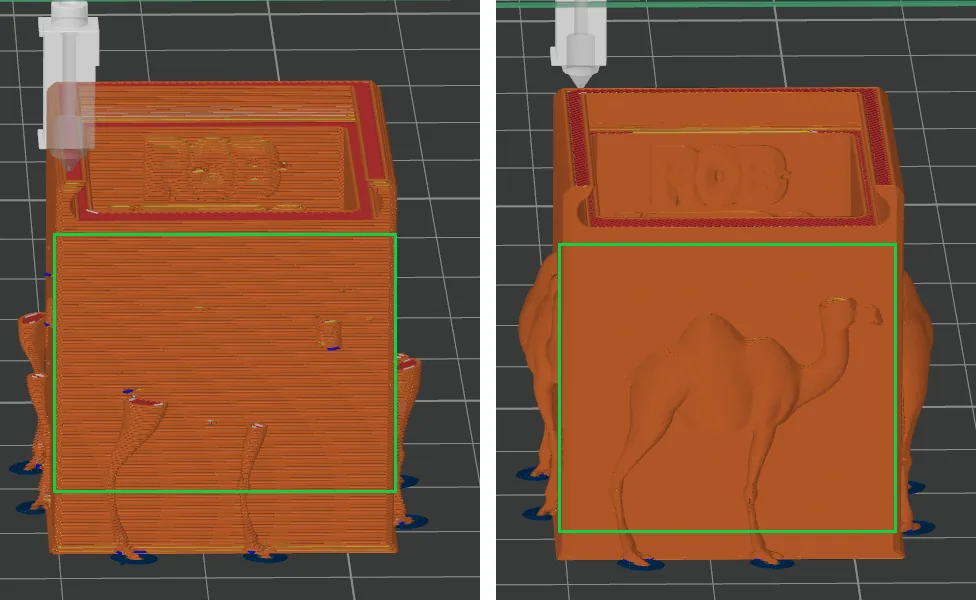
A "broken" STL file has surfaces with holes, duplicate faces or parts that intersect. The slicer (the program that prepares the print) can't tell properly what is inside and what is outside, and the print comes out with missing parts or odd layers. In most cases the slicer's automatic repair is enough; if not, you repair the model in a 3D program or remake it.
Before you start
- Keep a copy of the original file: repairing changes the model and sometimes makes things worse.
- Watch for warning signs: in the slicer's object list a warning symbol appears next to the model's name, or the layer preview shows holes and missing parts.
- Check the source: if you downloaded the model, read the comments. Often someone has already reported the problem or uploaded a fixed version. See also where to download free 3D models.
A few useful words:
- Manifold (or "watertight"): a closed model with no holes, like a balloon. It's what the slicer expects.
- Non-manifold: open edges, faces that touch in impossible ways, duplicate surfaces.
In Bambu Studio
According to the Bambu Lab Wiki, when an object has defects a warning appears, with a warning symbol in front of its name in the object list. You have three ways to repair it:
- Right-click the object and choose Fix Model.
- Or click the Repair link in the warning message.
- Or click the warning symbol in the object list.
Then slice again and check the preview.
The Wiki points out two things:
- Bambu Studio can find and repair only some errors: certain defects remain and the warning may not even appear.
- Models from 3D scanners, with irregular surfaces, often print badly. In that case it suggests turning off Arc Fitting and fixing the model with MeshLab or similar programs.
Special models: the special slicing modes
Some models are made on purpose with thin intersecting walls, such as model aircraft. In Bambu Studio, under Others > Special Mode, you'll find Slicing Mode:
- Regular: the normal one, for clean, closed models.
- Even-Odd: for models with thin overlapping surfaces that a normal slicer would mistake for broken.
- Close Holes: closes openings on the horizontal plane. Use it with care: it can also close intentional holes and change the part.
In PrusaSlicer
The Prusa Knowledge Base explains that PrusaSlicer repairs models automatically up to a point. On Windows, it can additionally use a repair system from Microsoft:
- Right-click the warning symbol next to the model's name, or the model itself.
- Choose the repair option. In recent versions it is called Fix by Windows repair algorithm; in older guides it appears as "Fix by the Netfabb".
- Slice again and look at the preview.
Careful: a report on the official PrusaSlicer project (version 2.7.2) describes a model that, after this repair, ended up shifted and "sunk" into the bed. If that happens, put it back flat on the bed with the place-on-face function.
This option is available only on Windows. On Mac, rely on the automatic repair or an external program.
With Blender (free, for Windows, Mac and Linux)
Blender is a free 3D modeling program. For 3D printing there is the official 3D Print Toolbox extension, which requires Blender 4.2 or later:
- Install the 3D Print Toolbox extension from Blender's extensions system.
- Import the STL file.
- Use the extension's analysis tools to find faulty geometry, for example non-manifold parts.
- Try the Make Manifold function to fix them.
- Export the model as STL again and open it in the slicer.
Blender takes some practice: if you have never used it, try the slicer's repair first.
If it still doesn't work
- Parts are still missing after the repair: try another tool. The Prusa Knowledge Base notes that sometimes one solution works and another doesn't, depending on the model.
- The model has sunk or moved: put it back flat on the bed before printing.
- Walls too thin: if a part is thinner than the nozzle can print, no repair helps. You need to modify the model or use a smaller nozzle.
- The model is a 3D scan: scans often have irregular surfaces. They need cleaning up in a program such as MeshLab or Blender.
- The print comes off the bed even with the right file: the problem isn't the file. See the first layer doesn't stick to the bed.
- The file is for an important part (a spare part, a part for series production): sometimes it's better to redraw it from scratch in a CAD program. A technician can do it starting from the broken file, a dimensioned photo or the original part.
Frequently asked questions
Why is an STL file downloaded from the internet "broken"?
It happens often: the Prusa Knowledge Base notes that many models found online have some defect. Modern slicers silently fix many of them, but not all.
Can automatic repair ruin the model?
Yes, sometimes. It can move the part, fill intentional openings or change details. Always check the print preview after repairing.
Does the warning symbol next to the model mean it won't print?
Not necessarily: it means the slicer found defects. Repair the model and look at the layer-by-layer preview before starting the print.