How to back up your Mac with Time Machine
How to choose the disk, set up Time Machine, check that backups really run, and restore a single file or your whole Mac. With the requirements Apple lists and the most common problems.
Procedure verified on against the official sources.
Time Machine is the backup app that comes with every Mac. All you need is an external disk (USB or Thunderbolt) at least twice the size of your Mac's disk: you connect it, choose it in System Settings > General > Time Machine, and from then on your Mac copies your apps, documents, photos and mail by itself, every hour.
Before you start
- Choose the right disk. Apple recommends a disk with at least twice the capacity of your Mac. If your Mac has 1 TB, the backup disk should have at least 2.
- Use that disk only for Time Machine. Setup may ask you to erase it: if it holds files you need, copy them somewhere else first.
- Connect it directly to your Mac, not through a USB hub: Apple lists this among the first things to check when backups don't work.
- One backup isn't enough for important things. If the disk breaks or is stolen along with your Mac, you lose everything. Read the 3-2-1 backup rule to see how to really protect yourself.
Set up Time Machine (macOS Ventura 13 and later)
-
Connect the external disk to a port on your Mac. If a prompt appears, choose Allow.
-
From the Apple menu (the apple at the top left), choose System Settings.
-
Click General in the sidebar, then click Time Machine on the right.
-
Click Add Backup Disk, or click the + button.
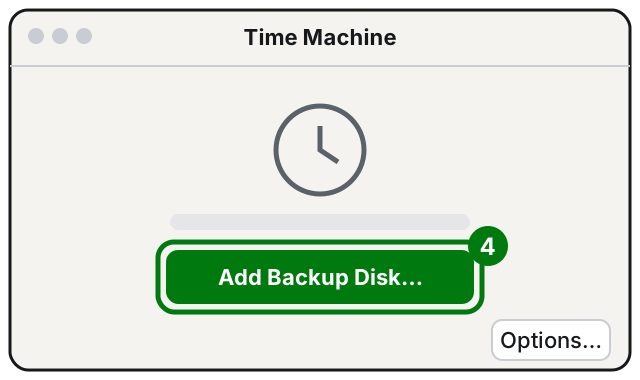
Step 4: Add Backup Disk. Illustration: SimpleBuild -
Select the disk and click Set Up Disk.
-
If your Mac asks to erase the disk, confirm only if it holds no files you need.
-
If it offers to encrypt the backup, that's a good idea: whoever finds the disk can't read it. Choose a password and write it down somewhere safe: without it, you can't restore anything from the backup.
-
Click Done if it appears.
From that moment on, your Mac starts the first backup right away.
Alternatively, when you connect a new disk for the first time, your Mac may ask you directly whether to use it with Time Machine: hold the pointer over the dialog that appears, click Options and choose Set Up.
If you have a version of macOS earlier than Ventura, the steps are different: Apple describes them on the "Back up your Mac with Time Machine" page in the sources.
The first backup
The first backup takes the longest, because it copies everything. You can keep using your Mac in the meantime. Later backups copy only the files that changed, so they are much faster.
To start a backup right now, without waiting:
-
Click the Time Machine icon in the menu bar.
-
Choose Back Up Now.
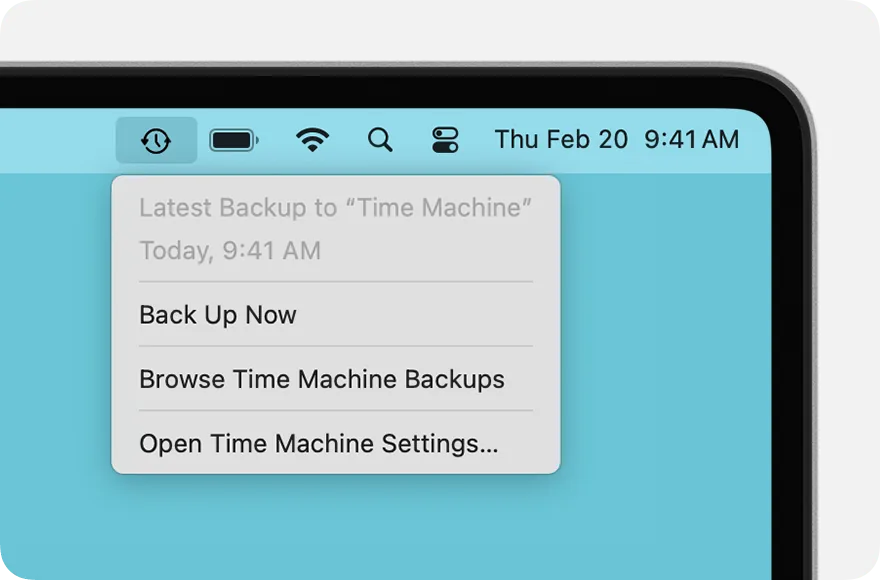
Step 2: from the Time Machine icon, Back Up Now. Image: Apple Support
From the same menu you can check the progress or see the date and time of the latest completed backup. If the icon isn't there, turn it on in the Menu Bar or Control Center settings.
When it makes backups
Time Machine keeps:
- hourly backups for the past 24 hours;
- daily backups for the past month;
- weekly backups for all previous months.
When the disk fills up, it deletes the oldest backups by itself.
To change the frequency:
- From the Time Machine menu, choose Open Time Machine Settings.
- Click Options.
- Choose a setting from the Back up frequency menu.
Important: if your Mac is asleep or the disk isn't connected at the scheduled time, that backup is skipped and starts again as soon as the Mac and the disk are available. Before you unplug the disk, eject it or shut down your Mac.
Exclude folders from the backup
If the disk is small, you can leave out folders you don't need (for example, files already saved somewhere else).
- Open the Apple menu > System Settings > General > Time Machine.
- Click Options.
- Click the + button and choose the folders to exclude.
- Click Done.
Restore a deleted file
- Open the window of the folder where the file was (for example Documents). If the file was on the desktop, you don't need to open anything.
- Open Time Machine with Spotlight.
- Use the arrows next to the windows to go back in time. The timeline of your backups is on the right.
- Select the file or folder and click Restore.
The file goes back to its original location. With many apps you can also choose File > Revert To > Browse All Versions to restore an earlier version of a document.
Bring everything back to a new or reinstalled Mac
To restore everything, accounts and apps included, you use Migration Assistant.
- Connect the Time Machine disk and turn it on.
- If your Mac has just been turned on and shows the initial setup, follow it: it includes migration. Otherwise open Migration Assistant from the Utilities folder inside Applications.
- Choose to transfer from a Mac, Time Machine, or startup disk, then click Continue.
- Select the backup disk, then the backup to use, and click Continue.
- Check the categories to transfer and click Continue.
With a lot of data this can take several hours. Apple points out that system files aren't in the backup: if macOS is damaged, reinstall it first, then use Migration Assistant.
If it still doesn't work
- Disk full or nearly full: use a disk at least twice the size of your Mac, or exclude some folders. Also check the free space on your Mac: if it's almost full, Time Machine may not manage to finish the backup. See how to free up space on your Mac.
- Disk connected through a hub: connect it directly to your Mac.
- Backup delayed because files aren't available: make a manual backup with your Mac unlocked.
- Cloud services syncing: Time Machine may wait for them to finish. Keep your Mac connected to power and to the internet.
- VPN or security software from other companies can interfere with the connection to the disk.
- Damaged disk: Apple suggests repairing it with Disk Utility and checking with the manufacturer whether the disk has firmware updates.
- Last resort: erase the backup disk and set it up again, or try another disk. But you lose your old backups this way.
- When to call a technician: if you need to recover important data from a backup that won't open, if the disk makes strange noises, or if you want a system with two copies (one at home and one elsewhere). Better to stop and ask before erasing a disk that holds the only copy of your data.
Frequently asked questions
How big should the Time Machine disk be?
Apple recommends at least twice the storage of your Mac: for a 1 TB Mac, a disk of at least 2 TB.
Can I use the same disk for other files too?
Apple recommends using it only for Time Machine. Advanced users can create a separate APFS volume on the disk for other files.
What happens when the backup disk fills up?
Time Machine deletes the oldest backups on its own to make room for new ones. That's why you shouldn't treat it as a permanent archive.
Do I have to keep the disk connected all the time?
No: when you plug it back in, Time Machine picks up again by itself. But backups only happen while the disk is connected, so the more often you connect it, the better.
Sources
- Back up your Mac with Time Machine
- Backup disks you can use with Time Machine
- Connect a new backup disk to your Mac
- Restore items backed up with Time Machine on Mac
- Restore your Mac from a backup
- If you can't back up or restore your Mac using Time Machine
- Exclude files from a Time Machine backup on Mac