How to clear your browser history and cache
The steps to clear history, cookies and cache in Chrome, Edge and Safari, on computers, iPhone and Android. With the most important warning: don't check saved passwords unless you want to lose them.
Procedure verified on against the official sources.
Every browser has a window that clears history, cookies and cache in one go: in Chrome and Edge you open it from the three-dots menu, in Safari on Mac from the History menu, on iPhone from Settings > Apps > Safari. Before you confirm, choose the time range and uncheck passwords if you want to keep them.
Before you start
Three words worth knowing, because the checkboxes use these names:
- The history is the list of websites you've visited.
- Cookies are small files that websites leave on your device to remember you, for example that you've already signed in.
- The cache is a copy of bits of pages and images, kept so websites open faster next time.
What to expect:
- Clearing cookies signs you out of many websites. Keep the passwords for your email, your bank and the sites you use most within reach. If you don't remember them, first check where your saved passwords are.
- Passwords and form data (addresses, cards) are among the checkboxes offered in some browsers. If you check them, you lose them.
- If you're signed in with your account (Google in Chrome, Microsoft in Edge, iCloud in Safari) and sync is on, the history also disappears from your other connected devices.
- Downloaded files stay. Only the list of downloads is cleared, not the files on your computer.
When you really need it: a website behaves strangely or won't update, you've used someone else's computer, or you want to remove traces of your browsing before giving a device away. If a site won't load properly, clearing cookies and cache from the last hour is often enough.
Chrome on a computer (Windows and Mac)
-
Open Chrome.
-
At the top right, select More (the three dots) and choose Delete browsing data.
-
Choose a time range, for example Last hour or All time.
-
Select Cookies and other site data and the other items you want to delete, such as Browsing history and Cached images and files.
-
Select Delete data.
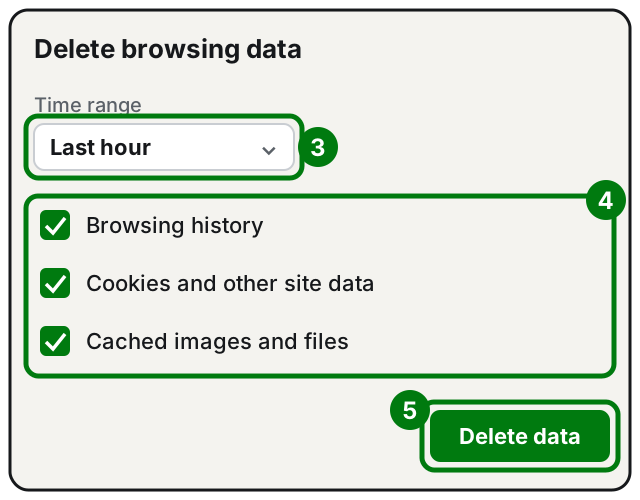
Steps 3, 4 and 5: time range, items to delete, Delete data. Illustration: SimpleBuild
Shortcut: type "Delete browsing data" in the address bar and select the quick action that appears (Google calls it an "action chip").
Google points out that your Google Search history and other activity in your Google Account aren't deleted from here: you manage them separately, from your account.
Chrome on Android
- Open Chrome.
- To the right of the address bar, tap More (the three dots), then Delete browsing data.
- To delete only the history, choose a duration and tap Delete data. The default duration is 15 minutes: change it if you want to go further back.
- To choose what to delete, tap More options, select the items and tap Delete data.
Watch out for two things Google mentions for Android:
- The history includes your open tabs, which will be closed.
- One of the items is Saved passwords: if you check it, your passwords are deleted. Leave it unchecked if you don't want to lose them.
Deleting cookies doesn't sign you out of your Google Account in Chrome.
Microsoft Edge (Windows and Mac)
- Open Edge and select Settings and more > Settings > Privacy, search, and services.
- Select Clear browsing data, then Choose what to clear next to Clear browsing data now.
- Under Time range, choose the period from the drop-down menu.
- Check the data types: Browsing history, Cookies and other site data, Cached images and files. Microsoft suggests, for example, removing history and cookies but keeping Passwords and Autofill form data: leave those two unchecked.
- Select Clear now.
The data Edge has saved in the Microsoft cloud, if you use sync, is managed from your account's privacy dashboard.
Safari on Mac
Clear the history
- Open Safari.
- Choose History > Clear History, then click the pop-up menu.
- Choose how far back you want to clear.
Safari removes the list of websites you visited, recent searches, website icons, the list of downloads (not the files) and the permissions websites asked for, such as location and notifications. If you have iCloud turned on for Safari, the history is also removed from your other Apple devices.
Clear cache and cookies
- In Safari, choose Safari > Settings, then click Privacy.
- Click Manage Website Data.
- Select one or more websites and click Remove, or Remove All.
Apple warns that removing this data may sign you out of websites or change how they behave.
Safari on iPhone
History, cache and cookies together
-
Go to Settings, tap Apps, then Safari.
-
Scroll down and tap Clear History and Website Data.
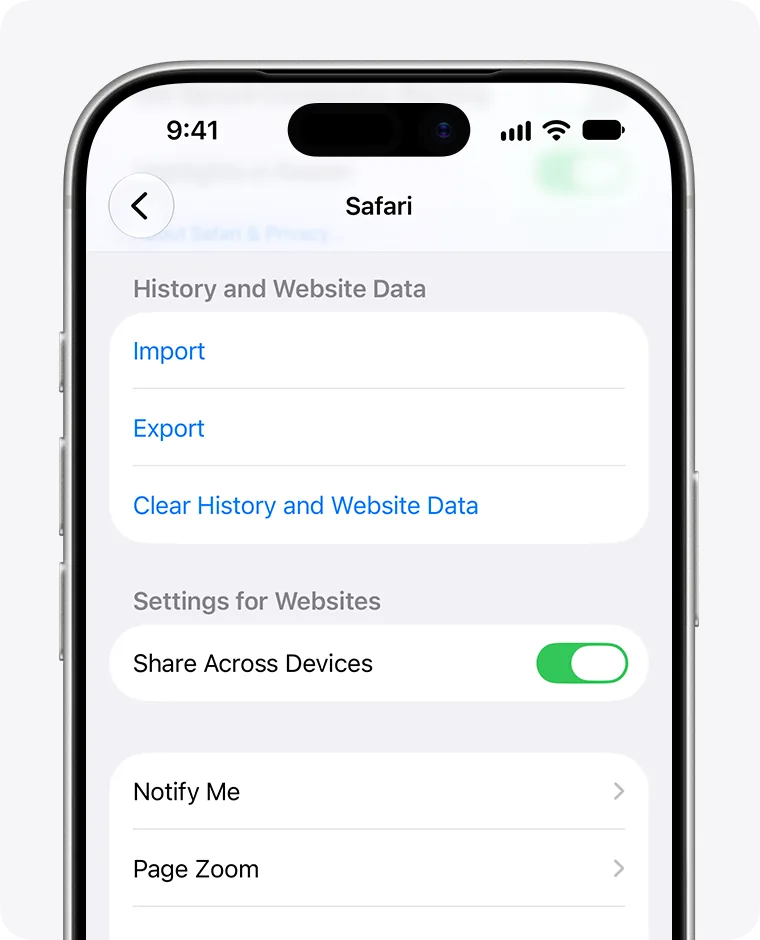
Step 2: Clear History and Website Data. Image: Apple Support -
Choose the time range and tap Clear History.
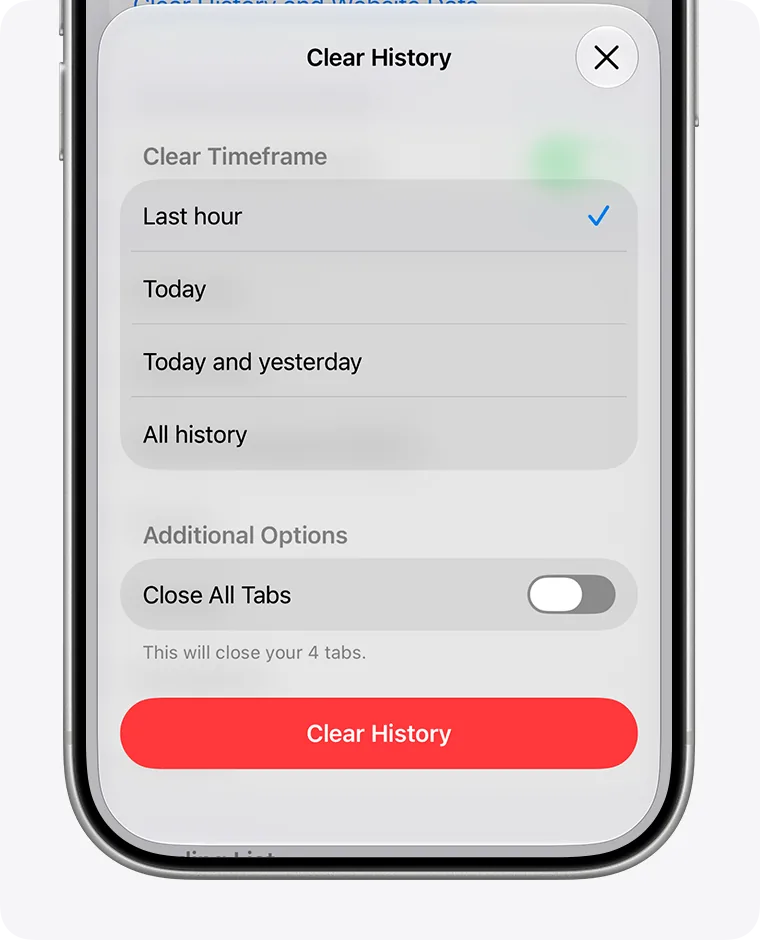
Step 3: choose the time range, then the red button. Image: Apple Support
Apple points out that your AutoFill information isn't changed. If the button is gray, there's nothing to clear or there are web content restrictions in Screen Time.
Only cache and cookies, keeping the history
- Go to Settings > Apps > Safari > Advanced > Website Data.
- Tap Remove All Website Data, then Remove Now.
Remove a single website from the history
- Open Safari and go to your Start Page.
- Tap the History button, then the More button.
- Tap Select Websites, choose the ones to remove and tap the Trash button.
If it still doesn't work
- The site still doesn't work after clearing the cache: quit the browser completely and open it again. Also try another browser: if it works there, the problem is in the first one; if it doesn't work anywhere, the site itself is probably the problem.
- Websites you deleted come back: check sync. Another device connected to the same account may send them back.
- After clearing you can't sign in to a website: use the site's "forgot password" option. If you don't get the recovery email or you receive suspicious messages, read how to spot a phishing email.
- The browser opens strange pages by itself or changes search engine: clearing the history isn't enough, there may be an unwanted extension. Also check your default browser and search engine.
- If you fear someone has used your accounts, besides clearing the data, change your passwords and turn on two-step verification. If there are many warning signs and you don't know where to start, a technician can check the computer and the accounts with you.
Frequently asked questions
Will clearing my history delete my saved passwords?
No, as long as you don't check the passwords item. In Chrome on Android and in Edge, passwords are a separate checkbox: leave it unchecked. On iPhone, Apple states that clearing doesn't change your AutoFill information.
Will I have to sign in to websites again after clearing cookies?
Usually, yes. Cookies are the files that let websites remember you're already signed in: if you clear them, many sites will ask for your username and password again.
If I clear the history on my phone, does it disappear from my computer too?
If you use the same account with sync turned on, yes. Google, Microsoft and Apple warn that the history is removed from all connected devices.
Does clearing the history also delete my Google searches?
No. Google explains that searches and other activity on its services are saved in your Google Account and are deleted separately.
Sources
- Delete browsing data in Chrome, computer (Google)
- Delete browsing data in Chrome, Android (Google)
- View and delete browser history in Microsoft Edge (Microsoft)
- Clear your browsing history in Safari on Mac (Apple)
- Clear cache and cookies in Safari on Mac (Apple)
- Clear history, cache, and cookies from Safari on iPhone (Apple)