How to set your default browser and make Google your search engine
How to choose the browser that opens when you tap a link (on Windows, Mac, iPhone and Android) and how to search with Google in Chrome, Edge and Safari, or with the search engine you prefer.
Procedure verified on against the official sources.
You choose the default browser in the system settings: on Windows 11 in Settings > Apps > Default apps, on a Mac in System Settings > Desktop & Dock, on iPhone in Settings > Apps > Default Apps, on Android in Settings > Apps > Default apps. The search engine, on the other hand, is changed inside the browser: in Chrome from Settings > Search engine.
They are two different things: the browser is the program that opens websites; the search engine is the site that answers when you type something to look up in the bar at the top.
Before you start
- Install the browser you want to use first, if it is not there already, downloading it only from the official website or from your device's app store.
- Check which browser you are using: the steps for the search engine are different in Chrome, Edge and Safari.
- In some countries, the first time you start the system or the browser, you are asked to pick a browser and a search engine from a list: you can always change your mind later.
On Windows 11
Choose the default browser
-
Select Start > Settings > Apps > Default apps.
-
In the search box of the apps section, type the name of the browser, for example Chrome or Edge.
-
Select the browser.
-
At the top, next to the line that offers to make it your default browser, select Set default.
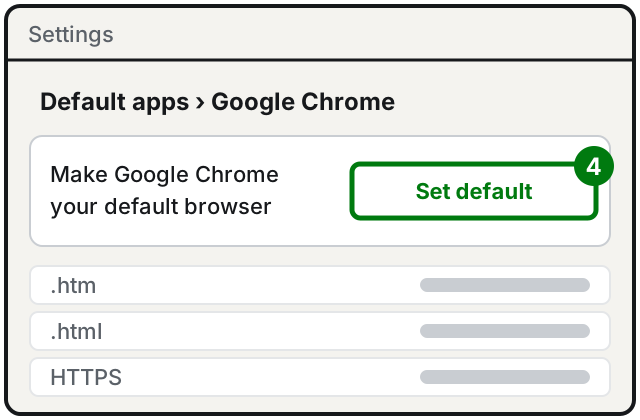
Step 4: Set default. Illustration: SimpleBuild -
Check the list of file and link types below: they should be associated with the browser you chose.
On Windows 10
- Select Start > Settings > Apps > Default apps.
- At the bottom, in the Web browser section, select the current browser.
- In the Choose an app window, select the one you want.
On a Mac
-
Choose Apple menu > System Settings, then click Desktop & Dock in the sidebar (you may need to scroll down).
-
Open the pop-up menu next to Default web browser and choose the browser.
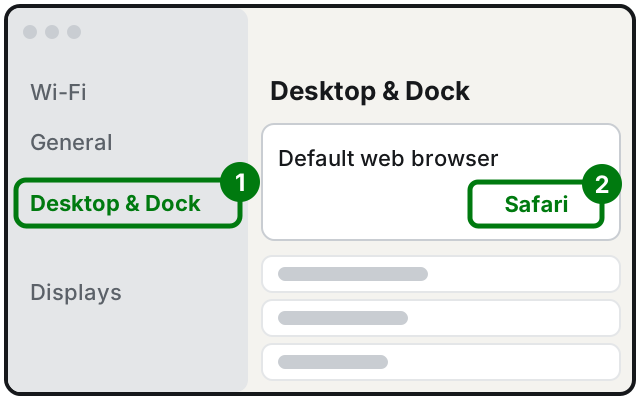
Steps 1 and 2: Desktop & Dock, then the Default web browser menu. Illustration: SimpleBuild
If you use Chrome, you can also do it from Chrome itself: More menu (the three dots at the top right) > Settings, then in the Default browser section select Make default. If the button is not there, Chrome is already your default.
On iPhone
The default browser
-
Open the Settings app.
-
Tap Apps, then Default Apps.
-
Tap Browser App and choose the app you want to use.
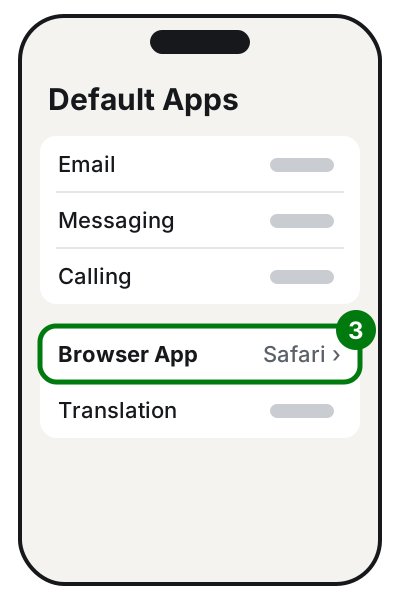
Step 3: tap Browser App. Illustration: SimpleBuild
The Safari search engine
- Open the Settings app.
- Tap Search, then Search Engine.
- Choose Google (or another engine).
This choice applies to Safari and to Spotlight, the iPhone search. The names are those in the iPhone User Guide for the latest version of iOS; in older versions the items may be in different places.
On Android
The names can vary a little from one brand to another; these are the steps given by Google.
The default browser
- Open Settings.
- Tap Apps.
- Under General, tap Default apps (or Choose default apps).
- Tap Browser app and select the one you want.
The search engine
- In Chrome: open Chrome, tap More (the three dots) > Settings, then Search engine and choose Google.
- In the search bar on the Home screen: touch and hold an empty space on the Home screen, tap Widgets, choose the search engine app and drag the widget onto the screen.
Set Google as the search engine in your browser
Chrome on a computer
- Open Chrome and select More (the three dots at the top right) > Settings.
- Select Search engine.
- Under Search engine, select Change and choose Google.
Chrome on iPhone
- Open Chrome and tap More > Settings.
- Tap Search engine and choose Google.
Microsoft Edge
- Open Edge and select Settings and more (the three dots at the top right) > Settings.
- Select Privacy, search, and services.
- Select Search and connected services, then Address bar and search.
- In the Search engine used in the address bar menu, choose Google.
If the engine you want does not appear in the list, first run a search on that site from the address bar: from then on Edge shows it among the choices.
Safari on a Mac
- Open Safari.
- Delete the text in the field at the top (the Smart Search field).
- Click the icon to the left of the field and choose Google from the list.
If it still doesn't work
- Does the search engine keep changing by itself? Google warns that malware may be to blame. In Chrome you can reset the settings to their defaults; if the problem comes back, have the computer checked. In the meantime, stay alert to scam emails and messages.
- Is it a work or school PC? The administrator may have locked the search engine: in that case you cannot change it yourself.
- Do some links still open in another browser? Some apps use a browser other than the default one.
- Is the browser slow or full of ads? See how to speed up a Windows PC and, to clean up, how to clear browser history and cache.
- When to call a technician: if toolbars you never installed show up, start pages you cannot remove, or ads everywhere. These are typical signs of unwanted programs: better to have them removed before you type in passwords or banking details.
Frequently asked questions
What is the difference between a browser and a search engine?
The browser is the program you use to open websites (Chrome, Edge, Safari, Firefox). The search engine is the site that looks up the words you type (Google, Bing and others). You can use Google inside Edge or Safari too.
My search engine changed by itself: what does that mean?
Google warns that an unexpected change of search engine can be caused by malware. Set the one you want again and, if it keeps changing, have the computer checked.
Why do some links still open in another browser?
Some apps open web pages with a browser other than your default one. It does not depend on your settings.
Sources
- Change default apps in Windows (Microsoft Support)
- Make Chrome your default browser (Google Chrome Help)
- Set default search engine and site search shortcuts (Google Chrome Help)
- Make Google your default search engine (Google Search Help)
- Change your default search engine in Microsoft Edge (Microsoft Support)
- Make Safari your default web browser on Mac (Apple Support)
- Customize searching in Safari on Mac (Apple Support)
- Change the default apps on iPhone (iPhone User Guide)
- Change your default search engine on iPhone (iPhone User Guide)
- Learn how to change your default browser (Android Help)
- Learn how to change your search engine (Android Help)