How to speed up a slow PC with Windows 11 and 10
The checks to do, in order, when your Windows computer has become slow: updates, startup programs, disk space, viruses and visual effects. All with the tools already in Windows, without installing anything.
Procedure verified on against the official sources.
A Windows PC almost always becomes slow for four reasons: too many programs starting at power-on, a nearly full disk, pending updates or a computer that's simply getting old. Try the checks below in order: they're all built into Windows and none of them deletes your documents.
After each step, use the PC for a few minutes and see whether anything has changed: that way you'll know what the cause was.
Before you start
- Save your work and close your programs. Some steps ask for a restart.
- Leave the laptop plugged into power, especially during updates.
- Keep a copy of your important files. None of the steps below deletes documents, but a recent backup is always a good idea: see how to back up a Windows PC.
- These instructions are written for Windows 11. On Windows 10 the menus are partly different: the main differences are in the dedicated section further down.
On Windows 11
1. Install updates
Windows updates often contain fixes that also improve speed.
- Open Start and then Settings.
- Choose Windows Update and then Check for updates.
- If updates appear, choose Download & install.
- If instead you read "You're up to date", go to Advanced options and then Optional updates: sometimes there's a new driver there (the small program that makes a component work, such as the graphics card). Select it and choose Download & install.
If updates won't install, follow the guide on Windows Update not working or showing an error.
2. Remove programs that start on their own
Every program that starts with Windows slows down startup and takes up memory all day.
- Press Ctrl + Shift + Esc together: Task Manager opens.
- In the menu on the left, choose Startup apps.
- Look at the impact column: the entries marked High impact are the heaviest.
- Right-click the programs you don't need right at startup and choose Disable.
Disabling doesn't uninstall anything: the program stays on the PC and you open it when you need it. The step-by-step explanation is in the guide on programs that start on their own.
3. Free up disk space
A nearly full disk slows down the whole system.
- Open Start > Settings > System > Storage.
- Choose Storage Sense and then Run Storage Sense now: Windows deletes temporary files and other unneeded files on its own.
- Go back to Storage, open Temporary files, check what you want to remove and choose Remove files.
To go deeper, with large files and unused apps, there's the guide on how to free up disk space in Windows 11.
4. Uninstall apps you don't use
- Open Start > Settings > Apps > Installed apps.
- Next to the app to remove, choose More options (the three dots ...) and then Uninstall.
Only remove what you recognize. If a name means nothing to you, leave it where it is.
5. Check for viruses
A malicious program can keep the processor and disk busy.
- Open Start > Settings > Privacy & security > Windows Security.
- Open Virus & threat protection.
- Choose Quick scan and wait for it to finish.
6. Reduce visual effects
Animations, shadows and transparency look nice, but on a modest PC they weigh things down.
-
Open Start and type Adjust the appearance and performance of Windows, then open it.
-
On the Visual Effects tab, choose Adjust for best performance.
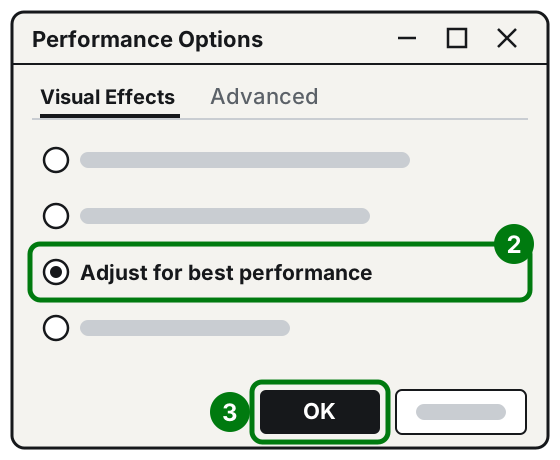
Step 2: Adjust for best performance. Step 3: OK. Illustration: SimpleBuild -
Confirm with OK.
Windows will look a little less elegant, but it will be more responsive.
7. Choose the power mode
-
Open Start > Settings > System > Power & battery.
-
In the Power mode menu, choose Best performance.
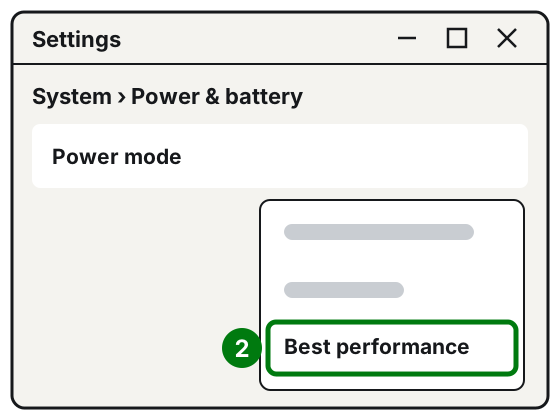
Step 2: Best performance in the Power mode menu. Illustration: SimpleBuild
Be careful: on a laptop this choice drains the battery faster and can make the computer run hotter. Use it when you're plugged into power.
8. Optimize the drive
- Open Start and type Defragment and Optimize Drives, then open it.
- Select the drive (usually C:) and choose Optimize.
9. Close what you don't use and restart
Lots of windows and browser tabs open at once slow down any computer. Close what you don't need and then restart the PC from the Start menu, with the power button.
On Windows 10
The method is the same, but some menus are different:
- Updates are in Start > Settings > Update & Security > Windows Update. Optional updates are under View optional updates.
- Task Manager opens the same way, with Ctrl + Shift + Esc.
- Visual effects and Defragment and Optimize Drives are found with the same search from the Start menu.
Remember that since October 14, 2025 Microsoft no longer provides free security updates for Windows 10: the PC keeps working, but becomes more exposed. If the computer allows it, it's worth moving to Windows 11.
If it still doesn't work
- See what's keeping the PC busy. Open Task Manager with Ctrl + Shift + Esc and look at the Processes tab: if a program uses a lot of CPU (the processor), memory or disk even when you're not using it, that's the culprit. Close it from the right-click menu and, if it happens often, consider uninstalling it.
- Turn off unnecessary notifications. In Start > Settings > System > Notifications, turn off the apps that bother you: the gain is small, but it's there.
- Is the PC a few years old? Microsoft itself writes that on computers with older hardware these steps may not bring noticeable improvements. In many cases an SSD in place of the hard drive, or more RAM, changes the computer more than any setting.
- Nothing worked? As a last resort you can reset Windows without losing your files.
- When to call a technician: if the PC is slow even right after startup with no programs open, if it makes strange noises or gets very hot, there may be a problem with the disk or the cooling. In that case it's worth having someone check the computer before you lose data.
Frequently asked questions
Do I need a paid program to speed up my PC?
No. The tools you need are already in Windows: Task Manager, Storage Sense, Disk Cleanup and Windows Security. Many "booster" programs keep running all day and can slow the PC down even more.
Does restarting the PC really help?
Yes. Many updates only complete when you restart, and a restart closes programs left running in the background. If you usually put the PC to sleep, restart it properly every now and then.
Does adding RAM or an SSD help?
Often yes, especially on PCs that are a few years old and have a hard drive. Microsoft itself warns that on computers with older hardware, tweaking settings alone may not be enough: before spending money, have someone check where the bottleneck is.
Can I still use Windows 10?
It still works, but since October 14, 2025 Microsoft no longer provides free security updates. If the PC allows it, it's worth moving to Windows 11.