Windows Update not working or showing an error: what to do
The steps to follow when Windows 11 updates won't download, get stuck or end with an error code: from the troubleshooter all the way to reinstalling Windows while keeping your apps and files.
Procedure verified on against the official sources.
When Windows Update can't install updates, start with the Windows troubleshooter, which finds and fixes most errors on its own. If that's not enough, check in this order: Internet connection, free disk space, date and time, connected external devices. Windows 11 also has a last resort that deletes nothing: reinstalling the current version of Windows through Windows Update.
These instructions are for Windows 11, where Microsoft keeps releasing updates. For Windows 10, free security updates ended on October 14, 2025.
Before you start
- Back up your important files. Microsoft itself recommends it before any repair attempt: see how to back up a Windows PC.
- Plug the laptop into power and leave it plugged in until the end.
- Write down the error code, if there is one (for example
0x80070002): it helps find the cause. - You need administrator access. If you use a standard account on the PC, ask whoever has the administrator account to install the updates.
On Windows 11
1. Run the troubleshooter
-
Open Start > Settings > System.
-
Select Troubleshoot and then Other troubleshooters.
-
Next to Windows Update, select Run.
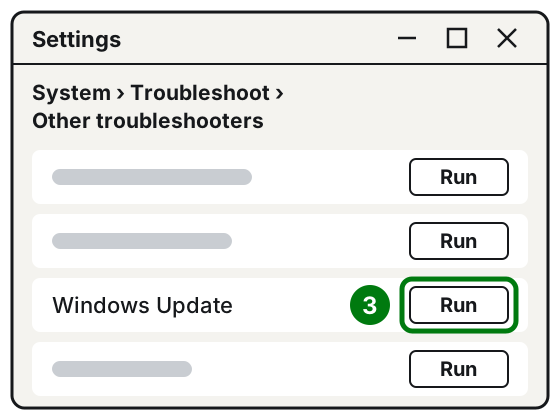
Step 3: Run next to Windows Update. Illustration: SimpleBuild -
Follow the on-screen instructions and, at the end, try the update again.
On the most recent versions of Windows 11 the troubleshooter may open inside the Get Help app: it works the same way.
2. Check the connection
- Open Start > Settings > Network & Internet.
- Check that you're connected to Wi-Fi or the cable. If you're disconnected, reconnect.
If Wi-Fi shows as connected but pages won't load, first follow the guide on Wi-Fi connected but no internet.
3. Free up disk space
For updates, Microsoft asks for at least 20 GB free on 64-bit Windows (16 GB on 32-bit). If you're below that, follow the guide on how to free up disk space in Windows 11 and try again.
4. Disconnect external drives and accessories
Unplug external drives, USB sticks, docks and any accessory you don't need to use the PC. Then try the update again.
5. Check the date and time
A wrong date can block updates.
- Open Start > Settings > Time & language > Date & time.
- Turn on Set time automatically and Set time zone automatically.
- If needed, select Sync now.
6. Try again and restart
- Open Start > Settings > Windows Update.
- Select Check for updates and install whatever appears.
- Many updates only finish when you restart: save your work, open the power button in the Start menu and choose Update and restart.
7. Reinstall Windows without losing anything
If the error persists, Windows 11 can reinstall the same version of Windows you already have, through Windows Update. According to Microsoft this keeps your apps, files and settings and repairs system files.
-
Open Start > Settings > System > Recovery.
-
In the Fix problems using Windows Update section, select Reinstall now.
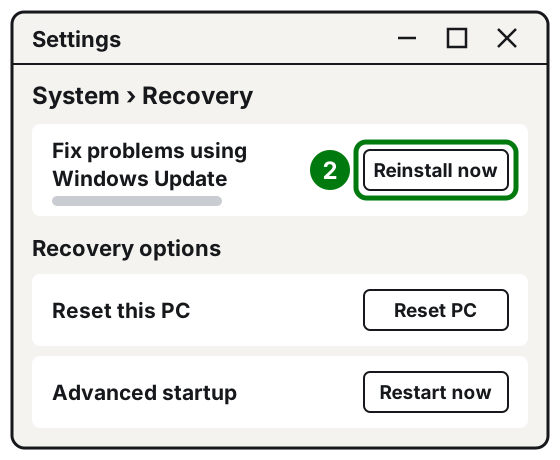
Step 2: Reinstall now. Illustration: SimpleBuild -
Decide whether to let the PC restart on its own 15 minutes after the installation finishes.

Steps 3 and 4: the restart checkbox, then OK. Image: Microsoft Support -
Select OK. Windows downloads and installs the repair version: keep the PC on, plugged into power and connected to the Internet.
Sometimes the Windows Update page itself suggests it, with the message "Reinstall your current version of Windows to repair system files and components": there too, you choose Reinstall now.
If this option doesn't appear, the PC may be managed by a company or school, or it may not have the required updates yet: the feature needs Windows 11 22H2 or later with the updates from February 2024 onward.
For those comfortable with Command Prompt
Microsoft suggests these commands only to people already familiar with the command line. You need administrator access.
- Open Start, type Command Prompt and choose Run as administrator, then Yes.
- To repair system files, type this command and press Enter:
DISM.exe /Online /Cleanup-image /Restorehealth- When it's done, type this one and press Enter:
sfc /scannow- Wait until it reaches 100%, close the window and try Windows Update again.
If it still doesn't work
- Did the error appear after an update that made things worse? You can uninstall it: Start > Settings > Windows Update > Update history, then under Related settings choose Uninstall updates, select the update and choose Uninstall. Some can't be removed.
- Do you have antivirus from another brand? It sometimes blocks updates. Microsoft suggests turning it off for a short time, or uninstalling it temporarily and reinstalling it after the update: first make sure you have the license key to reinstall it.
- Do you use a VPN? Turn it off and try again.
- Is the code 0xC1900101? It's usually an incompatible driver, often the network card or graphics card: check the PC manufacturer's website for updated drivers.
- Nothing worked? There's still a full reset, which can keep your files: see how to reset Windows 11 without losing your files.
- When to call a technician: if the error keeps coming back after all these steps, or if the PC won't restart after an update, have someone look at it before you try a full reset, especially if you don't have a recent backup of your files.
Frequently asked questions
The update has been stuck at 0% or 100% for hours: can I turn the PC off?
First try restarting the PC from the Start menu, then check the connection and the free disk space. Don't cut the power while the screen tells you not to turn off your computer.
What do codes like 0x800f0922 mean?
They point to the likely cause. According to Microsoft, 0x800f0922 usually means not enough disk space, 0xC1900101 an incompatible driver and 0x80070005 insufficient permissions.
My PC runs badly after an update: can I go back?
Yes, you can uninstall the update from Windows Update > Update history > Uninstall updates. Some updates can't be removed, though, and removing security updates leaves the PC more exposed.