How to free up disk space in Windows 11
How to see what's filling your disk and recover space with Windows 11's own tools: Storage Sense, Cleanup recommendations, Disk Cleanup and moving large files to an external drive.
Procedure verified on against the official sources.
The fastest way is to open Settings > System > Storage: there you see what's taking up the disk and you can let Windows clean up temporary files with Storage Sense. If that's not enough, Cleanup recommendations show you large files and apps you don't use, and heavy personal files (photos and videos) can be moved to an external drive.
Try the methods in the order you find them here: after each one, check how much space you've recovered before moving on to the next.
Before you start
-
See how much space you have. Open File Explorer from the taskbar and choose This PC on the left: under Devices and drives you see how much space is left on each drive. The Windows one is usually C:.
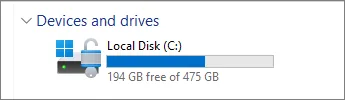
In This PC, the bar shows how much space is left on the C: drive. Image: Microsoft Support -
Make a copy of important documents before deleting files by hand: see how to back up a Windows PC.
-
Don't delete files inside Windows or program folders (such as
C:\WindowsorC:\Program Files). Use the tools below: they know what can be removed.
On Windows 11
1. See what's taking up the disk
- Open Start > Settings > System > Storage.
- Windows shows the space split into categories: installed apps, temporary files, documents and so on.
- Choose Show more categories to see the full list.
From here you can already tell where to start: whether it's the apps, the temporary files or your photos and videos that weigh the most.
2. Let Windows clean up with Storage Sense
Storage Sense deletes useless files on its own, such as temporary files and the contents of the Recycle Bin.
-
Open Start > Settings > System > Storage.
-
Turn on the Storage Sense switch.
-
Select the Storage Sense entry to open its settings.
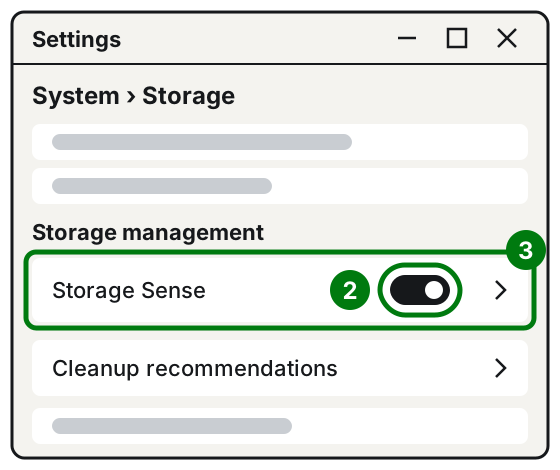
Step 2: the switch. Step 3: the Storage Sense entry. Illustration: SimpleBuild -
If you like, choose how often it runs under Run Storage Sense.
-
Decide after how long to empty the Recycle Bin under Delete files in my recycle bin if they have been there for over and whether to touch the Downloads folder under Delete files in my Downloads folder if they haven't been opened for more than.
-
Choose Run Storage Sense now for an immediate cleanup.
Be careful with the Downloads folder: many people keep files there that they've never moved anywhere else. Before letting it be emptied automatically, take a look at what's in it.
Storage Sense only works on the drive where Windows is installed, usually C:.
3. Remove temporary files
- Open Start > Settings > System > Storage.
- Choose Temporary files.
- Check the types of files to remove and choose Remove files.
If you find Previous Windows installation(s) among the entries, first read the question about Windows.old below.
4. Use Cleanup recommendations
- Open Start > Settings > System > Storage.
- Choose Cleanup recommendations.
- Look at each category: Temporary files, Large or unused files, Files synced to the cloud and Unused apps.
- Check what you want to remove and choose Clean up in each section.
Windows shows you how much space you'll recover. In Large or unused files, check every entry carefully: there may be family videos or documents you want to keep.
5. Disk Cleanup, the classic tool
- Open Start, type Disk Cleanup and open it from the results.
- Choose the drive to clean (usually C:) and then OK.
- Check the types of files to delete. Selecting a name tells you what it's for.
- To recover even more, choose Clean up system files, then the drive again and OK.
- Confirm with OK and then Delete Files.
6. Move photos, videos and documents to an external drive
Photos, videos and music are often the heaviest part.
- Open File Explorer and go to the Pictures, Videos, Music and Downloads folders: they're usually the fullest.
- To see the largest files, choose the Details view, then right-click in an empty space and choose Sort by > Size.
- Plug in an external drive or a USB stick.
- Select the files to move, choose Cut, open the external drive and choose Paste.
A file that's only on the external drive isn't safe: if the drive breaks, you lose it. For important photos always keep at least two copies, as the 3-2-1 backup rule explains.
7. Save new files to another drive
If the PC has a second drive with more space, you can have new files go there.
- Open Start > Settings > System > Storage.
- Open Advanced storage settings and then Where new content is saved.
- For each type of content (apps, documents, music, photos, videos), choose the drive from the menu.
If it still doesn't work
- Did you empty the Recycle Bin? As long as files stay there, they take up space.
- Does the disk fill up again quickly? According to Microsoft this can happen when the temporary files folder fills up with files from Microsoft Store apps. The suggested fix is to clear the Store cache: press Windows + R, type
wsreset.exeand choose OK. A black window opens and closes on its own after about ten seconds, then the Store opens. - Do you use OneDrive? With Files On-Demand, files stay online and only a lightweight placeholder remains on the PC: they download when you open them.
- Can a virus take up space? Yes, sometimes. Run a scan with Windows Security, as explained in how to speed up a slow PC.
- Not enough space for an update? See the guide on Windows Update not working or showing an error.
- When to call a technician: if the disk is too small for how you use it, no cleanup really solves it. A bigger disk, or an SSD in place of the old disk, is a simple job for a technician, as long as all the data is copied first.
Frequently asked questions
Can I delete the Windows.old folder?
Yes, if the PC works well after the last major update. It holds the previous version of Windows: deleting it recovers space, but you can no longer go back and it can't be undone.
Does Storage Sense delete my documents?
Not with the default settings: it removes temporary files and, after a while, what's in the Recycle Bin. The Downloads folder and OneDrive files are only touched if you choose so in its settings.
How much free space do updates need?
For Windows updates, Microsoft asks for at least 20 GB free on a 64-bit system and 16 GB on a 32-bit one.
If I delete a file, is the space freed right away?
No: the file goes to the Recycle Bin and still takes up space. The space is freed when you empty the Recycle Bin.