How to record your screen with audio (PC, Mac, iPhone and Android)
The tools already on your computer and phone for making a video of the screen, with your voice or with the device's sounds: Snipping Tool and Xbox Game Bar on Windows, the Screenshot app on Mac, Control Center on iPhone, Quick Settings on Android.
Procedure verified on against the official sources.
Every system already has a tool for making a video of the screen: on Windows there's Snipping Tool (Windows key + Shift + R) and, to also get the PC's sounds, Xbox Game Bar (Windows key + Alt + R); on Mac the Screenshot app (Shift + Command + 5); on iPhone the record button in Control Center; on Android Screen record in Quick Settings.
Audio must be chosen before you start: it's the most common reason for silent videos.
Before you start
- Close private things. The recording captures everything that appears: notifications, messages, passwords you type. Close the apps you don't need and, on your phone, turn on Do Not Disturb.
- Decide which audio you need: your voice (the microphone), the device's sounds (for example a video you're showing) or both.
- Check your free space. Videos take up much more space than photos.
- Some apps can't be recorded. Apple and Google say so clearly: it's not a fault.
On Windows 11
With Snipping Tool (a no-frills video)
-
Press Windows key + Shift + R.
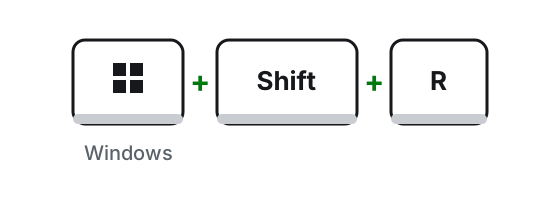
Windows key + Shift + R: Snipping Tool starts in video mode. Illustration: SimpleBuild -
With the mouse, select the part of the screen to record.
-
Select Start. Do what you want to show.
-
When you're done, select Stop.
-
The video is saved automatically as an MP4 file in the Videos > Screen Recordings folder. From the window you can also choose Edit in Clipchamp to trim it or add captions and audio.
With Xbox Game Bar (with microphone and PC sounds)
Game Bar was made for video games, but Microsoft also recommends it for recording any app: it records the game or program you have open.
Turn it on, if it isn't already:
- Press Windows key + I to open Settings.
- Type xbox in the search box and choose Enable Xbox Game Bar.
- Turn on the switch.
Have it record all the PC's sounds:
- Press Windows key + G: the Game Bar controls appear.
- Open Settings (the gear) and choose Capturing.
- Among the audio options, select All.
- Press Windows key + G again to close.
Record:
-
Open the program or window to record.
-
Press Windows key + Alt + R to start.
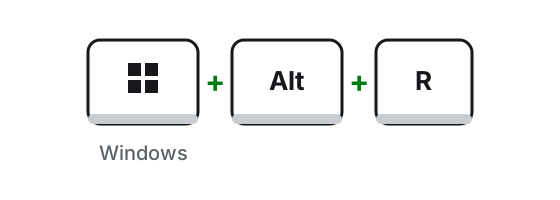
Windows key + Alt + R: starts and stops the Game Bar recording. Illustration: SimpleBuild -
To turn the microphone on or off during the recording, press Windows key + Alt + M.
-
To stop, press Windows key + Alt + R again.
-
You'll find the MP4 file in the Videos folder, under Captures: the name contains the app's name, the date and the time.
On Mac
-
Press Shift + Command + 5: a toolbar appears at the bottom.
-
Choose what to record: the entire screen, the selected window (from macOS Tahoe 26) or the selected portion, a box you can enlarge by dragging its edges.

On Mac: what to record, Options and Record. Image: Apple Support -
Click Options and, under the microphone, choose the one to use if you want to record your voice.
-
From macOS 27, the same menu has Include System Audio, to also record the Mac's sounds.
-
Also in Options you can set a timer, show your clicks with Show Mouse Clicks and choose where to save with Save to. By default the video goes to the desktop.
-
Click Record (or, if you're recording a window, click that window).
-
To stop, click the Stop button in the menu bar at the top, or press Command + Control + Esc.
The file is named "Screen Recording [date] at [time].mov" and opens with QuickTime Player or iMovie. Alternatively you can use QuickTime Player: File menu > New Screen Recording.
On iPhone
Add the button, if it isn't there
If you don't see the Screen Recording button in Control Center, you need to add it by customizing the Control Center controls.
Record with the microphone
-
Swipe down from the top-right corner of the screen: Control Center opens.
-
Touch and hold the gray record button.
-
Tap Microphone to turn it on, then tap Start Recording.
-
After a 3-second countdown the recording starts. Close Control Center and do what you want to show.
-
To stop: if your iPhone has the Dynamic Island (the black pill at the top), tap the red circle and then the stop button; on other models tap the red timer at the top left and then Stop.
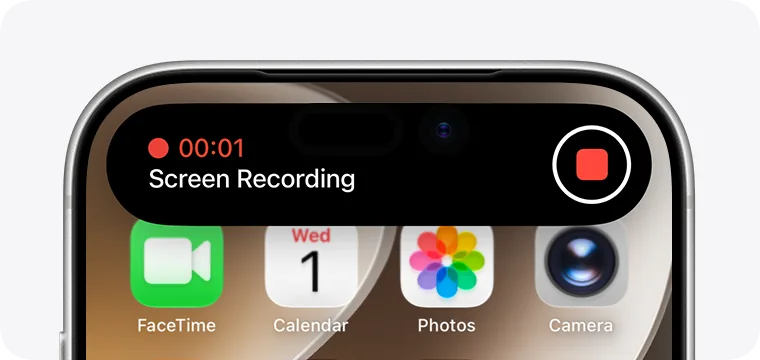
On iPhones with Dynamic Island: the red button stops the recording. Image: Apple Support
If you only need the video without your voice, in step 2 tap the button once, without holding it.
The video is in the Photos app: Collections > Media Types > Screen Recordings. You can't record the screen while you're mirroring it to a TV.
On Android
Names can vary a little from one brand to another; these are the steps given by Google.
- Swipe down twice from the top of the screen: Quick Settings opens.
- Tap Screen record. If you don't see it, swipe right; if it's really not there, tap Edit and drag it into Quick Settings.
- Choose what to record. Before starting you can choose whether to record audio and whether to show touches on the screen.
- Tap Start: the recording begins after the countdown.
- To stop, swipe down from the top of the screen and tap the Screen recorder notification.
The video is in the Photos app: Collections > On this device > Movies.
If it still doesn't work
- Is the video silent? Do it again, checking the audio before you start: on Windows with Game Bar the All option and the microphone; on Mac the microphone in Options; on iPhone the Microphone button; on Android the audio choice before Start.
- Game Bar doesn't start with Windows key + Alt + R? Check that it's turned on as explained above, and that the program you want to record is open in front. If you can't get it to work, use Snipping Tool.
- Is the video black or is a window missing? Some apps (movies, banks, some video calls) block recording.
- Do you only need a picture? A screenshot is simpler: see the guides for Windows, Mac and iPhone and Android.
- Is the video too big to send? Record only the part of the screen you need and keep the recording short. If your phone fills up, see how to free up space on iPhone.
- When to call a technician: if you need frequent, polished recordings (courses, presentations, tutorials for clients), it's worth setting up the microphone, folders and the right format once and for all, so you don't have to think about it every time.
Frequently asked questions
Do I need a paid program to record my screen?
Not for everyday use: Windows, Mac, iPhone and Android already have a built-in tool. You only need separate programs for special needs, such as complex editing.
Why is the recording silent?
Usually the microphone or the device audio wasn't turned on before starting. On every system the audio is chosen before you press Record: check the options and try again.
Can I record a video call or a movie?
Some apps don't allow themselves to be recorded, and both Apple and Google say so too. If you record a call, always tell the other people first.
Sources
- Keyboard shortcuts in Windows
- Use Snipping Tool to capture screenshots
- Use a screen reader to record your screen with Xbox Game Bar
- How to record the screen on Mac
- Take a screen recording on iPhone
- Record the screen on your iPhone, iPad, or iPod touch
- Take a screenshot or record your screen on your Android device