How to take a screenshot on a Mac
The three ways to capture your Mac's screen (the entire screen, a portion, a window), the Screenshot app with its timer, where the images are saved, and how to copy them to the Clipboard instead of the desktop.
Procedure verified on against the official sources.
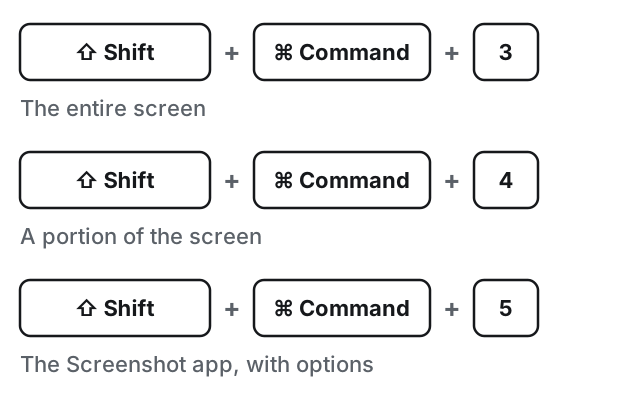
On a Mac you use three keys together: Shift + Command + 3 captures the entire screen, Shift + Command + 4 lets you choose a portion, Shift + Command + 5 opens the Screenshot app with all the options. By default, the images go to the desktop.
Command is the key with the ⌘ symbol, next to the space bar. Shift is the one with the upward arrow.
Before you start
- Get the screen ready. Open what you want to capture and close or move the windows that shouldn't show (a chat, your mail).
- Press and release the keys together, not one after the other: hold down Shift and Command, then press the number and let go of everything.
Capture the entire screen
- Press and release Shift, Command and 3 together.
- A small thumbnail may appear in the corner of the screen. Click it if you want to edit the image right away, or wait: the screenshot is saved to the desktop.
Capture a portion of the screen
-
Press and release Shift, Command and 4 together. The pointer turns into a crosshair.
-
Click and hold the mouse or trackpad button, then drag to draw the box.

Step 2: drag to draw the box. Image: Supporto Apple -
Release the button: the screenshot is taken.
While you drag you can:
- press Esc to cancel;
- hold down the space bar to move the box without changing its size.
Capture a window or a menu
-
Open the window or menu you want.
-
Press and release Shift, Command and 4, then press and release the space bar. The pointer turns into a small camera.
-
Click the window or menu.
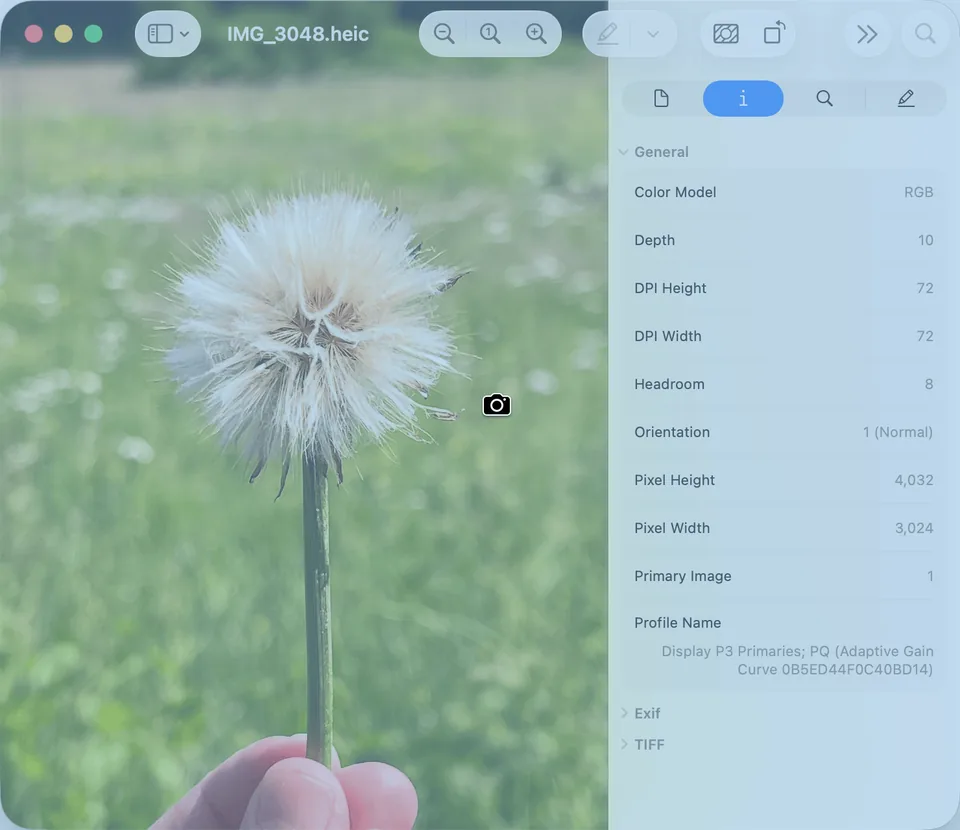
Step 3: the window is highlighted, the pointer is a camera. Image: Apple Support
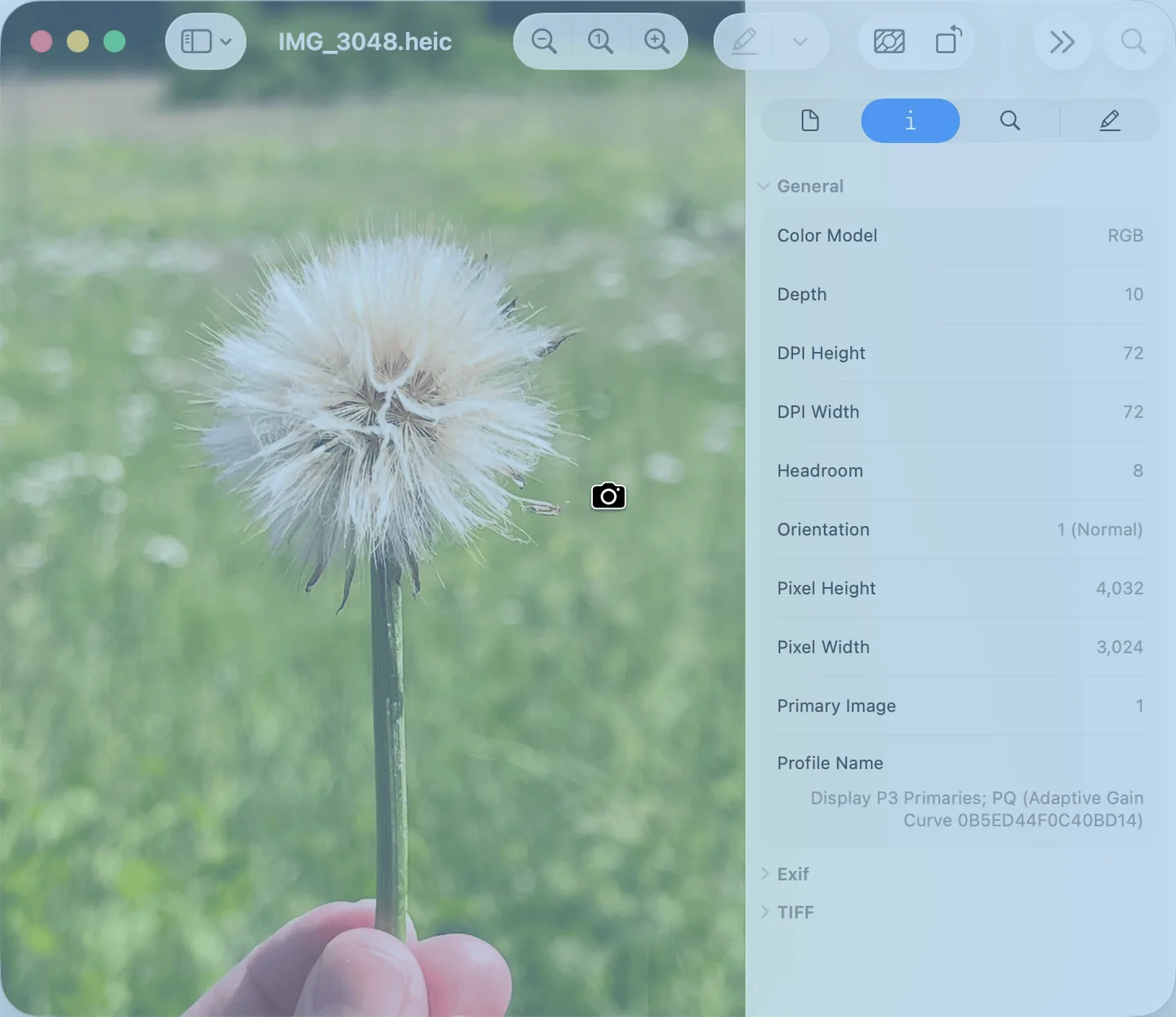
If you don't want the shadow around the window, hold down the Option key while you click. To cancel, press Esc.
The Screenshot app: timer, folder and other options
When you press Shift + Command + 5, a toolbar with buttons appears at the bottom: capture the screen, a window or a selection, and record a video. The app is also in the Utilities folder, inside Applications; it's available from macOS Mojave 10.14 onward.

From the toolbar's Options menu you can:
- set a timer, useful for capturing a menu that closes as soon as you touch the keyboard;
- choose where to save screenshots, if you don't want them on the desktop;
- choose whether to show the thumbnail after each capture;
- choose whether to show the mouse pointer in the image.
On supported Mac models with macOS Tahoe 26 or later, you can also choose the format: SDR (PNG, the most compatible) or HDR (HEIF). If you need to send the image to someone who uses Windows, SDR is the safest choice. If you receive an image in a format that won't open, see how to convert HEIC photos to JPG.
From the same toolbar you can also record a video of the screen: you'll find the steps in how to record your screen with audio.
Where to find your screenshots
- On the desktop, with a name like "Screenshot [date] at [time]".
- By dragging the thumbnail: instead of waiting for it to save, you can drag the thumbnail that appears in the corner straight into a folder, an email or a document.
- On the Clipboard, if you choose it: Control-click the thumbnail and choose Save to Clipboard. Or add Control to the combination: Control + Shift + Command + 3 (or 4). Then paste with Command + V.
If the thumbnail disappears too quickly, keep the pointer still over it: it stays on screen until you use it or move the pointer away.
If it still doesn't work
- The combination does nothing? Check that you're pressing Command (⌘) and not Control or Option, and that you're pressing the keys together. Then try Shift + Command + 5: if the toolbar opens, the keyboard works.
- Can't find the file on the desktop? You may have changed the folder: open Shift + Command + 5, then Options, and see which folder is checked.
- An app's window comes out black or can't be captured? Some apps, such as the Apple TV app, don't allow it.
- Is your desktop full of screenshots? Move them to a folder or delete the old ones; if the disk is full, see how to free up space on your Mac.
- Do you also use a PC or a phone? There are guides for screenshots on a Windows PC and for screenshots on iPhone and Android.
- When to ask a technician: if no combination works, not even with a different keyboard, a key setting may have been changed or a program may be intercepting the keys. A check of a few minutes is usually enough to find it.
Frequently asked questions
Where do screenshots go on a Mac?
By default to the desktop, with a name like "Screenshot [date] at [time]". You can choose another folder from the Options menu of the Screenshot app, which you open with Shift-Command-5.
How do I copy a screenshot without creating a file?
Add the Control key to the combination: for example Control-Shift-Command-3 instead of Shift-Command-3. The image goes to the Clipboard and you paste it with Command-V.
Why do some windows come out black or can't be captured?
Some apps, such as the Apple TV app, don't let you take screenshots of their windows. It's the app's choice, not a fault in your Mac.