How to turn on two-step verification for your accounts
With two-step verification, a password alone isn't enough to get into your account: you also need your phone or a code. Here's how to turn it on for Google, Apple and Microsoft, and how not to get locked out.
Procedure verified on against the official sources.
Two-step verification adds a second proof on top of your password. Usually it's a code sent to your phone or a confirmation to tap. That way, even if someone finds out your password, they can't get in without your phone. It takes a few minutes to turn on from your account's security settings.
Apple calls it two-factor authentication; Google calls it 2-Step Verification and Microsoft two-step verification. It's the same idea.
Before you start
- Keep your phone with the number you really use within reach, and make sure you know your account's current password.
- Decide which account to start with: your main email first, because all the others can be recovered from it. Then Apple or Google (photos, contacts, phone backups) and Microsoft.
- Get a sheet of paper and an envelope ready: you'll need them to write down the emergency codes and keep them somewhere safe at home, not on your phone.
- If you've recently received a suspicious message, first read how to spot a scam email or text message.
Google Account (Gmail, YouTube, Android)
- Open your Google Account.
- Tap Security & sign-in.
- Under How you sign in to Google, select Turn on 2-Step Verification.
- Follow the on-screen steps.
Google offers you several methods for the second step:
- Passkeys: you sign in with your fingerprint, face or phone screen lock.
- Google prompts: a notification appears on your phone and you tap Yes or No.
- Google Authenticator app: it generates codes that work only once.
- Text message or voice call: you get a 6-digit code on the number you gave.
- Physical security key: a small key you plug in or hold near the device.
According to Google, passkeys and prompts on your phone are more secure than codes by text message.
Google backup codes
If you lose your smartphone, you can sign in with a backup code. Google lets you print or download a set of 8-digit backup codes. Do it right after turning the feature on and keep them in a safe place, away from your phone.
Apple Account (iPhone, iPad, Mac)
For most Apple accounts, two-factor authentication is already the default method. Still, check that it's on.
On iPhone or iPad
- Open Settings.
- Tap [your name], then Sign-In & Security.
- Turn on two-factor authentication and follow the onscreen instructions.
On Mac
- Open System Settings.
- Choose [your name], then Sign-In & Security.
- Turn on two-factor authentication and follow the instructions.
When you sign in on a new device, the code appears on your Apple devices that are already set up, or arrives by text message at your trusted phone number. Check that this number is correct and up to date: it's your way back in.
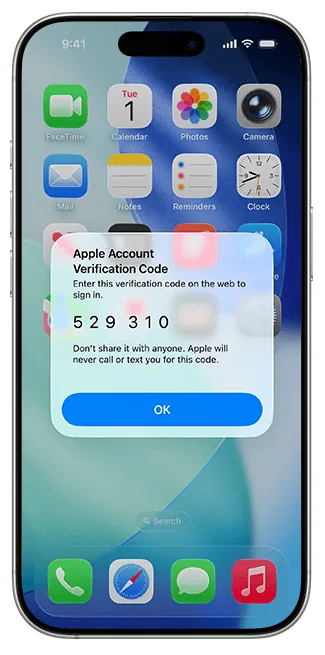
A note from Apple: if your account was created with two-factor authentication already on, you can't turn it off. If you turned it on recently, you have two weeks to go back.
Microsoft account (Outlook, Hotmail, Windows, Office)
- Go to the Security tab of your Microsoft account, at account.microsoft.com/security.
- Select Manage how I sign in.
- Under Additional security, next to Two-step verification, choose Turn on.
- Follow the instructions on the screen.
The second step can be an email address, a phone number or an authenticator app. Microsoft recommends giving two email addresses: the one you normally use and a backup one.
Note Microsoft's warning: with verification on, you always need two proofs. If you lose your contact method, the password alone won't get you back in, and it can take 30 days to regain access. So keep your recovery phone number and email up to date.
If you use an old email program or a device that can't ask for the code, Microsoft provides app passwords, available only when two-step verification is on.
If it still doesn't work
- The text message code doesn't arrive: check that the registered number is the right one and that your phone has signal. If the service offers it, choose another method, such as the prompt on your phone or an authenticator app.
- You've changed your phone number: update the number in the security settings of every account right away, before getting rid of the old SIM.
- You've changed phones: before wiping or giving away the old one, check that you can sign in to your accounts from the new one. For iPhone data there's the guide on backing up your iPhone to a PC or Mac.
- You're locked out: use the official recovery procedure from Google, Apple or Microsoft. Don't trust anyone, online or on the phone, who promises to unlock your account for a fee.
- Someone asks you for the code you just received: don't give it to them, for any reason.
- If you manage the accounts of an elderly parent or a small office, a technician can help you set up sensible recovery methods for everyone, so nobody gets locked out when they change phones.
Frequently asked questions
If I lose my phone, am I locked out?
It can happen, which is why it pays to have a plan B: for Google, printed backup codes; for Apple, a trusted phone number that's always up to date; for Microsoft, a recovery email address or phone number.
Is a text message code or an app better?
Google says passkeys and prompts on your phone are more secure than codes by text message. But if you don't feel up to using anything else, a text message is still much better than a password alone.
Someone is asking me for the code I just received: should I give it to them?
Never. That code is only for you to sign in. Whoever asks for it, even if they say they're your bank or support, is almost certainly trying to steal your account.