How to back up your iPhone to a PC or Mac
A full copy of your iPhone saved on your own computer, with a cable: on a Mac from the Finder, on Windows with the Apple Devices app. How to turn on password protection and where to find your backups.
Procedure verified on against the official sources.
To back up your iPhone to your computer you need the cable. On a Mac open the Finder, choose the iPhone in the sidebar and click Back Up Now. On Windows do the same with the free Apple Devices app. If you also turn on password protection, the backup saves your passwords and Health data too.
Before you start
- A cable that carries data. Apple warns that the cable must support both charging and data. Some cheap cables only charge.
- Your iPhone passcode. The first time you connect, the iPhone asks you to trust the computer and to enter the passcode.
- Free space on the computer. A full backup can be large. If the disk is almost full, first read how to free up space on Windows.
- On a Windows PC, install the Apple Devices app from the Microsoft Store. It's free and made by Apple.
What goes into the backup (and what doesn't)
The computer backup saves settings, messages and app data. Apple, however, leaves out what's already in iCloud: for example your photos, if you use iCloud Photos, and your messages, if you sync them with iCloud. It also leaves out content bought from the iTunes Store and App Store, because it can be downloaded again.
Saved passwords, Health and Activity data go only into password-protected backups (Apple calls them encrypted backups). That's why it's worth turning on protection from the very first backup.
On a Mac
These steps apply to macOS Catalina 10.15 and later, which means every Mac from recent years.
-
Connect the iPhone to the Mac with the cable.
-
If the Mac asks, click Allow to let the accessory connect.
-
Open the Finder (the smiling-face icon in the Dock).
-
In the Finder sidebar, select your iPhone.
-
If asked, click Trust.
-
On the iPhone tap Trust and, if asked, enter your passcode.
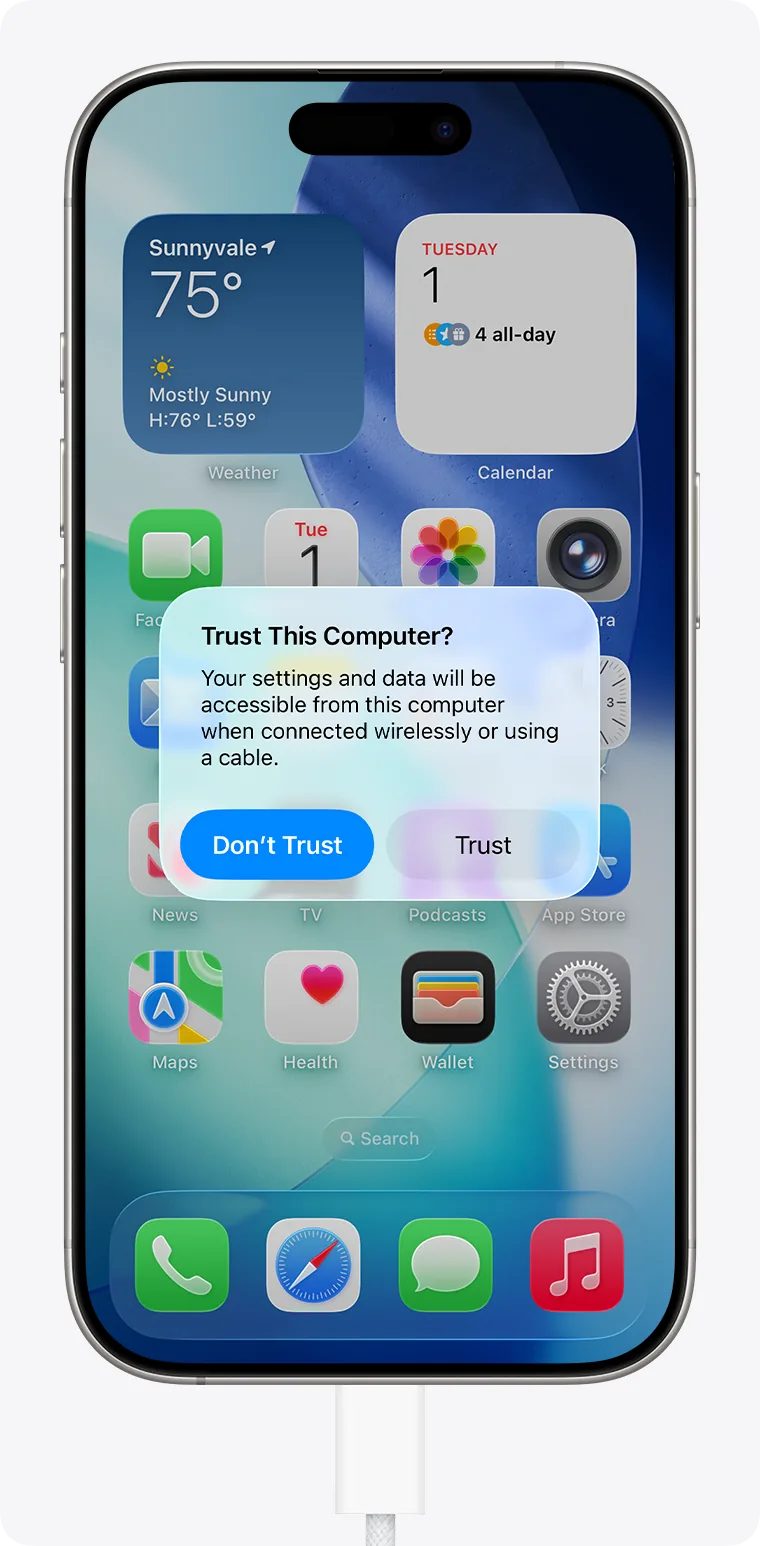
On the iPhone tap Trust, not «Don't Trust». Image: Apple Support -
Select Encrypt local backup and create a password. Enter it a second time to verify it and click Set Password.
-
Click Back Up Now and wait for it to finish before unplugging the cable.
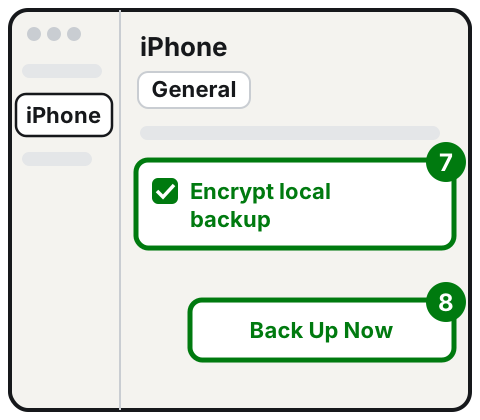
Steps 7 and 8: encryption first, then Back Up Now. Illustration: SimpleBuild
If you don't see the sidebar in the Finder, choose View and then Show Sidebar from the menu bar. If you have a very old Mac, with macOS Mojave or earlier, the steps are the same but you do them in iTunes instead of the Finder.
On Windows 11 and 10
-
Connect the iPhone to the PC with the cable. The iPhone may ask you to tap Trust.
-
Open the Apple Devices app.
-
Select your iPhone in the sidebar.
-
Select General in the sidebar.
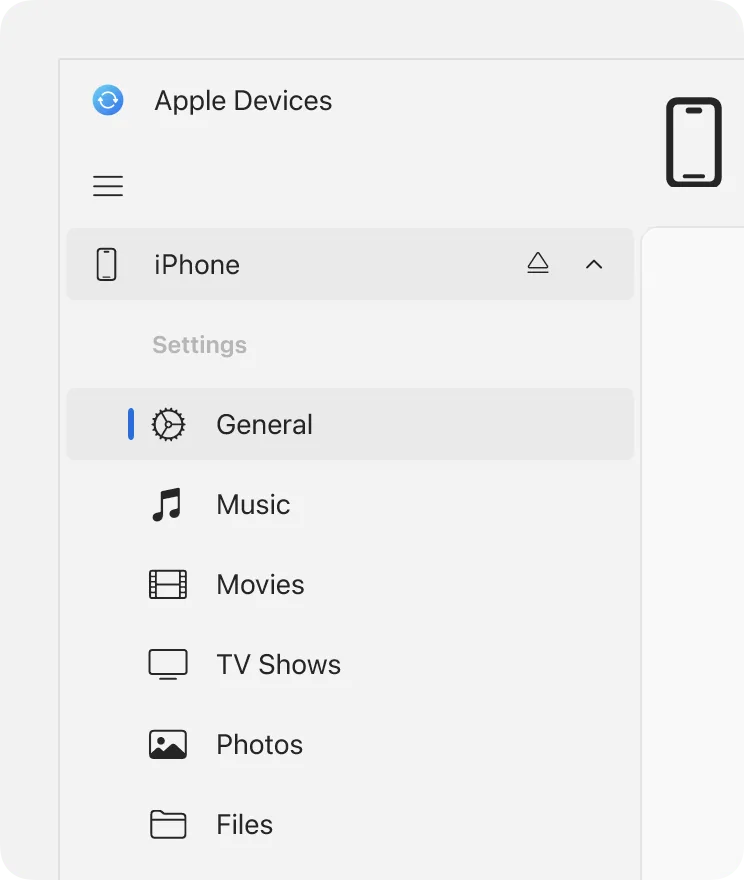
Steps 3 and 4: the iPhone in the sidebar, then General. Image: Apple Support -
Choose Back up all of the data on your [device] to this computer.
-
Select the Encrypt local backup checkbox and choose a password.
-
Select Backup Now.
-
When it's done, you can select Manage Backups to see the list of saved backups.
The app can also connect the iPhone over Wi-Fi instead of the cable, but use the cable the first time: it's the simplest way.
Restore the iPhone from a backup on Windows
If the iPhone ever has a problem, you can bring the data back from the same app:
- Connect the iPhone and open Apple Devices.
- Select the iPhone in the sidebar, then General.
- Select Restore Backup.
- In the Restore Backup pop-up menu choose the backup to use and select Restore. If the backup is protected, it asks for the password.
Where the backups are
You usually don't need to look for them: to view, delete or archive them you use Manage Backups, in the General pane of the Finder or the Apple Devices app. Right-click a backup to choose Delete, Archive, Show in Finder or Show in Explorer.
If you need the exact folder, for example to copy it to an external drive:
- Mac: in the Finder choose the Go menu > Go to Folder and paste the path below.
~/Library/Application Support/MobileSync/Backup/- Windows: press the Windows key + R, type
%USERPROFILE%and press Enter. Apple gives this as the starting point for people who use the Apple Devices app.
Don't open or edit the files inside those folders: the backup could become unusable. If you want a second copy, move or copy the whole folder.
If it still doesn't work
- The computer doesn't see the iPhone. Unlock the iPhone and check that the «Trust This Computer?» question has appeared. Try another cable and another USB port. If you hear no chime and feel no vibration when you plug the phone in, check that there's no debris in the charging port.
- Update everything. Apple recommends the latest version of Windows or macOS and the latest version of iOS.
- Security software. On the Mac, Apple suggests checking VPN and third-party security software; on Windows, any conflicting software.
- The disk fills up. Each iPhone has its own backup, and over time they add up. Use Manage Backups to delete those of phones you no longer own. To make room on the phone itself, see how to free up space on iPhone.
- One copy isn't enough. The computer can break along with the phone (a theft, a flood). The 3-2-1 backup rule explains how to keep copies in different places. For photos only, there's also the guide to transfer photos from iPhone to PC.
- If after these checks the computer still doesn't recognize the iPhone, the problem may be in the phone's port or in the computer. At that point it's worth having both checked by a technician, bringing the cable you normally use.
Frequently asked questions
Does the computer backup include my photos?
Yes, if you don't use iCloud Photos. If iCloud Photos is on, your photos are already in iCloud and Apple leaves them out of the computer backup.
Is it better to back up to iCloud or to the computer?
An iCloud backup happens by itself over Wi-Fi but uses iCloud storage; a computer backup is limited only by disk space. Many people use both.
What happens if I forget the password of the protected backup?
That backup can no longer be used: Apple says so clearly. Write the password down somewhere safe as soon as you create it.
How often should I do it?
At least before every major update, repair or phone change. If you keep work things on the phone, once a week is better.
Sources
- How to back up your iPhone or iPad with your Mac (Apple Support)
- Back up and restore iPhone, iPad, or iPod touch with your Windows device or iCloud (Apple Devices User Guide)
- About encrypted backups on your iPhone, iPad, or iPod touch (Apple Support)
- Backup methods for iPhone or iPad (Apple Support)
- Locate and manage backups of your iPhone, iPad, and iPod touch (Apple Support)
- If your computer doesn't recognize your iPhone or iPad (Apple Support)
- Transfer photos from your iPhone or iPad (Apple Support)