How to back up WhatsApp on Android and iPhone
You back up your WhatsApp chats from the app: on Android they go to your Google Account, on iPhone to iCloud. How to do it now, how to make it automatic, how to protect it with a password and how to check that it's really there.
Procedure verified on against the official sources.
You back up WhatsApp from the app, in Settings > Chats > Chat backup. On an Android phone your chats are saved to your Google Account; on an iPhone to iCloud. Tap Back up (on iPhone Back up now) to do it right away, then set an automatic schedule so you never have to think about it again.
WhatsApp doesn't keep your chats on its servers: if you lose your phone without a backup, the conversations can't be recovered. That's why it's worth checking today that the backup is there.
Before you start
- Use Wi-Fi. WhatsApp warns that backups can be large and use mobile data.
- Keep the phone charging, especially the first time: the first backup can take quite a while.
- Check your storage. You need free space on the phone and in the cloud (Google Account or iCloud). On iPhone, WhatsApp asks for free space, in iCloud and on the phone, of at least 2.05 times the size of the backup.
- One backup at a time. Each new backup replaces the old one: there's no backup «history».
On Android (Google Account)
What you need
- A Google Account activated on the phone.
- The Google Play services app installed.
- Enough space on the phone and in your Google Account.
- A stable internet connection.
Back up now
-
Open WhatsApp and tap More options > Settings.
-
Tap Chats > Chat backup.
-
Tap Back up.
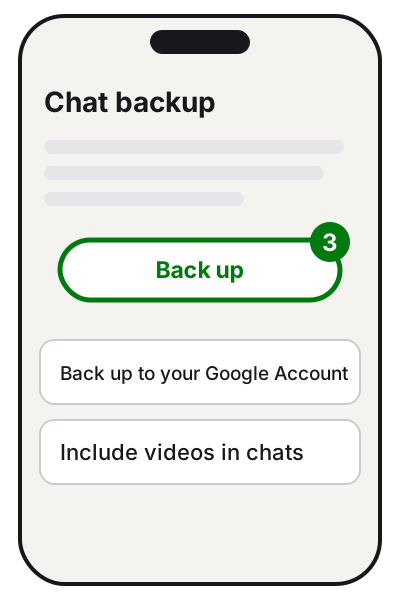
Step 3: Back up. Illustration: SimpleBuild -
Choose whether to turn on Include videos in chats, Back up using cellular or Include status archive.
Make the backup automatic
- In WhatsApp tap More options > Settings > Chats.
- Tap Chat backup > Back up to your Google Account.
- Choose a schedule other than Never or Only when I tap "Back up", for example Daily.
- Choose the Google Account to save your chats to. If you don't have one connected, tap Add account and sign in.
With the Daily schedule, WhatsApp also saves your chats to your Google Account every night.
Change the Google Account for the backup
- In WhatsApp tap More options > Settings > Chats > Chat backup > Google Account.
- Tap Add account and sign in with the account you prefer.
- Tap Back up to save your chats to the new account right away.
Keep in mind two things WhatsApp says: the backup is tied to the phone number and the Google Account it was created with, and a backup not updated in 5 months might be deleted automatically by Google. An automatic backup protects you from both surprises.
On iPhone (iCloud)
On iPhone there are two ways: the WhatsApp backup to iCloud, made from the app, and the full iPhone backup to iCloud. You can use both. Here we look at the first, which is the one WhatsApp uses when you reinstall the app.
What you need
- The same phone number and the same iCloud account you'll use to restore.
- The iPhone updated to the latest iOS.
- Enough space in iCloud and on the iPhone (at least 2.05 times the size of the backup).
- iCloud Drive turned on for WhatsApp: in Settings tap your name > iCloud > iCloud Drive > Apps Syncing to iCloud Drive and check that WhatsApp is on.
Back up now
-
In WhatsApp tap Settings (or your profile picture).
-
Tap Chats > Chat backup > Back up now.
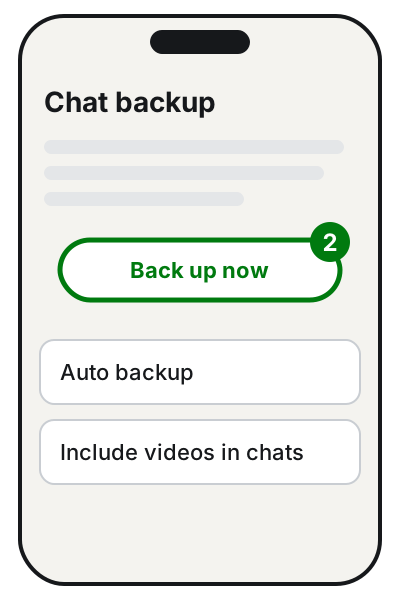
Step 2: Back up now. Illustration: SimpleBuild -
Choose whether to turn on Include videos in chats and Include status archive.
Make the backup automatic
- In WhatsApp tap Settings (or your profile picture).
- Tap Chats > Chat backup.
- Tap Auto backup and choose how often.
Check that the backup is there
Open Settings > Chats > Chat backup: if a backup has been made, you see the time and size of the last backup. If the time is months ago, something is wrong: try starting it by hand and look at the section further down.
Protect the backup with a password
The cloud backup, by default, is not protected by WhatsApp's end-to-end encryption. You can turn it on: then only someone who knows the password (or the key) can open the backup. The steps are the same on Android and iPhone:
- In WhatsApp tap Settings > Chats > Chat backup.
- Tap End-to-end encrypted backup.
- Tap Turn on.
- Choose a passkey, a 64-digit encryption key, or create a password.
- Tap Create.
Careful: WhatsApp states clearly that the password or key is the only way to access the backup in the future. Write it down and keep it somewhere safe, for example in a password manager. If you need an idea of where to look, there's the guide on where to find your saved passwords.
What the backup contains
- One-to-one, group and community chats, with photos and voice messages.
- Videos, but only if you turned on Include videos in chats before the last backup.
- Updates from the channels you follow, but not their media (unless you're the channel admin).
Anything you receive after the last backup isn't saved until the next backup runs.
If it still doesn't work
- The backup gets stuck. WhatsApp suggests restarting the phone, turning Wi-Fi off and on or trying another network (switching networks midway can however interrupt the backup), plugging the phone in and closing and reopening WhatsApp.
- On Android, errors with the Google Account. Check that Google Play services is up to date: in the phone Settings tap Apps > Google Play Services > App Details > Update. WhatsApp also recommends checking that WhatsApp's Photos and videos permission is set to Allow. With dual SIM, the SIM of your WhatsApp number must be active.
- On iPhone, the backup won't start. Turn iCloud Drive off and back on (Settings > your name > iCloud > iCloud Drive > Sync this iPhone) and update iOS and WhatsApp.
- Cloud storage is full. Make the backup smaller by leaving out videos, or free up space: the guide on how to free up space in Gmail, Drive and Google Photos also applies to the WhatsApp backup on Android.
- Changing phones? Make a manual backup just before. If you're moving from Android to iPhone the backup won't help: follow the guide on how to transfer your chats from Android to iPhone.
- The WhatsApp backup doesn't cover the rest of the phone: photos, contacts and documents must be saved separately. The 3-2-1 backup rule explains how to organize it.
- If the backup keeps failing and the chats matter (work, family memories), don't uninstall WhatsApp to «try again»: have a technician take a look first, because without a valid backup the chats don't come back.
Frequently asked questions
Does the WhatsApp backup use storage in my Google Account?
Yes. Google explains that on Android, WhatsApp backups count toward your Google Account storage, along with Gmail, Drive and Photos. If space is short, leave videos out of the backup.
Can I keep more than one backup, for example an old one and a new one?
No. Each new backup replaces the previous one, on both Google and iCloud: you can't go back to an older backup.
Does the backup carry over from Android to iPhone?
No. The Google backup is for another Android phone, the iCloud one for another iPhone. Switching systems has its own procedure.
What happens if I forget the password of the encrypted backup?
WhatsApp warns that the password or the 64-digit key is the only way to open that backup. Without it, the backup can't be read: keep it somewhere safe.
Sources
- How to back up your chat history, Android (WhatsApp Help Center)
- How to back up your chat history, iPhone (WhatsApp Help Center)
- About Google Account backups (WhatsApp Help Center)
- Can't back up or restore your chat history, Android (WhatsApp Help Center)
- Can't back up or restore your chat history, iPhone (WhatsApp Help Center)
- How to restore your chat history, iPhone (WhatsApp Help Center)
- Manage your storage in Drive, Gmail & Photos (Google Drive Help)