How to free up space in Gmail, Google Drive and Google Photos
Gmail, Drive and Google Photos share the same Google Account storage. When it's full, emails stop arriving. How to see what's using space, empty the trash folders, find the heaviest emails and files, and shrink your WhatsApp backup.
Procedure verified on against the official sources.
Your Google Account has one storage space, up to 15 GB by default, which Gmail, Google Drive and Google Photos share. On Android, the WhatsApp backup goes there too. When the space is full, Google warns that you can no longer send or receive emails (messages bounce back to the sender), upload files to Drive or back up your photos.
The quickest fixes, in order: empty the Gmail trash and spam, empty the trash in Drive and Google Photos, then delete emails with large attachments and the heaviest files in Drive. The handiest tool is the Google One Storage page, which shows what's using space and suggests what to delete.
Before you start
- What you delete permanently doesn't come back. Google warns that deleting in bulk can make you lose files for good. Before deleting important photos or documents, download a copy to a disk or your computer: the 3-2-1 backup rule explains why one copy isn't enough.
- The trash uses space. Until you empty it, emails and files in the trash still count. Gmail, Drive and Photos empty it automatically after 30 days.
- Careful with photos synced to your phone. If you delete a photo from Google Photos with backup on, it also disappears from your phone and the other linked devices.
- Give the count time: after many deletions it can take 48–72 hours for your storage to update.
See what's using space (Google One)
From a computer
-
Go to Google One (
one.google.com) and sign in. -
Click Storage.
-
Under «Get your space back», click Free up account storage.
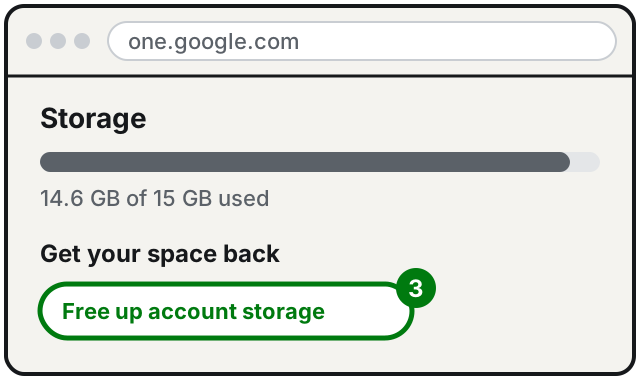
Step 3: Free up account storage. Illustration: SimpleBuild -
Under «Clean up suggested items» or «Clean up by service», choose a category or a service (Gmail, Drive, Photos).
-
Select the files to delete. For photos, you can first click Download to save them to your computer.
-
Click Delete at the top right (for Photos, Move to trash), read the warning, check the box and confirm with Permanently delete.
From your phone
In the Google One app, tap Storage and then Free up account storage. In Gmail, Drive or Photos too, when your storage is full, a Free up space or Manage storage button appears that opens the same page.
Gmail
Empty the trash and spam
- Open Gmail on your computer.
- On the left, click More > Trash.
- Click Empty Trash now in the notification at the top, or select the messages and click Delete forever.
- Do the same with the Spam folder.
Find the heaviest emails
Type one of these commands, suggested by Google, in the Gmail search bar:
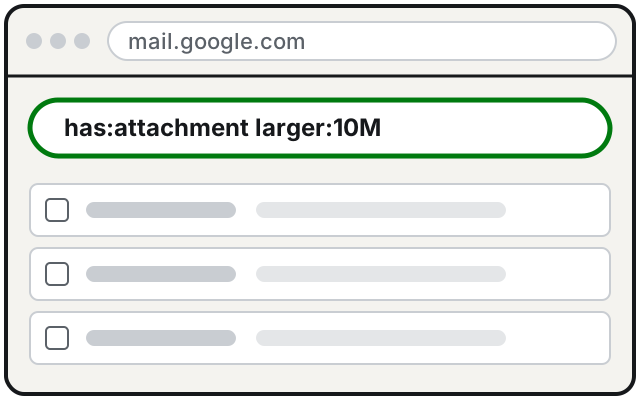
has:attachment larger:10Mfinds emails with attachments larger than 10 megabytes;
filename:.pdf larger:5Mfinds emails with PDF attachments larger than 5 megabytes;
older_than:2y has:attachmentfinds emails with attachments older than two years.
Then select the emails you don't need (the box to the left of each message) and click Delete. Remember to empty the trash again. If you need an attachment, download it first to your computer.
To delete in bulk, for example the whole Promotions folder: open it, check the box at the top left, click the «Select all … conversations» link that appears above the messages, and then Delete.
Google Drive
Find the largest files
-
Open
drive.google.comon your computer. -
In the left menu, click Storage.
-
The files are already listed from largest to smallest.
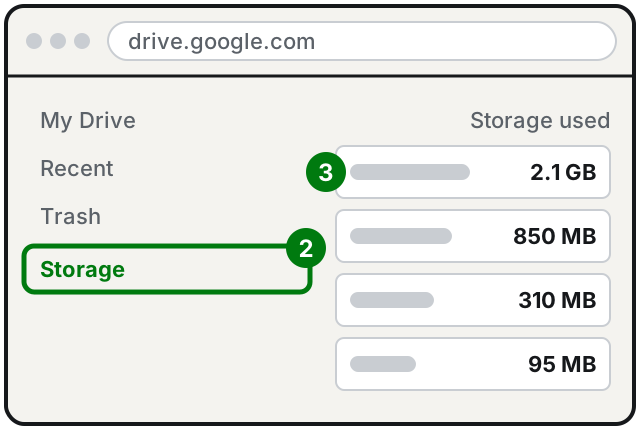
Steps 2 and 3: Storage, with the heaviest files at the top. Illustration: SimpleBuild -
Right-click a file you don't need and choose Move to trash.
Drive has no tool that finds duplicate files on its own. Google suggests switching to list view, sorting by Name and looking for files with the same name, especially those ending in «(1)» or starting with «Copy of».
Empty the Drive trash
- On
drive.google.com, click Trash on the left. - Make sure there are no files you want to keep.
- At the top right, click Empty trash > Delete forever.
Note: if the file is yours and you shared it, deleting it permanently also removes other people's access.
Google Photos
Only photos that count toward your account storage free up space when you delete them. Google points out that photos backed up in «High quality» (now called «Storage saver») before June 1, 2021 don't count toward storage: deleting them changes nothing.
Delete photos and videos (Android)
- Open Google Photos and make sure you're signed in to your account.
- Touch and hold a photo or video; you can select more.
- At the bottom, tap Trash.
Empty the Google Photos trash (Android)
At the bottom, tap Collections > Trash, then More > Empty Trash > Delete permanently.
Keep the photo on your phone but remove it from the cloud
Google explains the procedure: turn off backup in the Google Photos app on every device where you want to keep the photos, then from a computer or your phone's browser go to photos.google.com and delete the chosen photos there. If you're not sure, get help: it's easy to make a mistake and delete the copy on your phone too.
The WhatsApp backup (Android)
On Android the WhatsApp backup counts toward your Google storage, and videos are usually the heaviest part.
- In WhatsApp, tap Settings > Chats > Chat backup and turn off Include videos.
- Tap Back up: the new backup, without videos, replaces the old one.
Google warns: if you delete the WhatsApp backup from Google One without changing the settings, it comes back with the next backup; and if you delete it and then change phone before making a new one, you lose all your chats. To learn how the backup works, see the guide on how to back up WhatsApp.
If it still doesn't work
- Your storage isn't going down. Wait up to 72 hours after large deletions and check that you emptied all the trash folders (Gmail, Drive, Photos) and spam.
- You have more than one Google Account. Storage is separate for each account: make sure you're signed in to the full one before deleting.
- Work or school account (Workspace). Storage is set by the administrator: ask them.
- You still don't receive emails after freeing up space. Sign out and back in to the account, then send yourself a test email.
- You still need more space. Google One offers paid plans with more storage; before choosing one, consider whether moving old photos to a disk at home is enough. Phone storage is a different thing: see how to free up space on Android or on iPhone.
- If you have years of photos and documents and don't know what to keep, a technician can help you download everything into a tidy archive before deleting anything: that's the riskiest part.
Frequently asked questions
I deleted a lot of files but my storage hasn't changed: why?
Google explains that after deleting many files it can take 48 to 72 hours for the count to update. Also check that you emptied the trash: as long as files are there, they use space.
Do files other people share with me use my storage?
No, they use the storage of whoever created them. But if you make a copy, the copy counts toward your storage.
What happens if I stay over the limit for a long time?
Google warns that if you're over your quota for two years or more, your Gmail, Drive and Photos content may be deleted. It notifies you at least 3 months in advance and gives you a chance to download it.
If I delete a photo from Google Photos, does it also disappear from my phone?
Yes, if backup is on: Google explains it's deleted both from the cloud and from the devices where backup is on. If you want to keep it on your phone, read the Google Photos section before deleting.
Sources
- How your Google storage works (Google One Help)
- Clean up & fix issues with your Google storage (Google One Help)
- Manage storage in Drive, Gmail & Photos (Google Drive Help)
- Delete messages in Gmail (Gmail Help)
- Delete files in Google Drive (Google Drive Help)
- Delete photos & videos, Android (Google Photos Help)