How to free up space on an Android phone
How to see what's filling your Android phone's storage and make room: junk files and duplicates with Files by Google, apps to archive, photos already saved in Google Photos, WhatsApp videos. With Google's names for the menu items and a note for Samsung, Xiaomi and other brands.
Procedure verified on against the official sources.
Open Settings > Storage to see what's using the storage. Then make room in this order: junk files and duplicates with the Files by Google app, apps you don't use (better to archive them), photos already saved in Google Photos, WhatsApp videos and photos. Every Android phone has slightly different menus: here you'll find the names Google uses.
Before you start
- Menu names change from brand to brand. The items in this guide are those of Google's help pages, and they match on Pixel phones. On Samsung, Xiaomi, Motorola and other brands the same features may have different names or sit elsewhere in Settings. If you can't find an item, check your phone manufacturer's guide: Google itself refers you to them when settings vary.
- Some features depend on the Android version. Google says some steps only apply from Android 14 onward, and that app archiving partly requires Android 15.
- Save your photos first. If you delete photos and videos, only do it after saving them elsewhere: in Google Photos with backup on, or by copying them to a computer.
- Files by Google is Google's app for managing files. If it's not on your phone, look for it in the Play Store.
See what's taking up space
- Open the phone's Settings app.
- Tap Storage.
- Tap a category (for example images, videos, apps) to see what it contains.
Start with the largest category.
Free up space from Settings
Settings has a screen that gathers photos, videos and apps you haven't used in a while:
-
Open Settings and tap Storage > Free up space.
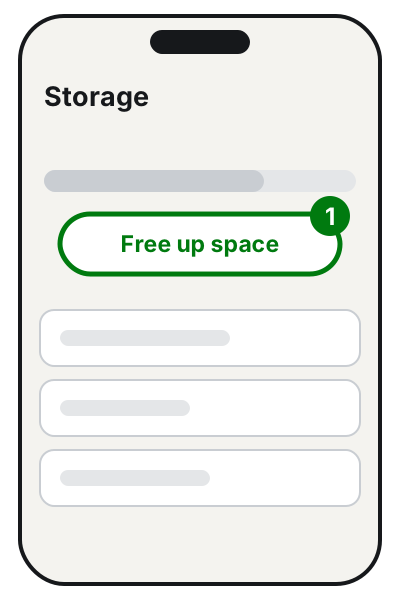
Step 1: Storage, then Free up space. Illustration: SimpleBuild -
Scroll to the category you're interested in and tap Select files. If the category isn't there, tap Browse.
-
Choose the files to delete, or select them all.
-
Tap Move files to Trash.
Let the phone do it automatically
You can ask the phone to delete by itself the photos and videos already backed up when storage is about to run out:
- Open Settings and tap Storage > Free up space.
- Tap Menu and then Settings.
- Turn on Smart Storage.
With Files by Google
Junk files
These are temporary files left by apps. App settings aren't touched.
- Open Files by Google.
- Tap Menu > Clean.
- On the «Junk files» card, tap Clean (next to it you see how many MB it frees).
- Confirm with Clean.
Google warns that files deleted this way are permanently deleted.
Duplicate files
- Open Files by Google and tap Menu > Clean.
- On the «Duplicate files» card, tap Select files.
- Choose the files to delete. The original has the Original label: Google recommends keeping it.
- Tap Move x files to Trash and confirm.
Apps you haven't used in a while
- In Files by Google tap Menu > Clean.
- Look for the «Delete unused apps» card. If it's not there, scroll to «Free up more space» and tap Find apps, then Continue.
- If asked, on the «Usage access» screen tap Files by Google and turn on Permit usage access.
- On the «Delete unused apps» card tap Select apps, choose the ones to remove, tap Uninstall and confirm with OK.
Archive an app instead of deleting it
On recent versions of Android you can archive an app: the phone removes the program, its permissions and temporary files, but keeps the icon and your data. When you need it, you restore it.
- Open Settings and then Apps.
- Tap the app's name.
- Tap Archive.
The icon becomes faded. To get the app back, tap it on the Home screen: the phone downloads it again. The app must still be available in the store.
Clear an app's cache
Google warns that items may vary by manufacturer; these are the steps for Pixel phones:
- Open Settings.
- Tap Apps > See all apps.
- Tap the app.
- Tap Storage & cache > Clear cache.
Don't tap Clear storage unless you know what you're doing: it permanently deletes all of the app's data. The cache builds up again over time: it's a short-lived fix.
Photos and videos already saved in Google Photos
If you use Google Photos backup, your photos are safe in your account and you can remove the copies from the phone.
- Open Google Photos and check that you're signed in to your Google Account.
- Tap your profile initial or photo, at the top.
- Tap Free up space on this device.
- See how much space will be freed. To confirm, tap the Free up button followed by the amount of space.
You'll still see the photos in the Google Photos app and on photos.google.com when you're connected. You won't see them any more in the phone's gallery or when you're offline. Google also warns that photos from the last 30 days may stay on the phone.
- Open WhatsApp and, on the Chats tab, open the menu and tap Settings.
- Tap Storage and data > Manage storage. At the top you see how much space WhatsApp uses.
- Choose a chat or channel and check the largest files, then delete the ones you don't need.
You can also do it from a single chat: tap the chat's name and then Manage storage. WhatsApp recommends backing up your chats to your Google Account first.
If it still doesn't work
- The space doesn't come back. From Free up space and from Files by Google, files often go to the trash, and the gallery has one too: check that what you deleted isn't still there.
- Move heavy items to the computer. With a USB cable you can move files and folders to the PC and then delete them from the phone. Microsoft explains how to import them with the Windows Photos app; you may need to change the phone's USB setting to file or photo transfer.
- Keep more than one copy. The phone isn't an archive: the 3-2-1 backup rule explains how not to lose your photos if it breaks.
- Do you also have an iPhone? There's the guide to free up space on iPhone.
- If the phone is always full even after this cleanup, maybe its storage is too small for how you use it. A technician can help you move photos and documents safely and work out whether a memory card (if the phone takes one) or another phone makes sense, without losing anything.
Frequently asked questions
Does clearing the cache lose data?
No, Clear cache only removes temporary data; the app may be a little slower the next time. Clear storage, on the other hand, permanently deletes all of the app's data.
What's the difference between archiving and uninstalling an app?
When you archive it, the phone removes the app but keeps its data and icon, and you can restore it with one tap. When you uninstall it, you also lose the data saved only on the phone.
Are phone cleaner apps useful?
To make room, Settings and Files by Google, which is made by Google, are enough. Be wary of apps that promise to «speed up» or «cool down» your phone and ask for lots of permissions.
After Google Photos' «Free up space» can I still see my photos?
Yes, in the Google Photos app and on photos.google.com, as long as you're connected to the internet. You no longer see them in the phone's gallery.
Sources
- Free up storage on your Android device (Google Play Help)
- Clear up space (Android Help)
- Free up space on a Pixel phone (Pixel Phone Help)
- Archive unused apps on Android (Android Help)
- Clear your junk files (Files by Google Help)
- Delete duplicate files (Files by Google Help)
- Delete unused apps and free up space (Files by Google Help)
- Free up space on your device (Google Photos Help)
- Import photos and videos from phone to PC (Microsoft Support)
- How to free up storage on WhatsApp (WhatsApp Help Center)