How to convert HEIC photos to JPG (Mac, Windows, iPhone)
iPhone photos in HEIC format don't open everywhere. Here's how to turn them into JPG with the tools already on your Mac and Windows PC, and how to make your iPhone shoot in JPG from the start.
Procedure verified on against the official sources.
HEIC photos are the ones your iPhone takes in the HEIF format, which uses less space than JPG. On a Mac you convert them in a few clicks with Preview (File > Export > format JPEG) or with the Finder's Quick Actions. On Windows you need Microsoft's HEIF extensions. On your iPhone you can choose to shoot in JPG from the start, in Settings > Camera > Formats > Most Compatible.
Before you start
- Keep the originals until you've checked that the JPGs came out well. Converting creates a new file, but it's better not to delete anything in a hurry.
- HEIC and HEIF are the same thing for what you need: HEIF is the name of the format, .heic is the file extension.
- Often the conversion happens on its own. If you send a photo with AirDrop, Messages, or email to a device that can't read HEIC, your iPhone can send it as JPG automatically.
On Mac
Macs can read HEIC photos from macOS High Sierra onward. To turn them into JPG you have three options.
With Preview (one or more photos)
-
Open the photo in the Preview app.
-
Choose File > Export.
-
Click the Format pop-up menu and choose JPEG.
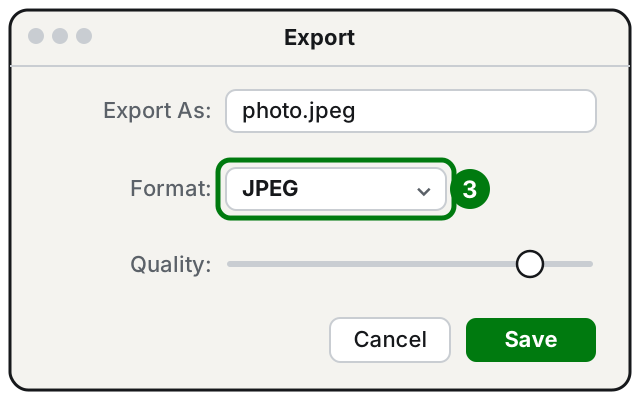
Step 3: in the Format menu, choose JPEG. Illustration: SimpleBuild -
Adjust the image quality with the option that appears.
-
Type a name, choose where to save the file, and click Save.
To convert several photos at once: open them all in the same Preview window, select them in the window's sidebar, and follow the same steps.
With Quick Actions in the Finder (without opening any app)
- Open a Finder window and select the photo.
- Click the photo while holding down the Control key.
- Choose Quick Actions > Convert Image. If you don't see it right away, look under More.
- Choose the JPEG format and the size, then confirm.
With the Photos app
If the photo is in your Photos library, select it, choose File > Export, and pick a format such as JPEG before saving.
On Windows 11 and Windows 10
Windows doesn't always open HEIC photos: the Photos app may show the message "You need an extension to use this file." Microsoft suggests three solutions.
1. Install Microsoft's extensions
- Open the Microsoft Store.
- Search for HEIF Image Extensions and install it. It's free.
- Also search for HEVC Video Extensions and install it. Microsoft explains that you need both, even if you only care about photos. This second extension is paid.
- Restart the Photos app: HEIC photos now open.
Once the photo is open, you can save a copy as JPG with a program that lets you choose the format. For example Paint, which comes with Windows: when you save the image, it lets you choose between PNG, JPEG, BMP and GIF.
2. Let the photos convert during the transfer
Many devices automatically convert HEIC photos to a more common format when you transfer them or send them by email. Two ways:
- With a cable: connect the iPhone to the PC and copy the photos. To have them arrive already in JPG, on the iPhone go to Settings > Apps > Photos and, at the bottom, make sure Keep Originals is not selected. For the full transfer steps, see how to transfer photos from iPhone to a Windows PC.
- By email: send the photos from your phone to your own mailbox and save them on the PC.
3. Use OneDrive
Microsoft also suggests OneDrive as a third option for photos: on the OneDrive website, HEIF photos can be viewed in any browser.
On iPhone
Shoot in JPG from the start
-
Open Settings.
-
Tap Camera.
-
Tap Formats.
-
Choose Most Compatible.
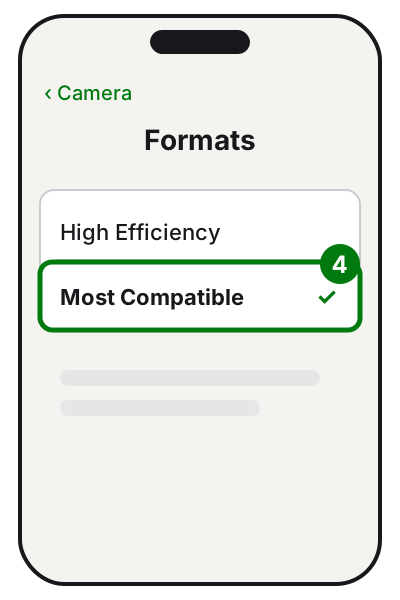
Step 4: Most Compatible, to shoot in JPEG. Illustration: SimpleBuild
From now on, new photos will be JPEG (and videos H.264). Photos you've already taken stay HEIC. To go back to the format that uses less space, choose High Efficiency.
Note: with Most Compatible, photos take up more space. If your iPhone's storage is already tight, see also how to free up space on iPhone.
Transfer photos already converted
If you connect the iPhone to a Mac or a PC with a cable, the photos can be converted to JPEG during the import. This happens if you haven't chosen Keep Originals in Settings > Apps > Photos.
If it still doesn't work
- On Windows the photo won't open even after the extensions? Check that you installed both (HEIF and HEVC) and that you restarted the Photos app.
- The JPG comes out blurry or small? In Quick Actions, check the size you chose; in Preview, raise the quality before saving.
- Don't see Convert Image in the Finder? The available actions depend on the file type and on the Finder extensions turned on. Use Preview: it does the same thing.
- Need to convert lots of photos every week? It's worth deciding once and for all: set the iPhone to Most Compatible, so new photos are JPG from the start.
- When to ask a technician: if you have a large archive of HEIC photos to convert without losing dates and information, or if a work program only accepts JPG and you need an automatic workflow. A technician can set it up once and leave it running.
Frequently asked questions
Can I choose the JPG quality?
Yes. In Preview, when you choose JPEG, an option appears to adjust the quality: keep it high for photos you care about, even though the file will be larger.
Why does the iPhone use HEIC instead of JPG?
The HEIF format, with the .heic extension, compresses better than JPG: at the same quality it takes up less space on your phone and in iCloud.
If I choose Most Compatible, do my old photos become JPG?
No. The setting only applies to new photos. The ones you've already taken stay HEIC and need to be converted separately.
Does converting delete the original photo?
Not with Preview: you choose a name and a location, and the JPG is saved as a new file. Check the result before you delete the original.
Sources
- Using HEIF or HEVC media on Apple devices
- Convert image file types using Preview on Mac
- Perform quick actions in the Finder on Mac
- Photos app Video Editor error: Can't view this file type (Microsoft)
- Upload HEIF and HEVC photos and videos to OneDrive (Microsoft)
- Draw, create and edit with Paint (Microsoft)