Slow Mac: what to do to make it fast again
The checks to make, in order, when your Mac has become slow: free space, memory, apps that open on their own, updates and safe mode. All with the tools your Mac already has.
Procedure verified on against the official sources.
If your Mac has become slow, Apple says the most common causes are three: too little free disk space, an app using too much memory, and apps that aren't suited to your Mac. Before you think about a new Mac, run these checks in order: they only need the tools your Mac already has.
Before you start
- Restart your Mac. From the Apple menu (the apple at the top left), choose Restart. It sounds obvious, but it closes all the apps and processes that have been left open for days.
- Save your open work. Some steps quit apps: if a document isn't saved, you risk losing your changes.
- Make a backup if you don't have a recent one, especially before updating macOS. You'll find the steps in how to back up your Mac with Time Machine.
1. Check your free space
A nearly full disk is one of the most frequent causes of slowness.
- Open the Apple menu and choose System Settings.
- In the sidebar, click General (you may need to scroll down).
- On the right, click Storage.
- Look at the chart at the top: it shows how much space is used and how much is left.
- Read the recommendations below the chart and turn on the ones you need.
In versions of macOS earlier than Ventura 13, the same chart is in Apple menu > About This Mac > Storage.
If free space is low, follow the full guide on how to free up space on your Mac: Downloads folder, old iPhone backups, apps you don't use, Trash.
2. See what's using memory
Memory (RAM) is your Mac's workspace: if an app asks for more than there is, everything slows down. To see it, you use Activity Monitor.
- Open a Finder window and go to Applications > Utilities > Activity Monitor.
- At the top, click Memory.
- At the bottom of the window, look at the Memory Pressure graph: it shows how well your memory is keeping up with the computer's work.
- In the list at the top, apps are sorted by the memory they use: see which ones are at the top.
To see instead what's working the processor hardest, click CPU at the top.
Quit an app that isn't responding
If an app is frozen or using too much memory, you can quit it from here.
-
In Activity Monitor, in the Process Name list, select the app. A frozen app appears in red, marked "(Not Responding)".
-
Click the button to stop the process, in the top-left corner of the window.
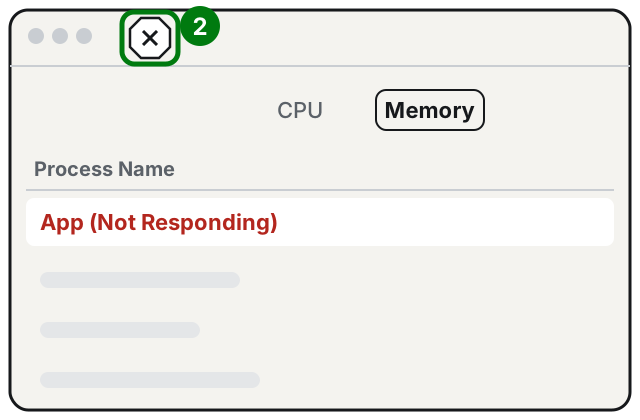
Step 2: the button with the X, at the top left. Illustration: SimpleBuild -
Choose Quit: the app closes when it can do so without losing data.
-
Use Force Quit only if Quit doesn't work: the app closes immediately and unsaved documents are lost.
Careful: don't quit processes whose names you don't know. Many are needed by macOS, and quitting them can cause problems for other apps. If your Mac asks for an administrator password, stop and double-check what you're quitting.
3. Remove apps that open on their own
Many apps add themselves to startup without asking. The more there are, the slower your Mac is right after you turn it on.
- Open Apple menu > System Settings.
- Click General in the sidebar.
- Click Login Items & Extensions (you may need to scroll down).
- In the list of apps that open at login, select the one you don't need at startup.
- Click the minus button below the list.
The app isn't deleted: it simply no longer opens on its own. On the same page there's also the list of apps allowed to work in the background, meaning when they aren't open: you can turn off the ones you don't recognize as useful.
4. Update macOS and your apps
Apple recommends using the latest version of macOS compatible with your Mac: updates also fix stability problems.
-
Open Apple menu > System Settings.
-
Click General, then Software Update on the right.
-
If there's an update, click Update Now, Upgrade Now or Restart Now.
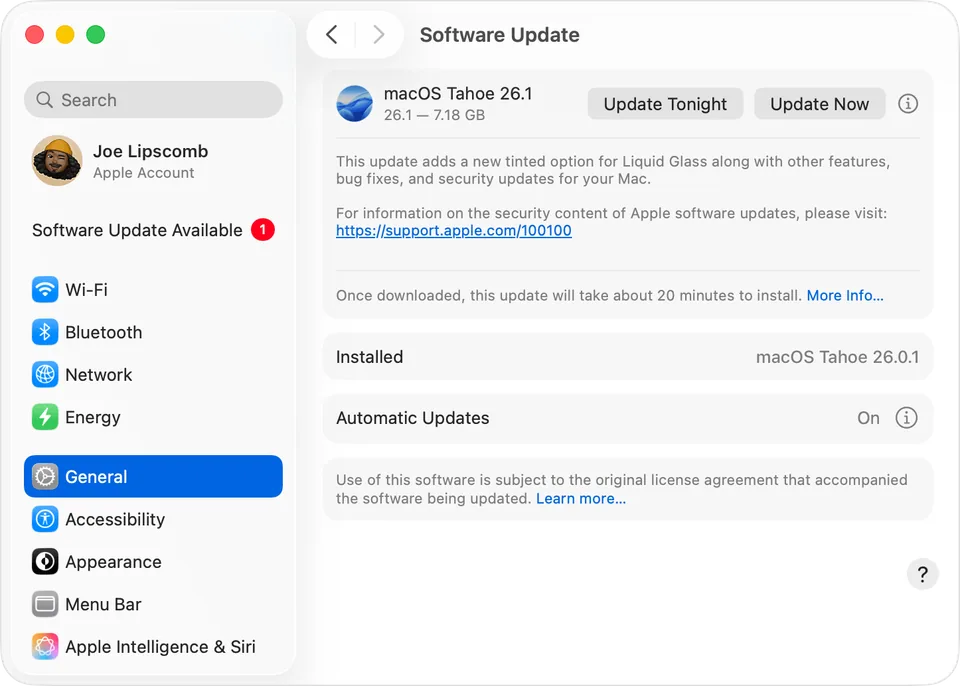
Step 3: the update button, next to the available version. Image: Apple Support -
Enter the password you use to log in to your Mac.
-
Wait for it to finish without closing the lid or putting the Mac to sleep: it may restart several times.
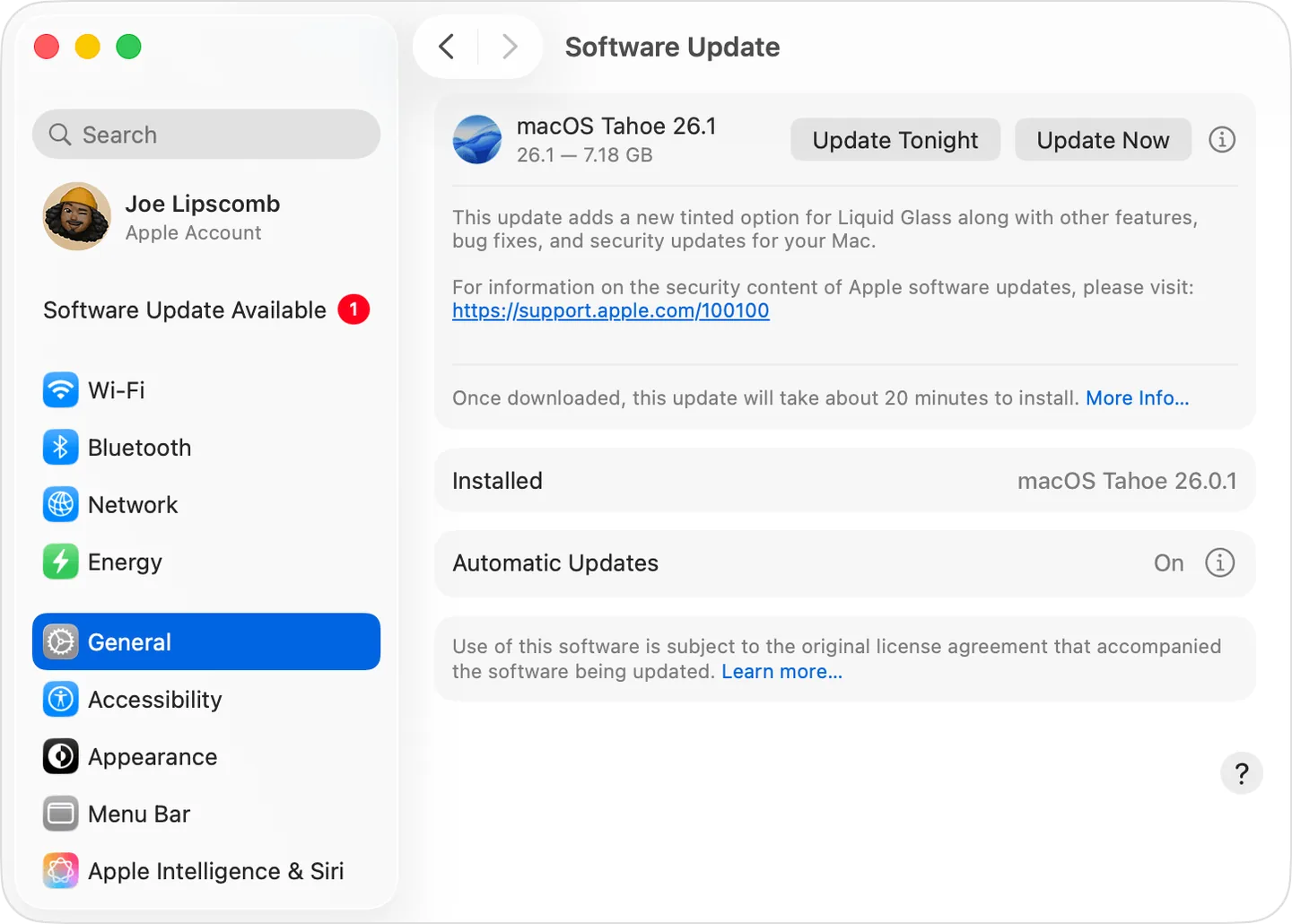
Also update the apps you use most: an old app may require a different processor or graphics card from the ones in your Mac. To find out which processor you have, go to System Settings > General > About.
5. Quit what you're not using
Every open app takes up memory. Apple simply suggests quitting all the apps you're not using: if you don't know how to quit one, use Activity Monitor and the Quit command, as shown above.
6. Try safe mode
Safe mode starts your Mac without unnecessary login items and extensions, checks the disk, and deletes some caches. It helps you find out whether the slowness comes from a program that opens at startup.
Mac with Apple silicon
-
Shut down your Mac.
-
Press and hold the power button until Loading startup options appears, then release it.
-
Select your startup disk (usually Macintosh HD).
-
Press and hold the Shift key and click Continue in Safe Mode.
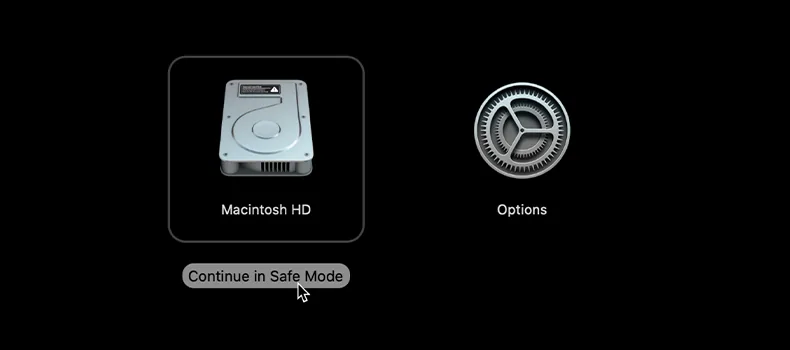
Step 4: with Shift held down, Continue in Safe Mode appears. Image: Apple Support -
Log in: you might see Safe Boot in red at the top right.
Mac with an Intel processor
- Turn on or restart your Mac and immediately press and hold the Shift key.
- Release it when the login window appears.
Use your Mac for a while. Then choose Restart from the Apple menu to go back to normal mode. If your Mac works well in safe mode and becomes slow again after the restart, the cause is almost certainly a login item or another program that opens at startup: go back to step 3.
If it still doesn't work
- Check the disk with Disk Utility. Apple points to it when there are disk problems: open the Disk Utility app and use First Aid on your Mac's disk.
- Disconnect non-essential accessories (external drives, hubs, adapters) and try again: sometimes the problem comes from there.
- Try a new user account. Apple suggests creating another user in Users & Groups settings and trying from there: the new account doesn't have the old one's programs and settings. If your Mac is fast there, the problem is in your account.
- Look at the processor in Activity Monitor (CPU tab): if a process always stays at the top even when you're doing nothing, write down its name before asking for help.
- Reinstall macOS. If the problem persists even in safe mode, Apple points to reinstalling macOS as the most likely solution, and explains that it doesn't remove your personal files. Make a backup first anyway.
- When to ask a technician: if your Mac stays slow after all these steps, if Disk Utility reports errors it can't repair, or if you don't feel confident reinstalling macOS. A technician can quickly tell whether the limit is the disk, the memory or the age of the Mac, and whether it's worth fixing.
Frequently asked questions
Do I need a cleaning program to speed up my Mac?
Usually not. Apple points to tools already on your Mac: Storage settings for space, Activity Monitor for memory, and Disk Utility for disk problems.
What's the difference between Quit and Force Quit?
With Quit, the app closes only when it can do so without losing data. With Force Quit, it closes immediately and unsaved documents are lost: use it only for a frozen app.
How often should I restart my Mac?
There's no fixed rule. If your Mac slows down after days of continuous use, a restart closes all the apps and processes left open, and it's the first thing to try.
Does safe mode delete my files?
No. It only stops some programs from opening at startup, checks the disk, and deletes some caches, which your Mac recreates on its own. To leave it, just restart normally.
Sources
- If your Mac runs slowly (Mac User Guide)
- View memory usage in Activity Monitor on Mac
- Quit an app or process in Activity Monitor on Mac
- Open items automatically when you log in on Mac
- Update macOS on Mac
- Start up your Mac in safe mode
- Free up storage space on Mac
- If your Mac sleeps or wakes unexpectedly