The 3-2-1 backup rule, explained simply
Three copies of your important files, on two different types of media, one of them away from home. What it means in practice, how to set it up with the tools in Windows and Mac, and the mistakes that make it useless.
Procedure verified on against the official sources.
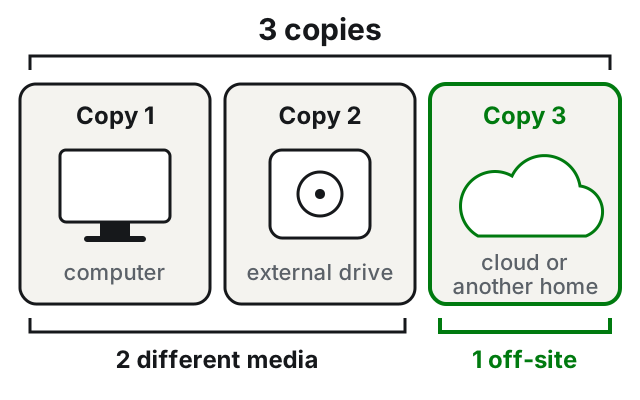
The 3-2-1 rule says: keep 3 copies of your important files, on 2 different types of media, with 1 copy off-site. It's the simplest way not to lose photos and documents to a hardware failure, a theft, a fire or a virus that locks your files.
Before you start: what each number means
The rule is also recommended by CISA, the US cybersecurity agency, which sums it up like this: 3 copies of important files, 2 different types of media (for example a drive and the cloud), 1 copy stored somewhere else.
- 3 copies: the original on your computer plus two spare copies. A single spare copy isn't enough: if it breaks just when you need it, you have nothing left.
- 2 different media: the copies shouldn't all be on the same kind of device. For example your computer's drive plus an external drive, or an external drive plus the cloud (storage on the internet, like OneDrive or iCloud).
- 1 off-site: at least one copy must be in another place. An external drive that's always plugged into the PC is lost along with the PC in a theft, fire or flood.
There's one point CISA adds that applies at home too: keep at least one copy disconnected from the computer. Viruses that lock your files and demand a ransom (called ransomware) can also damage the drives connected at that moment.
A practical example with a Windows PC
- Copy 1, the original: your files on the PC.
- Copy 2, external drive: turn on File History on a USB drive. You'll find it in Control Panel, under System and Security > Save backup copies of your files with File History. Connect the drive regularly, then unplug it.
- Copy 3, off-site: turn on Windows Backup for your most important folders on OneDrive (Settings > Accounts > Windows backup). A free Microsoft account includes 5 GB.
The full steps are in the guide on how to back up a Windows PC.
A practical example with a Mac
- Copy 1, the original: the files on your Mac.
- Copy 2, external disk with Time Machine: go to the Apple menu, then System Settings > General > Time Machine, and click Add Backup Disk. Apple recommends a disk at least twice the size of your Mac's storage.
- Copy 3, off-site: a second Time Machine disk that you keep somewhere else and swap with the first one now and then (Time Machine can use more than one backup disk), or your important folders on iCloud.
The details are in the guide on backing up your Mac with Time Machine.
What about your phone?
Phone photos are often the most precious and the least protected. Keep a copy of them in the cloud and download them to your computer now and then, so they're part of your backup routine too. For iPhone there's the guide on backing up your iPhone to a PC or Mac.
The mistakes that make the rule useless
- Keeping everything in the same place: a PC and a backup drive on the same desk don't make an off-site copy.
- Mistaking sync for backup: a service that keeps your computer and the cloud identical also copies your mistakes. If you delete a folder on the PC, it disappears online too.
- Never testing a restore: CISA recommends checking that you can really get your files back, both all at once and one at a time. Every so often, try restoring a random file from the backup.
- Forgetting the drive in a drawer: a backup made a year ago gives you back the files from a year ago. Set a reminder.
- Losing the access keys: if the backup is in the cloud or password-protected, you can't open it without that password. Keep it somewhere safe.
If it still doesn't work
- You don't have room for three copies: start with the files you could never recreate, meaning photos, personal documents and work. Programs and the system can be reinstalled, memories can't.
- The external drive has broken: don't pile repair attempts on it. If there were files that exist only there, stop and ask a technician.
- You deleted photos from a memory card and had no backup: try the guide to recover deleted photos from an SD card right away, without using the card in the meantime.
- If there are several computers and phones at home or in the office, it's worth having a single backup plan and a schedule of checks set up for you: it's the kind of job where a technician saves you from mistakes.
Frequently asked questions
Does a copy on OneDrive or iCloud count as the off-site copy?
Yes, it's off-site. But if it's a sync, a file deleted or damaged on the computer disappears or gets damaged there too: that's why it shouldn't be your only spare copy.
Is a USB stick OK as the second type of media?
For a few documents it can do, but it's small, easy to lose and usually has little space. For photos and archives an external drive is more practical.
How often should I update the copies?
It depends on how much work you're willing to lose. If you create important documents every day, you need an automatic backup; for a family photo archive, once a week may be enough.