How to find a saved Wi-Fi password and share it
If a device is already connected to the Wi-Fi, you can read the password there: in Windows, on a Mac, on iPhone and on Android. And to let a guest use it, you often don't even need to read it out: a QR code or sharing between Apple devices is enough.
Procedure verified on against the official sources.
If you have a computer or phone already connected to your Wi-Fi, the password is saved there and you can read it again:
- Windows 11: Settings > Network & internet > Wi-Fi > Manage known networks, choose the network and select Show next to the password.
- iPhone: Settings > Wi-Fi, tap the Info button next to the network and then the Password field.
- Mac: Passwords app > Wi-Fi.
- Android: Settings > Network & internet > Internet, tap the network and Share to get a QR code.
If no device is connected, the default password is usually on the modem's label.
Before you start
- It only works with networks you have already joined. The device shows the passwords it has saved, not those of other networks.
- You will be asked who you are. To show the password you need the passcode, fingerprint or face (on iPhone and Android) or the computer's password.
- Check the modem's label: under or behind the device there are usually the network name and the default password. If it doesn't work, someone has probably changed it.
On Windows 11
-
Open Settings.
-
Select Network & internet > Wi-Fi > Manage known networks.
-
Select the network you want.
-
Next to Wi-Fi network password, select Show.
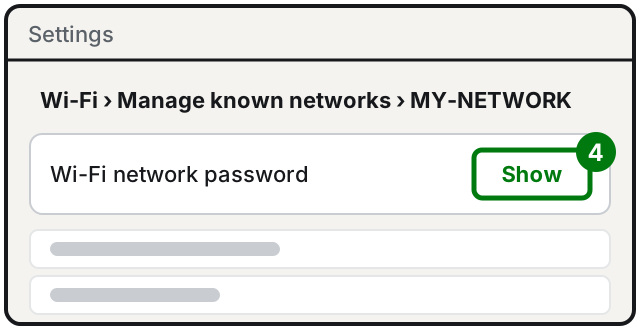
Step 4: Show. Illustration: SimpleBuild
Microsoft explains that from here you can use the password on another device, by typing it or by scanning the network's QR code, if the device supports it.
On Windows 10
- Open Settings > Network & Internet > Status and open Network and Sharing Center.
- Next to Connections, select the name of your Wi-Fi network.
- In Wi-Fi Status, select Wireless Properties.
- Open the Security tab and select the Show characters check box.
The password appears in the Network security key box. On Windows 10 this works for the network you are connected to at that moment.
On iPhone
From iOS 16 onward you can see and copy Wi-Fi passwords.
The network you are connected to now
-
Open Settings and tap Wi-Fi.
-
Find the network in use and tap the Info button next to its name.
-
Tap the Password field.
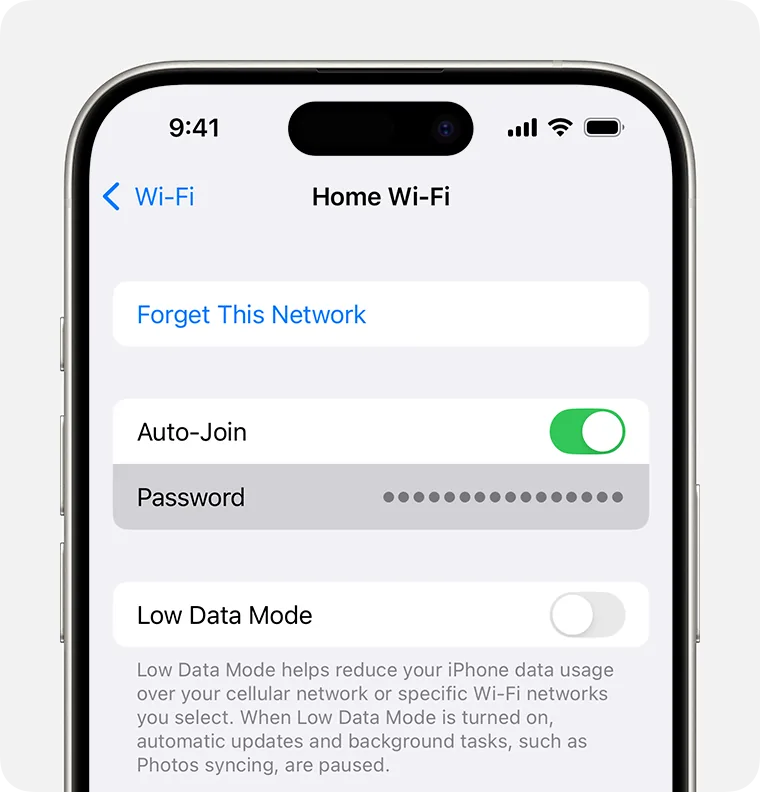
Step 3: tap the Password field. Image: Apple Support -
Unlock with your passcode, Face ID or Touch ID: the password appears.
Networks you used in the past
- Open Settings and tap Wi-Fi.
- Tap Edit at the top right and unlock with your passcode, Face ID or Touch ID.
- Tap the Info button next to the network.
- Tap the Password field.
With the Passwords app (from iOS 18)
-
Open the Passwords app.
-
Tap Wi-Fi.
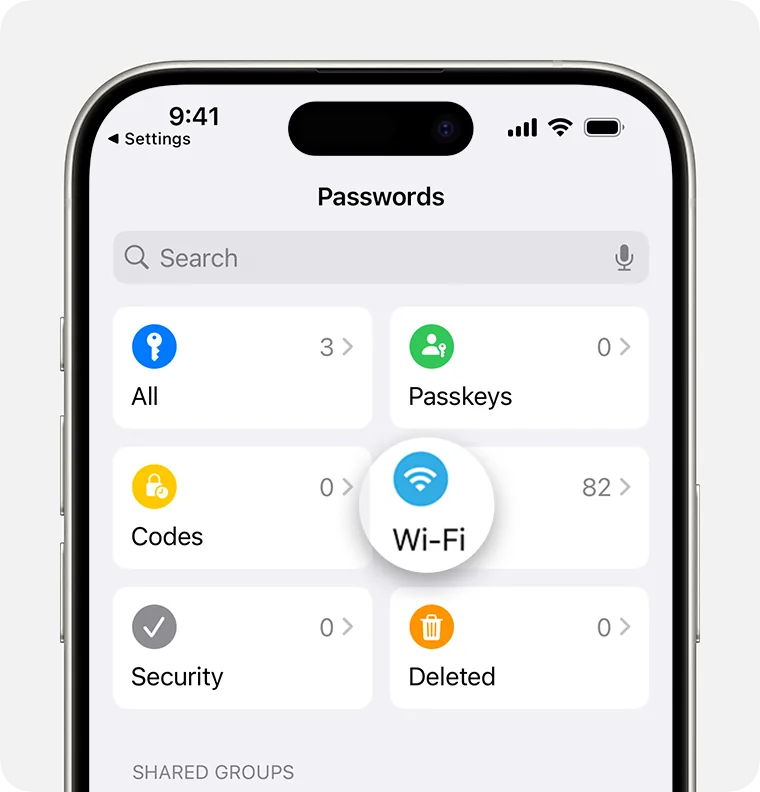
Step 2: the Wi-Fi tile in the Passwords app. Image: Apple Support -
Tap the network.
-
Tap the Password field. To copy it, tap Copy Password.
On a Mac
The Passwords app is available from macOS Sequoia onward.
- Open the Passwords app.
- Click Wi-Fi in the sidebar. At the top you find the network you are using, below it the ones saved in the past.
- Select the network.
- Hold the pointer over the series of dots next to Password: the password appears. Clicking the dots copies it.
On Android
- Open the Settings app.
- Tap Network & internet > Internet.
- Tap your Wi-Fi network and then Share.
- The phone shows a QR code: the other person scans it with their phone's camera and connects.
Google notes that some steps apply only to Android 12 and up. The item names are the ones in Google's guide: on some phones they may be slightly different.
Share your Wi-Fi without reading out the password
Between iPhone, iPad and Mac
If you and your guest both have Apple devices, the password goes across by itself:
-
Make sure both devices have Wi-Fi and Bluetooth on, Personal Hotspot off, and that each of you has the other's Apple Account email or phone number saved in Contacts.
-
Keep the devices close together. Yours must be unlocked and connected to the Wi-Fi.
-
The guest taps the name of your network in their Wi-Fi settings.
-
A prompt appears on your device: tap Share Password and then Done (on a Mac, click Share Password).
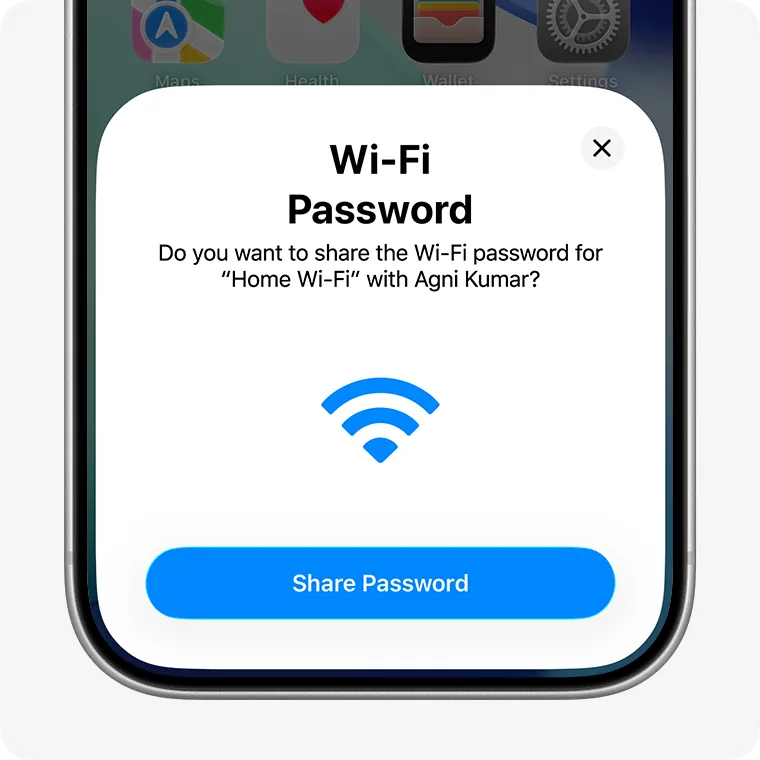
Step 4: Share Password. Image: Apple Support
With a QR code
- iPhone: in the Passwords app > Wi-Fi, open the network and tap Show Network QR Code.
- Mac: in the Passwords app > Wi-Fi, open the network and click Show Network QR Code.
- Android: the Share button described above.
The guest scans the code with the camera and connects. Windows PCs with a camera can read the code too, from the Camera app, in barcode mode.
If it still doesn't work
- The password you read doesn't work on another device. Check uppercase, lowercase and look-alike characters (the letter O and zero, lowercase l and uppercase I). Copying it or using the QR code avoids typing mistakes.
- On iPhone, sharing doesn't appear. Apple recommends restarting both devices; if it still doesn't work, have the password typed in by hand.
- No device is connected and the label doesn't help. You can set a new password from the router: the guides on how to log in to your router and how to change your Wi-Fi password explain how. Remember that you will then have to reconnect every device at home.
- The device connects but the internet doesn't work. The password is not the problem: see the guide on Wi-Fi connected but no internet.
- Want to keep all your passwords in one place, not just the Wi-Fi one? There is a guide on how to see saved passwords on Google, iPhone and Mac.
- If you can't log in to the router, or the network is run by a company or a building manager, ask whoever installed it or a technician: resetting the modem blindly can leave the house without internet.
Frequently asked questions
If no device is connected, where do I find the password?
Look at the label under or behind the modem: it usually shows the network name and the default password. If you changed it and don't remember it, you can set a new one by logging in to the router.
Can I find out my neighbor's Wi-Fi password?
No, and you shouldn't: these methods only show the passwords of networks your device has already joined with the permission of whoever runs them.
Is sharing Wi-Fi with a QR code safe?
Whoever scans the code joins your network as if they had the password. Only show it to people you trust; for occasional guests, if the router allows it, a separate guest network is better.
Sources
- Connect to a Wi-Fi network in Windows (Microsoft Support)
- Find your saved Wi-Fi passwords on iPhone or iPad (Apple Support)
- Find and share your Wi-Fi password on iPhone (Apple Support)
- How to share your Wi-Fi password from your iPhone or iPad (Apple Support)
- Find and share your Wi-Fi password on Mac (Apple Support)
- Connect to Wi-Fi networks on your Android device (Android Help)