Wi-Fi connected but no internet: what to do
Find out in two minutes whether the fault is in the device, the router or your provider's line, and try the right fixes on Windows, Mac, iPhone and Android, from the simplest to the most drastic.
Procedure verified on against the official sources.
If the Wi-Fi shows as connected but pages won't open, the device is talking to the router but the router can't reach the internet, or the device has got "stuck". First, check whether the other devices at home can browse. Then turn off the modem and router, wait at least 30 seconds and turn them back on. Often that is all it takes.
Before you start: find out where the fault is
Take another device connected to the same Wi-Fi, for example your phone, and turn off mobile data: that way you are sure it is using the Wi-Fi. Try opening any website.
- No device can browse: the problem is in the modem, the router or the line. Start from "Restart the modem and router".
- Only one device can't browse: the modem and the line are working. Go straight to the section for its system.
Also take a look at the modem's lights. If a light that is usually on is now off, or has a different color from usual, check the modem's manual or ask your provider what it means.
Restart the modem and router
- Unplug the modem from the power and, if you have a separate one, the router too.
- Wait at least 30 seconds.
- Plug in the modem first, then the router.
- Wait until they have fully started: it can take a few minutes. Then try again.
Don't press the Reset button: it doesn't restart, it erases all settings. If the problem keeps coming back, updating the router's firmware may help: see how to log in to your router.
On Windows 11
-
Select the Network, Sound or Battery icons on the taskbar and check that Wi-Fi is on and that the network shows Connected.
-
Check that Airplane mode is off: Settings > Network & internet > Airplane mode.
-
Make Windows "forget" the network and reconnect: Settings > Network & internet > Wi-Fi > Manage known networks, choose the network and select Forget. Then reconnect by typing the password.
-
If the router has two networks (2.4 GHz and 5 GHz), try connecting to the other one.
-
Renew the network configuration. Select Search on the taskbar, type command prompt, then on the right select Run as administrator and Yes. Type these commands one at a time, pressing Enter after each:
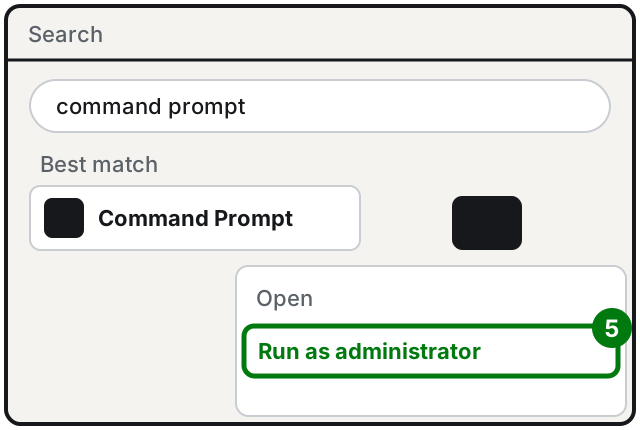
Step 5: Run as administrator. Illustration: SimpleBuild
netsh winsock reset
netsh int ip reset
ipconfig /release
ipconfig /renew
ipconfig /flushdns- As a last resort there is network reset: Settings > Network & internet > Advanced network settings > Network reset, then Reset now and Yes. It returns the PC's network settings to their original state, so only use it if the previous steps weren't enough.
On Windows 10 the paths change only slightly: reset is in Settings > Network & Internet > Status > Network reset.
On a Mac
- Click the Wi-Fi icon in the menu bar. If you see the Wi-Fi Recommendations item, the Mac has detected a problem: choose it and read what it suggests.
- Restart the Mac. On restart the Mac renews the address the router gives it, and sometimes that is enough.
- Check that the Mac's date and time are correct.
- If you have a VPN or security software that monitors the network, try turning it off: it can block internet access.
- Use Wireless Diagnostics: quit open apps, hold down the Option key (⌥), click the Wi-Fi icon in the menu bar and choose Open Wireless Diagnostics. Follow the onscreen instructions. Wireless Diagnostics doesn't change your network settings: it analyzes them and suggests solutions.
- Check the network status in Apple menu > System Settings > Network: the service you are using should have a green indicator and the word "Connected".
On iPhone
-
Open Settings, tap Wi-Fi and check that Wi-Fi is on and that there is a blue checkmark next to your network.
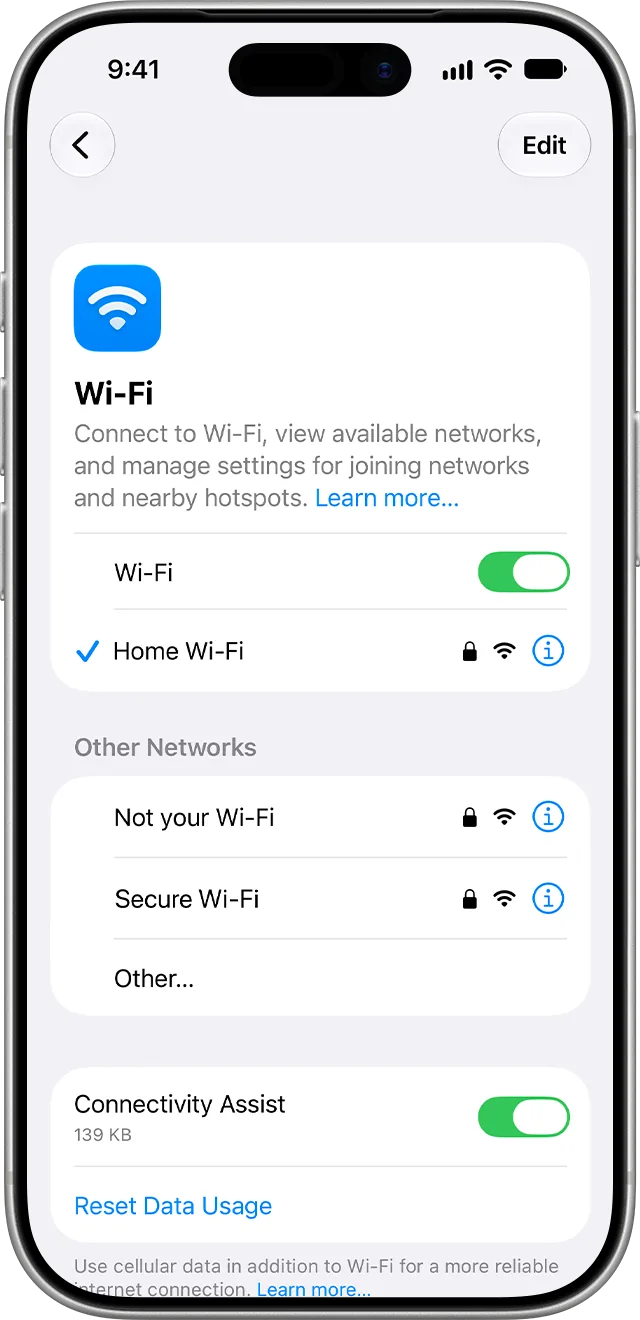
Step 1: the checkmark next to the network; the "i" is for step 5. Image: Apple Support -
Check that Airplane Mode is off.
-
If you see a message like "No Internet Connection" under the network name, restart the modem and router as explained above.
-
If you have a VPN or a security app, try uninstalling it, restart the iPhone and try again.
-
Make the iPhone forget the network: in Settings > Wi-Fi tap the Info button (the "i") next to the network, then Forget This Network. Reconnect by typing the password.
-
As a last resort: Settings > General > Transfer or Reset iPhone > Reset > Reset Network Settings. Warning: this erases saved Wi-Fi passwords and VPN and cellular settings. You will have to enter the passwords of the networks you use again.
On Android
The names below are those on Pixel phones. On other brands the path may be a little different.
- Turn Wi-Fi off and on again.
- Restart the phone: hold the power button for a few seconds and tap Restart.
- Make the phone forget the network: Settings > Network & internet > Internet > Saved networks, choose the network and tap Forget. Then reconnect.
- As a last resort: Settings > System > Reset options > Reset Bluetooth & Wi-Fi. You will have to enter the network passwords again.
If it still doesn't work
- No device can browse, even after restarting. There is probably a fault on the line or a service outage: call your provider and tell them you have already restarted the modem and router.
- The internet works, but very slowly. That is a different problem: see how to measure your internet speed.
- It works near the router but not in other rooms. The signal doesn't reach well: see Wi-Fi that doesn't reach the whole house.
- The problem started after you changed the Wi-Fi password. Go over the steps in how to change your Wi-Fi password again.
- The problem affects only one computer and comes back every few days, or you have already tried everything: it may be due to the network card driver or to an installed program. This is when it is worth having a technician look at the computer.
Frequently asked questions
Does unplugging and replugging the modem erase its settings?
No. Unplugging the power and plugging it back in only restarts the modem. It is the Reset button, held down, that returns it to factory settings: that one should not be touched.
Why does the internet work on my phone but not on my computer?
If at least one device can browse, the line and the router are working: the problem is in the device that isn't. Start from the section for its system and try the simplest steps first.
When should I call my provider?
When no device can browse, even after restarting the modem and router, or when the modem's lights show a line problem. The fault may be outside your home.
Sources
- Fix Wi-Fi connection issues in Windows (Microsoft Support)
- If your Mac doesn't connect to the internet over Wi-Fi (Apple Support)
- Solve internet connection problems on Mac (Apple Support)
- Use Wireless Diagnostics on Mac (Apple Support)
- If your iPhone or iPad won't connect to a Wi-Fi network (Apple Support)
- Manage Wi-Fi settings on iPhone (Apple Support)
- Fix Wi-Fi connection problems (Pixel Phone Help)