How to create a shortcut on iPhone for everyday tasks
With the Shortcuts app you can chain several actions and run them with one tap, with your voice or at a set time. Here is how to pick a ready-made one from the Gallery, build your own, and make it run by itself.
Procedure verified on against the official sources.
A shortcut is a small recipe: a series of actions your iPhone runs one after another, from top to bottom, when you tap a button or ask Siri. You make it in the Shortcuts app, which is already on your iPhone: the easiest way is to start from a ready-made one in the Gallery. If you want it to run by itself, for example every morning, you use an automation.
Before you start
- Find the Shortcuts app. It is an Apple app and comes preinstalled. If you can't find it on the Home Screen, search for "Shortcuts" in the iPhone search.
- Think about what you do several times a day. This is exactly what Apple suggests: repeated tasks and tasks that take many taps are the best candidates. A few examples from Apple's guide: sending a message you always type the same way, quickly calling a family member, starting your favorite playlist, checking your appointments.
- This guide follows the iOS 26 version of Apple's guide. On other versions a few names may differ slightly.
1. The easiest way: pick a ready-made one from the Gallery
-
Open the Shortcuts app.
-
Tap Gallery at the bottom.
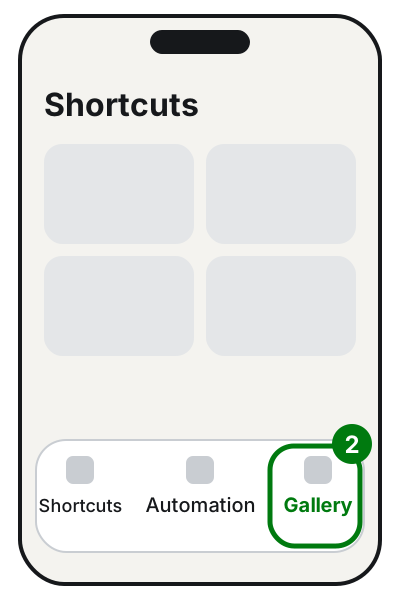
Step 2: the Gallery tab, at the bottom right. Illustration: SimpleBuild -
Browse the categories. Tap See All to see all the shortcuts in a category.
-
To look for something specific, tap the search button at the top and type a word.
-
Tap a shortcut: a description appears with the list of actions it runs. Read it.
-
Tap Add Shortcut. If Set Up Shortcut appears instead, answer the questions (for example who to send the message to), then tap Add Shortcut.
The shortcut is now in your collection, ready to use.
2. Build your own from scratch
- Open the Shortcuts app.
- Tap the + button in the top-right corner. An empty, untitled shortcut appears.
- Tap New Shortcut, then Rename, type a name that is easy to remember (for example "Coming home") and tap Done.
- Tap Add Action: a list of action categories appears.
- Tap a category (for example Media or Web), then the action you want. You may need to scroll to see them all.
- To add another action, swipe up on the search field at the bottom of the screen and pick one. You can also search for it by name.
- To change the order, touch and hold an action and drag it to the right place.
- When you are finished, tap Done.
The new shortcut shows up in All Shortcuts and in My Shortcuts.
To try it, tap the button on its colored tile to open it in the editor, then tap the run button. If something goes wrong, the stop button halts it, and the undo arrows in the editor let you go back.
A tip: you can also create a new shortcut by touching and holding the Shortcuts app icon on the Home Screen and tapping Create Shortcut.
3. Run it easily
With a tap on the Home Screen
- In the Shortcuts app, open the shortcut in the editor and tap the button that opens Details.
- Tap Add to Home Screen.
- If you like, change the name and icon in the Home Screen Name and Icon area: you can even use a photo (Take Photo, Choose Photo or Choose File).
- Tap Add.
The shortcut is now an icon like any other app. It is the simplest way for people who rarely use their phone.
With your voice
Activate Siri and say the name of the shortcut, for example "Coming home". Siri runs it and tells you how it went. If the phone is locked and the shortcut needs to open an app, Siri first asks you to unlock it.
Pick simple names that differ from the things you usually ask Siri: if a shortcut has the same name as a normal request (for example "What time is it?"), Siri runs your shortcut instead of giving the normal answer.
By tapping the back of the iPhone
- Open Settings > Accessibility > Touch.
- Scroll down and tap Back Tap.
- Choose Double Tap or Triple Tap.
- Scroll down to the Shortcuts area and pick yours.
From now on, two or three taps on the back of the phone start the shortcut.
4. Make it run by itself: automations
An automation runs actions when something happens: at a set time, at sunrise, when you stop an alarm, when you arrive somewhere.
-
In the Shortcuts app, tap Automation. If you already have others, then tap + in the top-right corner.
-
Tap Create Personal Automation.
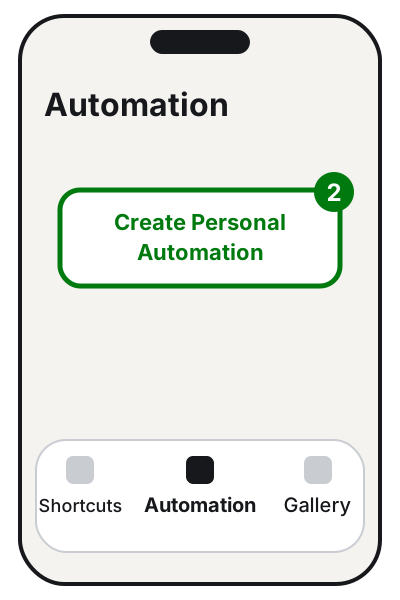
Step 2: Create Personal Automation. Illustration: SimpleBuild -
Choose when it should run. For example Time of Day: you can pick an exact time, or Sunrise or Sunset, and how often it repeats (Daily, Weekly or Monthly). With Alarm the automation runs when you stop or snooze an alarm.
-
Set the options and tap Next.
-
Tap Add Action and choose the actions, just as for a normal shortcut. You can also use a shortcut you already have.
-
Tap Next, check the summary and tap Done.
Usually, when the automation triggers, the iPhone sends you a notification and asks for confirmation. Some automations, such as time-based ones, can run without asking:
- In Automation, tap the automation.
- Turn off Ask Before Running and confirm with Don't Ask.
- Tap Done.
To pause it without deleting it, turn off Enable This Automation.
If it still doesn't work
- Does the shortcut stop halfway? Open it in the editor and run it from there: you will see which action it stops at. Often a permission is missing (for example to Contacts or Photos) that the iPhone asks for the first time.
- Does the automation not run? Check that Enable This Automation is on. Remember that it only works on the phone where you created it.
- Can't Siri find the shortcut? Check the exact name and say it the same way. Avoid long names or names similar to other shortcuts.
- Want to do similar things on your computer too? Read how to rename many files at once on Windows and Mac or how to schedule your PC to shut down automatically.
- Need an automation for work? For example a form that sends data to a management system, or a routine for your shop. Here a custom-built automation is the better choice: you may also want to look at custom management software.
- When to call a technician: if the shortcut has to connect to other apps or services and you don't know which permissions to give it, or if you'd rather have someone prepare it and install it for you, ready to go. A well-made shortcut gets used for years without a second thought.
Frequently asked questions
What is the difference between a shortcut and an automation?
You start a shortcut yourself, with a tap or with Siri. An automation starts by itself when something happens, for example at a set time or when you stop an alarm.
Do automations copy over to my other devices?
No. Apple explains that a personal automation only works on the device where you created it: it is saved in your iCloud backup but does not sync to your other devices.
Can a shortcut read my personal data?
Only if you let it: when an action needs private data on your phone, a permission request appears. Add shortcuts from the Gallery or ones you built yourself, and read what they do before you use them.
How do I stop a shortcut that is running?
In the editor, tap the stop button. If you started it from the colored tile, you can stop it from there.
Sources
- Create a custom shortcut on iPhone or iPad
- Discover shortcuts in the Gallery on iPhone or iPad
- Run a shortcut from the Shortcuts app on iPhone or iPad
- Add a shortcut to the Home Screen on iPhone or iPad
- Use Siri to run shortcuts with your voice
- Run shortcuts by tapping the back of your iPhone
- Create a new personal automation in Shortcuts on iPhone or iPad
- Event triggers in Shortcuts on iPhone or iPad
- Enable or disable a personal automation in Shortcuts on iPhone or iPad
- Ideas for custom shortcuts on iPhone or iPad