How to schedule your PC to shut down automatically (Windows and Mac)
How to make your computer shut down by itself after a set time or every evening at the same hour, using the commands already built into Windows and the Mac's Terminal, and how to cancel the shutdown if you change your mind.
Procedure verified on against the official sources.
On Windows a single command does it: press Windows + R, type shutdown /s /t 3600 and press Enter, and the PC shuts down in one hour (3600 seconds). To cancel, type shutdown /a. If you want it to happen every evening at the same time, you can create a scheduled task with one command.
On a Mac you use the Terminal app with the pmset command, which can shut down the computer every day at a fixed time.
Before you start
- Always save your work before the shutdown time. On Windows, the command with a time-out closes programs without asking, and unsaved changes are lost.
- Type the commands exactly as written, spaces included. Copy them from here if you can.
- On Windows, times are written in seconds: 600 = 10 minutes, 1800 = half an hour, 3600 = one hour, 7200 = two hours.
On Windows 11 and 10
Shut down the PC once, after a set time
- Press the Windows + R keys together: the Run window opens.
- Type the command below and press Enter (in this example the PC shuts down in one hour):
shutdown /s /t 3600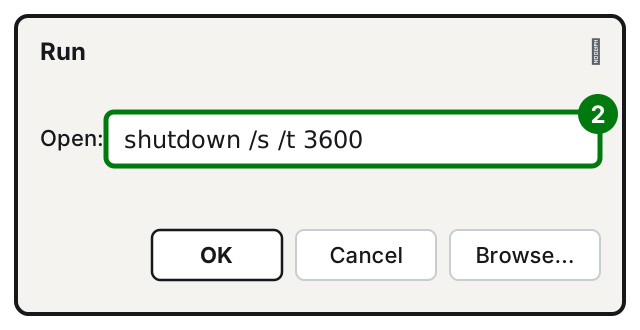
- You can keep using the PC normally until the shutdown time.
The meaning is simple: /s means "shut down the computer", /t is the wait time in seconds.
Cancel the shutdown
Changed your mind? Before the time runs out:
- Press Windows + R again.
- Type this command and press Enter:
shutdown /aThe pending shutdown is cancelled.
Shut down the PC every evening at the same time
To repeat the shutdown every day, you create a scheduled task: Windows runs it on its own at the set time.
- Open Start, type Command Prompt and open it.
- Type this command (the time here is 11:00 p.m., change it if you like) and press Enter:
schtasks /create /tn "Evening shutdown" /tr "shutdown /s /t 60" /sc daily /st 23:00- If all goes well, Windows replies that the task was created.
What each part means:
/tn "Evening shutdown"is the name of the task: call it whatever you like;/tr "shutdown /s /t 60"is what gets run: a shutdown with one minute's notice;/sc dailymeans every day;/st 23:00is the time, in 24-hour format.
If one evening you need the PC on past the set time, you can cancel during that minute of notice with shutdown /a, as shown above.
Remove the evening shutdown
- Open Command Prompt again.
- Type this command, with the same name you used to create it, and press Enter:
schtasks /delete /tn "Evening shutdown"- Confirm when Windows asks.
On Mac
On a Mac, scheduled shutdown is set from Terminal with the pmset command. Apple points out two things: the Mac must be on and not asleep, and someone must be logged in; also, documents with unsaved changes can prevent the shutdown.
Shut down the Mac every day at the same time
- Open the Terminal app (you can find it with Spotlight).
- Type this command and press Return (the time here is 11:00 p.m.):
sudo pmset repeat shutdown MTWRFSU 23:00:00- Terminal asks for your password: it is the one you use to log in to the Mac, and it must belong to an administrator. While you type it nothing appears, not even dots: that is normal. Type it and press Return.
The letters MTWRFSU are the days of the week: M Monday, T Tuesday, W Wednesday, R Thursday, F Friday, S Saturday, U Sunday. To shut it down only on weekdays, type MTWRF. The time is written as hours, minutes and seconds, in 24-hour format.
Check what is scheduled
Type this command and press Return:
pmset -g schedTerminal shows the scheduled shutdowns and start-ups.
Cancel the schedule
sudo pmset repeat cancelHere too you are asked for your password. This command cancels all repeating events, both shutdowns and start-ups.
Make the Mac turn on in the morning
With the same command you can make the Mac wake at a fixed time. For example, every Monday at 8 a.m.:
sudo pmset repeat wake M 8:00:00Apple notes that if FileVault (disk encryption) is on, you will still have to enter your password every time the Mac starts up.
If it still doesn't work
- Does Windows say "Access is denied"? Reopen Command Prompt choosing Run as administrator and try again.
- The Windows PC doesn't shut down at the set time? Check that it was on and not asleep at that time, and that the time is written in 24-hour format (23:00, not 11:00).
- The Mac doesn't shut down? Usually it is asleep, nobody is logged in, or an open document is waiting to be saved.
- Want the PC to make its own backups too? Start from how to back up a Windows PC or how to back up your Mac with Time Machine.
- Does the PC take ages to start up and shut down? See the guide on programs that start by themselves.
- When to call a technician: if you need something more precise (shut down only after a job finishes, warn other users first, manage several office computers), a custom script, written and tested for your case, is the way to go.
Frequently asked questions
If I have a document open, will I lose it?
On Windows it can happen: with a time-out, the shutdown command closes programs even without asking you to save. On Mac, by contrast, documents with unsaved changes can prevent the shutdown. Either way, save first.
Does the Mac shut down even if it's asleep?
No. Apple explains that the Mac must be awake and a user must be logged in: if it is asleep or nobody is logged in, it won't shut down at the scheduled time.
Can I also make it turn on by itself in the morning?
On Mac, yes, with the same pmset command and a start-up or wake event. On Windows this guide only covers shutting down: automatic start-up isn't set with these commands.