How to keep your Mac on with the lid closed
Closing the lid puts a MacBook to sleep. Apple's way to use it closed is with an external power adapter, display, keyboard and mouse. For long jobs with the lid open, there are the sleep settings and the caffeinate command.
Procedure verified on against the official sources.
On a MacBook, closing the lid puts the Mac to sleep: Apple says so. Apple's way to use it with the lid closed is to connect it to an external display, with the power adapter and an external keyboard and mouse. If instead you only need the Mac not to fall asleep during a long download, leave the lid open and use the sleep settings or the caffeinate command.
Before you start
- Ask yourself what you really need. Using a closed MacBook like a desktop computer (with a monitor on the desk) is one case. Letting a backup or a download finish while you are away is another, and it is solved with the lid open.
- Always connect the power adapter. Both closed-lid mode and the option that prevents sleep require the Mac to be plugged in.
Use a closed MacBook with an external display
This is the official way. Apple puts it like this: if the display is connected to a Mac laptop with a closed lid, the Mac must be connected to power and use an external keyboard and mouse.
- Connect the power adapter to the Mac and to the outlet.
- Connect an external keyboard and mouse (or trackpad).
- Connect the external display to a port on the Mac with the right cable, and turn it on.
- Close the lid.
The Mac stays on and works on the external display. To shut it down or put it to sleep, use the Apple menu as usual.
Some recent models, such as MacBook Air and MacBook Pro with M3 chip, can use two external displays with the lid closed. Apple notes that if you then open the lid with both connected, the second display goes dark or disconnects.
If the external display stays dark or low resolution, check that the display's power and video cables are firmly connected and that the cable supports the display's resolution.
Prevent sleep with the lid open (settings)
If you want the Mac to keep working while you don't touch it, with the lid open:
On a MacBook
- From the Apple menu (the apple at the top left), choose System Settings.
- In the sidebar, click Battery (you may need to scroll down).
- Click Options.
- Turn on Prevent automatic sleeping on power adapter when the display is off.
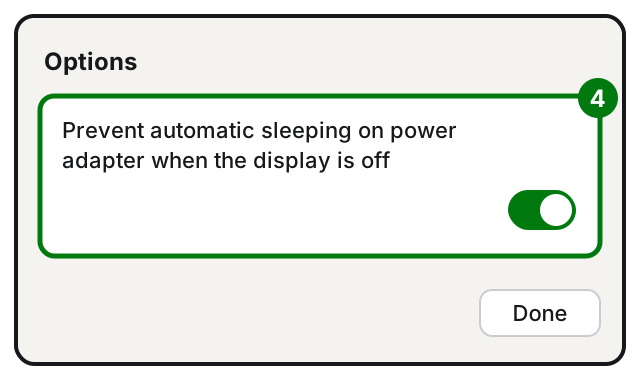
This way the display can turn off to save power, but the Mac keeps working, as long as it is plugged in.
On a desktop Mac (iMac, Mac mini, Mac Studio)
- Open System Settings.
- Click Energy in the sidebar.
- Turn on Prevent automatic sleeping when the display is off.
When the display turns off
You set how long before the display turns off in System Settings > Lock Screen, with the menus Turn display off on battery when inactive and Turn display off on power adapter when inactive.
When you are done, turn the option off again: Apple warns that preventing sleep may increase power consumption.
Prevent sleep just for a while (caffeinate)
caffeinate is a command already built into macOS. It keeps the Mac awake while it is running, then everything goes back to how it was. It is handy for a single long job, without touching the settings.
- Open Terminal: in the Finder, open the Applications > Utilities folder and double-click Terminal.
- Type one of the commands below and press Return.
- To stop it, click in the Terminal window and press Control-C.
Keeps the Mac awake until you press Control-C:
caffeinate -iKeeps the Mac awake for two hours (7200 seconds), then stops by itself:
caffeinate -i -t 7200Also keeps the display on, for example during a presentation:
caffeinate -dWhat the letters mean, according to the command's manual:
-iprevents idle sleep (this is also the behavior if you add no letter);-dprevents the display from sleeping;-sprevents system sleep, but only with the power adapter connected;-tfollowed by a number sets how many seconds to stay awake.
To read the full manual, type man caffeinate in Terminal and press Return (press q to quit).
Careful: the caffeinate manual says nothing about the lid. Don't count on this command to keep a closed MacBook awake: for that, the path documented by Apple is the external display.
If it still doesn't work
- The Mac goes to sleep anyway? Check that the power adapter is connected: the Battery option and
caffeinate -sonly work on power. - It wakes or sleeps when it shouldn't? Apple suggests checking the Sharing settings (in General) and the Wake for network access option, and disconnecting disks and accessories that might interfere.
- The external display doesn't turn on with the lid closed? Double-check the power adapter, external keyboard and mouse: without them, a closed Mac doesn't use the display. If the display goes through a hub or dock, try connecting it directly to a port on the Mac.
- Want the Mac to do something by itself at a certain time? You may also be interested in how to schedule your PC to shut down automatically, or Time Machine automatic backups.
- When to call a technician: if you need a Mac that is always on for work (file sharing, backups, programs that run at night) and want to do it without wasting energy or overheating the laptop. A technician can help you choose the right setup and check that it holds up over time.
Frequently asked questions
Can I close my MacBook during a download and find it finished?
Without an external display, no: closing the display is one of the ways Apple lists to put the Mac to sleep, and while it sleeps the work stops. Leave the lid open and use the sleep settings or caffeinate.
Does keeping the Mac awake all the time damage it?
Apple warns that preventing sleep may increase power consumption. That is why it's best to do it only when needed, plugged into the power adapter, and then go back to the normal settings.
Does caffeinate stay active after I close Terminal?
The manual explains that the effect lasts as long as caffeinate is running. To stop it earlier, press Control-C in the Terminal window; with the -t option it stops by itself after the given number of seconds.
Sources
- If your external display is dark or low resolution
- Use dual monitors with your MacBook Air and MacBook Pro with M3 chip
- Put your Mac to sleep or wake it
- Set sleep and wake settings for your Mac
- If your Mac sleeps or wakes unexpectedly
- Open or quit Terminal on Mac
- Execute commands and run tools in Terminal on Mac