How to create a Google Account and a Gmail address
With a Google Account you get a Gmail address, can download apps on Android and save photos and documents. Here are Google's official steps to create one, how to use an email you already have, and what to set up right away so you don't lose it.
Procedure verified on against the official sources.
To create a Google Account, go to the Google sign-in page, click Create account and choose For my personal use. Google suggests some available Gmail addresses, or you pick your own; then you enter your birthday, a password and, if you want, a phone number. In five minutes you have an address like firstname.lastname@gmail.com.
With the same account you sign in to Gmail, YouTube, Google Drive, Google Photos and the Play Store on Android phones.
Before you start
- Check you don't already have one. If you ever signed in to Gmail, YouTube or Google Maps, you already have a Google Account. In that case it's better to recover your Google Account password than to create another one.
- Think about the name to use. A simple address with your first and last name is easier to spell out on the phone and looks more serious to an office. Have two or three alternatives ready: the most common names are almost always taken.
- Choose your password before you start: long, never used anywhere else, and written on a sheet of paper you keep at home.
- Keep your phone nearby. The number is optional, but it's the main way back in if you ever forget your password.
- If the account is for a child, the creation menu has a dedicated option: For my child.
Create an account with a new Gmail address
-
Go to the Google Account sign-in page, at accounts.google.com.
-
Click Create account.
-
From the drop-down, choose For my personal use. The other options are For my child and For work or my business.
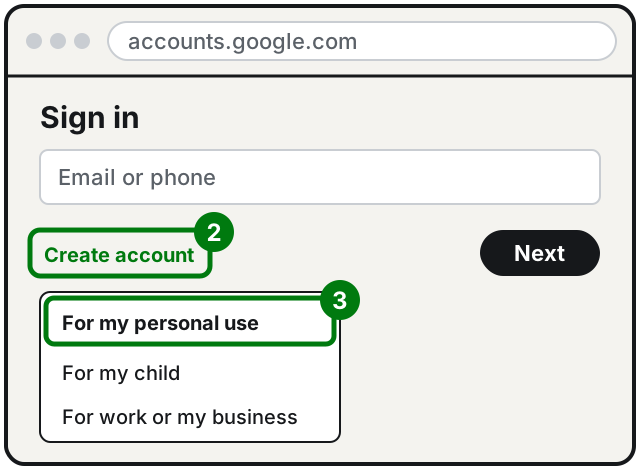
Steps 2 and 3: Create account, then For my personal use. Illustration: SimpleBuild -
Enter your birthday and gender.
-
Google suggests some available Gmail addresses: you can pick one or create your own by typing the username you prefer (the part before @gmail.com).
-
Enter your password and confirm it.
-
Click Next.
-
If you want, add and verify a phone number. It's optional, but very useful.
-
Click Next and complete the last steps Google shows you.
A detail that confuses many people: when you type your password on a phone, the first letter isn't case sensitive. If your phone automatically capitalizes the first letter, don't worry.
Create an account with an email you already have
You don't need a Gmail address. If you already have a mailbox with another service, you can use it as your Google Account name.
- Go to the Google Account sign-in page.
- Click Create account.
- From the drop-down, choose For my personal use.
- Enter your basic info.
- Click Use your existing email or phone number.
- Type your current email address and click Next.
- You get a verification code in that mailbox: enter it.
- Click Next and follow the instructions to create your password and finish.
In some countries Google also lets you create an account with just a phone number. In that case the username is generated at random, in the format username@id.gle, and it is not an email address: important messages from Google go to the account's Message Center. For someone who wants a real mailbox, a Gmail address is the better choice.
Right after: your recovery info
Google says it clearly: if your recovery info is up to date, you're much more likely to get back in when you forget your password or someone else uses your account.
- Open your Google Account.
- Select Security & sign-in.
- In the How you sign in to Google section, set up:
- Recovery phone: the mobile number you actually use;
- Recovery email: another address you check, different from your Gmail one;
- Recovery contacts: if you want, a trusted person, like a son or daughter or a close friend.
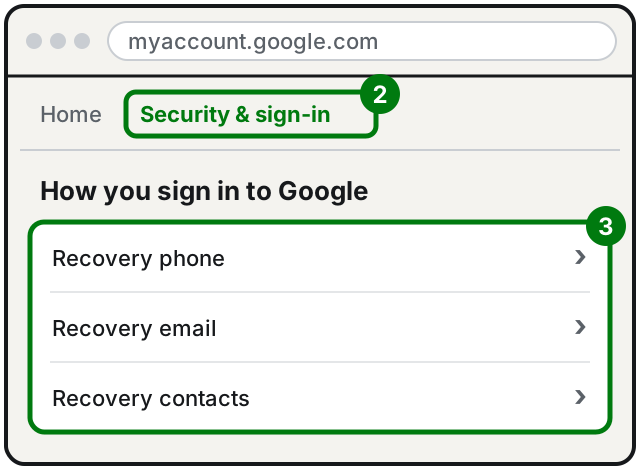
Then turn on 2-Step Verification: it's the most effective protection against people trying to steal accounts.
Also remember that Google never asks for your password or verification codes by email. If you get a message that does, it's a scam: here is how to recognize a phishing email.
If it still doesn't work
- «This email address is already in use»: it means a Google Account already exists with that address, maybe created years ago. Try to recover it instead of creating a new one.
- The username isn't available: it's already taken, too similar to an existing one (if example@gmail.com exists, you can't have examp1e@gmail.com), used and deleted in the past, or reserved by Google. Try some variations.
- The SMS code doesn't arrive: check that you typed the number correctly and that you have signal, then try again.
- Notifications go to the wrong address: if you signed up with a non-Google email, account alerts go there. You can change the contact address in your account settings.
- If you're creating the account for an elderly parent, do it together and write down the address, password and recovery number on paper. If you'd rather have help, a technician can set it up with you and leave everything written down.
Frequently asked questions
Are a Google Account and a Gmail account the same thing?
Not quite. The Google Account is the single key; Gmail is one of the services you can use with it, along with YouTube, Google Drive, Calendar and Google Play. When you create a Gmail address, you also create a Google Account.
Can I have a Google Account without a Gmail address?
Yes. While creating it, choose to use the email address you already have with another service, and confirm it with a code sent there.
Why isn't the username I want available?
Because someone already uses it, it's too similar to an existing one, it was used in the past and then deleted, or Google has reserved it to prevent spam. Try adding a middle name, a period or a number.
Do I already have a Google Account?
If you ever signed in to Gmail, YouTube or Google Maps with a name and password, yes: you can use those credentials for all Google services. Before creating a new one, try to recover the old one.