How to turn a photo or a scanned document into a PDF
A photo or a scan in JPG becomes a PDF with the tools you already have: Preview on Mac and iPhone, Word on Windows. If the sheet is still on paper, it is better to scan it straight to PDF.
Procedure verified on against the official sources.
On Mac, open the photo with Preview and choose File > Export, format PDF. On iPhone do the same with the Preview app: the menu next to the file name, Export, format PDF. On Windows, insert the photo into a Word document and save it as a PDF. If the sheet is still on paper, skip the photo and scan it straight to PDF.
Before you start
- If you still have the paper sheet, don't photograph it with the normal camera: use the phone's scan feature, which creates a straightened, clean PDF right away. You'll find the steps in the guide on how to scan a document.
- Be careful with sites that "turn JPG into PDF". To do it they need to receive your photo. If it is an ID card, a health card, a medical report or a receipt with your details, you are handing it to a service you don't know, which may keep it. The tools in this guide work on your computer or your phone.
- Check that the photo is readable before converting it: straight, in focus, without glare. A PDF won't improve a blurry photo.
- Keep the original. Save the PDF with a new name, so the photo stays as it was.
On Mac
A single photo, with Preview
-
Open the photo with Preview.
-
Choose File > Export.
-
Click the Format menu and choose PDF.
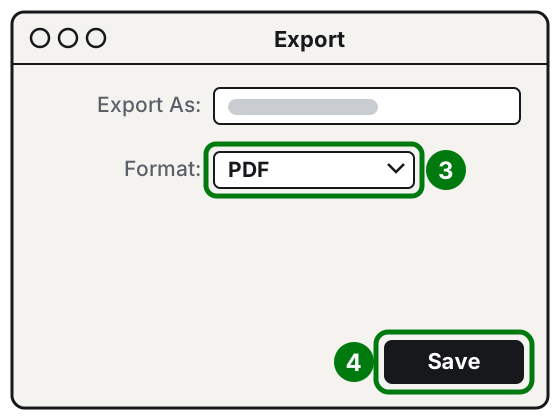
Step 3: Format PDF. Step 4: Save. Illustration: SimpleBuild -
Type a new name or choose another folder, then click Save.
Preview can also convert several images in one go: open them in the same window, select them in the sidebar and follow the same steps.
Several photos in a single PDF, from the Finder
-
Open a Finder window.
-
Select the photos in the order you want them in the document: the PDF puts them in the same order you selected them.
-
Click the selected photos while holding down the Control key.
-
Choose Quick Actions > Create PDF.
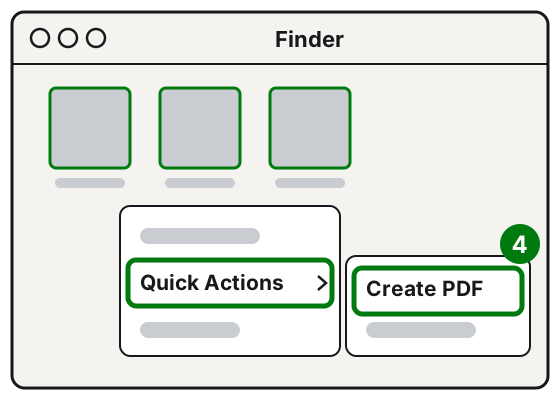
Step 4: Quick Actions, then Create PDF. Illustration: SimpleBuild
The PDF is created with a name similar to that of the first photo you selected.
From any program
If the photo is open in a program that can print, you can choose File > Print, click the PDF button and then Save as PDF.
On iPhone, with the Preview app
On iPhone, with iOS 26 or later, there is the Preview app, which opens PDFs and images.
- Open the Preview app.
- Find the photo: tap Recents for recently opened files, or Browse to look through the available files. Tap the photo to open it.
- Tap the button next to the file name, then tap Export.
- Choose the PDF format.
- If you want, turn on the options:
- Embed Text: recognizes the words in the photo, so you will be able to search for them in the PDF;
- Optimize Images for Screen and Save Images as JPEG: make the file lighter, useful for email.
- Choose where to save the file and, if you want, change the name in the Save As field. Then save.
Preview opens the files you find in the locations of the Files app. If the sheet is still on paper, the Preview start screen also has Scan Documents: you frame each page and Preview puts them together in a single PDF.
On Windows 11 and 10, with Word
The simplest way, if you have Word, is to put the photo in a document and save it as a PDF.
-
Open Word with a new, blank document.
-
Select Insert > Pictures > This Device.
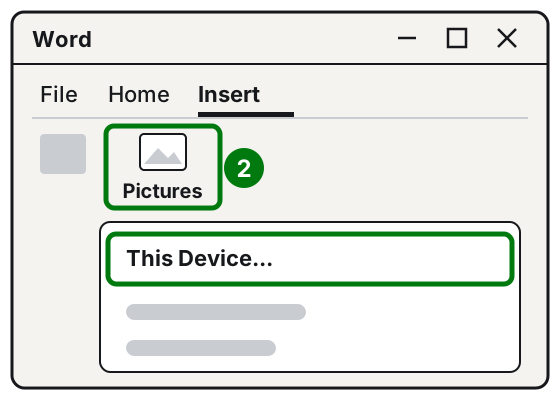
Step 2: Insert, Pictures, This Device. Illustration: SimpleBuild -
Choose the photo and select Insert.
-
If needed, drag the small squares at the corners of the photo to fit it to the page.
-
For more pages, start a new line and insert the next photo the same way.
-
Go to File > Save As or Save a Copy.
-
In the file type drop-down list choose PDF and select Save.
For a lighter file, before saving select More Options > Options and under Optimize for choose Minimum size.
If the photo comes from a scanner connected to the PC, remember that the Windows Scan app saves in JPEG, PNG, TIFF or Bitmap, not in PDF: after scanning, follow the steps above.
On Android
There is no built-in procedure that is the same on all Android phones, and the apps change from brand to brand. Two safe ways:
- if you still have the sheet, scan it with Google Drive, which saves straight to PDF: the steps are in the guide on how to scan a document;
- if you only have the photo, move it to the computer and convert it there with one of the methods above.
Avoid unknown apps that ask for access to all your photos just to create a PDF.
If it still doesn't work
- The photo is in HEIC format and the PC won't open it: convert it first, with the guide on how to convert HEIC photos to JPG.
- The PDF is too heavy for email or for the site where you have to upload it: follow the guide on how to reduce the size of a PDF.
- You made several separate PDFs and want just one: see how to merge several PDFs into one.
- You need editable text, not just the image: Google Docs can recognize the text in a photo, if the file is no larger than 2 MB and the writing is sharp and straight. Or read the guide on how to convert a PDF to Word.
- If you have to file dozens of receipts or paper documents every month, a technician can set up a scanner and a folder that save them straight as PDFs, with the right name: fewer manual steps every time.
Frequently asked questions
Can I put several photos in a single PDF?
Yes. On Mac you select the photos in the Finder in the right order and choose Quick Actions > Create PDF. On Windows you insert the photos one after the other into the same Word document and then save it as a PDF.
Can the text of a PDF made from a photo be searched or copied?
Usually not, because the page stays an image. On iPhone, when exporting from Preview, you can turn on "Embed Text", which recognizes the words and makes the PDF searchable.
Is it better to photograph the document or scan it?
If you have the sheet in your hands, the phone's scan feature is better: it straightens the page, removes the background and creates a PDF right away.
Sources
- Convert image file types using Preview on Mac (Apple Support)
- Combine files into a PDF on Mac (Apple Support)
- Save a document as a PDF on Mac (Apple Support)
- Get started with Preview on iPhone (Apple Support)
- Open and view PDFs and images in Preview on iPhone (Apple Support)
- Export or compress PDFs and images in Preview on iPhone (Apple Support)
- Insert pictures (Microsoft Support)
- Save or convert to PDF or XPS in Office desktop apps (Microsoft Support)
- Convert PDF and photo files to text (Google Drive Help)