How to convert a PDF to Word, and a Word file to PDF
From Word to PDF, "Save As" or "Print > Save as PDF" is enough, on any computer. From PDF to Word you open the PDF with Word for desktop, or with Google Docs: no unknown sites for personal documents.
Procedure verified on against the official sources.
From Word to PDF you don't need any extra program: in Word choose File > Save As and PDF as the format. On Mac, File > Print > Save as PDF also works, from any program. From PDF to Word, open the PDF with Word for the computer: Word creates an editable copy. If you don't have Word, you can use Google Docs.
Before you start
- Avoid unknown conversion sites. To convert a file, an online site has to receive the whole document. If it is a contract, a payslip, a medical report or an ID document, you are handing it to a service you know nothing about: where it keeps it, for how long, who sees it. The tools in this guide work on your computer or in your own account.
- Always keep the original. When Word opens a PDF, it makes a copy and does not change the starting file. Still, it is wise to save a separate copy before experimenting.
- Don't expect a perfect copy. A PDF is made to be read and printed as it is. Turning it into Word means rebuilding it, and something usually needs fixing by hand.
- A digitally signed PDF loses its signature: the Word copy is a new document, without the signature. If you have to sign the finished document, see how to sign a PDF.
From PDF to Word
With Word on the computer
Microsoft states that the conversion works with Word for Microsoft 365, Word 2024, Word 2021, Word 2019 and Word 2016.
- Open Word.
- Go to File > Open.
- Find the PDF and open it. If you don't see it right away, select Browse and look for it in the right folder.
- Word tells you it will make a copy of the PDF and convert its contents. Choose OK.
- Check the document and fix what is needed.
- To save it, go to File > Save As and choose the Word format in the file type menu.
The conversion works best with documents made mostly of text: letters, contracts, reports. According to Microsoft, these, for example, convert poorly:
- tables with cell spacing;
- page colors and page borders;
- tracked changes and frames;
- footnotes that span more than one page, and endnotes;
- bookmarks, comments and multimedia parts of the PDF.
If the PDF is made mostly of images, Word may show the whole page as a single picture, and the text can't be edited.
With Google Docs, if you don't have Word
You need a Google account. The file is uploaded to your own Google Drive, not to an unknown site, but it still sits on an online service: decide for yourself whether that is fine for that document.
-
On the computer, open Google Drive and upload the PDF.
-
Right-click the file.
-
Choose Open with > Google Docs.
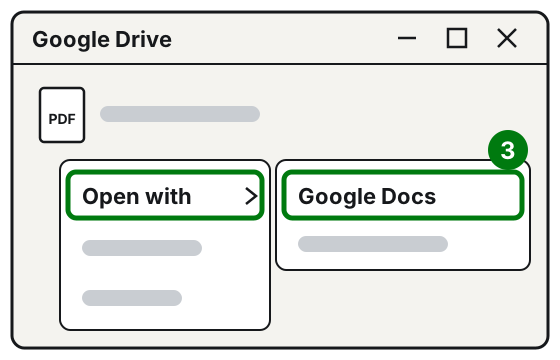
Step 3: Open with, then Google Docs. Illustration: SimpleBuild -
The PDF is converted into a Google document that you can edit.
-
To get it in Word format, in the open document click File > Download and choose the Word file type.
Google Docs also recognizes the text in scans, but only under certain conditions:
- the file must be 2 MB or smaller;
- the text must be at least 10 pixels high, that is easy to read;
- the page must be right-side up, not upside down or sideways;
- it works better with common fonts and with sharp, well-lit images.
Bold, italics, font size and line breaks are usually kept. Lists, tables, columns and footnotes, on the other hand, are often lost.
From Word to PDF
On Windows, with Word
-
Open the document in Word.
-
Go to File > Save As or Save a Copy.
-
In the file type drop-down list choose PDF.
-
If you want a lighter file, select More Options > Options and, under Optimize for, choose Minimum size instead of Standard.
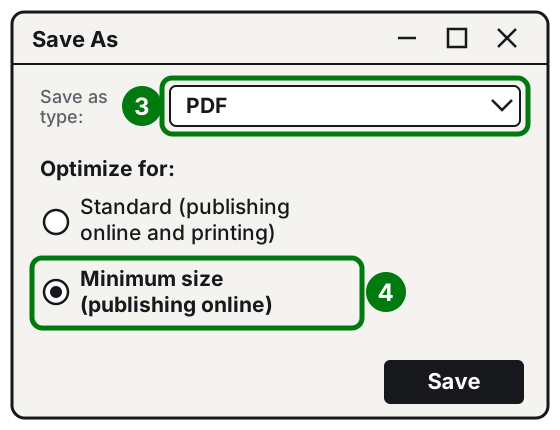
Step 3: PDF type. Step 4: Minimum size. Illustration: SimpleBuild -
Select Save.
If the PDF is still too heavy for email, you'll find other ways in the guide on how to reduce the size of a PDF.
On Mac, with Word
- Open the document and select File.
- Choose Save As or Save a Copy.
- At the bottom of the window select File Format and choose PDF.
- Give the file a name and select Save.
On Mac, from any program
The Mac can create a PDF from almost any document, even without Word.
- Open the document.
- Choose File > Print.
- Click the PDF button, or the arrow next to it, and choose Save as PDF.
- Type a name, choose where to save it and confirm.
With Word for the web
- Open the document and select File > Print.
- In the Printer menu choose Save as PDF.
- Select Save, name the file and select Save again.
Without Word, with LibreOffice
LibreOffice is a free and open source office suite, for Windows, Mac and Linux. You download it from the official website libreoffice.org. It also opens Word documents.
- Open the document with LibreOffice.
- Choose File > Export As > Export as PDF.
- Check the options, if you want, and confirm.
From the phone, with the Word app
On iPhone or iPad:
- Open the document in the Word app.
- Tap the three dots icon and then Export.
- Choose PDF and save the file wherever you like.
On Android:
- Open the document in the Word app.
- Tap the three dots icon, then Print.
- Tap Select a printer and choose Save as PDF.
- Tap the PDF icon, choose where to save it and tap Save.
If it still doesn't work
- Word won't open the PDF or says it is protected: if the PDF has a password, you need to know it. Don't use programs that promise to "unlock" it.
- The converted text is full of errors or strange spaces: the PDF probably comes from a scan. If you can, ask whoever wrote it to send you the original Word file: it is almost always faster than fixing the conversion.
- You need to put several PDFs together after converting: follow the guide on how to merge several PDFs into one.
- You are starting from a paper sheet: first turn it into a PDF with the guide on how to scan a document.
- If you often receive PDF forms to convert, fill in and send back, a technician can prepare a ready-made template or a small automatic procedure for you: it saves you redoing the conversion every time.
Frequently asked questions
Why does the converted Word file have a different layout from the PDF?
A PDF is not meant to be edited: Word has to rebuild headings, lists and tables. Microsoft warns that the result may not match the original page for page, especially with tables, borders, notes and frames.
The PDF is a scan: can I edit its text?
If you open it in Word, a page made only of images stays an image. Try Google Docs, which recognizes the text in scans if the file is no larger than 2 MB and the text is sharp.
If the PDF was digitally signed, does the signature stay in the Word file?
No. The Word file is a new document, rebuilt from the content of the PDF, and does not carry the signature with it. If you need a signed document, ask the signer for a new version.
Does converting with Word change the original PDF?
No. Word creates a converted copy and leaves the starting PDF as it was.
Sources
- Opening PDFs in Word (Microsoft Support)
- Edit a PDF (Microsoft Support)
- Save or convert to PDF or XPS in Office desktop apps (Microsoft Support)
- Save a PDF of your file on your mobile device (Microsoft Support)
- Convert PDF and photo files to text (Google Drive Help)
- Create, view, or download a file (Google Docs Editors Help)
- Save a document as a PDF on Mac (Apple Support)
- Export as PDF (LibreOffice Help)
- Download (LibreOffice)