How to scan a document with iPhone, Android or PC
Turn a sheet of paper into a clean, readable PDF: with the Notes app on iPhone, with Google Drive on Android, or with the scanner or all-in-one printer connected to your Windows PC or Mac.
Procedure verified on against the official sources.
You don't necessarily need a scanner to scan a document. On iPhone, open the Notes app, create a note and choose Scan Documents: the sheet becomes a PDF. On Android, use the Camera button in the Google Drive app. On a PC or Mac with a scanner or an all-in-one printer, use the Windows Scan app or, on a Mac, Printers & Scanners > Open Scanner.
Before you start
- Good light and no shadows. Lay the sheet on a well-lit surface, ideally a different color from the paper, so the edges stand out clearly.
- Sheet lying flat. Folds and raised corners come out crooked in the scan.
- Watch out for personal data. With Google Drive, the scan ends up in your online storage. With sensitive documents (ID card, medical reports, pay slips), take your time deciding where to save them and who to share them with.
- For PC and Mac, the scanner or all-in-one printer must be on and connected to the computer with a cable or to the same Wi-Fi network.
On iPhone, with the Notes app
-
Open the Notes app and create a new note, or open an existing one.
-
Tap the Attachments button, then Scan Documents.
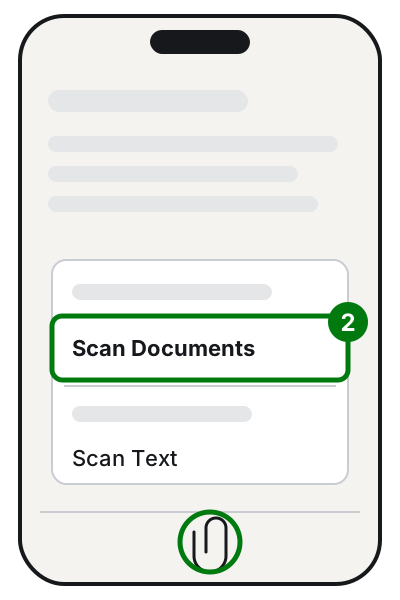
Step 2: the paperclip, then Scan Documents. Illustration: SimpleBuild -
Frame the page so that it all shows on the screen. If needed, adjust the flash and filters.
-
For automatic capture, hold the iPhone still: when it detects the page edges, it captures it on its own. To capture manually, tap the shutter button, adjust the corners if needed, then tap Keep (or Retake).
-
To fix a page, tap its thumbnail, choose an option such as Adjust, make your changes and go back.
-
Scan the other pages, then tap Done.
The document is saved as a PDF inside the note. These are the names used in Apple's manual for iOS 27.
The same app also has Scan Text: instead of a copy of the sheet, it puts the written text into the note, where you can then edit it.
On Android, with Google Drive
You need the Google Drive app: if you don't have it, download it from the Play Store.
- Open Google Drive.
- At the bottom right, tap the Camera button.
- Point at the document: a blue line marks the page edges. You can choose Auto capture or Manual capture.
- Take the photo of the document.
- If needed, fix the page: Crop & Rotate, Filter (colors or grayscale), Clean to remove stains. With Add you scan more pages, with Retake you take the photo again, with Delete you remove a page.
- Tap Done.
- Type a name for the file or keep the suggested one.
- Choose the format: .pdf or .jpg.
- If you like, choose the Drive folder to save it in, then tap Save.
On a Windows PC, with a scanner
Check that the scanner is installed
Windows usually recognizes the scanner on its own when you connect it or when it's on the same network.
- Select Start > Settings > Bluetooth & devices > Printers & scanners.
- If the scanner isn't in the list, next to Add a printer or scanner, select Add device, wait for the search, then select Add device next to your scanner.
If you have an all-in-one printer, the scanner may appear under the printer's name: select it and check that the scanner settings are among the options.
Scan with the Windows Scan app
-
Open Windows search and type Windows Scan. Open the Scan app that appears in the results. If it isn't there, install Windows Scan for free from the Microsoft Store.
-
Place the sheet in the scanner: face down on the glass, closing the lid, or in the document feeder, if the scanner has one.
-
In the Scanner menu, check that yours is selected.
-
In Source, the automatic setting (Auto-configured) is usually fine; otherwise choose Flatbed or Feeder, depending on where you placed the sheet.
-
In File type, choose the format: JPEG, PNG, TIFF or Bitmap.
-
With Show more you can choose the folder under Save file to. If you don't choose one, scans go to a folder inside Pictures.
-
Select Scan at the bottom.
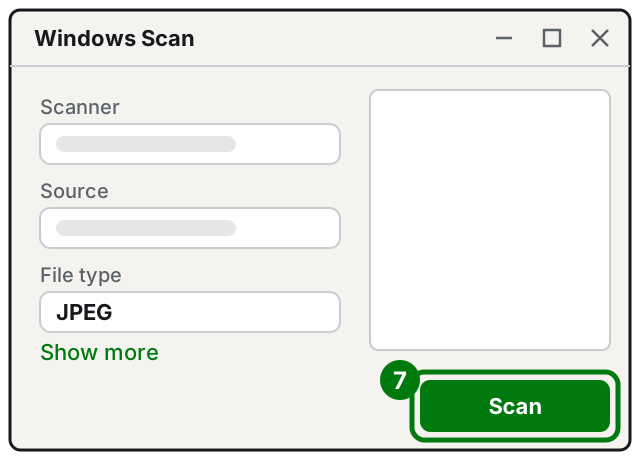
Step 7: the Scan button, at the bottom. Illustration: SimpleBuild
When it's done, you can open the scan in the Photos app or close it and move on to the next page. The app saves images, not PDFs: to put several pages together in a single file, see how to merge several PDFs into one.
On Mac, with a scanner
- Place the sheet in the scanner, on the glass or in the feeder.
- Choose Apple menu > System Settings and click Printers & Scanners in the sidebar (you may need to scroll down).
- Select the scanner, or the all-in-one printer, and click Open Scanner.
- If you're using the feeder, select Use Document Feeder; if you're using the glass, leave the box unchecked.
- From the Scan To menu, choose where to save: a folder or an app that opens the file right away.
- With Show Details you can set the Kind (Text for black-and-white documents, Color for photos), the Resolution, the file Name and the Format.
- If you choose the PDF format, you can combine several pages into one file and use text recognition (the feature is called OCR) to make it editable.
- Click Scan.
If it still doesn't work
- The scan from your phone comes out crooked or dark. Do it again with more light, laying the sheet on a dark surface, and adjust the corners by hand before saving.
- On Windows the scanner doesn't appear. Check that the scanner and the PC are on the same Wi-Fi network, then try Add a new device manually. To connect the all-in-one to the network, see how to connect a Wi-Fi printer.
- On Mac the "Open Scanner" button is missing. The scanner still needs to be set up: check the documentation that came with it.
- The file is too big for email: see how to reduce the size of a PDF.
- You need to sign the document before sending it back: see how to sign a PDF.
- You often scan lots of documents, for work or to file away household papers: a technician can set up the scanner, folders and file names so that every scan lands in the right place on its own.
Frequently asked questions
Is it better to save as PDF or JPG?
For documents to send, print or file away, PDF is more convenient, because it keeps several pages together in one file. JPG is fine for a single page to show quickly, or for a photo.
The scanned PDF is too big for email: what do I do?
You can reduce its size without scanning again: you'll find the steps in how to reduce the size of a PDF. Next time, a lower resolution or the "Text" kind instead of "Color" produces lighter files.
Where do scans made with the iPhone end up?
With the Notes app, the document is saved as a PDF inside the note where you created it. From there you can share it or save it wherever you like.