How to print from your phone (iPhone and Android)
With the printer connected to your home Wi-Fi, you can print from your phone without cables. iPhone has AirPrint built in; Android uses the phone's print service. Here are the official steps and what to check if the printer doesn't show up.
Procedure verified on against the official sources.
To print from your phone, the printer must be connected to Wi-Fi, on the same network as the phone. On iPhone you use AirPrint, which is built in: open the document, tap the Share button, then Print. On Android you use the phone's print service, from Settings, and then Print from the app.
Before you start
- The printer must be on Wi-Fi. If today you only use it with the computer's cable, first connect it to the network by following the guide on how to connect a Wi-Fi printer.
- Phone and printer on the same network. If the phone is on mobile data, or on another Wi-Fi network (for example the guest network), the printer won't show up.
- Turn on the printer and check that it has paper and ink or toner.
- Not all apps can print. Mail, Photos, Safari and Chrome can; others can't. Further down you'll find what to do in that case.
On iPhone with AirPrint
AirPrint is Apple's technology for printing wirelessly, without downloading or installing printer software. It works with compatible printers: to be sure, check the manual or ask the manufacturer. Apple also has a list of compatible printers, linked from the About AirPrint page.
Print a document, a photo or a web page
-
Open the app you want to print from, for example Photos, Mail, Files or Safari, and open what you want to print.
-
Tap the Share button or the Actions button, depending on the app.
-
Scroll down and tap Print.
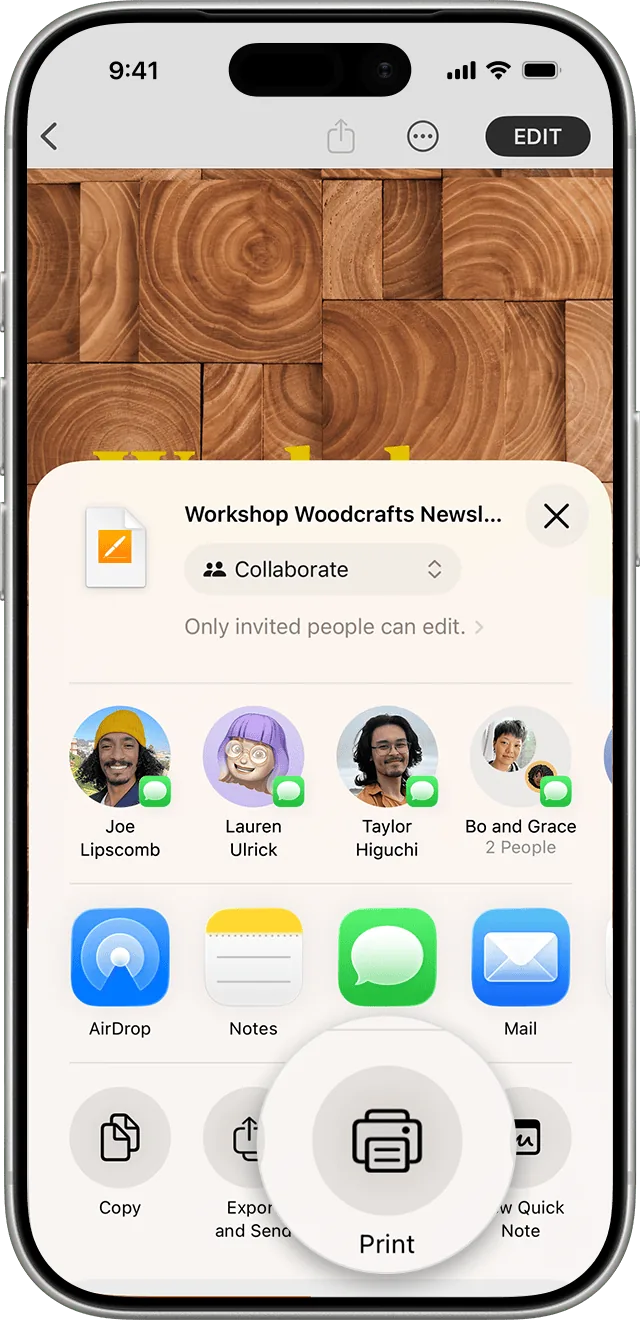
Step 3: Print, among the actions at the bottom. Image: Apple Support -
The first time, tap No Printer Selected and choose your printer.
-
Choose the number of copies and the other options, for example which pages to print.
-
Tap Print in the top-right corner.
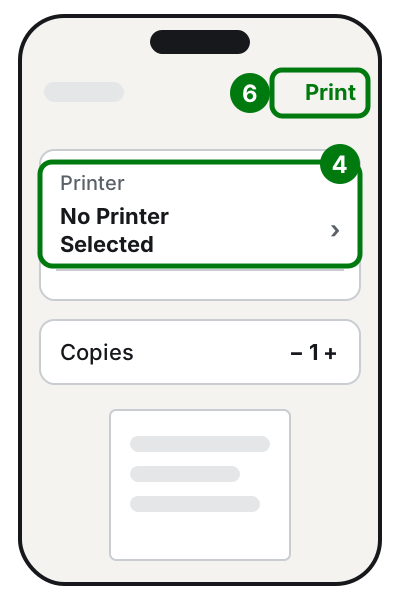
Steps 4 and 6: choose the printer, then Print at the top right. Illustration: SimpleBuild
If Print isn't there, the app may not support printing: Apple suggests checking the app's manual or Help section.
See how printing is going, or cancel it
- Open the App Switcher (the one you use to move from one app to another).
- Tap Print Center: you see the documents in the queue.
- To cancel, select the print job and tap Cancel Printing.
On Android
On Android, item names vary a little from brand to brand. The steps below are Google's official ones for Pixel phones; Google warns that some only work on Android 14 and up. On phones from other brands the path may be a little different: if you can't find the items, check your phone's manual.
Turn on the print service
The print service is the part of Android that talks to the printer. You only need to turn it on once.
- Open the Settings app.
- Tap Connected devices > Connection preferences > Printing.
- Select a print service and turn it on.
If there's no suitable service for your printer in the list:
- Still in Connected devices > Connection preferences > Printing, tap Add service.
- Enter the printer information you're asked for.
Some manufacturers provide their own print service for Android: Canon's manual, for example, mentions Canon Print Service and the Mopria service. Check your printer's manual to find out which one to use, and only download apps from the Play Store.
Print from an app
Every app has its own way, but the path is usually this:
- Open the document, photo or page.
- Tap Menu or More, then Share and Print.
- Choose the printer and tap Print.
If there are settings to change for the same printer, in Settings > Connected devices > Connection preferences > Printing select the printer and tap More.
Print from Chrome on Android
- Open the Chrome app and open the page, image or file to print.
- At the top right, tap More, then Share.
- Select Print.
- At the top, choose the printer. To change the settings, tap the Down arrow.
- Tap Print.
The same window also has Save as PDF: instead of printing, it creates a PDF on your phone, useful for keeping a receipt or a ticket.
If the app has no Print button
Google suggests a simple trick: take a screenshot of the screen and print the image from your gallery. It works well for a ticket, a QR code or a booking confirmation.
If you need to print a paper document you photographed, first turn it into a tidy PDF with the guide on how to scan a document: it will come out much better than a crooked photo.
If it still doesn't work
- The printer doesn't appear in the list: check that phone and printer are on the same Wi-Fi network and that the phone isn't on mobile data. Turn the printer off and on again, then try again.
- On iPhone the printer isn't AirPrint-enabled: Apple refers you to the manufacturer, who can tell you whether there's another way to print from your phone.
- The printer is only connected to the computer with a USB cable: AirPrint works over Wi-Fi or a wired network, so the printer needs to be connected to Wi-Fi.
- It prints from the phone but not from the PC, or the PC says it's "offline": see what to do if the printer is offline.
- You want pages printed on both sides: the guide on how to print double-sided explains the options on the computer.
- Your home Wi-Fi doesn't reach the printer well: that may be the problem. See how to get Wi-Fi all over the house.
- If several people at home or in the office need to print from different phones and something goes wrong every time, a technician can set up the printer and the network once and for all.
Frequently asked questions
Can I print from my phone if the printer is connected to the computer with a USB cable?
Not with AirPrint: Apple explains that AirPrint needs a printer connected to Wi-Fi or to the network with an Ethernet cable. The solution is to connect the printer to Wi-Fi.
Do I need to download the printer brand's app?
On iPhone, with an AirPrint printer, no. On Android it depends on the phone and the printer: sometimes you need to turn on or add a print service, which some manufacturers provide.
Can I turn a page into a PDF instead of printing it?
Yes. In Chrome on Android, in the print window, there's Save as PDF. It's handy for keeping a receipt or sending it by email.
Sources
- Print from iPhone (iPhone User Guide)
- Use AirPrint to print from your iPhone or iPad (Apple Support)
- About AirPrint (Apple Support)
- Connect an AirPrint printer to a Wi-Fi network (Apple Support)
- Print from your device (Pixel Phone Help)
- Print from Chrome on Android (Google Chrome Help)
- Printing with the Default Print Service (Android) (Canon manual, in Italian)