Printer "offline" on Windows: how to fix it
Bring back online a printer that Windows sees as offline: restart, network check, print queue, print service and reinstalling, in the order worth trying them on Windows 11 and Windows 10.
Procedure verified on against the official sources.
When Windows says the printer is "offline", it means the PC can't talk to it. First of all, turn the printer off, unplug it, wait 30 seconds and turn it back on. Then check that it's connected to the same Wi-Fi network as the PC. If that's not enough, clear the print queue, restart the Windows print service and, as a last resort, remove the printer and add it again.
Before you start
- Look at the printer. It must be on, with no error messages on its display, and with paper and ink or toner.
- If it's connected with a USB cable, check that the cable is firmly plugged into both the PC and the printer. Also try another USB port on the PC.
- If it's connected over Wi-Fi, it must be on the same network as the PC. Many printers have an item in their menu to check the Wi-Fi connection or print a network report: the manual explains where to find it.
- Did you just change your router or Wi-Fi password? Then the printer has probably been left off the network: it needs to be reconnected, as explained in how to connect a Wi-Fi printer.
On Windows 11, Microsoft also offers an automated printer troubleshooter in the Get Help app. You can try it first; if it doesn't fix the problem, follow the steps below.
On Windows 11
1. Restart the printer
- Turn off the printer and unplug it.
- Wait 30 seconds.
- Plug it back in and turn the printer on. Wait until it has finished starting up, then try printing again.
2. Set the printer as default
- Select Start > Settings > Bluetooth & devices > Printers & scanners.
- Select the printer, then Set as default.
- If you don't see Set as default, the Let Windows manage my default printer option is turned on: turn it off and try again.
3. Clear the print queue
One stuck document can hold up all the ones after it.
-
In Printers & scanners, select the printer.
-
On the page that opens, select Open print queue.
-
Click the ... (the three dots) and select Cancel all.
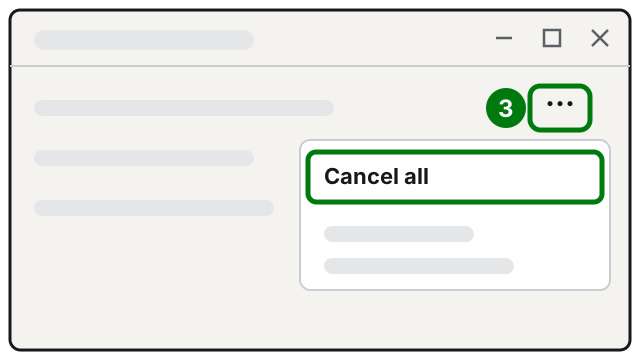
Step 3: three dots, then Cancel all. Illustration: SimpleBuild
4. Restart the print service
Windows handles printing with a service called Print Spooler. Restarting it clears up many problems.
-
Select Search on the taskbar, type services and open Services.
-
Scroll down to Print Spooler.
-
Right-click the item and select Restart.
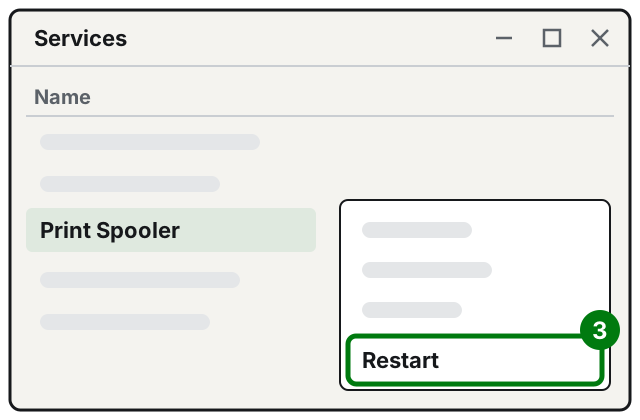
Step 3: right-click Print Spooler, then Restart. Illustration: SimpleBuild
5. Remove the printer and add it again
- Select Start > Settings > Bluetooth & devices > Printers & scanners.
- Select the printer, then Remove, and confirm with Yes.
- Check that the printer is on and connected.
- Next to Add a printer or scanner, select Add device. The search can take a few minutes.
- When the printer appears in the list, select Add device next to its name.
6. Restart the PC
Restarting refreshes the services and components the PC uses to communicate with the printer.
On Windows 10
The steps are the same, but some menus have different names. Windows 10 also has a setting that puts the printer offline "by hand", which you should check right away.
- Select Start > Settings > Devices > Printers & scanners.
- Select the printer and choose Open queue.
- Open the Printer menu and check the Pause Printing and Use Printer Offline items: if they're selected, clear them. From the same menu you can choose Set As Default Printer.
- To clear the queue: in the same window, select the documents listed under Document Name, then open the Document menu and choose Cancel.
- To remove the printer: in Printers & scanners, select it, choose Remove device and then Yes. To put it back: Add a printer or scanner.
You restart the Print Spooler the same way as in Windows 11. Remember that support for Windows 10 ended on October 14, 2025: the PC still works, but it no longer gets free security updates.
If it still doesn't work
- The printer doesn't appear when you add it. Next to "The printer that I want isn't listed", select Add a new device manually and follow the instructions.
- After adding it, a "Find drivers" button appears. The printer works, but with fewer features until you install the full drivers. Check Windows Update, or download the latest drivers from the manufacturer's website.
- Print jobs stay stuck even after restarting the spooler. Microsoft describes a deeper cleanup: in Services, double-click Print Spooler and select Stop; in File Explorer open the folder
%WINDIR%\system32\spool\printersand delete the files it contains (only the ones inside, not the folder); then go back to the spooler and choose Start, with Automatic startup. Windows may ask you for administrator permission. - You want to copy a document but the printer won't cooperate: in the meantime you can scan the document with your phone.
- The problem comes back every few days, or it involves a shared printer in an office with several PCs: the cause is usually in the network or the printer's configuration, and it's worth having a technician check it.
Frequently asked questions
Why does the printer go "offline" again after a few days?
Often the printer loses or changes its network connection, for example after a router change or a new Wi-Fi password. Check from the printer's menu which network it's connected to; if the problem continues, remove it and add it again from Windows.
The printer works from my phone but not from my PC: what does that mean?
That the printer and the network work, and the problem is in the PC. Check that the PC is on the same Wi-Fi network as the printer, then try the print queue, the Print Spooler service and reinstalling.
Do I need to download the manufacturer's program?
Usually not: Windows supports most printers without special software. Updated drivers can come from Windows Update; if Microsoft or the manufacturer says so, download them from the manufacturer's official website.