How to connect a Wi-Fi printer to your PC and Mac
Connect the printer to your home or office Wi-Fi network, then add it to your Windows PC and your Mac, with no cables. With an AirPrint-enabled printer you can also print from iPhone and iPad without installing anything.
Procedure verified on against the official sources.
Connecting a Wi-Fi printer happens in two stages. First the printer joins the Wi-Fi network, from its own control panel, with the WPS button, or with the manufacturer's app. Then you add the printer to the computer: on Windows from Printers & scanners, on a Mac from System Settings > Printers & Scanners. The golden rule: printer and computer must be on the same Wi-Fi network.
Before you start
- Your Wi-Fi name and password. You need them exactly as they are, with uppercase and lowercase letters. If you don't remember them, look at the label on the modem or read how to log in to your router.
- The printer's manual, or the model's page on the manufacturer's website. Every brand uses different buttons and menus for Wi-Fi: this guide tells you what to look for, the manual tells you where.
- The printer near the router during setup. Once it works, you can move it.
- The computer on and connected to the same Wi-Fi network you're connecting the printer to. If your router has two networks with different names (for example one at 2.4 GHz and one at 5 GHz), check the printer's manual for which one to use.
Step 1: connect the printer to Wi-Fi
There are three ways. Choose the one your printer allows.
From the printer's control panel
If the printer has a screen, look in its menu for the network or wireless settings. There's usually a setup wizard: choose your network's name and type the password.
With the WPS button
WPS (Wi-Fi Protected Setup) connects the printer to the router without typing the password. The router needs a WPS button too.
- Start the WPS connection on the printer: from a button or from the menu, as the manual says.
- Within about 2 minutes, press the WPS button on the router. On some routers you need to hold it down for 2 seconds or more.
- Wait for the printer to confirm the connection: it can take a few minutes.
With the USB cable and the manufacturer's software (Mac)
Apple also mentions this option: connect the printer to your Mac with the USB cable for a moment, install the software that came with the printer, and use its setup assistant to connect it to Wi-Fi. When you're done, unplug the cable: the printer stays connected to the network.
Step 2: add the printer to the computer
On Windows 11
-
Select Start > Settings > Bluetooth & devices > Printers & scanners.
-
Check whether the printer is already in the list: Windows often finds it and installs it on its own.
-
If it isn't there, next to Add a printer or scanner, select Add device.
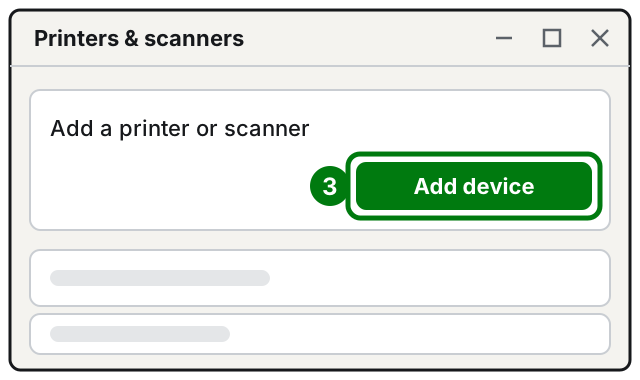
Step 3: Add device. Illustration: SimpleBuild -
Wait: the list can take a few minutes to fill in.
-
Next to your printer, select Add device.
-
After the installation, check Windows Update: there may be updated drivers for the printer.
On Windows 10
- Select Start > Settings > Devices > Printers & scanners.
- Select Add a printer or scanner and choose the printer when it appears.
Support for Windows 10 ended on October 14, 2025: the PC still works, but it no longer gets free security updates.
On Mac
If your Mac and the printer are already on the same network, the printer may be ready without doing anything: try printing and see whether it appears in the Printer menu. Otherwise:
-
Open System Settings.
-
Click Printers & Scanners in the sidebar (you may need to scroll down).
-
Click Add Printer, Scanner, or Fax.
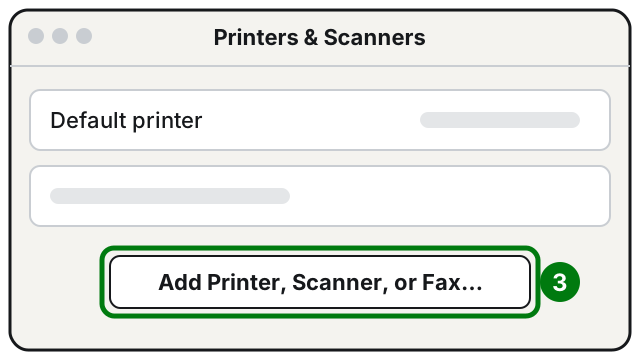
Step 3: Add Printer, Scanner, or Fax. Illustration: SimpleBuild -
Select the printer in the list and click Add.
-
If your Mac offers to download new software, download and install it.
On the same screen, from the Default printer menu, you can choose which printer to use normally.
From iPhone and iPad
With an AirPrint-enabled printer you don't need to install anything: your iPhone or iPad just needs to be on the same Wi-Fi network as the printer. When you print from an app, choose the printer in the print window.
If it still doesn't work
- The computer can't find the printer. Double-check that they're on the same Wi-Fi network. Then turn the printer off and on again and try again.
- On Windows the printer doesn't appear in the list. Next to "The printer that I want isn't listed", select Add a new device manually and follow the instructions.
- On Mac it doesn't appear in the list. You can add it with its IP address (a number like 192.168.1.20): the printer's manual explains where to find it. In Add Printer, Scanner, or Fax, use the IP address button, type the address and click Add. For the protocol, if the printer supports it, choose AirPrint.
- On Windows, "Find drivers" appears. The printer works, but with fewer features until you install the full drivers: the best way to get them is Windows Update.
- You changed your Wi-Fi password or your router: the printer needs to be reconnected from step 1. See also how to change your Wi-Fi password.
- The printer shows as "offline": follow printer offline on Windows.
- You also want the scanner on your all-in-one: see how to scan a document.
- In an office with several computers, network printers or a network with special settings: in these cases it may be worth having a technician set everything up once, so every workstation prints without surprises.
Frequently asked questions
Do I need to install the printer's CD or software?
In most cases, no: Windows supports most printers without special software, and on a Mac an AirPrint printer doesn't need drivers. The manufacturer's program can help with the first Wi-Fi connection or for extra features.
How do I know if my printer is AirPrint-enabled?
Apple has a search page for AirPrint-enabled printers by brand and model, linked from the "About AirPrint" article. If yours isn't there, ask the manufacturer.
Can I use the same printer from several computers?
Yes. Once it's on Wi-Fi, every computer and phone on the same network can add it by following the same steps.