How to sign a PDF on a PC, a Mac or a phone
How to put your drawn signature on a PDF with Preview on Mac and iPhone, Acrobat Reader or Edge on Windows, Google Drive on Android. And why, according to AgID, that signature is not a digital signature with full legal value.
Procedure verified on against the official sources.
To put your signature on a PDF you just draw it once and then drag it onto the document: on Mac and iPhone with Preview, on Windows with the free Acrobat Reader (the Fill & Sign tool) or with Microsoft Edge, on Android with Google Drive. Be aware, though: this is an image of your signature, not a digital signature. Contracts and official deeds may need a real digital signature, which you get from an authorized provider.
Before you start: drawn signature or digital signature?
They are two different things, even though in both cases people talk about "signing a PDF".
- Drawn signature (image): you trace your signature with your finger or the trackpad, or photograph it, and place it on the document. This is what the programs in this guide do. For AgID, Italy's digital agency (Agenzia per l'Italia Digitale), it counts as a "simple" electronic signature: its value as evidence, in case of dispute, is freely assessed by the judge. It is fine for forms, authorizations and everyday confirmations, if the person receiving the document accepts it.
- Advanced electronic signature (FEA): it guarantees who signed and lets you detect whether the document was changed afterwards. One example AgID gives is signing on a tablet at a service counter; it is valid in dealings with whoever provides that system.
- Qualified electronic signature or digital signature (FEQ): in Italy the two names are essentially synonyms. It is issued by a qualified trust service provider, supervised by AgID, and works with a smart card, a USB token or remote signing (with credentials and a one-time code). It has the same value as a handwritten signature. For some deeds, for example those listed in article 1350 of the Italian Civil Code from point 1 to 12, the law requires it, or the deed is void.
This guide is not legal advice. If you don't know which signature you need, ask whoever has to receive the document: bank, public office, employer, accountant or notary.
Two more warnings:
- Don't upload personal documents to unknown signing sites. Many online services ask you to upload the PDF to their servers. With the tools in this guide the file stays on your device.
- Don't modify a PDF that already has a digital signature, for example by compressing it: the signature also shows whether the document was changed afterwards.
On Mac with Preview
Creating the signature (once only)
-
Open the PDF with Preview.
-
If you don't see the tools, click the Show Markup Toolbar button, then the Sign button.
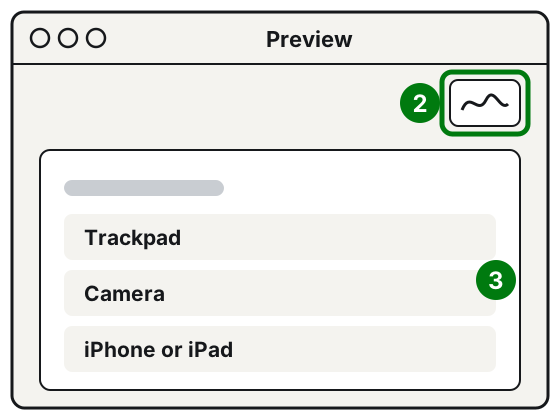
Step 2: the Sign button. Step 3: how to create the signature. Illustration: SimpleBuild -
Choose how to create the signature:
- Trackpad: click Trackpad, click the text when prompted, sign your name on the trackpad with your finger, press any key, then click Done.
- Camera: sign on a sheet of white paper, click Camera, hold it up to the camera level with the blue line, then click Done.
- iPhone or iPad: click Select Device, sign on the screen of the phone or tablet, then tap Done.
-
If you don't like the result, click Clear and try again.
Placing the signature on the document
- Click the Sign button and choose the saved signature.
- Drag it to the right place and use the handles at the corners to adjust its size.
- Save the document. If the PDF came as an attachment in Mail and you opened it from there, after signing it you can choose File > Save and then Reply to the sender: an email opens with the PDF already attached.
If you use iCloud Drive, the signature will be available on all your Macs.
On iPhone
-
Open the PDF. If prompted, open it in the Files app and tap Save.
-
Tap the Add button, then Add Signature.
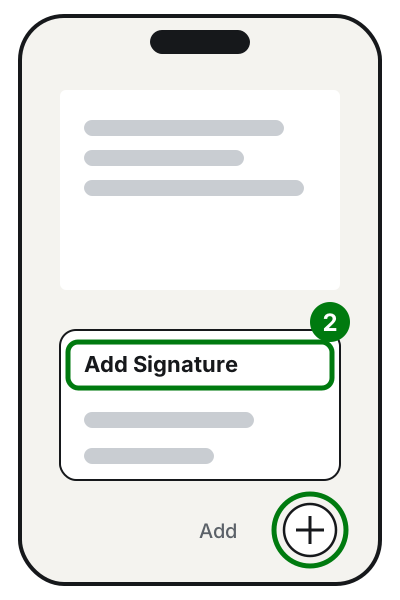
Step 2: the Add button, then Add Signature. Illustration: SimpleBuild -
Sign with your finger and tap Done. If you need more room, turn the iPhone sideways.
-
Drag the signature to where it should appear. To make it bigger or smaller, drag the blue dots around it.
-
Share or save the signed document.
On iOS 26 and later you can do the same in the Preview app: open the PDF, tap the Add button and choose the signature.
The signature stays saved on the iPhone for next time. You can create more than one (for example just your initials too) and delete them whenever you like.
On Windows 11 and 10
With Acrobat Reader (free)
Adobe Acrobat Reader is free. According to Adobe, the Fill & Sign tool lets you type into forms, add your signature and save the completed document without printing it.
- Download Acrobat Reader only from Adobe's official website.
- Open the PDF with Acrobat Reader.
- Choose the Fill & Sign tool and follow the on-screen instructions to create and place the signature.
- Save the document.
You don't need the paid versions of Acrobat to sign.
With Microsoft Edge (already installed)
The Edge PDF reader has a tool to draw (ink) on the pages with the mouse, your finger or a pen. Microsoft also suggests it for signing or filling out forms on the fly. It is the quickest solution if you don't want to install anything. After drawing the signature, save the PDF with a new name and reopen it to check that the signature is there.
Edge also works the other way round: it lets you view and validate certificate-based digital signatures in a PDF.
On Android with Google Drive
- Open the Google Drive app and tap the PDF to open it in preview.
- Tap the annotate button in the bottom right corner.
- Choose the pen, set the color and size, and sign with your finger on the screen.
- If you make a mistake, use the eraser or Undo.
- Save: you can update the original document or make a new copy with a new name, leaving the original unmarked. The second choice is the safer one.
You need Android 6.0 or later.
If it still doesn't work
- The signature comes out crooked or too big: delete it and place it again, or resize it with the handles. If the stroke doesn't convince you, on Mac try another method: the camera or the iPhone instead of the trackpad.
- The form won't let you type in the fields: on Mac you can add a text box with the dedicated button; on iPhone tap Add and choose Add Text Form Box.
- The recipient rejects the document: they probably need a qualified digital signature. Ask exactly which signature they accept and, if needed, go to a qualified provider: the list of providers active in Italy is on the AgID website.
- The signed PDF is too heavy for email: if the signature is only drawn you can compress it with the guide on how to reduce the size of a PDF; if it has a digital signature, you can't.
- You need to sign a paper document: first turn it into a PDF with the guide on how to scan a document. If there are several separate sheets, you can merge them into a single PDF.
- You get an unexpected "document to sign" by email: it could be a scam. Read how to spot a scam email.
- If your office signs many documents every day and you don't know which type of signature to use or how to organize yourselves, a technician can help you choose tools and procedures, while your legal advisor's guidance still applies.
Frequently asked questions
Is a signature drawn on a PDF worth the same as one in pen?
Not automatically. For AgID it is a "simple" electronic signature, whose value is assessed case by case. If the document is important, ask whoever receives it which signature they accept.
Are a digital signature and a qualified electronic signature the same thing?
In Italy they are essentially synonyms, according to AgID. You get one from a qualified trust service provider, and it works with a smart card, a USB token or remote signing.
How can I tell whether a PDF I received has a valid digital signature?
You need a program that verifies the certificate. Microsoft Edge, for example, lets you view and validate certificate-based digital signatures in PDFs.
Can I use the same drawn signature for all my documents?
Yes: Preview on Mac and iPhone saves the signature and offers it again. That is exactly why you should not share your unlocked device with others.
Sources
- Fill out and sign PDF forms in Preview on Mac (Apple)
- Fill out forms, sign documents, and create signatures on iPhone (Apple)
- Fill out and sign PDF forms in Preview on iPhone (Apple)
- Acrobat Reader, free features (Adobe)
- PDF reader in Microsoft Edge (Microsoft Learn)
- Annotate PDFs with a stylus or freehand on Android (Google Drive)
- Electronic signatures and seals, comparative analysis, AgID, December 2019 (in Italian)
- Getting an electronic signature, AgID (in Italian)