How to free up space on your Mac
Where to see what's filling your Mac's disk and how to get space back safely: storage recommendations, Downloads, old iPhone backups, unused apps, mail and the Trash.
Procedure verified on against the official sources.
To free up space on your Mac, first see what's filling the disk in System Settings > General > Storage, then follow the recommendations macOS offers. After that, delete large things you don't need: the Downloads folder, old iPhone backups, apps you don't use. Finally, empty the Trash, otherwise the space doesn't come back.
Before you start
- Make a backup. You're about to delete files: if you make a mistake, a backup saves you. If you don't have one, first read how to back up your Mac with Time Machine. The Time Machine disk is also a good place to recover a file you deleted by mistake.
- Don't touch system folders. Everything you need can be done from the settings and the Finder, without going into folders you don't know.
- A nearly full disk slows your Mac down. If slowness is your main problem, also see what to do if your Mac is slow.
1. See what's using space
-
Open the Apple menu (the apple at the top left) and choose System Settings.
-
In the sidebar, click General (you may need to scroll down).
-
On the right, click Storage.
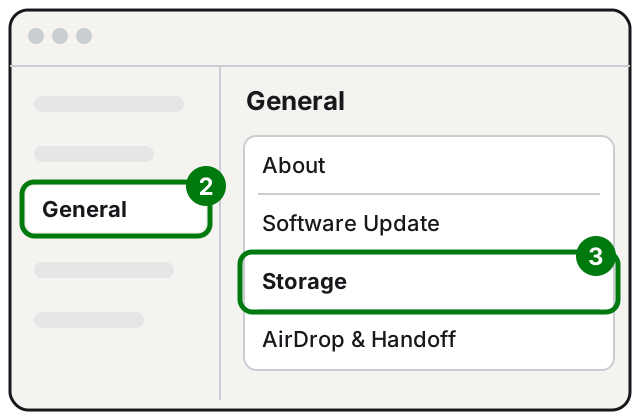
Steps 2 and 3: General on the left, Storage on the right. Illustration: SimpleBuild -
The chart at the top shows the space used by each category (Applications, Documents, Photos, Mail, Messages and so on).
In versions of macOS earlier than Ventura 13, choose Apple menu > About This Mac > Storage instead.
As you free up space, the chart updates on its own: keep it open to see the results.
2. Turn on the macOS recommendations
Below the chart, macOS offers a few automatic solutions:
- Store in iCloud: keeps the files from your Desktop and Documents folders, your photos and your messages in iCloud, and leaves only the recently opened ones on your Mac. You download the others when you need them. It uses the space in your iCloud plan.
- Optimize Storage: removes Apple TV movies and shows you've already watched from your Mac and keeps only recent email attachments.
- Empty Trash automatically: deletes items that have been in the Trash for more than 30 days on its own.
Turn on only the ones you understand. If you barely use iCloud, for example, remember that Store in iCloud can fill up your iCloud storage.
Apple also explains that, when space is needed, macOS deletes caches, logs, interrupted downloads and other temporary files that can safely be removed on its own.
3. Delete files from the categories
- On the Storage page, each category has an info button next to it. Click the one for the category you're interested in.
- In the Documents category you can see large files and downloads first, and sort the list by Name, Kind, Last Accessed or Size.
- Select a file you don't need and click Delete. If you're not sure what it is, click Show in Finder to look at it first.
Some categories can't be touched: macOS, System Data and Other Users only show how much space they use.
4. Clean out the Downloads folder
It's often the folder fullest of forgotten things: installers, PDFs, photos you received.
- In the Finder, choose Go > Downloads from the menu bar.
- Move what you no longer need to the Trash.
5. Delete old iPhone backups
If you've backed up your iPhone or iPad to your Mac, each backup can take up a lot of space.
-
Open the Finder and connect the device to your Mac with a USB cable.
-
If it isn't selected automatically, click your device in the Finder.
-
In the General tab, click Manage Backups.
-
Right-click the old backup and choose Delete.
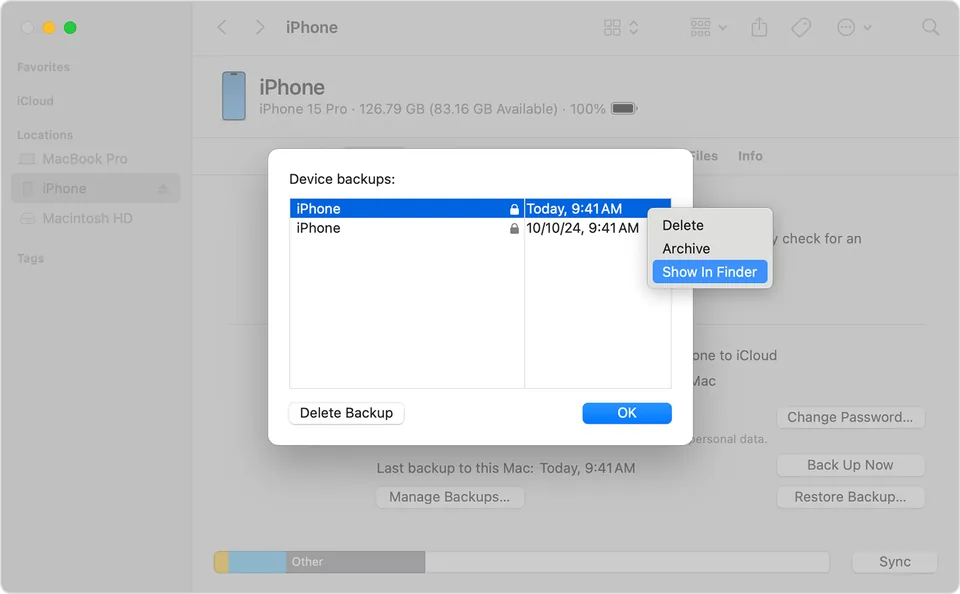
Step 4: right-click the old backup, then Delete. Image: Apple Support -
Click OK.
Don't delete the only backup of a phone you still use. To make an up-to-date one, see how to back up your iPhone to a PC or Mac.
6. Uninstall apps you don't use
- If the app is open, quit it.
- Open the Finder and click Applications in the sidebar (or choose Go > Applications).
- If there's a program called "Uninstall" or "Uninstaller" next to the app, use it: it also removes the pieces the app left elsewhere.
- Otherwise drag the app to the Trash, or select it and choose File > Move to Trash.
- If your Mac asks, enter an administrator's name and password (usually the ones you use to log in).
Apple apps your Mac needs, such as Mail, Notes or Maps, can't be deleted from the Finder.
7. Clean up mail, media and the Trash
- Mail: if you use the Mail app, choose Mailbox > Erase Junk Mail from Mail's menu bar, then Mailbox > Erase Deleted Items.
- Music, movies and podcasts: delete the ones you can stream again or download again.
- Photos and videos are often the biggest part. If you have an external drive, Apple suggests moving your Photos library there.
- Files you don't want to delete: you can compress them to use less space and decompress them when you need them.
- Trash: finally, choose Finder > Empty Trash from the menu bar. Until you empty it, the space isn't available.
If it still doesn't work
- Just short of space for a macOS update? Start your Mac in safe mode: it clears some system caches and frees temporary space, which helps complete an installation. To leave it, restart normally. The steps are in the guide on what to do if your Mac is slow.
- Does your Mac have several users? Ask each of them to clean up their own account, or delete the accounts that are no longer needed.
- Huge System Data? You can't delete it by hand: it contains logs, caches and temporary files managed by macOS, and its size changes with the state of your Mac.
- Is the disk always full? Consider an external drive for photos, videos and archives, keeping only your current work on the Mac.
- When to ask a technician: if you can't tell what's using the space, if you need to move your Photos library to an external drive without risk, or if your Mac's disk is simply too small for what you do. A technician can move your data safely and recommend the best solution.
Frequently asked questions
What is System Data, and can I delete it?
It's files macOS uses, such as logs, caches and temporary files. You can't manage it from Storage: its size changes with the state of your Mac, which manages it on its own.
I moved files to the Trash but didn't get any space back: why?
Space only frees up when you empty the Trash. Until then, the files are still on the disk.
If I delete an app, do I also lose the documents I made with it?
No. Deleting an app doesn't remove the documents you made with it, but you might no longer be able to open them. It doesn't cancel subscriptions paid through the app, either.
Does Store in iCloud delete my files?
No, it moves them to iCloud and keeps only the recent ones on your Mac: the others download when you open them. It does use the space in your iCloud plan, which can run out.