How to protect a folder or file with a password
Windows and macOS don't put a password on a single folder, but they have encryption tools: 7-Zip creates a password-protected archive, Disk Utility on Mac an encrypted disk image, BitLocker protects a whole drive. With the limits of each.
Procedure verified on against the official sources.
Windows and macOS don't have a button to put a password on a single folder. But there are official tools that do the same thing, and better: on Windows you create an encrypted archive with the free program 7-Zip; on Mac you create an encrypted disk image with Disk Utility, which comes built in. To protect the whole computer there's BitLocker (Windows) or FileVault (Mac).
Before you start
- If you lose the password, you lose the files. There's no "back door": that's exactly what makes encryption secure. Write the password down somewhere safe, for example in a password manager (see where to find your saved passwords).
- Make a copy first of the files you want to protect, on an external drive. If something goes wrong halfway, you lose nothing. If you don't have a backup yet, start with how to back up a Windows PC or backing up your Mac with Time Machine.
- Be wary of unknown programs and websites that promise to "lock folders" or to put a password on files online. Some only hide the folder without encrypting it; websites, to work, have to receive your documents unencrypted.
- Encrypting means turning the content into a code that can't be read by anyone without the right password or key.
On Windows 11 and 10: an encrypted archive with 7-Zip
7-Zip is a free, open-source program. The 7z format uses AES-256 encryption, which is very strong. With 7-Zip you create a file that contains your folder and only opens with the password.
Download it
- Go to the official website 7-zip.org.
- Download the 64-bit Windows x64 version (the most common) and install it. The program is also available in Italian.
Create the password-protected archive
-
In File Explorer, right-click the folder you want to protect. In Windows 11, if you don't see the 7-Zip item, first choose Show more options.
-
Choose 7-Zip > Add to archive....
-
Under Archive format, choose 7z.
-
In the Encryption section, type the password in Enter password and repeat it in Reenter password. 7-Zip asks you to use only unaccented letters, numbers and special characters.
-
Check that the Encryption method is AES-256.
-
Check Encrypt file names: that way, without the password, nobody can even see what the documents are called.
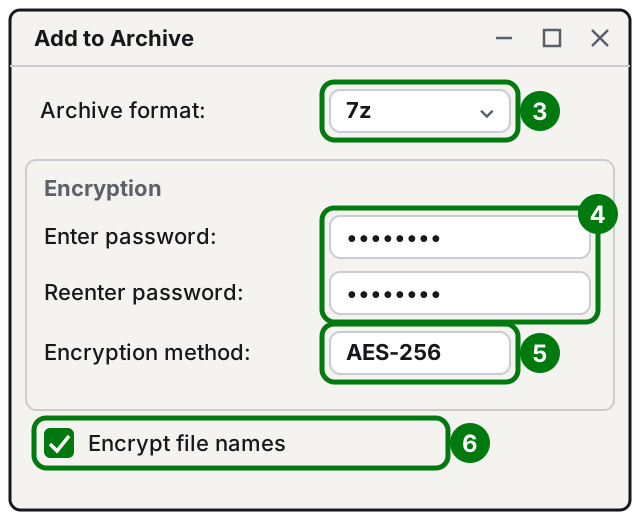
Steps 3 to 6: format, password, method and file names. Illustration: SimpleBuild -
Select OK.
A file with the .7z extension is created, with the name and in the location shown under Archive. To test it, right-click the file and choose 7-Zip > Extract files...: it must ask for the password. Only after checking that it opens and that everything is inside, delete the original folder and empty the Recycle Bin. If you leave the original, the protection is useless.
If you need a .zip file
You can choose the zip format in step 3 if the recipient doesn't have 7-Zip. The 7-Zip help warns that for zip you can choose between ZipCrypto, which opens almost anywhere but is weaker, and AES-256, stronger but read only by some programs. To open the archive later, see how to open a ZIP or RAR file.
On Mac: an encrypted disk image with Disk Utility
A disk image is a file that, once opened, behaves like a USB stick: it appears on the desktop and you drag your documents into it. If it's encrypted, it only opens with the password.
From a folder you already have
-
Open Disk Utility (find it by typing "Disk Utility" in the search).
-
Choose File > New Image > Image from Folder.
-
Select the folder and click Open.
-
Choose the file name and where to save it.
-
Click the Encryption pop-up menu, choose an encryption option and enter the password twice.
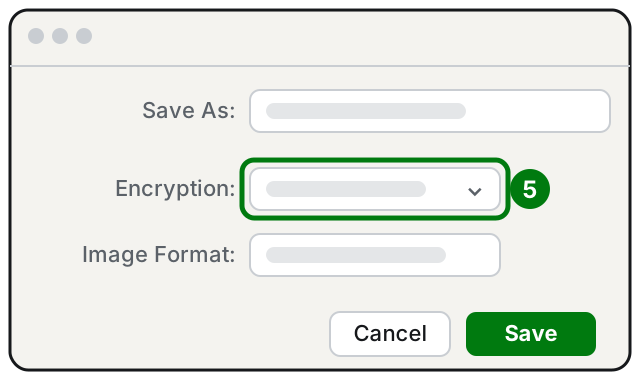
Step 5: the Encryption pop-up menu. Illustration: SimpleBuild -
Under Image Format, choose Read-only Compressed if you only want to keep the files, or RAW Image if you want to be able to edit them later.
-
Click Save, then Done.
An empty "safe" to fill
- In Disk Utility, choose File > New Image > Blank Image.
- Type the file name, the disk Name and the Size (the most it will be able to hold).
- Under Format, choose APFS.
- In the Encryption menu, choose an option, enter the password twice and click Choose.
- Click Save, then Done.
- In the Finder, copy your documents into the disk image.
Apple says it plainly: if you forget the password, you won't be able to open the disk image. And as long as the image stays open on the desktop, anyone using your Mac can read what's inside: when you're done, eject it. To open it again, double-click the file.
If you want to protect the whole Mac disk, not just one folder, Apple says to turn on FileVault in Privacy & Security settings.
Protect the whole drive on Windows: BitLocker
If your worry is that someone steals the laptop and reads the drive, the solution is to encrypt the entire drive. Windows has two tools:
- Device encryption: available on Windows Home too. It's in Settings > Privacy & security > Device encryption and you turn it on with a toggle, signed in to Windows with an administrator account. If you sign in with a Microsoft account, it's often already on. If the item isn't there, your PC doesn't support it or you're signed in with a standard account.
- BitLocker Drive Encryption: only Windows Pro, Enterprise or Education. From Start, type "BitLocker", open Manage BitLocker and choose Turn on BitLocker next to the drive. Here you can also encrypt USB drives (BitLocker To Go).
In both cases there's a 48-digit recovery key. Windows may ask for it after a hardware or software change. Microsoft can't recover it if you lose it. From Manage BitLocker, choose Back up your recovery key and save it to your Microsoft account, to a USB drive or on paper. Keep it away from the computer.
Note: BitLocker protects the drive from someone who takes it and connects it elsewhere. While you're signed in to Windows, your files are readable as usual: it doesn't ask for a password for each folder.
What about encrypting single files (EFS)?
In Windows editions other than Home there's also a checkbox to encrypt a folder: right-click > Properties > Advanced... > Encrypt contents to secure data. It's not in the Home edition. It isn't a password on the folder: the key that opens the files is stored in the computer, and if it's lost the files stay unreadable. For home use, a 7-Zip archive is easier to understand and to take elsewhere.
On iPhone and Android
On phones there's no official, universal way to put a password on a folder of files. The phone is already protected by its unlock code: choose a long one and turn on two-step verification for your accounts.
If it still doesn't work
- 7-Zip says "Wrong password?": check the Caps Lock key and the keyboard language. If you used accented letters, that's exactly why 7-Zip advises against them.
- The recipient can't open the zip: you probably chose AES-256 and their program can't read it. Make it again with ZipCrypto, knowing it's weaker, or have them install 7-Zip.
- You can't find Manage BitLocker: you have Windows Home. Use Device encryption, if it's there, or 7-Zip.
- Windows asks for the recovery key at startup: look for it in your Microsoft account or wherever you saved it. Without the key, the drive won't unlock.
- If you need to protect work or client documents, it's worth setting up encryption and backups once and for all with a technician, checking where the keys end up: that's the part that most often gets lost.
Frequently asked questions
If I forget the password for the archive or disk image, can anyone recover it?
No. Encryption exists precisely to block access without the password: Apple warns that without the password the disk image won't open, and Microsoft states that it can't recover a lost BitLocker recovery key.
Can I email a password-protected archive?
Yes. The recipient needs a program that reads that format and must know the password. Send them the password another way, for example by voice or by text message, not in the same email.
Are websites that put a password on PDFs or files safe?
To work, they have to receive your document as it is, before it's protected. For personal documents, a tool that works on your own computer is better, like the ones in this guide.
Does Windows encryption protect USB drives too?
Yes, with BitLocker To Go, which is part of BitLocker Drive Encryption: you need Windows Pro, Enterprise or Education.
Sources
- 7-Zip, official website
- 7-Zip, download page
- The 7z format and AES-256 encryption (7-Zip)
- Create a disk image using Disk Utility on Mac (Apple)
- Device Encryption in Windows (Microsoft)
- BitLocker Drive Encryption (Microsoft)
- BitLocker overview (Microsoft)
- Back up your BitLocker recovery key (Microsoft)
- How to encrypt a file or folder (Microsoft)
- Back up the recovery agent EFS private key (Microsoft Learn)
- File Explorer in Windows (Microsoft)