How to rename many files at once on Windows and Mac
How to give dozens of photos or documents tidy names in one go: on Mac with the Finder's Rename feature, on Windows with PowerRename, Microsoft's free tool with a preview. Plus a PowerShell command for those who want to go further.
Procedure verified on against the official sources.
On a Mac everything is already in the Finder: select the files, right-click and choose Rename. You can replace a word, add text, or give them all a name with a running number, for example "Holiday 1", "Holiday 2" and so on.
On Windows the handiest tool is PowerRename, free and made by Microsoft: it is part of the PowerToys package and shows a preview of the new names before changing them.
Before you start
- Try it on a copy. Copy the files into a test folder and rename those first: if you like the result, repeat on the originals.
- Put the files in order. Numbering follows the order the files are in: if you want photos numbered in the order they were taken, sort the folder by date first.
- Don't change the extension (the letters after the dot, like
.jpgor.pdf): the file might no longer open. If you really need another format, the file must be converted, as explained in the guide on how to convert HEIC photos to JPG. - Don't rename system or program folders: only your own files.
On Mac
-
In the Finder, open the folder with the files.
-
Select the files you want to rename.
-
Click one of the files while holding the Control key (or right-click it).
-
In the menu, choose Rename.
-
The Rename Finder Items window opens. In the pop-up menu at the top, choose what to do:
- Replace Text: type the word to remove in the Find field and the new one in the Replace with field. For example, from "IMG" to "Wedding".
- Add Text: type the text to add and choose whether to put it before or after the current name.
- Format: give all the files a new name with an index, a counter or the date. Type the name in the Custom Format field and enter the number to start from.
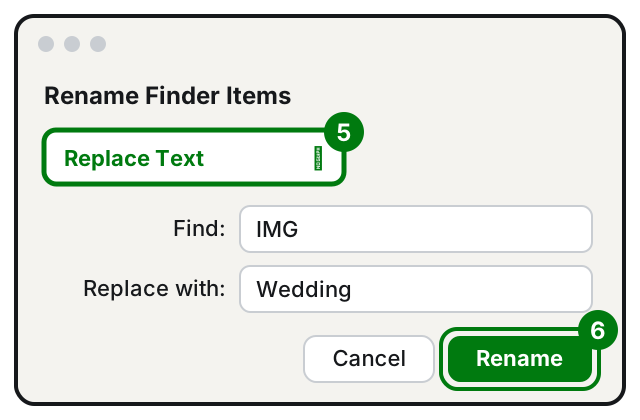
Step 5: choose what to do in the menu at the top; step 6: Rename. Illustration: SimpleBuild -
Click Rename.
Example: numbering the photos from a trip
Select the photos, choose Format, choose to add a number after the name, type "Puglia 2026" in Custom Format and start the number at 1. Every photo gets the same name followed by its number, and the extensions stay as they were.
On Windows 11 and 10
1. Install PowerToys
PowerToys is a set of small free tools from Microsoft. It requires Windows 11 or Windows 10 version 2004 or later, 64-bit.
- Open the Microsoft Store from the Start menu.
- Search for PowerToys and install it.
- Open PowerToys at least once and check that PowerRename is turned on.
If you prefer the command line, Microsoft also gives this command, to type in PowerShell or Command Prompt:
winget install --id Microsoft.PowerToys --source winget2. Rename the files with PowerRename
-
Open File Explorer and go to the folder with the files.
-
Select the files to rename.
-
Right-click and choose Rename with PowerRename.
-
In the Search for field, type the text to change. For example
IMG_. -
In the Replace with field, type the new text. For example
Wedding_. -
Look at the Preview pane: for each file you see the current name and the new one.
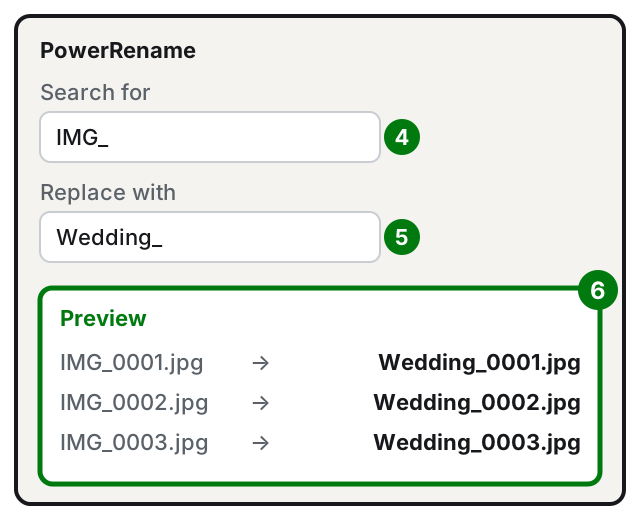
Steps 4-6: Search for, Replace with, and the check in the Preview. Illustration: SimpleBuild -
If everything looks right, confirm with the button that applies the changes.
If something goes wrong, right afterwards you can press Ctrl + Z in File Explorer to undo the last rename.
Useful PowerRename options
- Match all occurrences: changes the word everywhere it appears in the name, not just the first time.
- Apply to: choose whether to change only the file name or only the extension. To stay safe, keep Filename only.
- Include files, Include folders, Include subfolders: these decide what gets changed. If you selected folders and only want to change the files inside them, clear Include folders.
- Text formatting: turns names into all lowercase, all uppercase, or with a capital first letter.
- Enumerate items: adds a running number. In the Replace with field type for example
Photo_${start=1}: the counter starts at 1. With${padding=3}the number is written with leading zeros (001, 002…), handy for keeping the files in order. - File date: in the Replace with field you can use the creation date, for example
$YYYY-$MM-$DDfor year, month and day.
For PowerShell users
If you are comfortable with the command line, PowerShell (built into Windows) can rename many files with a single line. This example from Microsoft changes the extension of all .txt files in the current folder to .log:
Get-ChildItem *.txt | Rename-Item -NewName { $_.Name -replace '.txt','.log' }Before using it on real files, try it on a folder of copies: the line acts on every matching file, without asking for confirmation.
If it still doesn't work
- No "Rename with PowerRename" on Windows? The item only appears if PowerRename is turned on: open PowerToys and check.
- The preview shows no new names? The text you typed in Search for does not appear in any of the selected files. Check spaces and hyphens.
- The numbers come out in the wrong order? Sort the folder before selecting the files, or use leading zeros (
${padding=3}on Windows). - Can't rename on Mac? Some system items and your home folder should not be renamed. Work only on your own files.
- Lots of iPhone photos to sort out? Copy them to the computer first: see how to transfer photos from iPhone to a Windows PC.
- When to call a technician: if files need renaming every week with precise rules (for example with the customer name and invoice number taken from a list), a small custom script saves you hours and makes no mistakes.
Frequently asked questions
Can I also change the file extension, like .jpg?
Better not, unless you know what you are doing. Apple warns that if you change the extension, you may no longer be able to open the file with the app that created it: renaming .heic to .jpg does not convert the photo.
If I make a mistake, can I go back?
On Windows, right after renaming with PowerRename, you can press Ctrl + Z in File Explorer to undo the last change. Either way, try it on a copy of the files first.
Which characters can't I use in names?
On Mac you can't use a colon and you can't start a name with a period; some apps don't accept a slash. In general, for names that work everywhere, use letters, numbers, hyphens and underscores.