How to move WhatsApp chats from Android to iPhone
WhatsApp chats move from Android to iPhone only during the iPhone's first setup, with the Move to iOS app. What you need, the steps in order, what doesn't transfer and what to do if the iPhone is already set up.
Procedure verified on against the official sources.
WhatsApp chats move from Android to iPhone with Apple's Move to iOS app, while you set up the iPhone for the first time. You need the same phone number, and the two phones close together, plugged into power and on the same Wi-Fi network. If the iPhone is already set up and in use, WhatsApp says the only way is to reset it to factory settings and start over.
Before you start
WhatsApp lists these requirements. Check them all before you turn on the new iPhone:
- Android 5 or above on the old phone and iOS 15.5 or above on the iPhone.
- The Move to iOS app installed on the Android phone (you download it from Google Play). WhatsApp warns that other transfer apps aren't supported and may cause you to lose chats.
- The latest version of WhatsApp on both: from the Play Store on Android, from the App Store on iPhone.
- The same phone number on both. If you're changing number, change it in WhatsApp on the old phone first: WhatsApp doesn't transfer data to a different number.
- A new iPhone or one just reset to factory settings. The transfer happens during initial setup.
- Both plugged into power and on the same Wi-Fi network. Alternatively, the Android phone can connect to the iPhone's hotspot.
- Enough space on the iPhone. Apple reminds you it must hold all the content you're moving, including what's on the Android phone's memory card.
A safety copy, just in case
Before you begin, back up your chats on the old phone. It's not needed for the transfer, but it protects you if something goes wrong and the old phone breaks:
- In WhatsApp, open the menu and tap Settings.
- Tap Chats > Chat backup.
- Tap Back up.
What transfers and what doesn't
- Transfers: account info, profile photo, individual chats, group chats and communities, chat history, photos, videos and voice messages, settings, Channel updates.
- Doesn't transfer: call history, display name, media received over Channels, peer-to-peer payment messages.
The chats also stay on the Android phone until you delete WhatsApp or wipe the phone.
The transfer, step by step
On the iPhone
-
Turn on the new iPhone and place it near the Android phone.
-
Follow the setup instructions on the screen.
-
On the Quick Start screen tap Set Up Without Another Device.
-
On the Transfer Your Apps & Data screen tap From Android, then Transfer with App.
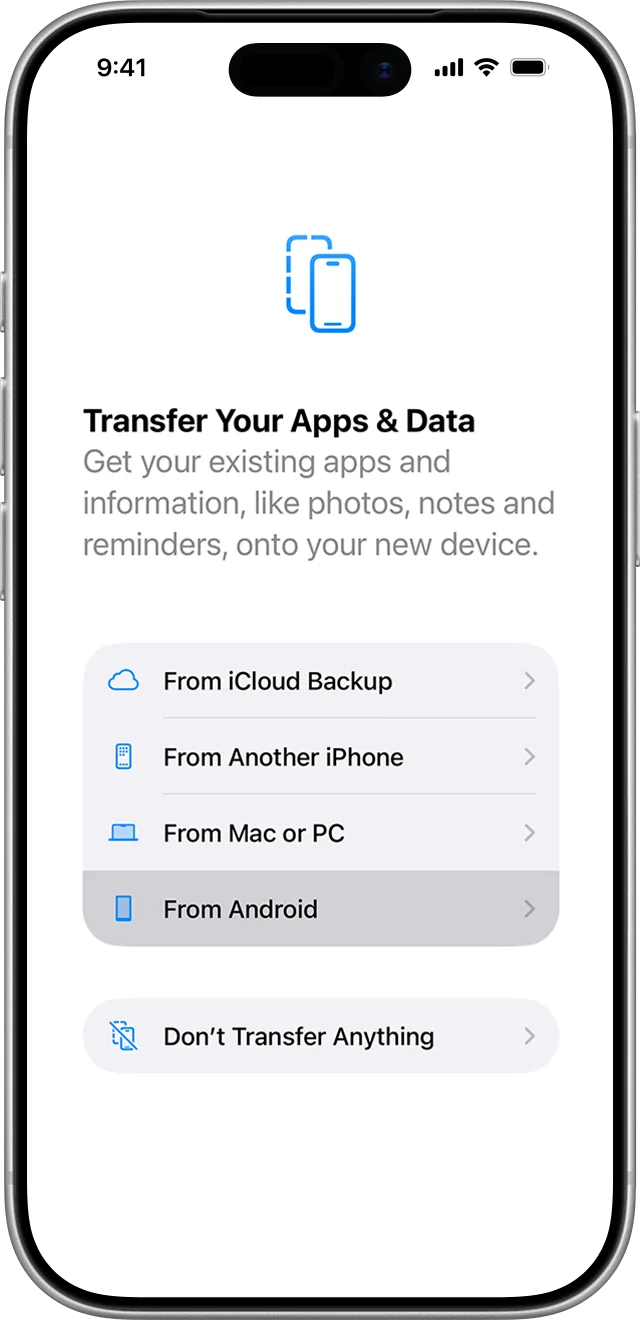
Step 4: From Android. Image: Apple Support -
On the Move from Android screen tap Continue and wait for a six-digit or ten-digit code to appear.
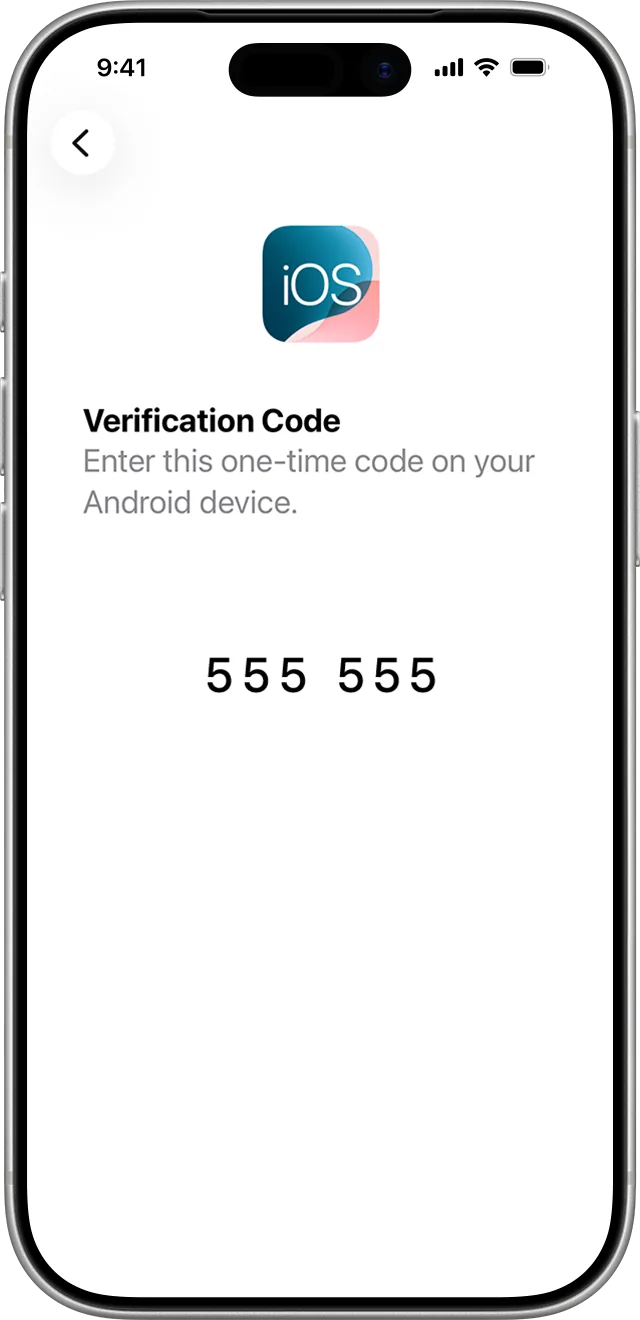
Step 5: the code to type on Android. Image: Apple Support
On the Android phone
- Open Move to iOS. Tap Continue, read the terms and tap Agree, then answer the permission prompts.
- Enter the code you see on the iPhone.
- When asked, tap Connect to join the temporary Wi-Fi network created by the iPhone.
- On the Transfer Data screen select WhatsApp, along with the other content you want to bring.
- Tap Start and wait for WhatsApp to prepare the data. When it's ready, you're signed out of your account on the Android phone: that's normal.
- Tap Next to return to Move to iOS, then Continue to start the transfer.
From here don't touch either phone until the bar on the iPhone has reached the end, even if Android says it's done. Apple warns that if you use another app or get a phone call on the Android phone, your content won't transfer. Keep them close together and charging. It can take quite a while, depending on how many chats and photos you have.
Back on the iPhone
- When the bar finishes, tap Done on Android and Continue on the iPhone, and finish setup.
- Install the latest version of WhatsApp from the App Store.
- Open WhatsApp and sign in with the same number as the old phone.
- When prompted, tap Start and wait for it to finish. Then you'll find your chats.
During this process WhatsApp can't see your data, and the transferred chats don't go to the cloud until you create an iCloud backup. It's worth doing that as soon as possible, from WhatsApp settings on the iPhone.
If the iPhone is already set up
It happens a lot: you turn on the iPhone, set it up, install WhatsApp and only then notice the chats aren't there. WhatsApp is clear: the transfer only works before you activate WhatsApp on the iPhone, during setup. The only way is:
- Back up the whole iPhone: the guide to backing up your iPhone on a PC or Mac explains how. A reset erases apps, photos, files and messages, not just WhatsApp, and can't be undone.
- Reset the iPhone to factory settings.
- Reinstall WhatsApp on the Android phone, if you removed it.
- Set up the iPhone again and do the transfer with Move to iOS, as above.
Chats written on the iPhone in the meantime can't be merged with the old ones.
If it still doesn't work
- Check the requirements again: power, same Wi-Fi network, same number, freshly set up iPhone, updated versions. WhatsApp lists these as the most common reasons.
- Wi-Fi problems. Apple suggests turning off any Android features that switch networks on their own, "forgetting" saved Wi-Fi networks, turning off cellular data and restarting both phones before trying again.
- The message "An unknown error occurred. Please try again later." WhatsApp recommends restarting both phones and trying again.
- The transfer stops halfway. It's usually a connection problem. If the iPhone runs out of space, Apple recommends erasing it and starting over, after checking that your Android content will fit.
- The verification code takes a long time after several attempts: WhatsApp explains there's no way to speed it up, but you may be able to receive the code by email.
- Chats missing after the transfer. WhatsApp says it can't retrieve them: chats aren't stored on its servers. That's why it's worth keeping the old phone untouched for a few days, until you've checked everything.
- After the switch, if the iPhone fills up quickly with photos and videos from your chats, see how to free up space on iPhone.
- If you have many important chats (work, family, photos you don't have anywhere else) and don't want to take risks, get a technician by your side: the procedure is a one-shot deal and has to be done in the right order, with the old phone still intact.
Frequently asked questions
Can I move my chats if I've already set up the iPhone?
Only by resetting the iPhone to factory settings, which erases everything on it. Back up the iPhone first, then start setup again with Move to iOS.
Do WhatsApp calls move to the iPhone?
No. WhatsApp doesn't transfer call history from Android to iPhone, nor your display name.
Can I merge my old chats with the new ones on the iPhone?
No. WhatsApp explains that old and new history can't be merged.
Does it work with WhatsApp Business?
Not for now: WhatsApp says the transfer between Android and iPhone isn't available in the WhatsApp Business app.
Sources
- How to move chats from an Android device to an iPhone (WhatsApp Help Center)
- Can't move chats from an Android device to an iPhone (WhatsApp Help Center)
- How to back up your chat history (WhatsApp Help Center, Android)
- About changing phones (WhatsApp Help Center)
- Move from Android to iPhone or iPad (Apple Support)