How to update your PC drivers in Windows 11
What drivers are and the safe ways to update them in Windows 11: Windows Update and optional updates, Device Manager, the manufacturer's website. And how to go back to the previous driver if something stops working after an update.
Procedure verified on against the official sources.
In most cases you don't have to do anything: Windows Update downloads and installs the recommended drivers by itself. To see whether others are available, open Start > Settings > Windows Update > Advanced options > Optional updates. If a single device is causing problems, you can update it from Device Manager or with the driver from the manufacturer's official website.
A driver is the program that lets Windows "talk" to a component: the printer, the scanner, the graphics card, the mouse, the keyboard, an external drive. Without the right driver the device doesn't work, or works badly.
Before you start
- Save your work and close your apps: a new driver often needs a restart.
- Keep a copy of your important files. Updating a driver usually doesn't touch your documents, but if something goes wrong it is better to have them safe: see how to back up a Windows PC.
- Download drivers only from Microsoft or from the official website of the manufacturer of the PC or of the device. Microsoft explicitly recommends it: avoid sites that promise "all drivers for free".
- For some operations, such as going back to the previous driver, you need an administrator account on the PC.
The recommended way: Windows Update
Recommended drivers arrive by themselves
- Open Start > Settings > Windows Update.
- Select Check for updates and install what Windows offers.
- Restart when asked.
Optional driver updates
Windows doesn't install some drivers by itself: it puts them among the optional updates and waits for you to choose them.
-
Open Start > Settings > Windows Update > Advanced options.
-
Make sure the Receive updates for other Microsoft products option is turned on.
-
Under Additional options select Optional updates.
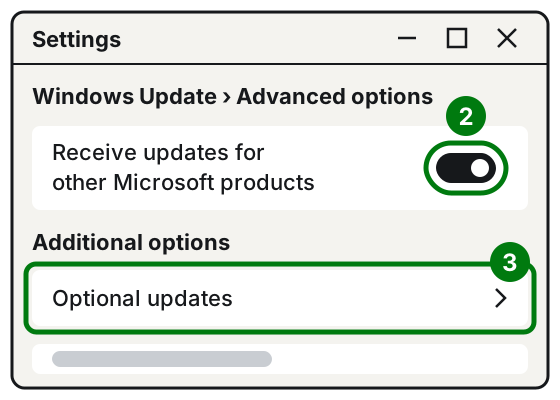
Steps 2 and 3: the toggle, then Optional updates. Illustration: SimpleBuild -
If there are driver updates, check the ones you need and select Download and install.
-
When it finishes, restart the PC: right-click Start and choose Shut down or sign out > Restart. Microsoft recommends restarting even if no update asks for it.
You don't need to install every optional driver: pick them when they concern a device that is giving you problems.
Updating a single device from Device Manager
Useful when a single component isn't working: the printer doesn't respond, there is no sound, the screen has a strange resolution.
-
Right-click Start and choose Device Manager.
-
Select the arrow next to the category you are interested in, for example Display adapters or Printers, to see the devices.
-
Right-click the device and choose Update driver.
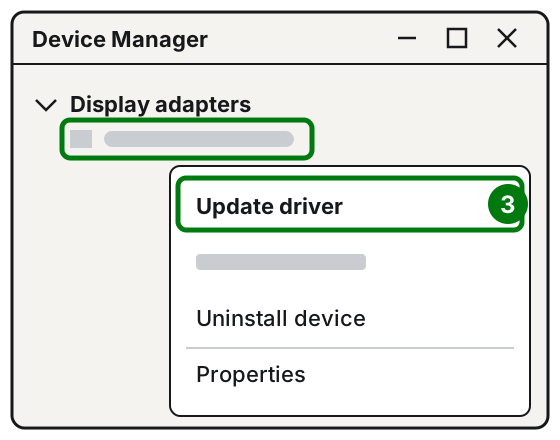
Step 3: right-click the device, Update driver. Illustration: SimpleBuild -
Choose Search automatically for updated driver software. If Windows finds one, it installs it.
-
If it finds nothing, you can choose Search for updated drivers on Windows Update, which takes you to the updates described above.
-
Select Close.
If the message says The best drivers for your device are already installed, it means Windows doesn't know of a newer one. That doesn't necessarily mean there isn't one: sometimes the manufacturer publishes it only on its own website.
Installing the manufacturer's driver
You need this when Windows Update can't find the right driver, for example for printers, scanners or graphics cards.
- Go to the official website of the manufacturer (of the PC or of the device) and look for the support page of your exact model.
- Download the driver for your version of Windows. If the file is compressed, extract it and remember which folder you put it in.
- If the manufacturer provides an installer, open it and follow its instructions.
- If instead you only have the driver files, open Device Manager, right-click the device and choose Update driver.
- Choose Browse my computer for drivers, then Browse..., point to the folder where you extracted the driver and select OK.
- Check the path and select Next. Windows installs the driver if it is newer than the one you have.
For printers, the simplest thing is often to reinstall them from scratch: see how to connect a Wi-Fi printer.
Going back to the previous driver
If a device stopped working after an update, putting back the previous driver often fixes it.
-
Right-click Start and choose Device Manager.
-
Open the category, right-click the device, then choose Properties.
-
Select the Driver tab and then Roll Back Driver.
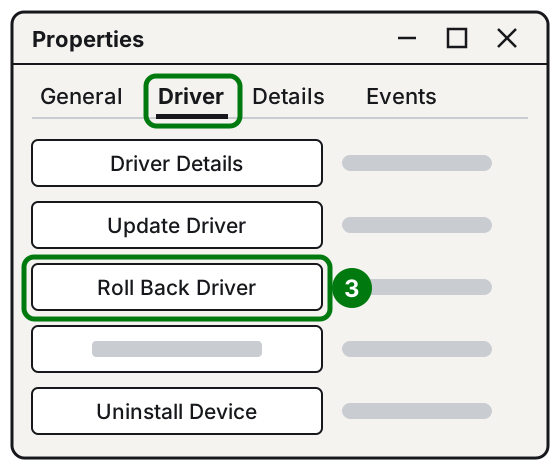
Step 3: Driver tab, then Roll Back Driver. Illustration: SimpleBuild -
Choose a reason when prompted and confirm with Yes.
-
Restart if prompted.
Reinstalling a driver
When a driver seems "broken", you can have Windows reinstall it.
- Save your work and close your apps.
- In Device Manager right-click the device and choose Uninstall device, then confirm with Uninstall.
- Restart the PC. On restart, Windows tries to reinstall the driver by itself.
If it doesn't reinstall it, use one of the methods above. Some devices, such as printers, have to be reinstalled by hand.
If it still doesn't work
- Windows Update gives errors? See what to do about Windows Update errors.
- The printer shows as "offline" even with the right driver? Look at printer offline: what to do.
- The screen went black after a graphics driver update? Try Windows logo key + Ctrl + Shift + B and the other checks in PC won't turn on or stays on a black screen.
- Is the PC still on Windows 10? Since October 14, 2025 it no longer gets free updates from Windows Update: see how to install Windows 11.
- When to call a technician: if after an update the PC no longer starts, if you can't find the driver for a device, or if several devices stop working at once. It may be necessary to work out which component is causing problems before installing anything.
Frequently asked questions
Do I need programs that update all drivers automatically?
No. Microsoft names Windows Update as the best way and recommends not downloading drivers from sites other than the manufacturer's official one. "Update everything" programs from unknown sites can install the wrong drivers or unwanted software.
Should I update drivers even if everything works?
There is no need to go looking for them by hand: Windows Update installs the recommended ones by itself. It is worth stepping in when a device doesn't work properly or when the manufacturer announces an important update.
What do I do if something goes wrong after an update?
In Device Manager open the device's Properties, Driver tab, and choose Roll Back Driver: Windows goes back to the previous version. You need an administrator account.