How to back up a Windows PC
The two options already built into Windows 11 and 10: Windows Backup, which saves folders and settings to OneDrive, and File History, which copies your files to an external drive and also keeps earlier versions.
Procedure verified on against the official sources.
Windows already has everything you need for a backup, with nothing to install. Windows Backup saves folders and settings to your OneDrive storage. File History copies your documents to an external drive and also lets you recover older versions of a file. Our advice is to use both.
Before you start
- For Windows Backup you need a personal Microsoft account (for example an @outlook.com or @live.com address). Work or school accounts don't work for this feature.
- For File History you need an external USB drive or a network location, for example a drive connected to your router.
- Check how much space your folders take up. A free Microsoft account includes 5 GB on OneDrive: enough for documents and settings, usually not for years of photos and videos.
- If you're not sure why you need more than one copy, first read the 3-2-1 backup rule.
Microsoft explains the difference this way: a cloud backup is convenient and reachable from several devices, while one on an external drive is better when you have no internet or lots of large files.
On Windows 11 and 10: Windows Backup (OneDrive)
-
Click Start, type
backupand choose Windows Backup from the results. Or open Settings > Accounts > Windows backup. -
Sign in with your Microsoft account if asked.
-
Open Folders and turn on the toggle for the folders you want to save: Desktop, Documents, Pictures, Videos, Music.
-
Open the other sections and choose what to save: Installed apps, Accessibility, Accounts, Wi-Fi network and passwords, Personalization, Language preferences and Other Windows settings.
-
Select the Back up button.
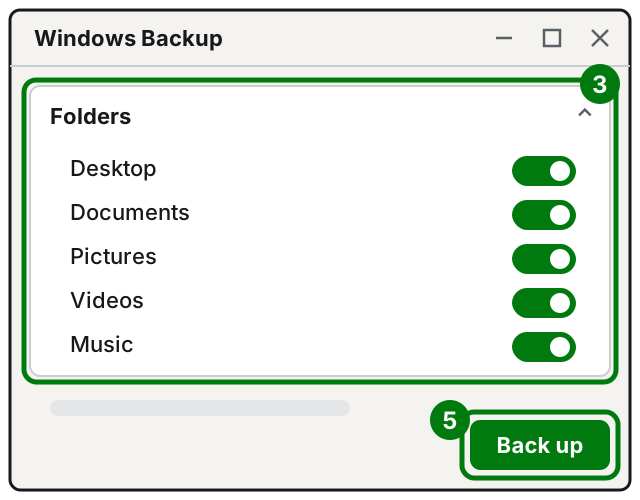
Steps 3 and 5: turn on the folders, then select Back up. Illustration: SimpleBuild
From then on the chosen folders are synced with OneDrive. You can check the status in Settings > Accounts > Windows backup.
If you get a OneDrive error, there are three common causes: you aren't signed in to OneDrive, your storage is full, or there's a sync problem.
Watch out: it's a sync
The folders are synced, meaning kept identical, between your PC and OneDrive. That's very handy when you change computers. But it doesn't protect you if a file is deleted or damaged on the PC, because the change reaches the cloud too. That's why you also need a copy on a separate drive, like the one File History makes.
On Windows 11 and 10: File History (external drive)
-
Connect the external drive to your PC.
-
Open Control Panel: select Start and type
control panel. -
Under System and Security, choose Save backup copies of your files with File History.
-
Select Turn on.
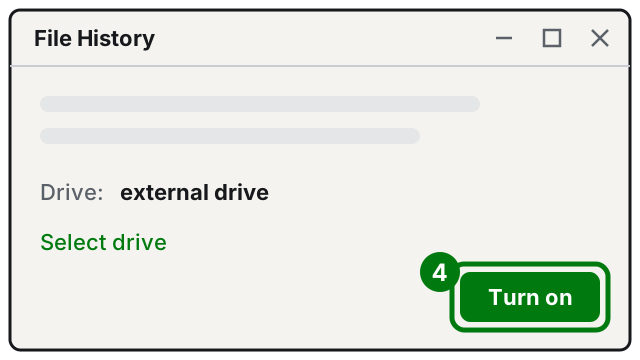
Step 4: the Turn on button. Illustration: SimpleBuild -
If the right drive isn't already chosen, select Select drive, choose the external drive or network location and select OK.
File History saves the main folders by itself, such as Documents, Pictures, Videos and Desktop. To add another folder, right-click it, then choose Show more options > Include in library.
Once it's on, File History watches your files and makes regular copies on the drive. Of course it can only do that while the drive is connected: if you keep it in a drawer, remember to connect it often.
How to get a file back from the backup
From File History
- Open File Explorer and go to the folder where the file was.
- Right-click the folder name and choose Restore previous versions.
- Choose the version you need, meaning the day and time.
- Select Restore to put it back in place, or Restore to to save it in another folder without touching the current file.
If in doubt, always use Restore to: that way you don't overwrite anything.
From Windows Backup, on a new PC
During the first setup of the new PC, sign in with the same Microsoft account. Windows will ask whether you want to restore from a backup. If you have more than one, choose More options to pick the right one. To move everything to a new computer in an orderly way, you may also want the guide on resetting Windows without losing your files.
If it still doesn't work
- File History says "Reconnect your drive" even though the drive is connected: this is a known issue with the September 2026 Windows update. Microsoft fixed it in updates released on and after September 22, 2026. Install the latest updates; if Windows Update doesn't work, follow this guide.
- The date of the last backup doesn't change: check that the drive is connected and turned on, and that it isn't full. If it's full, free it up or use a larger one.
- OneDrive is full: remove the heaviest folders from the backup (usually Videos and Pictures) and save them to an external drive with File History. If you need space on the PC, see also how to free up disk space.
- You can't remember your Microsoft account password: without it you can't get your OneDrive backup back. Put it somewhere safe now and turn on two-step verification.
- Test a restore at least once: take any file and get it back with Restore to. A backup you've never tested is only a hope.
- If the drive isn't recognized, makes strange noises, or restored files won't open, stop and get help from a technician before trying anything else: data is easier to save if you don't keep pushing.
Frequently asked questions
How much free OneDrive space do I get for backups?
A free Microsoft account includes 5 GB of OneDrive storage. If your folders take up more, you can buy more storage or use File History with an external drive.
If I delete a file on my PC, does it stay in the OneDrive backup?
Don't count on it. Windows Backup syncs your folders with OneDrive: what happens on the PC happens in the cloud too. For a truly separate copy, use an external drive as well.
How often should I connect the external drive?
File History only works while the drive is connected. Connect it often, for example once a week, and check the date of the last backup.
Does it still work on Windows 10?
The tools are there on Windows 10 too, but Microsoft ended support for it on October 14, 2025: no more free security updates.