How to change your Wi-Fi password
You change the Wi-Fi password from the router's admin page, choose a suitable security mode and reconnect computers, phones and the other devices at home with the new password.
Procedure verified on against the official sources.
The Wi-Fi password is changed on the router, not on the computer or the phone. You open the router's admin page, go to the Wi-Fi section, type the new password and save. Right after that, every device disconnects and has to be reconnected, one at a time, with the new password.
Before you start
- Do you already know how to get into the router? If not, start with how to log in to your router: there you will find the address to type in the browser and where to read the admin password.
- If you can, use a computer connected with a cable. As soon as you save the new password, everything connected over Wi-Fi is disconnected, including the device you are making the change from.
- Choose a strong password. Italy's National Cybersecurity Agency (ACN) recommends at least 12 characters, with uppercase and lowercase letters, numbers and special characters. Avoid names, birthdays and words that are easy to guess.
- Write it down on paper before you save it. Uppercase and lowercase matter: "Home" and "home" are two different passwords.
- List everything that uses Wi-Fi at home: TV, printer, cameras, speakers, thermostat. They will all need to be reconnected.
Change the password on the router
Item names change from one brand to another. Here are the common steps: on your router, look for the closest words.
-
Log in to the router's admin page with its password.
-
Look for the Wi-Fi section. On many routers it is called Wi-Fi or Wireless, sometimes inside an Advanced menu.
-
Find the network password field (on some models it is called "key") and type the new one.
-
If the router has two or more networks, for example 2.4 GHz and 5 GHz, make sure the new password applies to all of them. Apple recommends using a single network name for all bands.
-
Check the security type. Apple recommends WPA3 Personal for better security, or WPA2/WPA3 Transitional if you have older devices at home.
-
Save. After a few seconds, the devices connected over Wi-Fi disconnect.
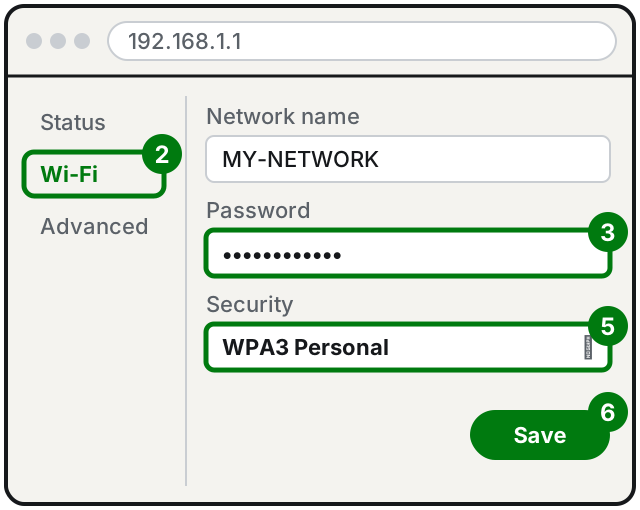
Steps 2, 3, 5 and 6: names vary a little from router to router. Illustration: SimpleBuild
Reconnect your devices
Usually you just pick the network again and type the new password. If the device keeps trying the old one without asking you anything, make it "forget" the network and connect again from scratch.
On Windows 11
-
Select the Network, Sound or Battery icons on the taskbar, at the bottom right.
-
On the Wi-Fi quick setting, select Manage Wi-Fi connections.
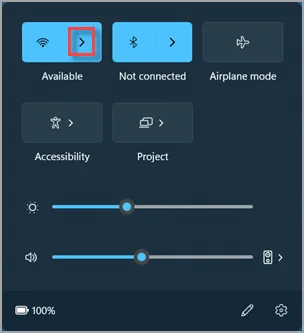
Step 2: the arrow next to Wi-Fi. Image: Microsoft Support -
Choose your network and select Connect.
-
Type the new password and select Next.
If Windows does not ask for the password: go to Start > Settings > Network & internet > Wi-Fi, select Manage known networks, choose your network and click Forget. Then reconnect with the steps above.
On a Mac
- Click the Wi-Fi icon in the menu bar and choose your network. If the Mac asks for the password, type the new one.
- If it doesn't ask and doesn't connect, choose Apple menu > System Settings and click Wi-Fi in the sidebar.
- Click Details, then Forget This Network.
- Join the network again from the Wi-Fi menu and type the new password.
On iPhone
- Open Settings and tap Wi-Fi.
- Tap the Info button (the "i" next to the network name), then Forget This Network.
- Tap the network name again and type the new password.
These items are the ones in Apple's guide for iOS 27.
On Android
The names below are those on Pixel phones. On other brands the path may be a little different, but the words are similar.
- Open Settings and tap Network & internet > Internet.
- Tap Saved networks, choose your network and tap Forget.
- Go back to the list of networks, tap yours and type the new password.
TVs, printers and other devices
Each one has its own Wi-Fi menu: usually it is in the device's network settings or in its app. For the printer, the steps are in how to connect a Wi-Fi printer.
If it still doesn't work
- The new password is rejected. Check uppercase and lowercase, spaces and letters that are easy to mix up (lowercase "l" and uppercase "I", zero and the letter "O").
- An older device no longer connects. It may not support WPA3 security. Apple suggests WPA2/WPA3 Transitional mode precisely for compatibility: try choosing it on the router.
- You can no longer get into the router. If you changed the admin password by mistake and don't remember it, reread how to log in to your router before thinking about the Reset button, which erases all settings.
- The printer shows as "offline" after the change. Often it is still using the old password: see printer offline.
- You have many devices to reconnect, or some have no screen and you don't know how to give them the new password: in these cases a technician can help, doing everything in one go.
Frequently asked questions
Does changing the Wi-Fi password also change the router password?
No, they are two different passwords. The Wi-Fi password lets devices connect; the router password lets you into the admin page, and it is changed in another section.
Can I change the network name too?
Yes, it is usually on the same page as the password. Keep in mind that this too means every device will have to reconnect to the network under its new name.
How often should I change it?
There is no fixed deadline. Change it when you think someone who shouldn't have it knows it, for example after a move, a guest you won't see again or a neighbor you once gave it to.
Sources
- How to change Wi-Fi settings on a TP-Link wireless router (TP-Link)
- Recommended settings for Wi-Fi routers and access points (Apple Support)
- Video surveillance and IoT devices: risks and advice from ACN (in Italian)
- Connect to a Wi-Fi network in Windows (Microsoft Support)
- Fix Wi-Fi connection issues in Windows (Microsoft Support)
- Reset or remove Wi-Fi network settings on Mac (Apple Support)
- Manage Wi-Fi settings on iPhone (Apple Support)
- Fix Wi-Fi connection problems (Pixel Phone Help)