How to connect your phone to the TV
Your phone connects to the TV wirelessly, with AirPlay for iPhone or Google Cast for Android and many apps, or with an HDMI cable and an adapter. What you need, the steps for iPhone and Android, and what to check when the TV doesn't show up.
Procedure verified on against the official sources.
The simplest way is wireless: the phone and the TV must be connected to the same Wi-Fi network. With an iPhone you use AirPlay, if the TV is compatible or there's an Apple TV; with an Android phone you use Google Cast, if the TV has Google Cast or there's a Chromecast. The alternative is a cable: many iPhones with a USB-C port connect to a TV with a USB-C to HDMI adapter or cable.
There are two different things you can do: cast a video from an app (the phone becomes a remote) or mirror the screen (the TV shows exactly what's on the phone).
Before you start
- Check what the TV supports. In the TV's menu or manual look for the word AirPlay or Google Cast. If the TV has neither, you can plug a streaming device into its HDMI input, or use a cable.
- Same Wi-Fi network. Apple and Google both ask for it: phone and TV must be on the same network. If you have two networks at home (for example one from the router and one from an extender), check that they're the same. If Wi-Fi is weak in the TV room, the guide on how to get Wi-Fi all over the house can help.
- Update the phone and the apps you want to use.
- Mind your privacy when mirroring: messages and notifications appear on the TV in front of everyone.
On iPhone, wireless (AirPlay)
Stream a video or photos
-
Connect the iPhone to the same Wi-Fi network as the Apple TV or AirPlay-compatible smart TV.
-
Open the video you want to watch.
-
Tap the AirPlay button. In some apps you need to tap another button first: for example, in the Photos app tap Share and then AirPlay.
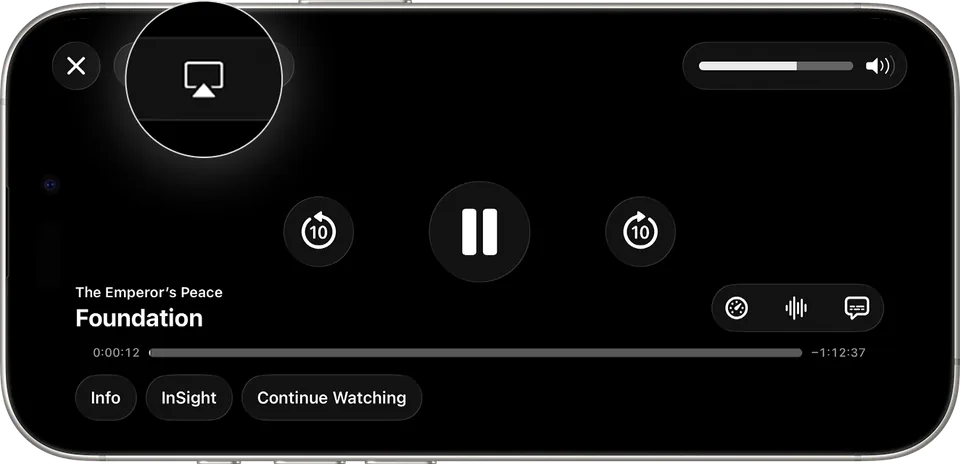
Step 3: the AirPlay button, inside the video app. Image: Apple Support -
Choose the TV from the list.
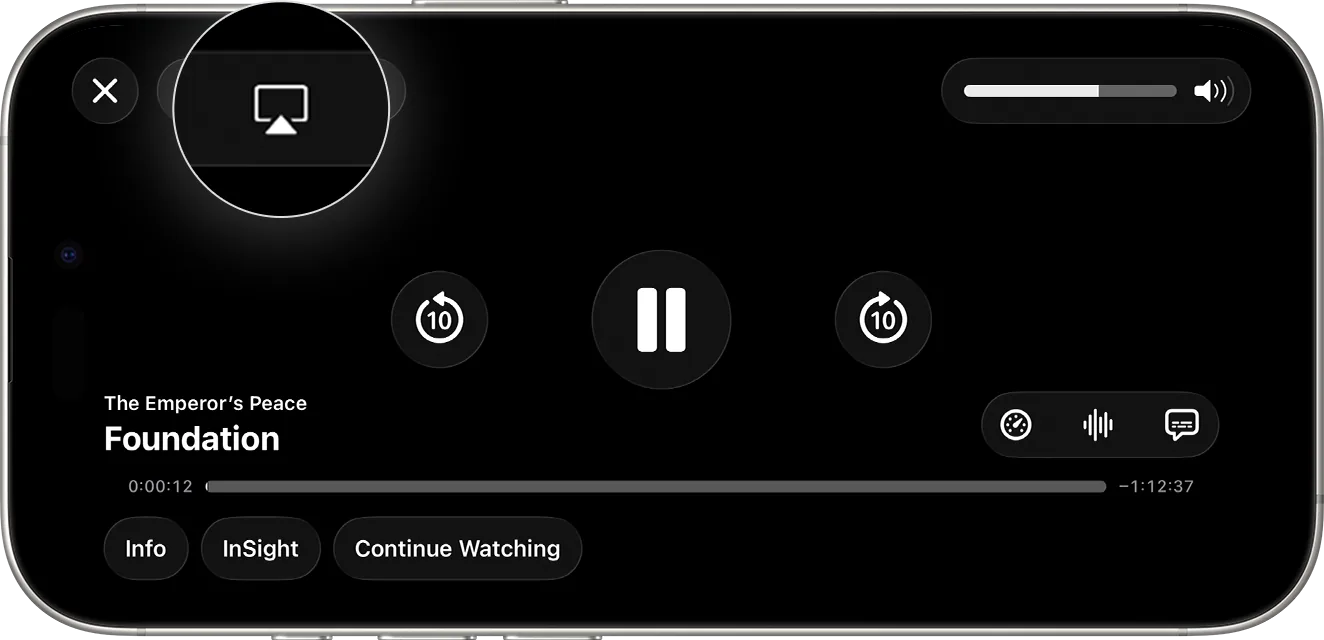
To stop, tap AirPlay in the app again and choose your iPhone.
Mirror the screen
-
Connect the iPhone to the same Wi-Fi network as the TV.
-
Open Control Center: on iPhone X or later, swipe down from the top-right corner; on iPhone 8 or earlier, swipe up from the bottom edge.
-
Tap Screen Mirroring.
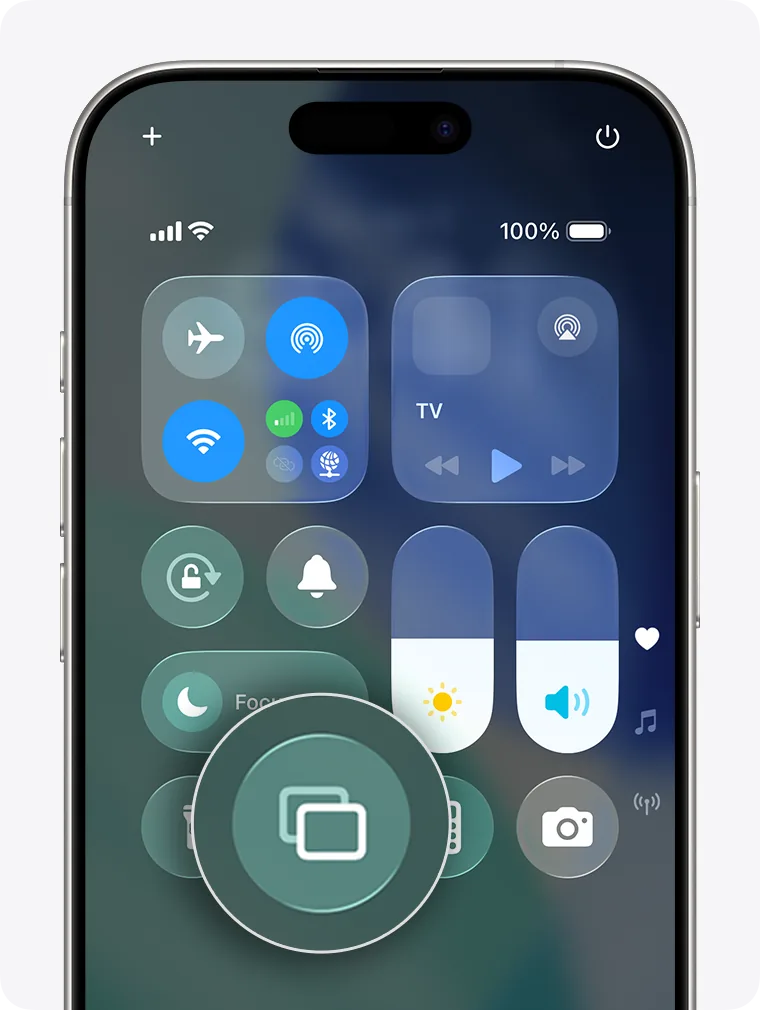
Step 3: the Screen Mirroring button in Control Center. Image: Apple Support -
Choose the TV from the list.
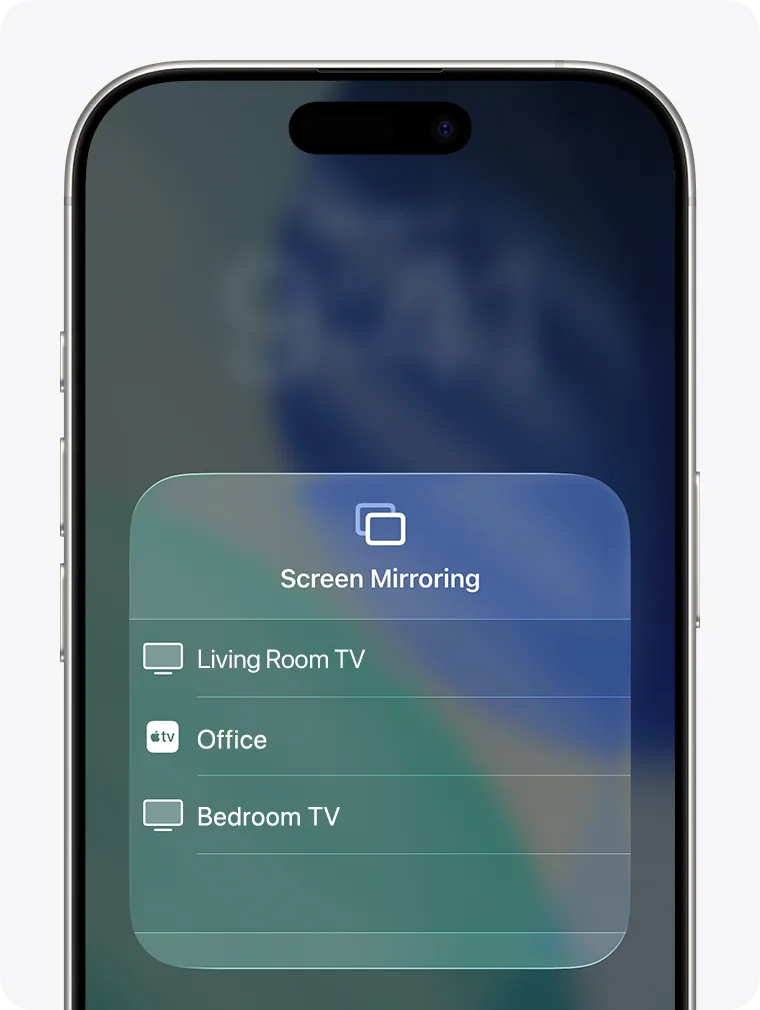
Step 4: choose the TV from the list. Image: Apple Support -
If an AirPlay passcode appears on the TV, enter it on the iPhone.
To stop, open Control Center, tap Screen Mirroring and then Stop Mirroring.
Automatic connection
The iPhone can suggest the TV you usually use on its own. To decide how it behaves go to Settings > General > AirPlay & Continuity > Automatically AirPlay and choose Never, Ask or Automatic.
On iPhone, with a cable
Apple says the models that connect to an external display through the USB-C port are iPhone 15 models, iPhone 16 (except 16e), iPhone 17 (except 17e) and iPhone 18 Pro.
- Get a USB-C to HDMI adapter or cable. Apple also mentions its own USB-C Digital AV Multiport Adapter.
- Plug the HDMI cable into a free input on the TV and the other end into the iPhone.
- With the TV remote, choose the right HDMI input as the source.
The TV screen mirrors the iPhone's. Video apps, however, may show only the video on the TV. iPhones that don't support a cable connection can still use AirPlay.
On Android, wireless (Google Cast)
Cast a video from an app
It works with Google Cast-enabled apps, on phones with Android 6.0 or later.
- Check that the phone is on the same Wi-Fi network as the Chromecast, Google TV Streamer or TV with Google Cast.
- Open a compatible app.
- Tap the Cast button. Google warns that it isn't in the same place in every app.
- Tap the TV you want to watch on.
When the Cast button turns solid, you're connected. To stop, tap Cast and then Disconnect.
The same works on iPhone with apps that support Google Cast. Google points out that on iPhone the app needs permission to access the local network.
Mirror the Android screen
It works on phones with Android 8.0 or later, through the Google Home app.
- Check that the phone is on the same Wi-Fi network as the Google streaming device.
- Google asks you to turn on microphone permission for Google Play Services.
- Open the Google Home app.
- Tap Favorites or Devices.
- Touch and hold the TV's tile.
- Tap Cast and then Cast my screen > Cast screen.
To stop, on the same screen touch and hold the TV's tile and choose Stop mirroring.
What about a cable on Android?
Some Android phones can connect to a TV with a USB-C to HDMI cable or adapter, but it depends on the model. Before buying an adapter, check in the manual or on your phone manufacturer's website that video output is supported.
From the computer, for completeness
If you want to see a web page or the PC screen on the TV, in Chrome open the More menu > Cast, save, and share > Cast… and choose the TV. Google warns that when you cast the whole screen, the audio might stay on the computer: to hear it on the TV, cast the tab.
If it still doesn't work
- The TV doesn't appear in the list. Almost always the phone and TV aren't on the same network. Google notes that if there are two separate networks at home, an Android phone may switch between them on its own depending on signal strength. Also try restarting the TV and the phone.
- The Cast or AirPlay button isn't in the app. Some apps don't support casting. If you have an Apple TV, Apple suggests looking for the app in its App Store and using it directly there.
- On iPhone with Google Cast apps, the Chromecast can't be found. Check that the app has Local Network permission.
- The video stutters or stops. It's usually the Wi-Fi: test your internet speed in the TV room and move the router closer or add an extender.
- With the cable the screen stays black. Check that you chose the right HDMI input on the TV and that your iPhone is among the models with USB-C video output.
- The phone drains quickly. Google suggests turning on battery saver while mirroring an Android screen. With a cable, some USB-C displays also charge the iPhone.
- If you want to set up a TV for an elderly parent (one button, always the same source), it can be worth getting help from a technician once: ten minutes of setup saves a lot of phone calls.
Frequently asked questions
Do I need a smart TV?
To connect wirelessly, yes, or you need a streaming device plugged into the TV: Apple TV for AirPlay, Chromecast or Google TV Streamer for Google Cast. With a cable, the TV just needs an HDMI input.
Can I watch Netflix or YouTube on the TV from my phone?
In compatible apps you just tap the **Cast** or **AirPlay** button inside the app. Some apps, however, don't support casting: in that case use the app directly on the TV.
Can I use the phone for something else while casting?
If you cast a video from an app, the phone works as a remote. If you mirror the screen instead, the TV shows everything you do, notifications included.
The TV asks for a code: what do I do?
With AirPlay that's normal: type on the iPhone the passcode shown on the TV. It stops someone else's phone from connecting.
Sources
- Use AirPlay to stream video or mirror the screen of your iPhone or iPad (Apple Support)
- Charge and connect with the USB-C connector on your iPhone (Apple Support)
- Cast your Android screen from the Google Home app (Streaming Help)
- Cast media from Google Cast-enabled apps to your TV or display (Streaming Help)
- Cast from Chrome to your TV (Streaming Help)