How to reduce the size of a PDF
On Mac and iPhone you compress a PDF with Preview, without installing anything. On Windows it is better to make a lighter PDF again from the original or from the scan. All without uploading your documents to unknown sites.
Procedure verified on against the official sources.
On Mac and iPhone you do it with Preview: you export the PDF choosing the options that reduce its size. On Windows there is no built-in tool to compress an existing PDF: the simplest way is to make it again, lighter, starting from the original document or from the scan. The size almost always depends on the images.
Before you start
- Keep a copy of the original. Once compressed, a PDF can lose quality and there is no going back.
- Be careful with sites that compress PDFs online. To work, they need to receive your document. If it contains personal data (ID documents, medical reports, payslips, contracts) you are handing it to a service you don't know. The solutions in this guide work on your own device.
- Check the limit you need to meet: the one of the mailbox or of the portal where you have to upload the file. That way you know when to stop.
- A PDF with a digital signature should not be compressed: the signature also shows whether the file was changed afterwards, and compression changes it. See the guide on how to sign a PDF.
On Mac with Preview
The automatic way
-
Open the PDF with Preview.
-
Choose File > Export.
-
Click the Quartz Filter pop-up menu and choose Reduce File Size.
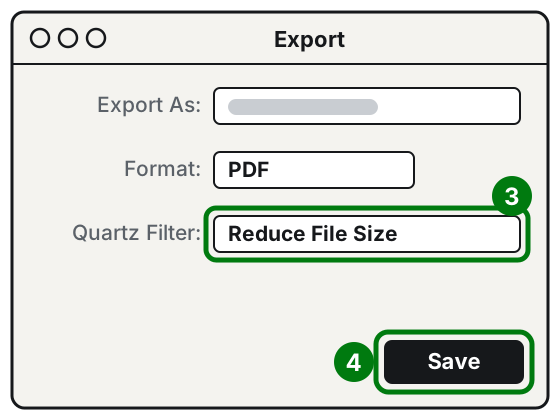
Step 3: Reduce File Size. Step 4: Save. Illustration: SimpleBuild -
Click Save.
-
If you are asked whether to replace the existing file, to be safe click Cancel, enter a new name in the Export As field, then click Save. That way you also keep the original.
If the result is too grainy or still too large
In the same File > Export window you can choose the options yourself, instead of the automatic filter:
- Optimize images for screen: reduces the resolution of the images.
- Save images as JPEG: compresses the images inside the PDF.
- Create Linearized PDF: optimizes the file so it opens faster in a browser.
Apple warns that the final size and the image quality change depending on the options you choose. Try, open the result and check that it is easy to read.
On iPhone with Preview
On iPhone with iOS 26 or later there is the Preview app.
- Open the Preview app and open the PDF.
- Tap the Actions Menu button next to the file name, then tap Export.
- Choose PDF as the format.
- Turn on Optimize Images for Screen, which reduces the resolution of the images, and Save Images as JPEG, which compresses them.
- Tap the Done button, choose where to save the file and, if you want, change the name in the Save As field. Then save.
On Windows 11 and 10
If you created the PDF yourself with Word
Make the PDF again, choosing the light version:
-
Open the document in Word.
-
Choose File > Save As (or Save a Copy).
-
Choose PDF as the format.
-
Select Minimum size (publishing online): Microsoft recommends this option when file size is more important than print quality.
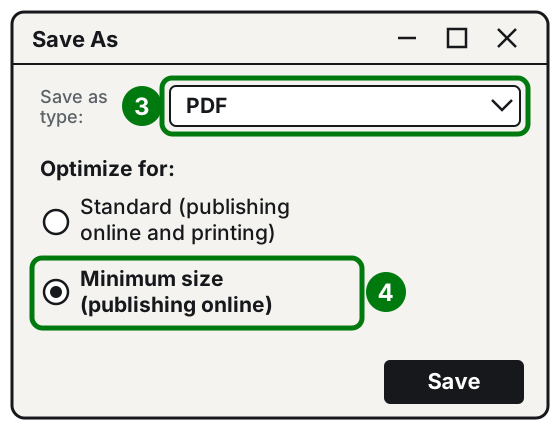
Step 3: PDF type. Step 4: Minimum size. Illustration: SimpleBuild -
Save.
The same works for Excel and PowerPoint in the desktop versions of Office.
If the PDF comes from a scan
A high-resolution color scan can be very heavy. Scan it again, choosing in the scanner or app settings a lower resolution, and black and white or grayscale if the document is text only. The guide on how to scan a document shows you which apps to use on phone and PC.
If you can't make it again: split it
If the file is too large for a single upload, you can split it into several parts with PDFsam Basic, the free and open source program explained in the guide on how to merge several PDFs. Note: PDFsam Basic only does some optimization, not real compression. For that, the vendor points you to its paid versions.
If it still doesn't work
- The file weighs almost the same after compression: it probably contains few images to compress. Try splitting it into several parts.
- The text has become unreadable: you compressed too much. Start again from the original copy and use lighter options, for example only Save images as JPEG instead of the automatic filter.
- The portal keeps rejecting the file: reread the portal's instructions to understand whether the problem really is the size or something else, such as the file name or the type of document required.
- You need to put several light documents together: first compress the single files, then merge them.
- If every month you have to prepare and compress the same documents for a portal or a client, the work can be automated: a technician can set up a procedure that does everything in one click.
Frequently asked questions
Why is my PDF so heavy?
Almost always because of the images: high-resolution scans, photos taken with a phone, color pages. A text-only PDF is usually light.
Does compressing a PDF ruin the quality?
It can. Apple warns that the compressed PDF may be of lower quality than the original. Always reopen the file and check that the text is easy to read, especially numbers and signatures.
Can I compress a digitally signed PDF?
Better not. As AgID explains, advanced and qualified electronic signatures exist precisely to detect whether the document was changed after signing: compressing it is a change. Ask the sender for a lighter version.
Sources
- Reduce the size of a PDF in Preview on Mac (Apple)
- Export or compress PDFs and images in Preview on iPhone (Apple)
- Save or convert to PDF or XPS in Office desktop apps (Microsoft)
- PDF Compress, and the question about compression in PDFsam Basic (PDFsam)
- PDFsam Basic (PDFsam)
- Electronic signatures and seals, comparative analysis, AgID, December 2019 (in Italian)