How to set up your domain email on iPhone and Outlook
Add your domain mailbox (for example info@yourname.it) to the iPhone Mail app and to Outlook for Windows. With the details to ask your provider for and the most common ports for IMAP and SMTP.
Procedure verified on against the official sources.
To read your domain mail (for example info@yourname.it) on iPhone or in Outlook you need the address, the password and the mail server names from your provider. Then you add the account: if the app doesn't find the settings by itself, you enter them by hand, choosing IMAP. The most common ports are 993 for receiving and 465 or 587 for sending.
Before you start
Ask your email provider (the company that runs the mailboxes for your domain, often the same one that registered the domain for you or hosts your website) for these details. They are usually on a help page or in the control panel:
- email address and password of the mailbox;
- incoming mail server (IMAP), a name like
imap.providername.it; - outgoing mail server (SMTP), a name like
smtp.providername.it; - the ports and the type of security (SSL/TLS or STARTTLS);
- the username: usually the full email address.
The names above are only examples: your provider must give you the exact server names. If you make them up, mail won't work.
The most common ports
The RFC 8314 standard recommends connections that are encrypted from the very start. In practice:
- IMAP (incoming mail): port 993 with SSL/TLS.
- POP (incoming mail, if the provider uses POP): port 995 with SSL/TLS.
- SMTP (outgoing mail): port 465 with SSL/TLS, or port 587 with STARTTLS.
Use the ones your provider gives you: if they differ, the provider's ports win.
IMAP or POP?
Choose IMAP, if the provider offers it. Messages stay on the server, so you see the same emails on iPhone, PC and webmail. Microsoft also notes that most accounts use IMAP.
On iPhone
These steps apply to Apple's Mail app, according to Apple Support (guide for iOS 27 and iOS 26).
Try automatic setup first
-
Open Settings and tap Apps.
-
Tap Mail, then Mail Accounts.
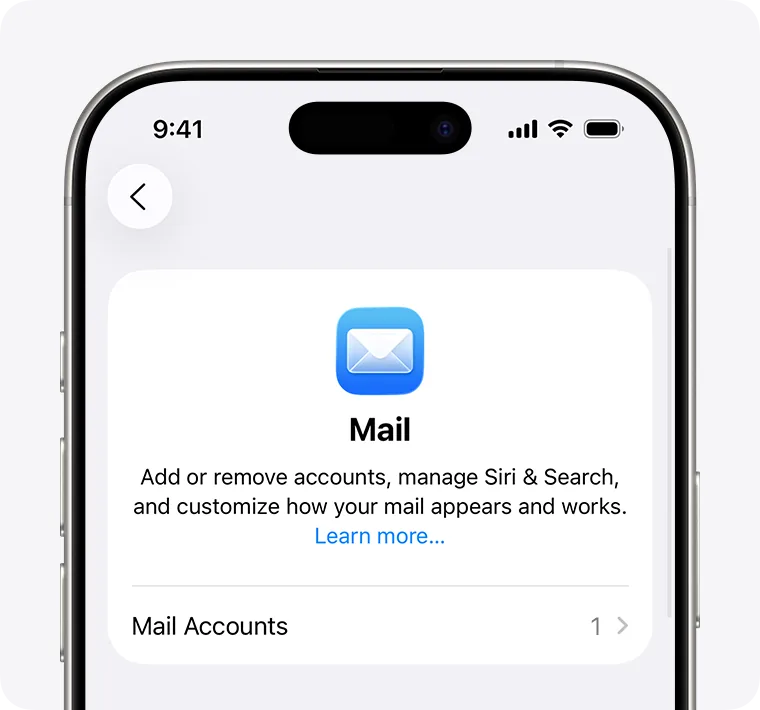
Step 2: Mail, then Mail Accounts. Image: Apple Support -
Tap Add Account and enter your email address.
-
Follow the prompts and enter your address and password.
-
If you see Next, tap it and wait for Mail to verify the account. If you see Save, tap Save.
For your own domain, Mail often doesn't recognize the provider. In that case, move on to manual setup.
Manual setup
-
Open Settings and tap Apps.
-
Tap Mail, then Mail Accounts.
-
Tap Add Account, enter the email address and tap Next.
-
Tap Add Other Account, then Mail Account.
-
Enter your name, email address, password and a description (for example "Work").
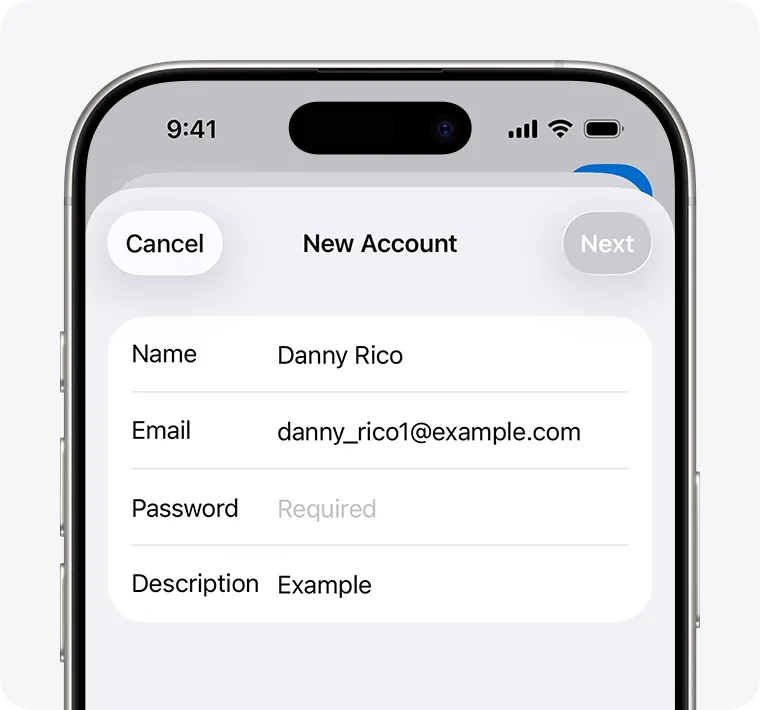
Step 5: name, email, password and description; then Next. Image: Apple Support -
Tap Next. If Mail finds the settings, tap Done and you are finished.
-
If it doesn't find them, choose IMAP.
-
Fill in Incoming Mail Server and Outgoing Mail Server with your provider's details, then tap Next.
-
If the details are right, tap Save. If they are wrong, Mail asks you to correct them.
Check how often mail arrives
If your account doesn't support push notifications:
- Settings > Apps > Mail.
- Tap Mail Accounts, then Fetch New Data.
- Under Fetch, choose how often to check for mail.
On Outlook for Windows
There are two versions today: new Outlook and classic Outlook. If you don't see the File tab at the top, you are probably using new Outlook.
New Outlook
- On the View tab, select View settings (or, on the File tab, Account info).
- Go to Accounts.
- Under Email accounts, select Add Account.
- Type the email address and select Continue.
- If prompted, enter the password and select Done.
If Outlook can't connect, check the servers, ports and password with your provider, and read the section "If it still doesn't work".
Classic Outlook, with manual setup
-
Select File > Add Account.
-
Type the email address, select Advanced options and check Let me set up my account manually.
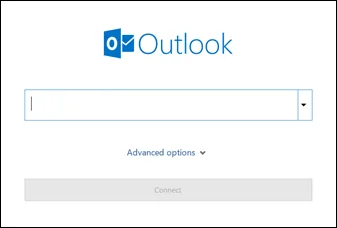
Step 2: Advanced options, below the address field. Image: Microsoft Support -
Select Connect.
-
For the account type, choose IMAP.
-
Enter the incoming and outgoing server details, with the ports, and select Next.
-
Enter the password and select Connect.
If sending doesn't work, Microsoft says to check under More Settings > Outgoing Server that the My outgoing server (SMTP) requires authentication box is checked, and on the Advanced tab the ports given by your provider.
On Outlook for iPhone and Android
In the Outlook app, according to Microsoft Support:
- Tap your picture at the top left, then the gear icon.
- Under Mail Accounts, tap Add Mail Account, then Add Email Account.
- Type the address and tap Sign In.
- If the app doesn't realize it is an IMAP account, tap IMAP on the setup page.
- If the connection fails, open Advanced Settings and enter the server, username and password. The port goes after the server name with a colon, for example
imap.providername.it:993.
Is the domain not yours yet? Start with how to register a domain. And to protect the mailbox, turn on two-step verification if your provider offers it.
If it still doesn't work
- "Wrong password" even though it's right: check Caps Lock. Some providers require an app password: you generate it on the provider's website and use it in place of your normal one.
- You receive but can't send: it is almost always the outgoing server. Check the SMTP server name, the port (465 or 587) and that SMTP authentication is on.
- Wrong username: use the full email address, not just the part before the @.
- Classic Outlook never asks for the password: Microsoft says to check that Require logon using Secure Password Authentication (SPA) is unchecked.
- Account "in error" after it had worked for months: the provider may have changed its settings, or you changed your password. Update the password; in the most stubborn cases Microsoft suggests removing the account and adding it again.
- Be careful when you remove an account from new Outlook: with Remove from all devices, calendars and contacts saved only in Outlook can be lost. If in doubt, export the data first.
- Emails that look like they come from your provider and ask for your password: it could be a scam. See how to spot a phishing email.
- Want some help: a technician can get the correct details from the provider's control panel and set up all your devices together with you.
Frequently asked questions
IMAP or POP: which is better?
Almost always IMAP: messages stay on the server and you see the same mail on your phone, computer and webmail. Only use POP if your provider tells you to.
If I remove the account from the iPhone or Outlook, do I lose my emails?
No, the mailbox stays active: it only disappears from the device. With IMAP, when you add it again, the messages come back.
Outlook says the password is wrong, but it's right: why?
Some providers require an "app password", different from your normal one. You generate it on the provider's website and paste it in place of the password.
What username should I enter?
Usually the full email address, for example info@yourname.it. If your provider says otherwise, follow its instructions.
Sources
- Add an email account to your iPhone or iPad (Apple Support)
- Add and remove email accounts on iPhone (iPhone User Guide)
- Add an email account to Outlook for Windows (Microsoft Support)
- POP and IMAP account settings (Microsoft Support)
- Troubleshoot Outlook email setup (Microsoft Support)
- How do I set up an IMAP account? (Outlook for iOS and Android, Microsoft Support)
- RFC 8314, use of TLS for email submission and access