iPhone won't charge: what to do
The checks to do in the right order when your iPhone won't charge: outlet, cable, port, force restart. Why it sometimes stops at 80% and what the liquid-in-connector alert means.
Procedure verified on against the official sources.
In most cases the culprit is the cable, the outlet or dirt in the port, not the iPhone. Try a different wall outlet, another cable, gently clean the port and leave the phone charging for half an hour. If it doesn't come back, do a force restart. If it stops at 80%, it's often a feature that protects the battery, not a fault.
Before you start
- Don't use damaged accessories. If the cable or the power adapter shows breakage, exposed wires or bent prongs, set them aside. Apple says not to use them.
- If the phone got wet, skip straight to the section on liquids further down. Charging it wet can permanently damage the port and the cable.
- Do one check at a time. Apple recommends trying to charge again after each step: that way you find out what the problem was.
The checks to do, in order
-
Restart the iPhone, the normal way.
-
Check the cable and power adapter. Look at them closely in good light: breakage, kinks, bent prongs.
-
Use a wall outlet. Check that cable, adapter and outlet are firmly connected, or try a different outlet.
-
Clean the charging port, the one at the bottom of the iPhone, removing any debris. Then plug the cable in all the way, firmly.
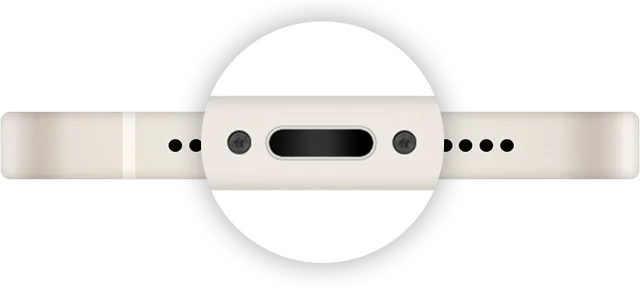
Step 4: the charging port, on the bottom edge. Image: Apple Support -
Leave the iPhone charging for half an hour.
-
If it won't turn on or you see the battery icon on the screen, do a force restart (see below).
-
Leave it charging for another half hour.
The force restart
It's done with a button combination that depends on the model. Press the buttons as described, without rushing.
iPhone 8 and later, iPhone SE (2nd generation and later)
-
Press and quickly release the volume up button.
-
Press and quickly release the volume down button.
-
Press and hold the side button until the Apple logo appears. It can take more than 10 seconds: don't let go too early.
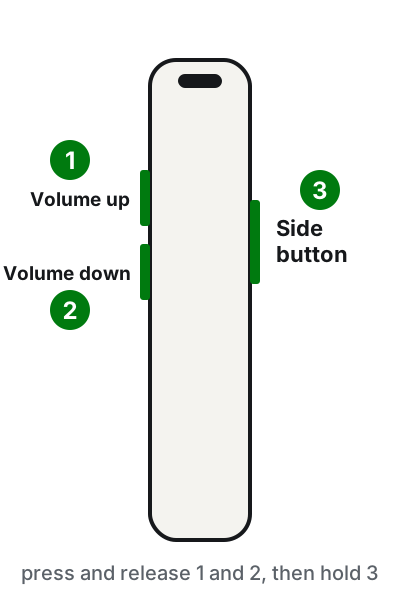
Press and release volume up, then volume down, then press and hold the side button. Illustration: SimpleBuild
iPhone 7 and iPhone 7 Plus
Press and hold the side button and the volume down button together until the Apple logo appears.
iPhone 6s and earlier, iPhone SE (1st generation)
Press and hold the Home button and the side button (or the top button) together until the Apple logo appears.
If after the restart the iPhone still won't turn on, Apple recommends charging it for an hour and then trying again.
It stops at 80%: usually that's normal
- Optimized Battery Charging. Since iOS 13 the iPhone learns your habits: if it expects to stay on the charger for a long time, for example overnight, it stops at 80% and reaches 100% shortly before you need it.
- Charge limit (iPhone 15 and later). You may have set a cap, for example 80%. To check, open Settings, tap Battery and then Charging, and choose the percentage you prefer. If you need a full charge right away, in Settings > Battery there's the option Charge to 100%.
- The phone is warm. If the battery gets too warm, the iPhone may stop at 80% to protect it. It resumes on its own when it cools down: move it, together with the charger, to a cooler place and out of the sun.
The «Liquid Detected» or «Charging Not Available» alert
From iPhone XS and XR onward, the phone checks whether there's liquid in the port. If it finds some, it blocks cable charging to protect itself. What to do:
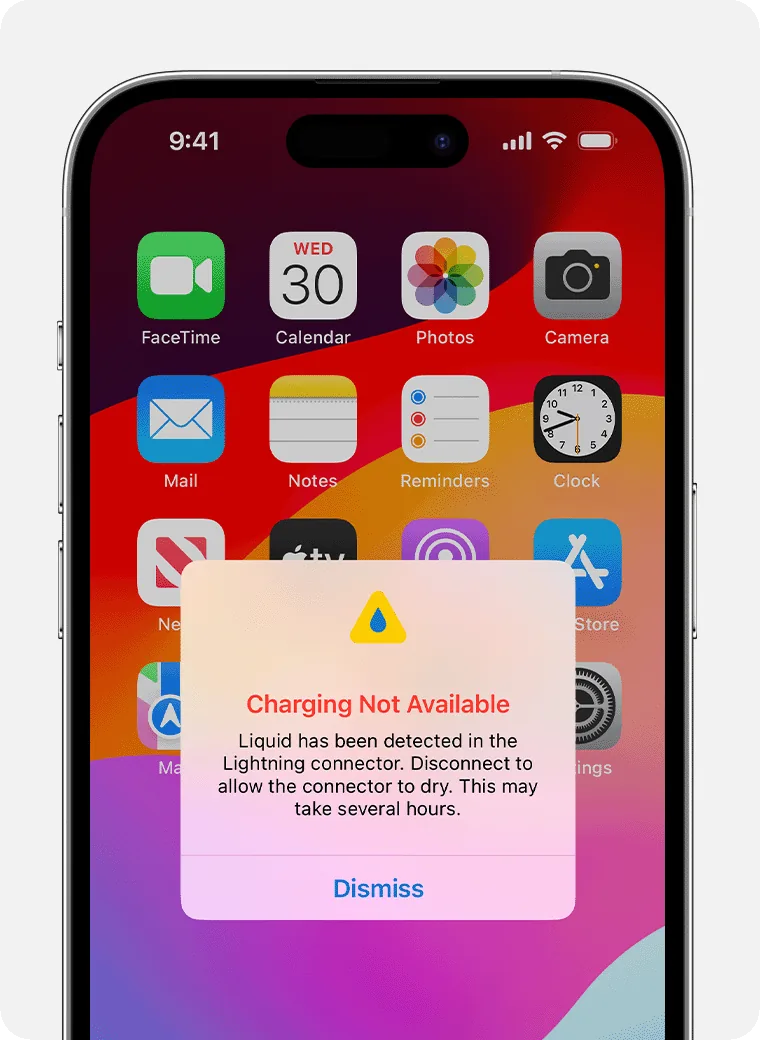
- Unplug the cable from the iPhone and from the adapter.
- Hold the iPhone with the port facing down and tap it gently against your palm, to let the water out.
- Leave it in a dry place with some airflow.
- After at least 30 minutes, try charging it again.
- If the alert comes back, there's still moisture. It can take up to 24 hours.
What not to do, according to Apple: don't use a hair dryer or other heat sources, don't blow compressed air, don't stick cotton swabs or paper into the port, don't put the phone in rice.
In an emergency, if you reconnect the cable you can override the alert and charge anyway, but you risk damaging the contacts. If you have a Qi-certified wireless charger you can use it, after drying the back of the phone well.
If the alert always appears with the same cable even when everything is dry, the problem is probably that cable.
If you see «Accessory Not Supported»
- Connect the iPhone directly to the charger, with no adapters in between.
- Clean the charging port.
- Restart the iPhone.
- Try another cable or another charger.
- Update iOS to the latest version.
The causes can be a dirty or damaged port, a faulty cable or a charger not designed for phones.
If it still doesn't work
- Check the battery health. Open Settings, tap Battery and then Battery Health. If the battery is significantly degraded, a message there says so. An old battery drains quickly and can shut the phone down suddenly.
- Try a second iPhone or a friend's cable. If your cable charges another phone, the problem is in your iPhone; if not, it's in the cable or the adapter.
- Save your data before service. If the iPhone still turns on, even only when plugged in, make a backup to your computer or at least copy your photos to the PC before taking it in for repair.
- When a technician is worth it. If after all the checks it won't charge, if the port is damaged or if the liquid alert appears with different cables even with the phone dry, it needs an in-person check: the charging port and the battery can be tested and, if needed, replaced.
Frequently asked questions
Can I put a wet iPhone in rice?
No. Apple explicitly advises against it: small particles of rice can damage the phone. Leave it in a dry place with some airflow.
Why does my iPhone only charge to 80%?
Usually on purpose: Optimized Battery Charging or the charge limit (on iPhone 15 and later) help the battery age more slowly. It can also happen if the phone is too warm.
How do I see whether the battery needs replacing?
Open Settings, tap Battery and then Battery Health. If the battery is significantly degraded, a message there says so.
The iPhone is charging but won't turn on: what do I do?
Leave it charging for an hour and then try again. If you see the low-battery icon on the screen, check the cable and adapter and charge it for another 30 minutes.