How to free up space on your iPhone
Where to look to see what's filling your iPhone and how to make room without losing anything important: apps, photos and videos, duplicates, WhatsApp. With the warnings about iCloud and the Recently Deleted album.
Procedure verified on against the official sources.
Open Settings > General > iPhone Storage: you see what's using the storage, app by app, and the iPhone's recommendations. Space is usually recovered like this: removing apps you don't use, reducing photos and videos (with iCloud Photos or by copying them to the computer), merging duplicate photos and clearing out heavy WhatsApp videos. Then remember to empty the Recently Deleted album.
Before you start
- Make a backup. Before deleting photos or chats, save everything: how to back up your iPhone to a PC or Mac.
- Careful if you use iCloud Photos. Apple warns that a photo deleted on the iPhone is also deleted from iCloud and from every other device signed in to your Apple Account. Deleting from the phone isn't «moving to iCloud».
- Subscriptions. Deleting an app doesn't cancel subscriptions made inside the app. Cancel the ones you don't need first.
See what's taking up space
-
Open Settings and tap General.
-
Tap iPhone Storage. You'll see the iPhone's recommendations and the list of apps, each with the space it uses.
-
Tap Show All to see all the recommendations. For each one read the description, then tap Enable to apply it or tap the recommendation to see what you can delete.
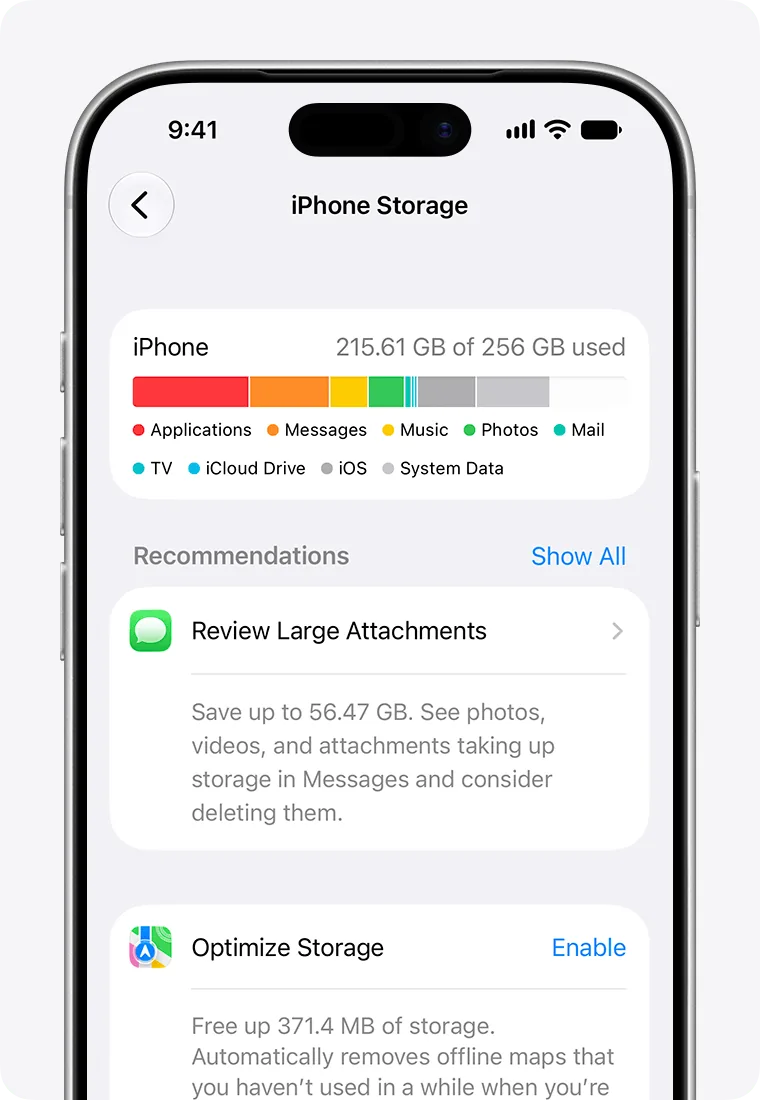
Steps 2 and 3: the storage bar and the recommendations, with Show All. Image: Apple Support
Tap an app's name to see in detail how much it uses.
Remove apps you don't use
On the same screen, tap an app's name. You have two choices:
- Offload App: frees the app's space but keeps documents and data, which you find again if you download it again. It's the right choice for apps you rarely use.
- Delete App: removes the app together with its data. Use it for apps you no longer need.
Alternatively, from the Home Screen:
- Touch and hold the app's icon.
- Tap Remove App.
- Tap Delete App and then Delete to confirm.
Some built-in Apple apps can't be deleted.
Photos and videos: the heaviest part
Keep the originals in iCloud
With iCloud Photos and the Optimize Storage option, the iPhone keeps only lightweight copies, while the full-quality originals stay in iCloud.
- Open Settings and tap your name.
- Tap iCloud, then Photos.
- Turn on Sync this iPhone.
- On iOS 27 or later tap iPhone Storage.
- Make sure Optimize iPhone Storage is turned on.
You need enough iCloud storage: 5 GB come free, which isn't enough for many photo libraries. To see how much you have, open Settings, tap your name and then iCloud.
Or copy them to the computer
If you don't want to use iCloud, copy photos and videos to the computer and then delete them from the phone. The instructions are in the guide to transfer photos from iPhone to a Windows PC. Before deleting, open a few photos on the computer and check that they display.
Merge duplicate photos
- Open Photos and tap Collections at the bottom.
- Scroll and tap the Duplicates album.
- Tap Merge on a set of duplicates. To do many at once tap Select, then Select All and Merge.
- Confirm with Merge [number] Items.
The iPhone keeps a single photo with the best quality; the others go to Recently Deleted. The Duplicates album only appears if the phone has found duplicates, and the search can take a while.
Empty «Recently Deleted»
Deleted photos stay in this album for 30 days and still take up space. To free it right away:
- Open Photos and tap Collections.
- Scroll and tap Recently Deleted, under Utilities.
- Tap View Album and unlock with Face ID or Touch ID.
- Tap Select, choose the photos or, to delete them all, tap Cancel and then Select again.
- Tap the More button, then Delete or Delete All, and confirm.
After this step the photos can't be recovered: only do it if you're sure.
WhatsApp: received videos and photos
WhatsApp groups fill the phone with videos you never watch again. WhatsApp has a tool just for this:
- Open WhatsApp and tap your profile picture.
- Tap Storage and data > Manage storage. At the top you see how much space WhatsApp uses.
- Choose a chat or channel. You can sort files by Largest: the size is shown at the top right of each item.
- Tap Select and choose the files to remove, or Select all.
- Confirm the deletion. If some files are starred, WhatsApp asks whether to keep them: choose Delete all except starred or Delete all.
You can also get there from a single chat: tap the chat's name and then Manage storage.
Two WhatsApp warnings: back up your chats before deleting, and remember that a file deleted from WhatsApp may still be saved elsewhere on the phone, for example if you saved it to the Photos app. If there are several copies, all of them must be deleted to free the space.
If it still doesn't work
- The space doesn't come back. Check that you emptied Recently Deleted and that you also deleted the copies of WhatsApp videos saved in the Photos app.
- «System» or «System Data» is huge. Apple explains that caches and temporary files are deleted automatically when space is needed, and that part of it can't be removed. There's no button to empty them by hand.
- The numbers don't match between iPhone and computer. The Finder and the Apple Devices app count some files differently. What you see in Settings > General > iPhone Storage is what counts.
- Do you also have an Android phone or a Mac? The guides to free up space on Android and to free up space on a Mac follow the same logic.
- The phone is full even after all this. Maybe its storage is simply too small for how you use it. Before replacing it or deleting important things, a technician can help you move photos and documents somewhere safe and set up a backup that doesn't depend only on the phone.
Frequently asked questions
I deleted lots of photos but the space didn't go up: why?
Deleted photos stay for 30 days in the Recently Deleted album. Empty it and the space is freed.
What are «System Data» and «Other»?
«System» is the space used by the operating system. The rest covers Siri voices, fonts, dictionaries, caches and logs that can't be removed. You can't empty them by hand: iOS deletes temporary files on its own when it needs space.
Does offloading an app lose its data?
With «Offload App», no: the app disappears but documents and data stay, and come back when you reinstall it. With «Delete App», on the other hand, the data is deleted too.