How to switch from Android to iPhone without losing photos and contacts
Photos, contacts, messages, calendars and WhatsApp chats move from Android to iPhone during the first setup, with Apple's Move to iOS app. What to prepare, the steps in order, what gets left behind and how to move it by hand.
Procedure verified on against the official sources.
To switch from Android to iPhone, use Apple's free Move to iOS app, which you download from Google Play on the Android phone. The transfer happens while you set up the iPhone for the first time: on the Transfer Your Apps & Data screen choose From Android, then follow the steps. Contacts, messages, photos and videos, calendars, email accounts, WhatsApp chats and more come across. If the iPhone is already set up, you either start over or move things by hand.
Before you start
- Wi-Fi turned on on the Android phone and both phones plugged into power.
- Enough space on the iPhone for everything you're moving, including what's on the Android phone's microSD card.
- An up-to-date Chrome on the Android phone, if you want to bring your bookmarks.
- The Move to iOS app installed on the Android phone. If you don't have it, during setup the iPhone shows a QR code to scan with Android, which opens Google Play.
- Time and patience: you can't use either phone during the transfer.
- Your old phone left untouched until you've checked on the iPhone that everything is there.
If you have an Android phone with a compatible version of Android 17, Apple explains that you can also transfer your data without the app (see below). Not every manufacturer supports this: check with your phone's manufacturer.
What transfers and what doesn't
According to Apple, Move to iOS transfers: contacts, message history and SMS messages, camera photos and videos, photo albums, files and folders, accessibility and display settings, web bookmarks, mail accounts, WhatsApp messages and media, Voice Memos, call history and calendars. Some free apps also transfer, if they exist in both stores.
Left behind, to be moved by hand: music, books and PDFs. Apps that don't transfer can be downloaded again from the App Store.
WhatsApp has a few extra rules (same number, updated versions, activate it only after the transfer): read them first in the guide on how to move WhatsApp chats from Android to iPhone.
The transfer, step by step
On the iPhone
-
Turn on the new iPhone and place it near the Android phone.
-
Follow the setup instructions on the screen.
-
On the Quick Start screen tap Set Up Without Another Device and continue. You might be asked to activate your eSIM.
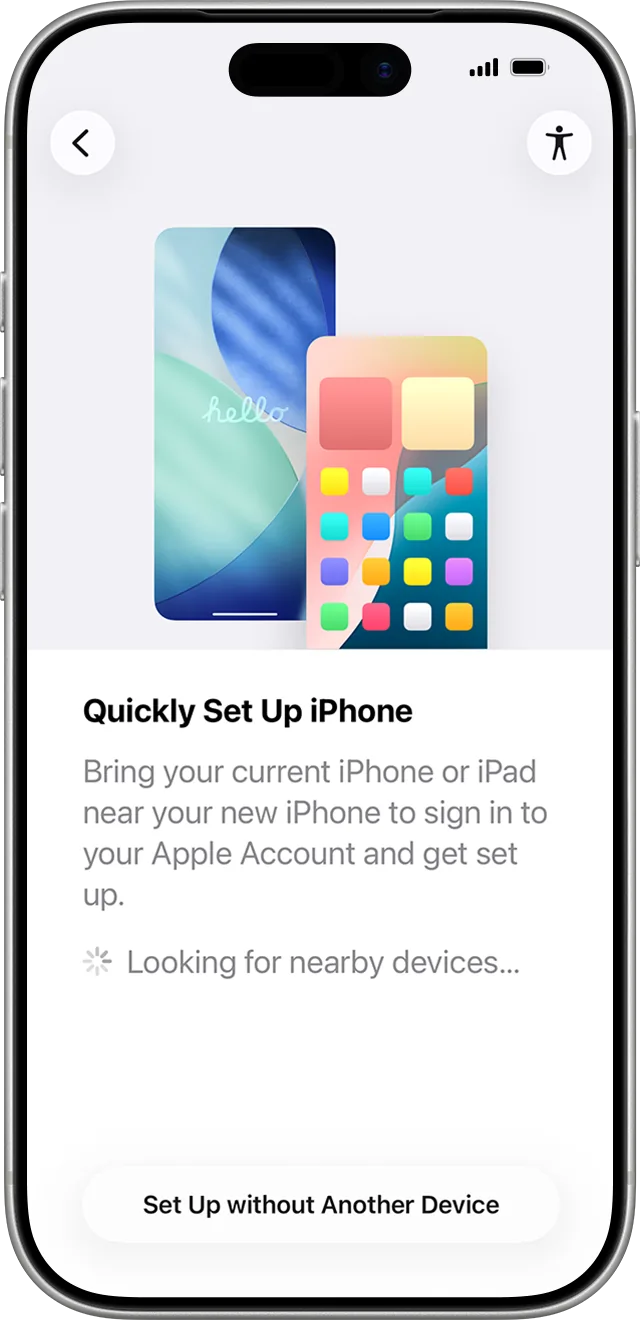
Step 3: Set Up without Another Device, at the bottom. Image: Apple Support -
On the Transfer Your Apps & Data screen tap From Android, then Transfer with App.
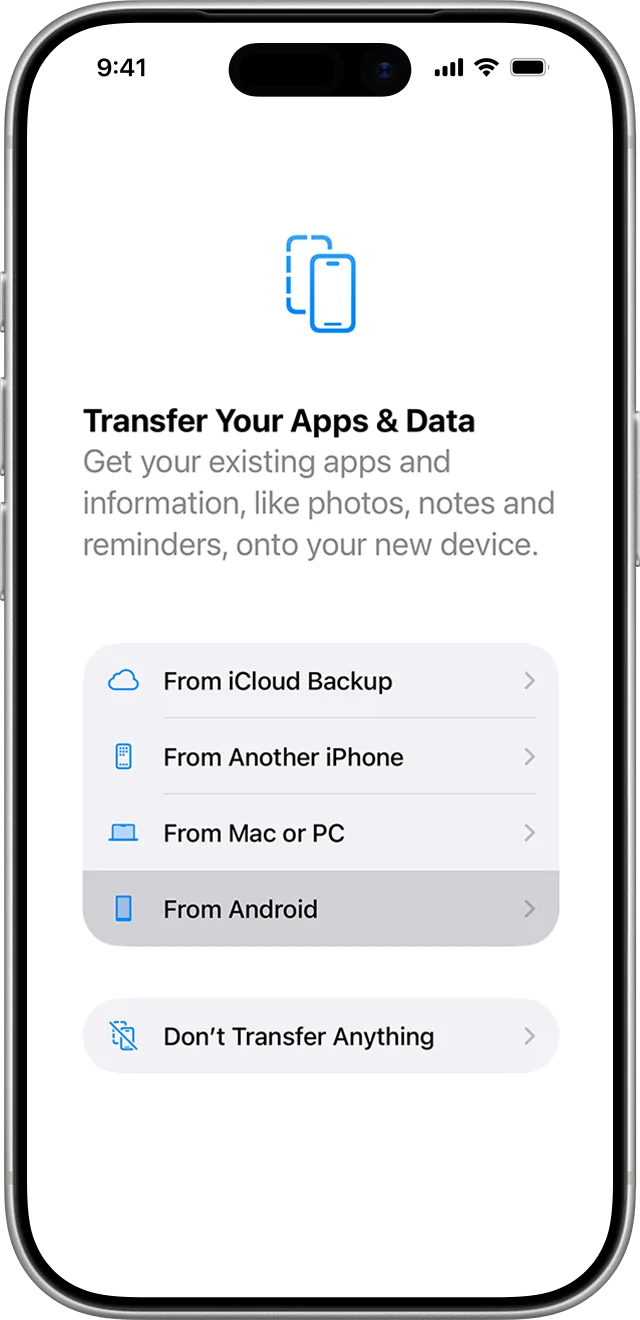
Step 4: From Android. Image: Apple Support 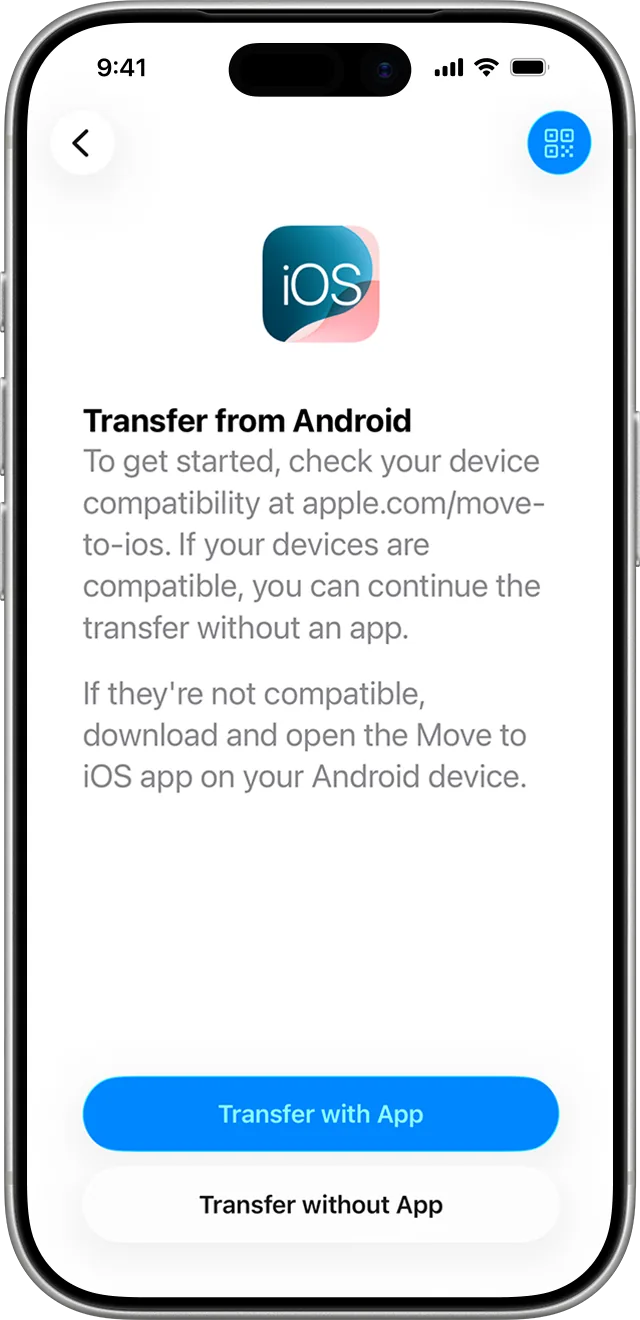
Step 4: then Transfer with App. Image: Apple Support -
On the Move from Android screen tap Continue and wait for a six-digit or ten-digit code to appear.
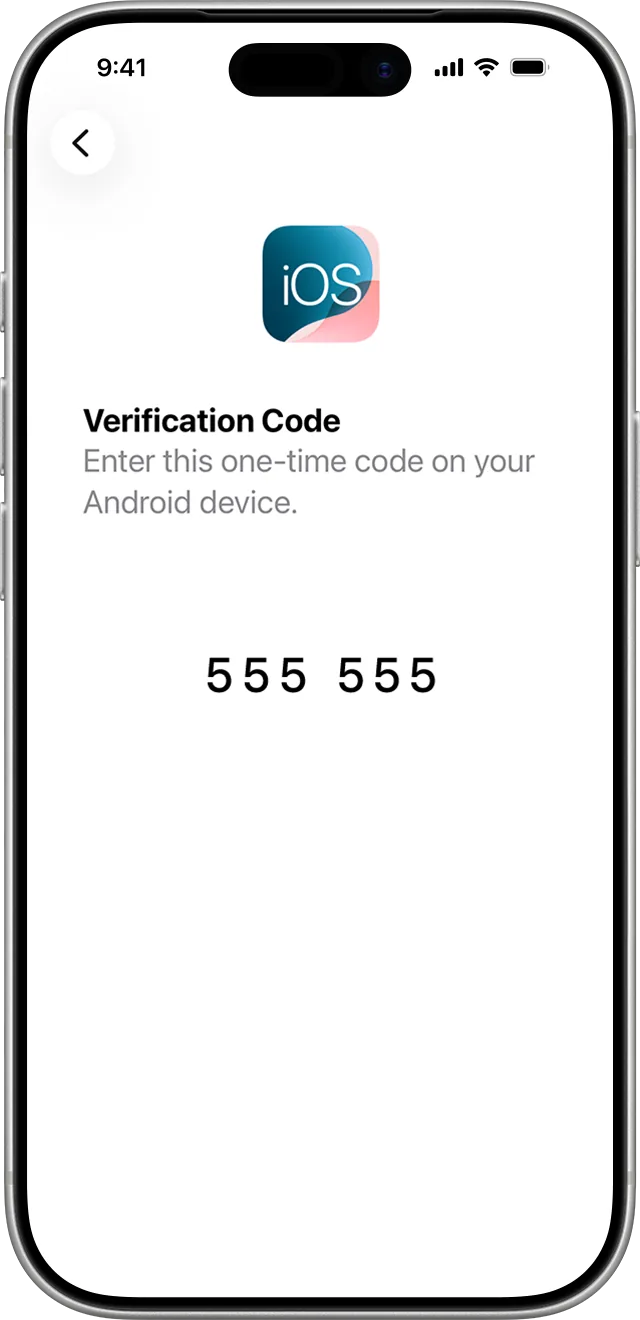
Step 5: the code to type on Android. Image: Apple Support
On the Android phone
- Open Move to iOS and tap Continue.
- Read the terms and tap Agree.
- Choose Automatically Send or Don't Send for the app's usage data, then tap Continue and allow the Location and Notification permissions if asked.
- Enter the code you see on the iPhone. If Android warns that your internet connection is weak, you can ignore the alert.
- The iPhone creates a temporary Wi-Fi network: when asked, tap Connect.
- On the transfer screen choose what to bring (contacts, messages, photos, calendars…) and tap Continue.
From here don't touch either phone until the loading bar on the iPhone finishes, even if Android says it's done. Apple warns that if you open another app or get a phone call on the Android phone, your content won't transfer.
Back on the iPhone
- When the bar finishes, tap Done on Android and Continue on the iPhone.
- Finish setup by following the instructions.
- Open the App Store and download the apps you used on Android.
During setup you can also activate your phone number and SIM or eSIM on the iPhone; sometimes you'll be sent to your carrier's website.
If you connect the two phones with a USB-C cable, Android might show a message about USB settings to adjust before you open Move to iOS.
Without the app, with Android 17
If your Android phone supports it:
- During iPhone setup, on the Transfer Your Apps & Data page, tap From Android.
- Tap Transfer without App.
- Place the Android phone nearby and tap Continue.
- Use Android's camera to scan the QR code on the iPhone.
- On Android choose the data to transfer.
- When it's done, tap Continue on the iPhone. If you want to bring the eSIM, select the number on Android and tap Transfer.
If the QR code won't scan, tap Other Options on the iPhone. On Android open Settings > Google Services > All Services > Pair with iPhone or iPad > Copy Data and enter the session ID and pairing code shown on the iPhone. On some Android brands these items may be somewhere else: in that case Apple refers you to the manufacturer.
If the iPhone is already set up: moving things by hand
If you don't want to erase the iPhone, Apple explains how to move your content piece by piece.
- Email, contacts and calendars: the iPhone works with Google, Microsoft Exchange, Yahoo and other services. Apple suggests adding your email accounts on the iPhone: that way you keep using the contacts and calendars you already have there.
- Photos and videos: connect the Android phone to the computer and copy the DCIM folder to a folder on the computer. Then connect the iPhone and sync the photos: on a Mac with Finder, on Windows with the Apple Devices app. You'll find them in the Photos app. For the reverse trip later on, see how to transfer photos from iPhone to PC.
- Music: if you use a streaming service, get the app from the App Store and sign in with your account. If you have music files, copy them to the computer and sync them the same way as the photos.
- Documents: if they live in a cloud service (Google Drive, OneDrive or similar), download its app on the iPhone and sign in.
- Apps: look for them in the App Store and install them.
If it still doesn't work
- The code doesn't appear or the connection drops: Apple suggests turning off any Android features that switch networks on their own, forgetting saved Wi-Fi networks, turning off cellular data and restarting both phones before trying again.
- The iPhone says it ran out of space halfway through: erase it and start over, after checking that your Android content will fit. To see what's taking up space, see how to free up space on iPhone.
- Apps are missing: that's normal, only some free apps transfer. Look for them in the App Store.
- Want to give away or trade in the old Android phone? Before you do, Apple suggests backing it up, signing out of your account, erasing it and removing the SIM and memory card.
- If the switch involves a family member with years of photos and contacts, having a technician by your side saves you from finding out later that something was left on the old phone.
Frequently asked questions
Will the apps I paid for on Android move to the iPhone?
No. Apple says only some free apps that are available in both stores can transfer; the others have to be found and downloaded from the App Store.
Can I use Move to iOS if I've already set up the iPhone?
No, the transfer happens during setup. Apple gives two options: erase the iPhone and start over, or move your content by hand.
Do I need Wi-Fi or a cable?
Wi-Fi must be on on the Android phone: the iPhone creates a temporary network that Android joins. Apple adds that you can also connect the two phones with a USB-C cable for a faster transfer.
Do music and PDFs transfer?
Apple says music, books and PDFs have to be moved by hand, for example through a computer.