How to take a screenshot on iPhone and Android
Which buttons to press to capture your phone's screen, on an iPhone with Face ID or a Home button and on Android. How to take a full-page screenshot and where to find your images in the Photos app.
Procedure verified on against the official sources.
On iPhone press the side button and the volume up button together for a moment (or the Home button and the side button, if your iPhone has a Home button). On Android press the Power button and the Volume down button together. In both cases the image ends up in the Photos app (or Gallery).
The trick is to press the two buttons at the same moment and let go right away: if you hold them down, the phone thinks you want to turn it off or change the volume.
Before you start
- Open the right screen: the message, page or error you want to capture.
- Check what's showing. If you're going to send the screenshot to someone, make sure no notifications or private data appear.
On iPhone
iPhone with Face ID (no Home button)
-
Press the side button (on the right) and the volume up button (on the left, the upper one) at the same time.
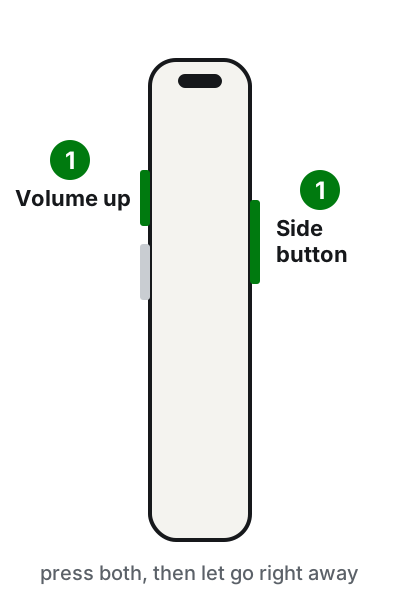
Side button and volume up together, then let go right away. Illustration: SimpleBuild -
Quickly release both buttons.
-
The screenshot appears on screen: you can edit it, share it or save it.
iPhone with a Home button
- Press the Home button and the side button together (or the top button, on the smaller models that have it at the top).
- Quickly release both buttons.
What happens next
It depends on the iOS version and your settings:
- From iOS 26, by default the screenshot opens right away with quick tools: you can draw on it with Markup, crop it, send it to a contact or tap the save button to choose where to put it.
- In iOS 18 and earlier (or if you chose this in settings), a thumbnail appears for a few seconds in the lower-left corner. Tap it to open it, or swipe it left to dismiss it: the screenshot is saved automatically.
Apple lets you choose between the two modes (full screen or thumbnail) in the screen capture settings.
Capturing a full page
In Safari, for example, you can save the whole web page, including the part you can't see.
-
Take the screenshot as above.
-
Tap the screenshot (or the thumbnail in the lower-left corner).
-
Tap Full Page. On the right you see a preview of the whole page: drag your finger to scroll through it.
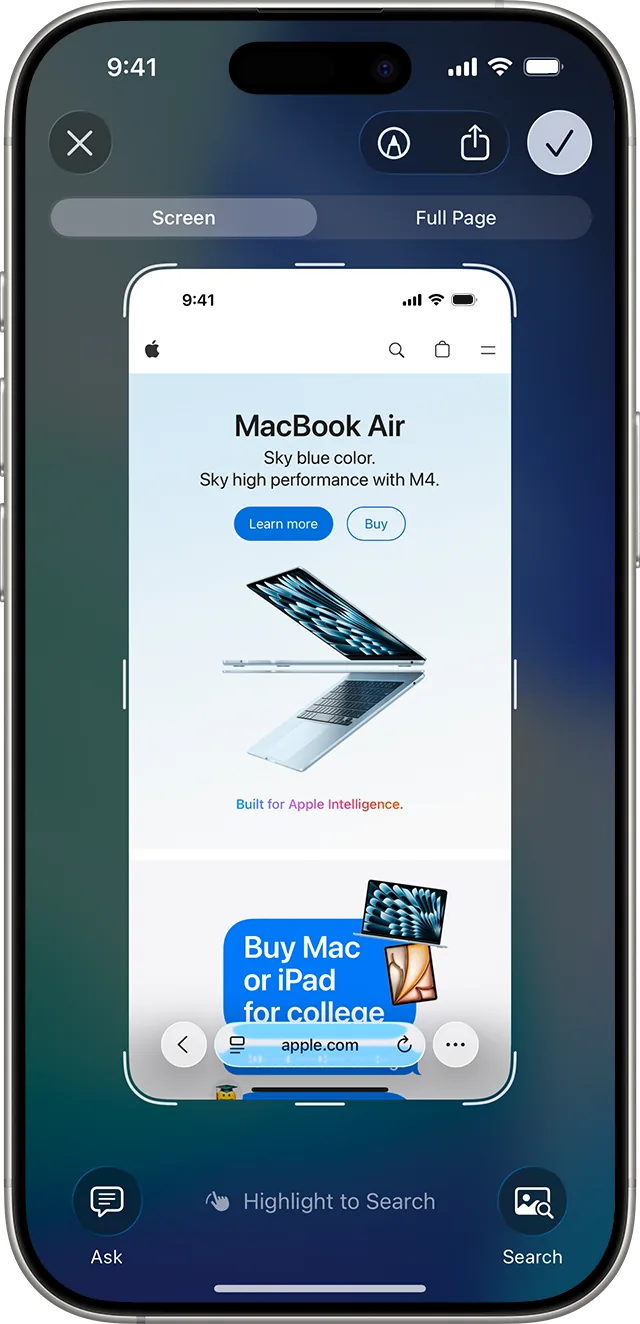
Step 3: the Full Page tab, at the top. Image: Apple Support -
If you only need part of it, drag the handles to crop.
Where to find your screenshots
- Open the Photos app.
- Go to Collections.
- Scroll to Media Types and tap Screenshots.
If the buttons don't work for you
If it's hard to press the buttons together, or one is broken, Apple lists three alternatives: ask Siri, use AssistiveTouch (the on-screen button) or Back Tap (two or three taps on the back of the phone).
On Android
Names can vary slightly from one brand to another. The steps below are the ones Google gives; on Pixel phones some of them only work on Android 11 and up.
Taking the screenshot
-
Open the screen you want to capture.
-
Press the Power and Volume down buttons at the same time.
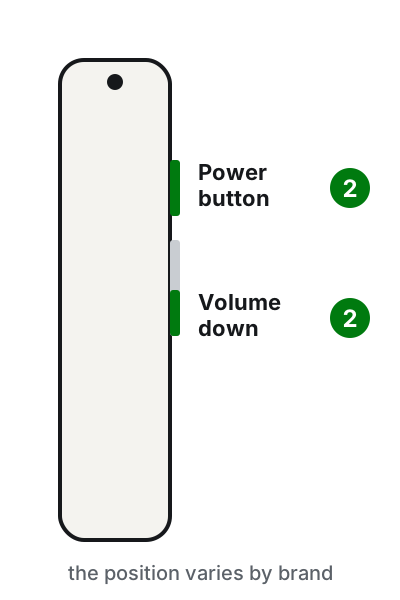
Power and Volume down together. The position varies from brand to brand. Illustration: SimpleBuild -
If that doesn't work, press and hold the Power button for a few seconds, then tap Screenshot.
-
A preview of the screenshot appears in the lower-left corner.
If neither method works, your phone's manufacturer may use a different system: search for "screenshot" on the brand's support site.
Capturing a scrolling page
From Android 12 on, on most screens that scroll:
- Take the screenshot with Power + Volume down.
- At the bottom, tap Capture more.
- Choose how far to go by dragging the crop guidelines.
Where to find your screenshots
- Open the Google Photos app.
- At the bottom tap Collections, then On this device, then Screenshots.
- From there you can tap Share to send it or Edit to crop it.
If your phone doesn't have the Photos app, open the Gallery app and look for the Screenshots album.
If it still doesn't work
- The phone turns off or changes the volume instead of taking a screenshot? Press the two buttons exactly together and let go right away. Holding them down triggers other functions.
- Can't find the screenshot? Look in the Screenshots collection of the Photos app, as explained above.
- Some apps can't be captured. Banking or streaming video apps may block screenshots: that's their choice, not a fault.
- Need a video rather than a picture? See how to record your screen with audio.
- Screenshots filling up your phone? Delete the old ones from the Screenshots collection; for the rest see how to free up space on iPhone or free up space on Android.
- Want to move them to your computer? See how to transfer photos from iPhone to PC.
- When to call a technician: if a button no longer responds even to turn the phone on or raise the volume, the problem is physical. In that case the button needs checking, and in the meantime you can use the on-screen alternatives.
Frequently asked questions
Can the other person hear or see that I took a screenshot?
No. The screenshot stays on your phone until you decide to send it to someone.
Can I capture an entire web page, including the part below?
Yes. On iPhone tap the thumbnail and then Full Page. On Android 12 and later, after the screenshot tap Capture more.
What if my phone's buttons are broken?
On iPhone Apple lists Siri, AssistiveTouch or Back Tap as alternatives. On Android, on many phones you can press and hold the Power button and tap Screenshot.