How to take a screenshot on a Windows PC
The keys for capturing the screen in Windows 11 and 10: part of it, one window or the whole screen. Where the images end up, how to add an arrow or some text and how to copy text from a screenshot.
Procedure verified on against the official sources.
The handiest combination is Windows key + Shift + S: the screen turns gray, you choose the part to capture with the mouse and the image ends up in Snipping Tool, where you can save it or paste it elsewhere. If you want the whole screen saved straight to a file, press Windows key + Print Screen.
The Print Screen key may also be labeled PrtSc or PrtScn: it's usually at the top right of the keyboard.
Before you start
- Get ready what you want to capture. Open the window, error message or page you're interested in, and close anything that shouldn't appear (for example a private chat).
- The Windows key is the one with the Windows logo, at the bottom left between Ctrl and Alt.
- Shift is the key with the upward arrow, the one you use for capital letters.
On Windows 11
Capturing part of the screen
-
Press Windows key + Shift + S together.
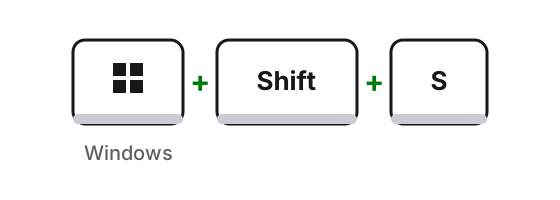
Windows key + Shift + S, all together. Illustration: SimpleBuild -
The screen turns slightly gray and a small bar appears at the top.
-
Choose the type of snip: Rectangle (you drag a box), Window (you click the window to capture), Full screen or Freeform (you draw the outline by hand).
-
Select the area with the mouse. As soon as you release the button, the image is ready in Snipping Tool.
Capturing the whole screen and saving it right away
- Press Windows key + Print Screen.
- Windows saves the image to a file, in the Screenshots folder inside Pictures. You don't need to do anything else.
Capturing only the window you're using
- Click the window you're interested in, so it's the active one.
- Press Alt + Print Screen.
- The image goes to the clipboard: paste it with Ctrl + V into a document, an email or a chat.
The Print Screen key on its own
In Windows 11, the Print Screen key usually opens the same selection as Windows key + Shift + S. If you'd rather it copied the whole screen to the clipboard without asking you anything, open Start > Settings > Accessibility > Keyboard and turn off the switch for using the Print Screen key to open screen capture.
After the screenshot: save, write, share
When you take a snip, the Snipping Tool window opens. From there you can:
- Write or draw on the image with the Pen or Highlighter buttons, for example to circle an error. With Eraser you remove the marks.
- Crop the image with Image crop.
- Copy the text you see in the image with Text actions. From there you can also quickly hide email addresses and phone numbers before sending the screenshot to someone.
- Save a copy wherever you want with Save as. In any case, the snip is already saved automatically in the Screenshots folder.
- Share the image: open the See more menu at the top right and choose Share.
If you use it often, pin Snipping Tool to the bar at the bottom: in the taskbar search box type snipping tool and choose Pin to taskbar.
Capturing a menu that closes on its own
Some menus disappear as soon as you press a key. In that case use the delay:
-
Open Snipping Tool from the Start menu (type snipping tool and choose it from the results).
-
Select Delay and choose, for example, 5 seconds.
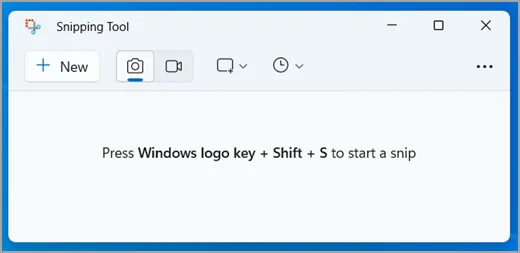
The clock at the top is the Delay; the New button is on the left. Image: Microsoft Support -
Choose the snipping mode and select New: the countdown starts.
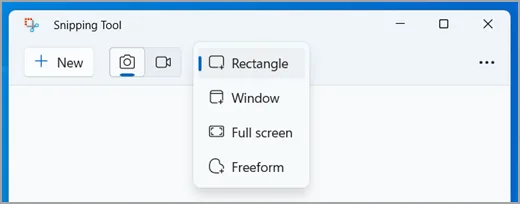
The mode menu: Rectangle, Window, Full screen and Freeform. Image: Microsoft Support -
Within 5 seconds, open the menu you want to capture.
-
When the screen turns gray, draw the area to capture with the mouse.
On Windows 10
Windows 10 also has Snipping Tool, and the main combinations are the same:
- Windows key + Shift + S opens the selection and then Snipping Tool.
- Print Screen copies the whole screen to the clipboard: paste it with Ctrl + V.
- In Snipping Tool, choose Mode, the type of snip (Rectangle, Window, Full screen or Freeform) and then New.
- To save, select the Save Snip button, choose a name and folder, then Save.
Remember that since October 14, 2025 Windows 10 no longer gets free security updates: if the PC allows it, see how to install Windows 11.
If it still doesn't work
- Pressed Print Screen and see nothing? The image is probably on the clipboard. Paste it with Ctrl + V into Paint, a document or a chat.
- Can't find the file? Open File Explorer > Pictures > Screenshots. Snips from Snipping Tool and those taken with Windows key + Print Screen end up there.
- Want to change the folder or turn off automatic saving? In Snipping Tool select See more and then Settings.
- Need a video rather than a picture? See how to record your screen with audio.
- Is the disk full of old screenshots? Delete the ones you don't need from the Screenshots folder and then free up disk space.
- Do you also have a Mac or a phone? There are guides for screenshots on Mac and for screenshots on iPhone and Android.
- When to call a technician: if no key combination responds, there may be a problem with the keyboard or a program blocking it. Before calling someone, try opening Snipping Tool from the Start menu: if it works from there, the problem is the keyboard.
Frequently asked questions
Where do screenshots go on Windows?
The ones taken with Snipping Tool are saved automatically in the Screenshots folder, inside Pictures. If you use the Print Screen key on its own, though, the image only goes to the clipboard: you have to paste it with Ctrl + V where you need it.
I pressed Print Screen but nothing happens: why?
Often the screenshot is there, but it's on the clipboard and not in a file. Open Paint, a document or a chat and press Ctrl + V: if the image appears, it worked.
Can I copy the text I see in an image?
Yes. After the screenshot, choose Text actions in Snipping Tool: Windows recognizes the words and you can copy them. The recognition happens on the computer, not on the Internet.