How to update apps on iPhone and Android
Apps update by themselves if automatic updates are on. How to check that, how to update them by hand one by one or all at once from the App Store and Google Play, and what to do if an update gets stuck.
Procedure verified on against the official sources.
Usually you don't need to do anything: on iPhone, App Store apps update by themselves by default, and Google Play can do it automatically too. To update them by hand: on iPhone open the App Store, tap your photo at the top, then App Updates and Update All; on Android open Google Play, tap the profile icon, then Manage apps & device and Update all.
Updating matters: as Google puts it, the latest version gives you the newest features and makes the app more secure and stable.
Before you start
- Connect to Wi-Fi if you can: updates can be large.
- Check your free space. Without space, updates get stuck. Google treats less than 1 GB free as a warning sign. If you're short, see how to free up space on iPhone or on Android.
- Keep your password handy for your Apple or Google Account: it's sometimes requested.
On iPhone
Update by hand
-
Open the App Store.
-
Tap the My Account button or your photo, at the top.
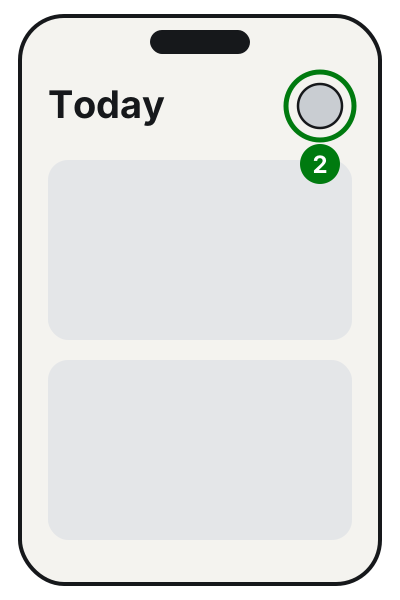
Step 2: your photo, at the top right of the App Store. Illustration: SimpleBuild -
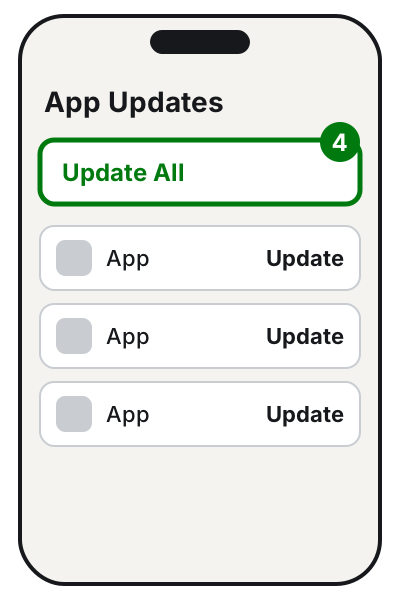
Tap App Updates.
-
Tap Update next to an app, or Update All.
Turn automatic updates on or off
- Open Settings and tap Apps.
- Tap App Store.
- Turn App Updates on (or off).
If you turn them off, the App Store sends you a notification each time an update is available, and you'll have to install it yourself.
On the Mac, while you're at it
- Open the App Store.
- In the sidebar, click Updates.
- Click Update next to an app, or Update All.
For automatic updates: in the menu bar open App Store > Settings (or Preferences) and select Automatic Updates. Apps downloaded outside the App Store update in a different way: for those, Apple refers you to the developer.
On Android
The steps are those of the Google Play Store app. The phone Settings items mentioned further down, however, are Google's: on Samsung, Xiaomi and other brands they may have different names.
Update by hand
-
Open the Google Play Store app.
-
At the top right, tap the profile icon.
-
Tap Manage apps & device.
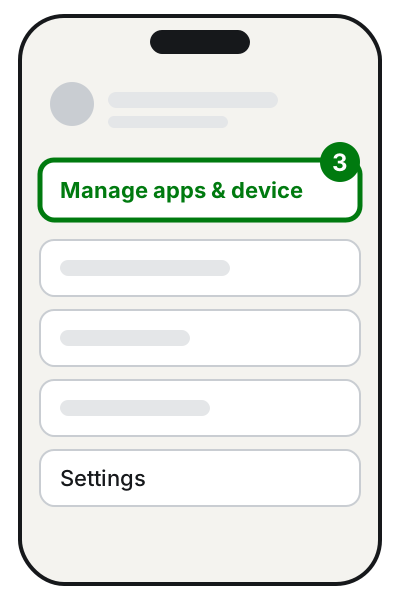
Step 3: Manage apps & device, in the profile menu. Illustration: SimpleBuild -
Under «Updates available», tap See details.
-
Tap Update next to an app, or Update all.
Some updates ask for new permissions: you get a notification to accept them or not.
Update all apps automatically
- Open Google Play and tap your profile picture at the top right.
- Tap Settings > Network preferences > Auto-update apps.
- Pick one of the options:
- Update all apps over Wi-Fi or mobile data;
- Update over Wi-Fi only (the safest if you have little data);
- Don't auto-update apps.
Some phones also show Update with limited amount of mobile data: Google is offering it only to a limited group of users.
Update only some apps automatically
- In Google Play tap your profile picture, then Manage apps & device > Manage.
- Tap the app you want to open its page.
- Tap More (the three dots) and turn on Enable auto update.
Google warns that if an update fixes a critical security vulnerability, it may install it even against your settings.
If it still doesn't work
On iPhone
- Update the app by hand, as described above.
- Prioritize it: on the Home Screen, touch and hold the icon of the app that's downloading and choose Prioritize Download.
- Restart the iPhone and try again.
- Payment method: the App Store may ask you to add a valid one even for free apps. If you see «billing problem with previous purchase» or «verification required», the payment method in your Apple Account needs fixing.
- In some countries, for certain apps, you may be asked to confirm that you're an adult or to join a Family Sharing group.
- If nothing works, Apple refers you to its support.
On Android
- Check the connection: Wi-Fi is better. If Wi-Fi says «connected» but nothing works, see what to do when Wi-Fi is connected but has no internet.
- Check your storage: Settings > Storage.
- Check for system updates: Settings > System > Software update > System update, then follow the instructions.
- Close and reopen the Play Store: swipe up from the bottom, hold, then let go to see your open apps, swipe the Play Store away, then reopen it.
- Restart the phone: press and hold the Power button and tap Restart.
- Check the date and time: in Settings > System > Date & time turn on Set time automatically and, under «Time zone», Set automatically. Wait a few minutes and try again.
- If the Google account on the phone has a sign-in error, Google warns that automatic updates may stop: sign in to the account again.
If the phone is old and your most-used apps (banking, WhatsApp, email) stop updating, it may be time to consider a newer phone. A technician can check with you what can still be updated and what can't, before you spend anything.
Frequently asked questions
Does updating apps use my phone's data?
On Android you can choose: Google Play lets you auto-update over Wi-Fi only. If you'd rather not use mobile data, pick «Update over Wi-Fi only».
Why does the App Store ask for a payment method for a free app?
Apple explains that you may be asked to add a valid payment method even to download free apps.
Should I update the phone's system too?
It's a good idea. When app downloads and updates get stuck, Google lists checking for system updates among the first steps.
An app updated even though I turned updates off: how is that possible?
Google warns that if an update fixes a critical security vulnerability, it may install it regardless of your settings.