How to activate Italy's electronic ID card (CIE) with the CieID app
Italy's electronic identity card is also a digital identity, like SPID. Here is how to activate your CIE credentials on the official website, set up the CieID app on your phone, and what to do if you lost your PIN or PUK.
Procedure verified on against the official sources.
Italy's electronic identity card (CIE, Carta d'identità elettronica) is not just a document: it is also a key to the online services of the Italian public administration, just like SPID (Italy's public digital identity). To use it, you need to activate your CIE credentials on the official website cartaidentita.interno.gov.it, with your codice fiscale (Italian tax code), the card's serial number and a few digits from the first half of the PUK. Then you install the CieID app on your phone to confirm your sign-ins.
You can do this even before the card is delivered, as long as you gave your mobile number and email to the Comune.
The three levels, in short
The Ministry of the Interior website describes three access levels:
- Level 1: username and password.
- Level 2: username and password plus a one-time code (OTP), sent by SMS or confirmed in the CieID app.
- Level 3: the physical card, read by a smartphone with NFC (the technology behind contactless payments) or by a card reader connected to the computer, plus the PIN.
For most people the easiest route is: activate levels 1 and 2, then set up the CieID app.
Before you start
- The card or, if you haven't received it yet, the application receipt: it has the first half of the PUK.
- The card's serial number (top right, on the card itself).
- Your codice fiscale.
- The mobile number and email you gave to the Comune: the verification codes go there. The mobile number is required.
- The 8-digit PIN: you get the first half when you apply and the second half when the card is delivered. You need it for level 3.
Keep the PIN and PUK on paper, somewhere safe at home, away from the card.
Activate your CIE credentials (levels 1 and 2)
-
Open the Activate page on the official website and choose Activate CIE credentials (level 1 and 2).
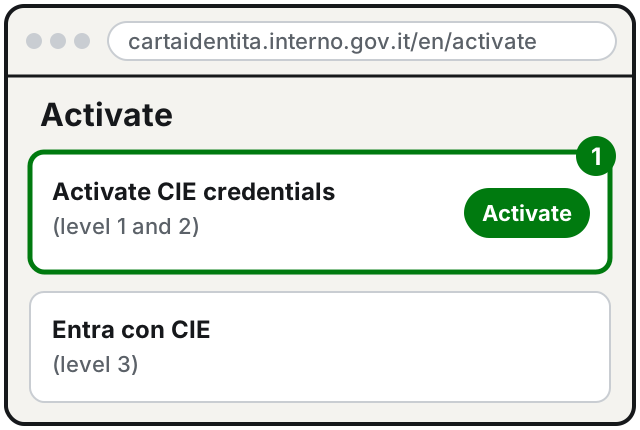
Step 1: the option for levels 1 and 2. Illustration: SimpleBuild -
Enter your codice fiscale, the card's serial number and the digits from the first half of the PUK that the system asks for (not always the same ones).
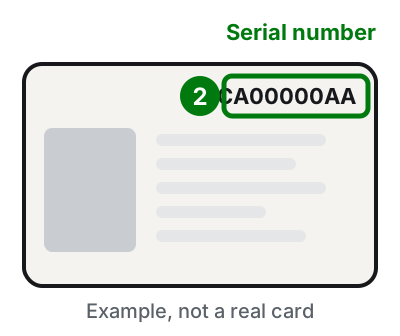
Step 2: the serial number, at the top right of the card. Illustration: SimpleBuild -
Confirm your contact details: you get a one-time code on your phone, and on your email if needed, to enter on the page.
-
Choose your personal password.
-
Choose how you want to confirm sign-ins: with the CieID app or with a code by SMS.
-
Complete the activation.
As your username you can use, as you prefer, your codice fiscale, the card's serial number or your email address (if it has been verified).
If you already have the card and the PIN, there is another way: sign in to the website's reserved area with level 3 (card held against the phone) and activate the credentials from there.
Set up the CieID app on your phone
The official app is called CieID: the Ministry website links to its page on the App Store and on Google Play. Download it from there, not from links you receive in messages. It runs on Android 6.0 or later and on iOS 13 or later.
To use it for level 2 you need to certify your phone. The official manual describes these steps:
- Open the app and enter the username and password of the CIE credentials you just created.
- Enter the code by SMS you receive on your phone.
- Create your CieID app code: 6 characters, letters and numbers, with at least one letter and one number. If your phone allows it, you can use your fingerprint or face recognition instead.
- If you want, turn on notifications.
- If you want, give the device a name.
From then on, when you sign in to a service from your computer, you can scan the QR code shown on the page with the app and confirm with your CieID app code or your fingerprint. If you sign in from the phone, you confirm directly in the app.
You can certify more than one phone, but only one is used for sign-ins, the «default» one: usually the last one you certified.
Register the card in the app (level 3)
If your phone has NFC, you can also use the highest level:
-
Open the CieID app and choose to register your card.
-
Enter the 8-digit PIN.
-
When asked, hold the card against the back of the phone and keep it still until the reading is complete.
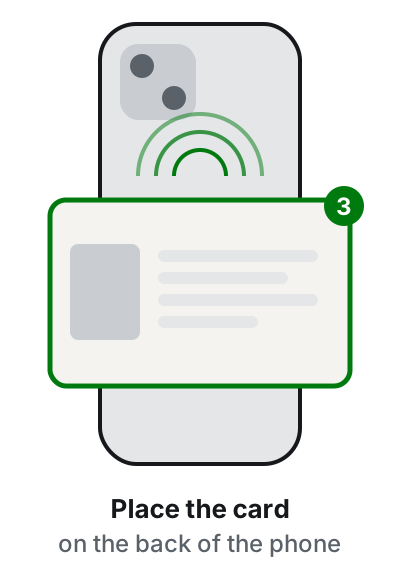
Step 3: the card held against the back, still until the reading is complete. Illustration: SimpleBuild
Later, when a service asks for level 3, the app will ask you to hold the card against the phone again and enter the last 4 digits of the PIN.
If it still doesn't work
- You lost the PUK. If you gave your email or mobile number to the Comune, you can recover it from the CieID app, on a phone with NFC: in the menu choose Recupero PUK ("PUK recovery"), hold the card against the phone, and enter the serial number and the contact details you gave to the Comune. For security, after 48 hours you get an SMS or an email to complete the procedure and see the PUK.
- You didn't give your contact details, or you don't remember them. You can go to any Comune and ask to update them and, if needed, to reprint the PIN and PUK.
- The SMS code doesn't arrive during activation. The registered number is the one you gave to the Comune: if it's wrong or no longer yours, update it at the Comune, or from the website's reserved area if you can sign in with level 3.
- The phone doesn't read the card. Check that your phone has NFC and that it's turned on in the settings. Without NFC you can still use levels 1 and 2 with the app or with the SMS code.
- You get a message asking for your PIN or PUK to «unlock» the card: it's a scam. Never share your PIN or PUK with anyone. Here is how to recognize a phishing message.
- If you prefer SPID or want both, read how to get SPID. With an active CIE you can sign in, for example, to the Fascicolo sanitario elettronico (electronic health record).
- For problems with the card, see the official website's Help page. If you need someone to help you with the phone, NFC and the apps, a technician can do it with you, without ever needing to know your PIN.
Frequently asked questions
Where do I find the PIN and PUK of my ID card?
The PIN has 8 digits: you get the first half when you apply for the card at the Comune (town hall), and the second half when the card is delivered. The first half of the PUK is on the application receipt.
Can I use the CIE instead of SPID?
Yes, on any service that shows the «Entra con CIE» ("Sign in with CIE") button. The Fascicolo sanitario elettronico (electronic health record) and the Agenzia delle Entrate (tax agency) reserved area, for example, accept both SPID and CIE.
Does my phone work with the CieID app?
The app runs on Android 6.0 or later and on iOS 13 or later. For the highest level, the one that reads the card, the phone needs NFC.
Can I use my underage child's CIE?
According to the official website, minors aged 5 to 18 can currently access only school services. Under 5, no access is allowed.
Sources
- Activate (Electronic Identity Card, Ministry of the Interior)
- Entra con CIE, level 1 and 2 (Ministry of the Interior)
- Entra con CIE, level 3 (Ministry of the Interior, in Italian)
- CieID app (Ministry of the Interior)
- How to recover the PUK of the Electronic Identity Card (Ministry of the Interior)
- Digital identification (Ministry of the Interior)
- Help and FAQ (Ministry of the Interior)
- Entra con CIE manual (Ministry of the Interior, PDF, in Italian)