How to connect Bluetooth headphones to your phone, PC and TV
It takes two steps: first put the headphones in pairing mode, then pick them in the device's Bluetooth settings. The steps for iPhone, Android, Windows 11 and 10, Mac, Google TV and Apple TV, and what to do if they won't connect.
Procedure verified on against the official sources.
Connecting Bluetooth headphones always takes two steps. First: put the headphones in pairing mode, that is, make them visible to other devices: the headphones' manual explains how. Google notes that often, when they're ready, you see a blue light. Second: on your phone, PC or TV open the Bluetooth settings and tap the headphones' name when it appears. After the first time they reconnect by themselves.
Before you start
- Charge the headphones. With a flat battery they often won't show up.
- Keep them close to the device you want to use.
- Find out from the manual how to start pairing. Each brand has its own gesture. Without pairing mode the headphones don't appear in the list, even when they're on.
- Disconnect them from other devices. If the headphones pair with other devices but not with the one you want, Apple recommends unpairing them from the others and trying again.
On iPhone
-
Put the headphones in pairing mode.
-
Open Settings, tap Bluetooth and check that it's on.
-
Wait for the headphones to appear in the list and tap their name.
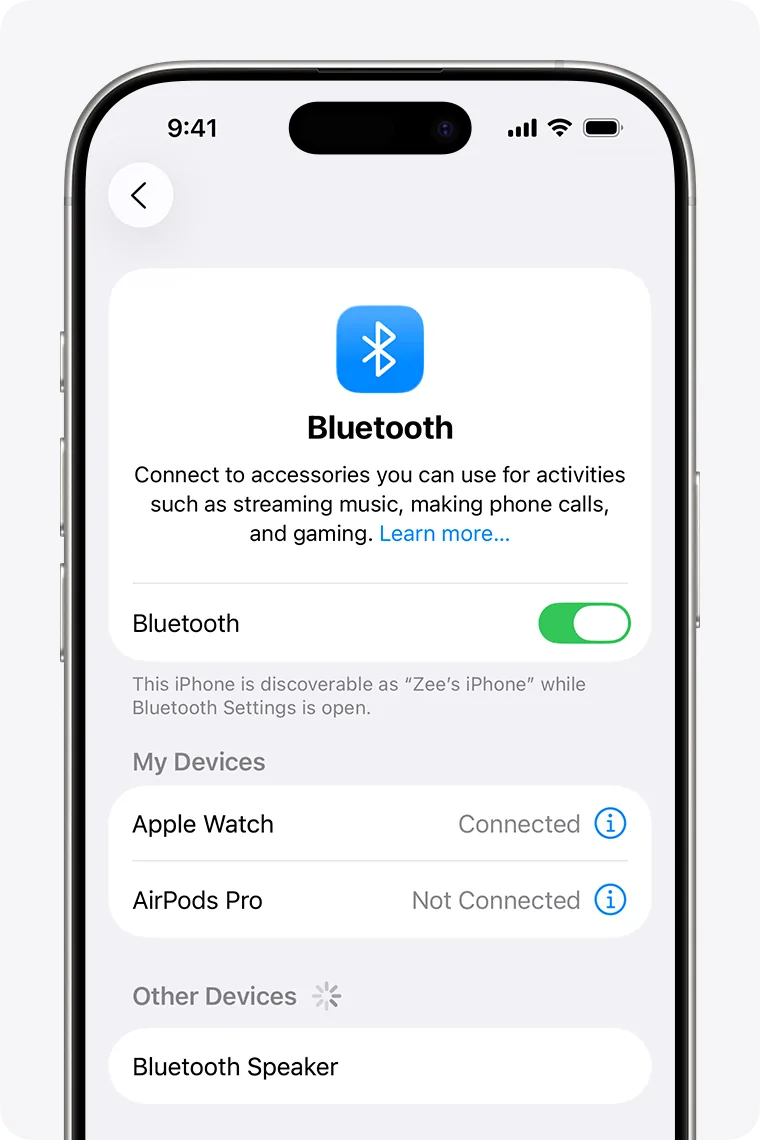
Step 3: the headphones appear under «Other Devices». Image: Apple Support -
If it asks for a PIN or passcode, you'll find it in the headphones' manual.
To disconnect them completely: Settings > Bluetooth, tap the More Info button next to the headphones, then Forget this Device. Apple points out that this removes them from every device signed in to your Apple Account.
If you have compatible AirPods, check in Settings > Bluetooth, by tapping More Info next to the AirPods, that Find My network is on: that way you can look for them if you lose them, as explained in the guide to finding a lost phone.
On Android
The steps and names are Google's. On Samsung, Xiaomi and other brands the items may have different names or places.
- Put the headphones in pairing mode.
- Swipe down from the top of the screen.
- Touch and hold the Bluetooth icon.
- Tap Pair new device. If you don't see it, look under «Available devices» or tap More > Refresh.
- Tap the headphones' name and follow the instructions.
If the headphones support Fast Pair, a notification may appear straight on the phone: tap it and you're done. Google says that in that case the phone must be within about half a meter (a foot and a half) of the headphones, with Bluetooth and location turned on.
To reconnect headphones that are already paired: touch and hold the Bluetooth icon and choose the headphones under «Saved devices». To remove them: tap Settings next to the name, then Forget.
On a Windows 11 PC
- Put the headphones in pairing mode.
- On the taskbar, at the bottom right, select the Network, Sound or Battery icon, next to the date and time.
- On the Bluetooth quick setting select the Manage Bluetooth devices arrow. If the tile is off, select it first to turn Bluetooth on.
- Select the headphones under New devices.
- Follow any instructions and select Done.
You can also turn on Bluetooth from Start > Settings > Bluetooth & devices.
Some headphones support Swift Pair: when they're in pairing mode near the PC, a notification appears. The first time, Windows asks whether to use it (answer Yes), then you just select Connect.
On a Windows 10 PC
Windows 10 has no longer received free security updates since October 14, 2025, but Bluetooth still works like this:
- Put the headphones in pairing mode.
- Select Start > Settings > Devices > Bluetooth & other devices.
- Check that Bluetooth is turned on.
- Select Add Bluetooth or other device, then Bluetooth.
- Choose the headphones from the list, follow the instructions and select Done.
On a Mac
- Put the headphones in pairing mode.
- Choose Apple menu > System Settings and click Bluetooth in the sidebar (you may need to scroll down).
- Hold the pointer over the headphones in the list and click Connect.
- If asked, click Accept.
If the sound still comes out of the Mac's speakers: Apple menu > System Settings > Sound, then Output, and choose the headphones.
On the TV
Every TV has different menus. Here you'll find the official steps for Google TV and Apple TV; for other TVs check the manual or the manufacturer's website under Bluetooth.
Google TV
- Put the headphones in pairing mode.
- On the Home screen, at the top right, go to the profile picture or initial and select Settings.
- Select Remote & Accessories > Pair remote or accessory.
- Choose the headphones from the list and, when asked, select Pair.
On Google TV you can connect only one audio device at a time. To reconnect headphones that are already paired: Settings > Remote & Accessories, choose the headphones under «Accessories» and select Connect.
Apple TV
- Put the headphones in pairing mode.
- Go to Settings > Remotes and Devices > Bluetooth.
- Choose the headphones. If asked, enter the four-digit code.
If you'd rather see the phone's screen on the TV, that's a different thing: see how to connect your phone to the TV.
If it still doesn't work
- The headphones don't show up: put them back in pairing mode, bring them closer, turn them off and on again, and check that they're charged.
- They used to connect and now they don't: remove them from the list (Forget this Device on iPhone, Forget on Android) and pair them again from scratch.
- They connect to other devices but not to yours: disconnect them from the others and try again. Apple also suggests asking the manufacturer whether they're compatible.
- Connected but no sound on Android: tap Settings next to the headphones' name and check that Media audio is on; for phone calls you need Phone audio. Also check the volume and that no other connected device is playing.
- They won't connect to a Google TV: Google suggests disconnecting other accessories you don't use and unplugging the TV for 10 seconds.
- On the PC, Bluetooth is missing or won't turn on: the adapter or the driver may be missing; see how to update your PC's drivers. Microsoft points out that a PC without Bluetooth can use a small USB adapter.
- If you can't get a relative's headphones working with their TV or phone, a technician can pair them and show them how to reconnect on their own.
Frequently asked questions
Do I have to pair them every time?
Usually not. After the first pairing, phone and headphones can reconnect by themselves when they're on and close by, with Bluetooth turned on.
The headphones ask for a code I don't know: what do I enter?
Look for it in the headphones' manual. Google suggests trying the most common codes, 0000 or 1234.
Can I connect two pairs of headphones to the same TV?
On Google TV, no: Google says you can only connect one audio device at a time. On other TVs it depends on the model.
The headphones work with the phone but not with the PC: why?
They may still be connected to the phone. Apple recommends unpairing the accessory from your other devices before pairing it with a new one.
Sources
- Connect a third-party Bluetooth accessory to your iPhone or iPad (Apple Support)
- If a Bluetooth accessory won't connect to your iPhone or iPad (Apple Support)
- How to turn on Find My on your iPhone, iPad, or Mac (Apple Support)
- Find & set up Bluetooth devices near your Android device (Android Help)
- Fix Bluetooth problems on Android (Android Help)
- Pair a Bluetooth device in Windows (Microsoft Support)
- Connect a Bluetooth device with your Mac (Apple Support)
- Connect Bluetooth devices to Google TV (Google TV Help)
- Use Bluetooth accessories with your Apple TV (Apple Support)