How to install Windows 11 and which requirements to check first
How to tell whether your PC can run Windows 11, what to save first, and Microsoft's three official tools to install it: Windows Update, the Installation Assistant and the tool that creates a USB drive.
Procedure verified on against the official sources.
First check that the PC meets the requirements: the easiest way is Microsoft's PC Health Check app. If the PC is eligible and runs Windows 10, the simplest route is Windows Update: when Windows 11 is ready for your computer, it appears there with the Download and install button. Alternatively, Microsoft offers the Windows 11 Installation Assistant and the Media Creation Tool, to prepare a USB drive.
Use only the official tools, downloaded from Microsoft's Windows 11 download page: be wary of files taken from other sites.
Before you start
- Back up your files. Microsoft always recommends it before installing a new version of Windows, even though a normal upgrade keeps them. Copy documents, photos and everything you don't want to lose to an external drive or an online service: follow how to back up a Windows PC and, if you can, the 3-2-1 backup rule.
- Plug the laptop into power and don't turn the PC off during installation: it restarts several times on its own.
- Keep your Microsoft account password handy. For Windows 11 Home and Pro for personal use, the initial setup requires an Internet connection and a Microsoft account.
- Free up space: the Installation Assistant needs at least 9 GB free to download Windows 11. If the disk is full, see how to free up disk space.
- Update Windows 10 first. If there are pending updates, Windows 11 may not show up until you install them.
Windows 11 minimum requirements
According to Microsoft, the PC must have:
- Processor: at least 1 GHz with 2 or more cores, 64-bit and compatible.
- RAM: 4 GB.
- Storage: a drive of at least 64 GB.
- Firmware: UEFI with Secure Boot.
- TPM version 2.0 (Trusted Platform Module), a security component of the PC.
- Graphics card compatible with DirectX 12 or later, with a WDDM 2.0 driver.
- Display: high definition (720p), larger than 9 inches.
To upgrade from Windows 10 you need version 2004 or later.
Checking your PC with PC Health Check
-
Search the taskbar for PC Health Check and open it.
-
If it isn't installed, download it from Microsoft's official link and install it.
-
Select Check now.
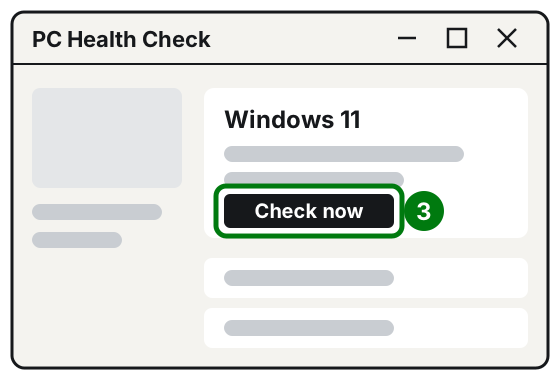
Step 3: the Check now button. Illustration: SimpleBuild -
The app tells you whether the PC is eligible and, if it isn't, why.
The app doesn't check the graphics card and display, but Microsoft explains that most compatible PCs already meet those requirements.
To find out whether the PC is 64-bit, open Settings > System > About and look at System type.
Method 1: from Windows Update (the simplest)
This works for Windows 10 PCs that Microsoft has already validated.
-
Open Start > Settings > Update & Security > Windows Update.
-
Select Check for updates and first install any pending Windows 10 updates, then restart.
-
If Windows 11 is ready for your PC, a message says so. Select Download and install.
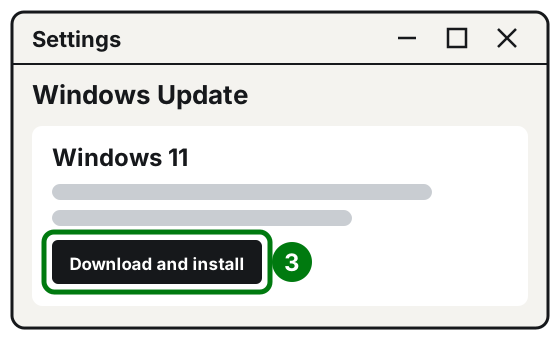
Step 3: Download and install, below the Windows 11 message. Illustration: SimpleBuild -
You can use the PC while it downloads. Installation takes longer than a normal update: you can schedule it for a time when you don't need the computer.
If the message doesn't appear, the PC may not be ready yet or may not meet the requirements: check with PC Health Check.
Method 2: the Windows 11 Installation Assistant
Use it to upgrade the PC you're using without waiting for Windows Update. It only works on PCs with an x64 processor, not on Arm-based ones.
- On Microsoft's official page, under Windows 11 Installation Assistant, select Download Now.
- Open the downloaded file and select Run. You must use an administrator account.
- The tool checks the PC. If it's compatible, it shows you the license terms: select Accept and Install.
- When it's ready, select Restart Now.
- The PC restarts several times. Don't turn it off until you see Windows again.
You need a Windows 10 or 11 license, Windows 10 version 2004 or later and at least 9 GB free.
Method 3: a USB drive made with the Media Creation Tool
Use it for a clean install (from scratch) or to install Windows 11 on another PC. Warning: a clean install erases everything on the disk. Only do it after copying your files.
You need a blank USB drive of at least 8 GB: its contents will be erased.
Preparing the USB drive
- On Microsoft's official page, under Create Windows 11 Installation Media, select Download Now.
- Open the tool (you need an administrator account) and select Accept.
- On the What do you want to do? page, select Create installation media for another PC, then Next.
- Choose the language, edition and architecture (64-bit). The language must be the same one you'll use to install.
- Choose USB flash drive, plug in the drive and follow the instructions.
Installing from the USB drive
- Plug the drive into the PC where you want to install Windows 11 and restart it.
- If the PC doesn't start from the drive on its own, you need to open the boot menu: usually you do this by pressing a key (for example F2, F12, Delete or Esc) right after turning it on. The right key depends on the manufacturer: check the manual or your PC's support site.
- On the Install Windows page, choose language, time and keyboard, then Next.
- Select Install Windows and follow the on-screen instructions.
If you changed the boot order and the first installation page shows up again at the end, put the order back as it was: that way the PC starts from the internal disk.
If it still doesn't work
- PC Health Check says the PC isn't eligible? Read the reason it gives. If you don't know how to fix it, contact the PC manufacturer: that's exactly what Microsoft suggests when you're unsure about the requirements.
- The installation stops with an error? See what to do about Windows Update errors.
- A device doesn't work after installation? Check for updates and drivers: see how to update your PC's drivers.
- Not convinced by Windows 11? You have 10 days to go back to Windows 10 keeping your files. Remember, though, that since October 14, 2025 Windows 10 no longer gets free security updates.
- When to call a technician: if the PC doesn't meet the requirements, if you need a clean install and have never made a backup, or if you don't know how to start the PC from the USB drive. Picking the wrong disk during a clean install loses your data, and a little help avoids that.
Frequently asked questions
Do I have to pay to upgrade from Windows 10 to Windows 11?
No: Microsoft states that the upgrade from Windows 10 to Windows 11 is free. The download is large, though, so do it on a connection without a data cap.
If I don't like Windows 11, can I go back?
Yes, but only for 10 days after the upgrade, keeping your files. After that, going back to Windows 10 requires a clean install, with your files backed up first.
Can I install Windows 11 on a PC that doesn't meet the requirements?
Microsoft advises against it: the PC may have compatibility problems, it's no longer entitled to support and updates, and any damage isn't covered by the manufacturer's warranty.
Will I lose my files upgrading from Windows 10?
With a normal upgrade, your files and data are carried over to Windows 11. Microsoft still always recommends backing up first. A clean install from a USB drive, on the other hand, erases the contents of the disk.