«iPhone Unavailable»: what to do if you forgot your passcode
If you forgot your passcode, Apple's official procedure erases the iPhone. Only if you changed your passcode less than 72 hours ago can you get in with the old one. What you need (Apple Account and a backup), and how to do it from the phone or from a computer.
Procedure verified on against the official sources.
Careful: if you have really forgotten your passcode, Apple's official procedure erases everything on the iPhone. There's no official way to unlock it and keep your data, with one exception: if you changed your passcode less than 72 hours ago, you can get in with the previous one. In all other cases you reset the iPhone, reactivate it with your Apple Account password and get your photos and data back only if you have a backup, in iCloud or on your computer.
Before you start
Stop for a moment and check three things. How much you lose depends on them.
- Do you have a backup? If iCloud Backup was on, or if you made a copy on your computer, after the reset you get almost everything back. Apple also explains that content stored in iCloud, like photos, downloads to the iPhone again after setup. Without a backup, whatever was only on the iPhone is lost.
- Do you remember your Apple Account password? It's your iCloud password, not the iPhone passcode. You need it to start the erase from the phone and, above all, to reactivate it afterwards: Find My's Activation Lock asks anyone who sets up the iPhone for it. If you don't remember it, recover it before erasing: see how to recover your Apple Account password.
- Have you really run out of attempts? Try the passcode calmly: sometimes it's the one from an old phone or another family member's. But don't keep guessing: after five errors «iPhone Unavailable» appears.
If you use an eSIM with iOS 16 or earlier, Apple recommends contacting your carrier before you start and asking for a QR code to set up the eSIM again.
If you changed your passcode less than 72 hours ago
From iOS 17 the iPhone also accepts the previous passcode for 72 hours. It's the only case in which you lose nothing.
-
On the «iPhone Unavailable» screen, tap Forgot Passcode? at the bottom of the screen.
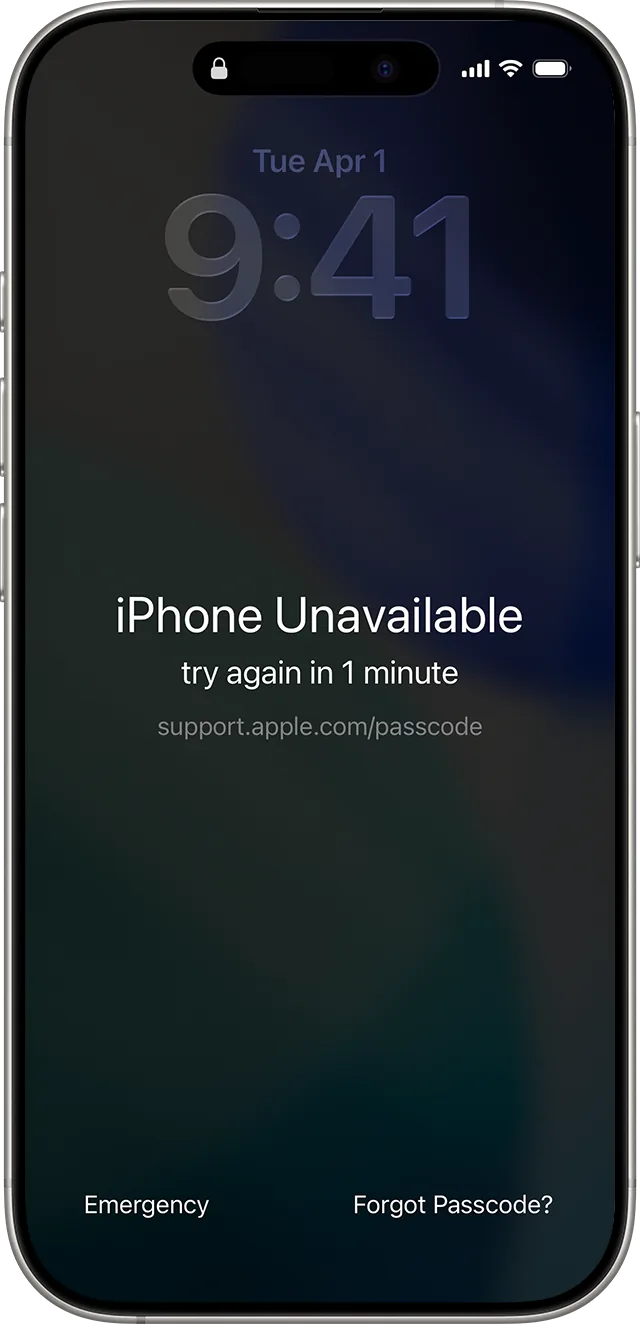
At the bottom right, the button for a forgotten passcode. Image: Apple Support -
Tap Enter Previous Passcode.
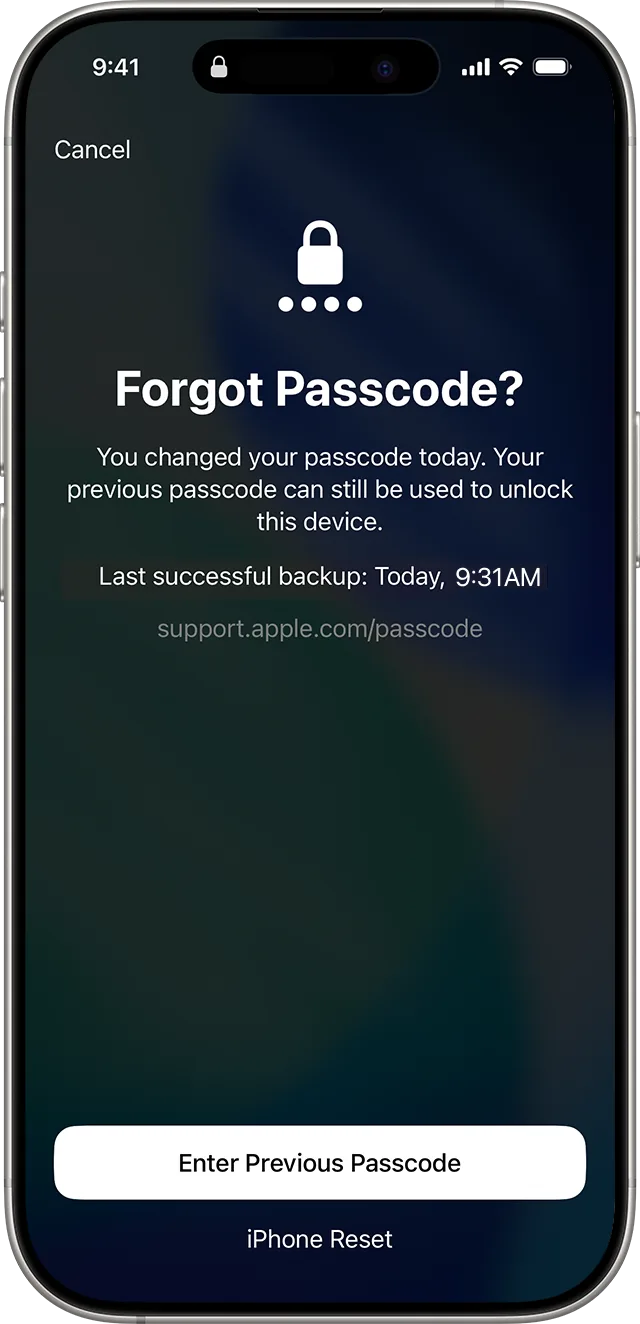
Step 2: Enter Previous Passcode. Image: Apple Support -
Enter the old passcode and choose a new one right away, following the instructions.
The button only appears if the iPhone is connected to Wi-Fi or a cellular network, if you're signed in to your Apple Account and if Find My is on.
Reset the iPhone from the phone itself
It's the simplest way, without a computer. You need:
- iOS 15.2 or later;
- Find My turned on beforehand;
- an active Wi-Fi or cellular connection;
- your Apple Account email address and password.
With iOS 17 or later:
- From the Lock Screen, enter the passcode until «iPhone Unavailable» appears.
- Tap Forgot Passcode?.
- On the Security Lockout screen tap Start iPhone Reset to confirm.
- Enter your Apple Account password: it's needed to sign the iPhone out of your account.
- Tap Erase iPhone. All data and settings are deleted. If you use an eSIM you can choose whether to keep it or delete it.
- When the iPhone restarts, set it up again: restore the backup, if you have one, and choose a new passcode.
With iOS 15.2 or iOS 16, instead of «Forgot Passcode?» the Erase iPhone option appears directly, under the same conditions.
Reset the iPhone with a computer
If the button doesn't appear (for example because the iPhone has no connection or Find My wasn't on), you need a computer. You'll need a Mac or Windows PC, a cable that can charge the phone, internet and up to 60 minutes. This procedure also erases everything.
1. Turn off the iPhone
- iPhone with Face ID: press and hold the side button and the volume down button together until the power off slider appears, then drag it.
- iPhone with a Home button: press and hold the side (or top) button until the slider appears, then drag it.
2. Put the iPhone in recovery mode
Plug the cable into the computer first. Then connect it to the iPhone while immediately holding the right button, and don't let go until the screen shows the image of a computer and a cable:
- iPhone with Face ID, iPhone 8, 8 Plus and SE (2nd and 3rd generation): the side button.
- iPhone 7 and 7 Plus: the volume down button.
- iPhone 6s and earlier, SE (1st generation): the Home button.
3. Restore from the computer
-
On a Mac: open the Finder and select the iPhone in the sidebar, under Locations. Allow the accessory to connect, if asked. When you get the option to Restore or Update, choose Restore.
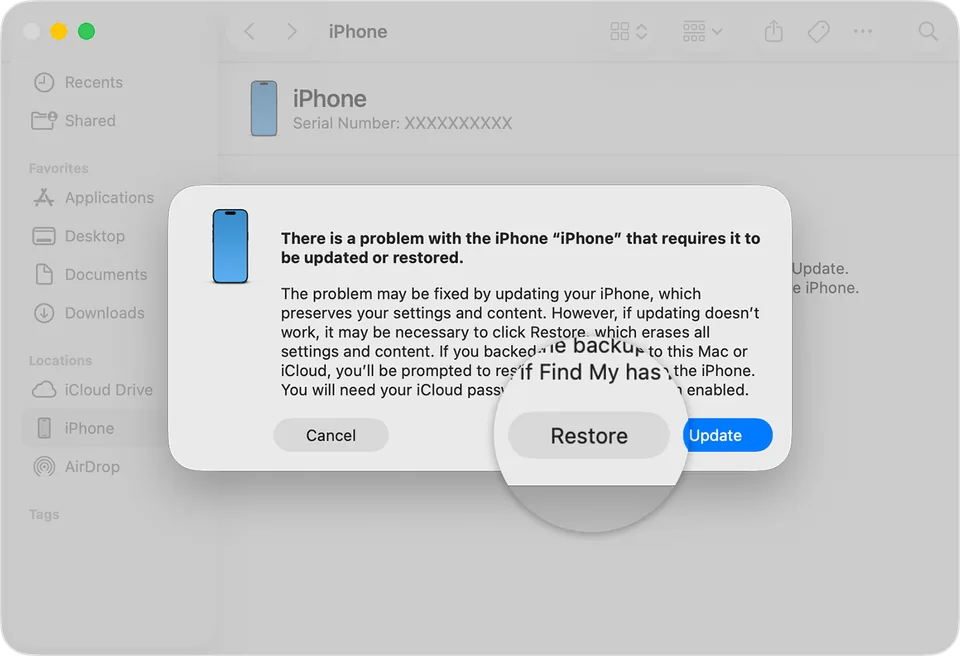
On the Mac choose Restore. Image: Apple Support -
On Windows: open the Apple Devices app (downloaded from the Microsoft Store) and select the iPhone. If asked, choose Trust, then General and Restore, and follow the instructions.
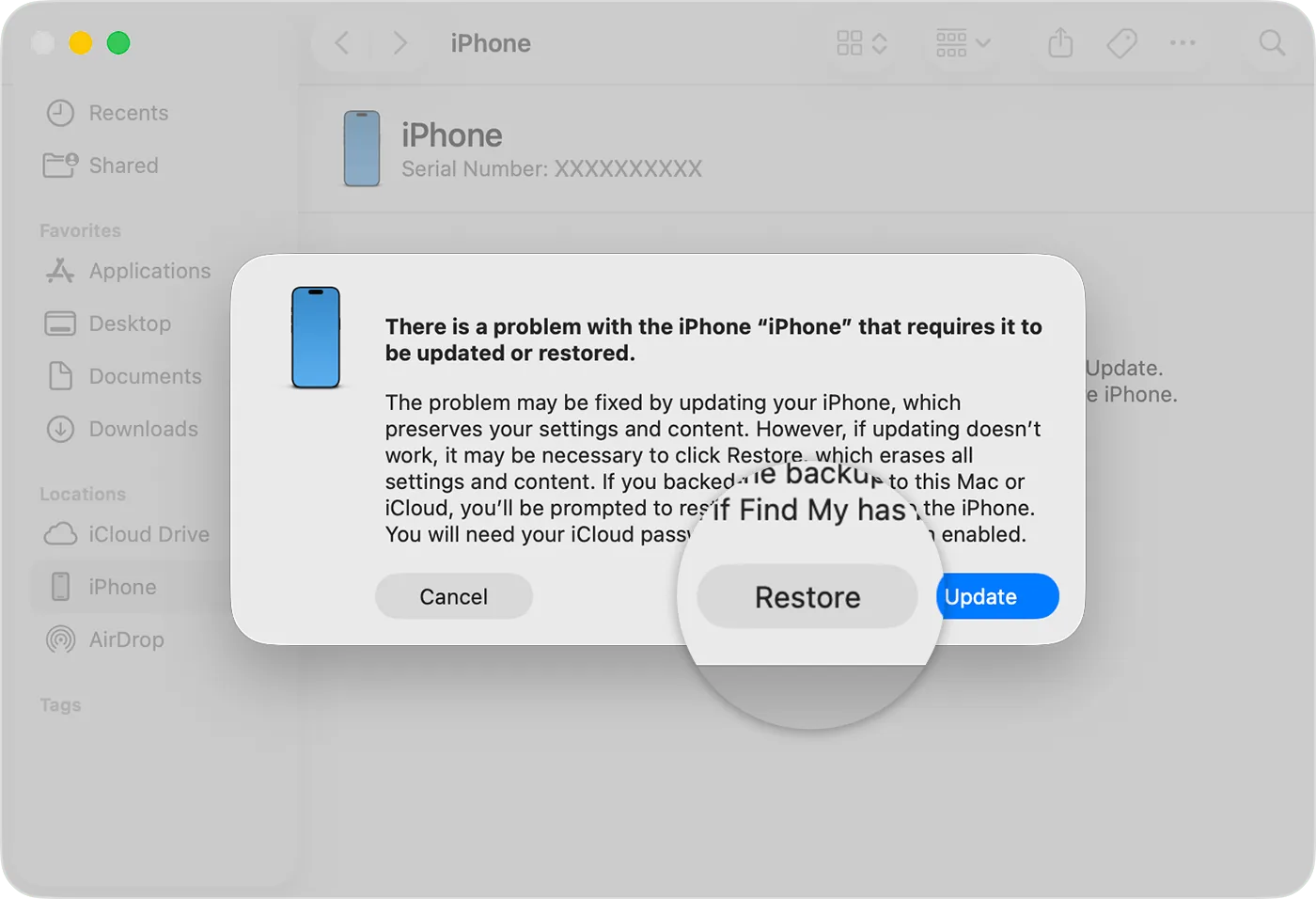
The computer may need to download the software: if it takes more than 15 minutes the iPhone exits recovery mode. Wait for the download to finish, then turn off the iPhone and repeat step 2.
At the end the Hello screen appears: disconnect the iPhone and set it up.
After the reset
- Follow the setup. When Activation Lock appears, enter the Apple Account and password you used the iPhone with.
- On the Apps & Data screen choose Restore from iCloud Backup (or from the computer, if the backup is there) and select the most recent backup, checking its date and size.
- Choose a new passcode you can remember, and write it down somewhere safe at home.
- Make sure the backup is on for the future: see how to back up your iPhone to a PC or Mac.
If it still doesn't work
- «Forgot Passcode?» doesn't appear: the iPhone has no connection, you're not signed in to your Apple Account or Find My was off. Use a computer.
- The buttons don't respond and the computer-and-cable image doesn't appear: Apple says the iPhone might need service.
- You don't have a computer: borrow one; otherwise Apple refers you to an Apple Store or an Apple Authorized Service Provider.
- Activation Lock doesn't accept the password: try the other email addresses or phone numbers you use with Apple. If the iPhone is yours and you have proof of purchase, Apple lets you start an Activation Lock support request.
- If you'd like someone beside you before erasing, to check together that the backup is really there and that your Apple Account password works, a technician can help you not lose anything that can be saved.
Frequently asked questions
Is there a way to unlock the iPhone without losing data?
Apple gives only one: if you changed your passcode less than 72 hours ago, you can get in with the previous passcode (from iOS 17). In every other case the only official way is to reset the iPhone and then restore a backup.
A shop offers to unlock it without erasing it: should I trust them?
Apple only gives the procedures described on this page, and they all erase the iPhone except the previous-passcode case. Whoever offers this is asking you to hand over a phone with your data inside: better to be wary.
I also lost my Apple Account password: what happens?
After the reset, Activation Lock asks for exactly that password. If you can't recover it, Apple warns that you might not be able to activate the iPhone again.
After how many attempts does the message appear?
Apple writes that the «iPhone Unavailable» screen appears after five incorrect attempts. From there on it's best to stop and follow one of the official procedures.
Sources
- If you forgot your iPhone, iPad, or Apple Vision Pro passcode, reset your device without a computer (Apple Support)
- If you forget your new passcode, use your old passcode to unlock your iPhone or iPad within 72 hours (Apple Support)
- Use a computer to reset your iPhone and your passcode (Apple Support)
- Activation Lock for iPhone and iPad (Apple Support)
- How to remove Activation Lock (Apple Support)
- Use iCloud to transfer data from your previous iOS or iPadOS device to your new iPhone or iPad (Apple Support)